The Security component in Apple OS X before 10.10.2 does not properly process cached information about app certificates, which allows attackers to bypass the Gatekeeper protection mechanism by leveraging access to a revoked Developer ID certificate for signing a crafted app.
Monthly Archives: January 2015
CVE-2014-8839 (mac_os_x)
Spotlight in Apple OS X before 10.10.2 does not enforce the Mail “Load remote content in messages” configuration, which allows remote attackers to discover recipient IP addresses by including an inline image in an HTML e-mail message and logging HTTP requests for this image’s URL.
CVE-2014-8840 (iphone_os)
The iTunes Store component in Apple iOS before 8.1.3 allows remote attackers to bypass a Safari sandbox protection mechanism by leveraging redirection of an SSL URL to the iTunes Store.
CVE-2014-9161
CoolType.dll in Adobe Reader and Acrobat 10.x before 10.1.13 and 11.x before 11.0.10 on Windows, and 10.x through 10.1.13 and 11.x through 11.0.10 on OS X, allows remote attackers to cause a denial of service (out-of-bounds read) or possibly have unspecified other impact via a crafted PDF document.
How To Boost Your Home Wi-Fi Signal (Part 2)
Is your Wi-Fi network still going slow even after our first bunch of tips? Are you even experiencing occasional drop-outs and disconnects?
In part two of our Wi-Fi optimization series, we’ll show you how to boost the signal strength of your Wi-Fi network even further. If you missed part one, go check it out!
Set up a wireless repeater
If your property has thick walls or is so large that your router cannot simply broadcast a good signal from one end to the other, it’s probably wise to get a wireless repeater:
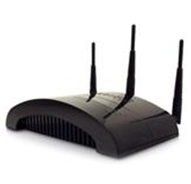
These look very similar to a router and pick up your Wi-Fi signal and rebroadcast it with renewed strength. The repeater connects to your wireless router as a regular client, getting an IP address over DHCP much like your regular laptop or PC.
- Position: I suggest following our first tip of part 1 of this guide to determine weak spots of your wireless router. Place the repeater close to this spot but make sure that it’s able to pick up a good signal (80% or more) from your main router. Otherwise it won’t be able to repeat a good quality signal.
- Hardware: When choosing a repeater, don’t be confused by the different names – some companies tend to name their repeaters as ‘Range extenders’ while others call them ‘Wi-Fi expanders’ or something similar. They are all the same. Simply make sure to pick one that rebroadcasts your 802.11n or ac signal and make sure that it’s compatible.
- Set up: Every manufacturer has different setup procedures but in general all that is needed is your network name and password.
Tip: Check out these resources for a general overview or this huge guide on how to use your router as a universal wireless repeater.
Optimize the Wi-Fi settings
There are many complicated settings on your router which can help you optimize the signal in your home. Unfortunately, every manufacturer offers different options under a different name, so we’ll just give a handful of hints that explain where to look and what to look for. Also there are some settings that you should check to see if they are set at their default values:
- 5 Ghz Wireless Mode: If your router and adapter uses it, I’d recommend setting up a 5 Ghz Wi-Fi network instead of the regular 2.4 Ghz. Devices that support this mode are known as ‘Dual-band’.
Since most Wi-Fi routers communicate at a frequency of 2.4 Ghz, using the less common 5 Ghz mode might give you a better throughput.
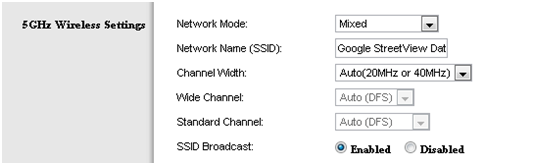
To enable a 5 GHz connection, go to your router configuration page (normally shown on the device) and find your wireless settings. If you can see an option for a 5 GHz connection, enable it!
- RTS Threshold: RTS stands for ‘Request to send’ and is send by the client to the access point – it essentially asks for permission to send the next data packet. The lower the threshold, the more stable your Wi-Fi network, since it essentially asks more often when sending packages. However, if you don’t have problems with your Wi-Fi you should make sure that the RTS Threshold is set to the maximum allowed:
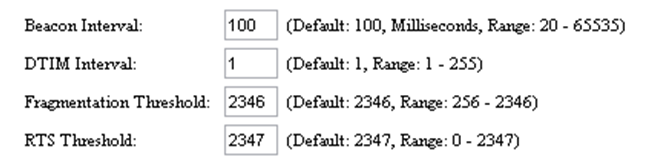
To do this, go to your router configuration and try to find the ‘RTS Threshold value’ in the wireless settings and set it to 2347. Lower this value only if you are experiencing problems with your network (drop outs etc).
- Fragmentation Threshold: This value is used to set the maximum size of packet a client can send. Smaller packets improve reliability, but they will decrease performance. Unless you’re facing problems with an unreliable network, reducing the fragmentation threshold is not recommended. Make sure it is set to the default settings (usually 2346).
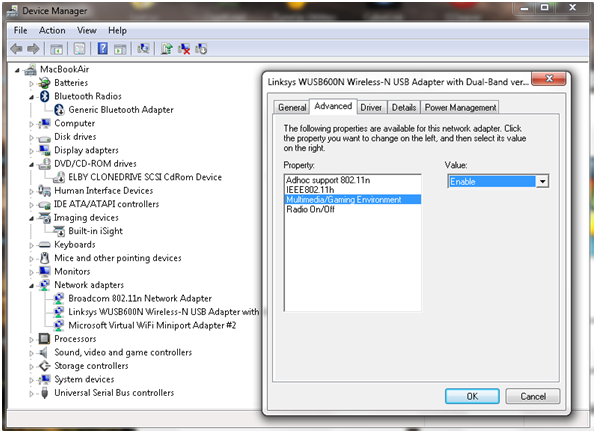
- Enable Multimedia/Gaming settings: Some wireless adapters can either be configured either for regular use or for gaming/multimedia. If you’re streaming video or playing games, enabling this will make sure that network packets for these are prioritised! In other words: If you’re watching a video file over your network, the video will get most of the traffic.
Benchmark and diagnose your Wi-Fi
This tip is not an optimization technique per se but it’s a great way to determine if our tips so far have had a positive effect on your network. Free ‘QCheck’ is a great tool that will show you the response time, throughput and streaming performance of your wireless setup. You can easily get it from this website after you filled out a short form.
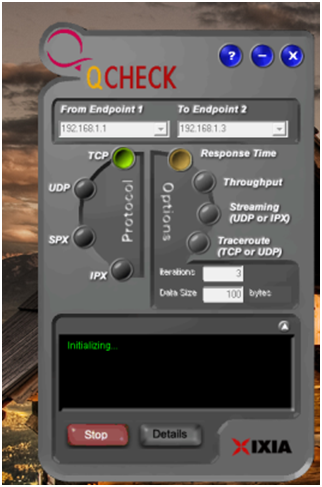
Enter your IP address under ‘Endpoint 1’ and another IP address in your network under ‘Endpoint 2’ to test the speed. This will give you important information when trying to optimize your Wi-Fi with our tips.
Replace your antenna!
Some router manufacturers sell external antennae that are much stronger than the router’s built-in antenna. If your signal is weak in places (and all our other tips have failed), then you’ll need to check if your manufacturer sells either omnidirectional or directional antennae:
- Omnidirectional: Sends out a signal into all directions. By default, most built-in antennas are omnidirectional. If an omnidirectional antenna is your choice, make sure to look out for a longer one with ‘high gain’.
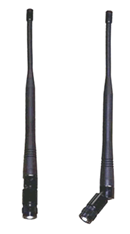
- Directional antenna: This kind of antenna sends a good wireless signal in a certain direction instead of spreading it in all directions, improving the performance in the target area. It’s like pointing a flashlight in a certain direction instead of using your regular ceiling lamps!
To connect a new antenna, you’ll usually use the SMA connector or MMCX. For more on wireless antennae, I can highly recommend the ‘Do-It-Yourself Wireless Antenna Update’ website by BinaryWolf. You’ll find great how-to guides and hardware recommendations that’ll help you pick the best antenna and the right setup!
That’s it! Using these tips and tricks will definitely improve your Wi-Fi performance and experience – if you’ve got another tip that you use to boost your wireless network let us know!

How to protect yourself from phishing attacks
Phishing emails and instant messages attempt to lure you with bait, just like with fishing in the real world, which is where the term phishing originated.
Just like a real fish, as you learn to identify the types of phishing bait being used, you’ll drastically reduce your chances of getting caught.
Successful phishing scams utilise three tricks to catch victims:
Urgency
Threatening you with a consequence if you don’t act.
e.g. “A request to terminate your account, or a claim that it’s about to be suspended.”
Curiosity
Offering you some juicy bait, tempting you to act.
e.g. “Attached is a company report that contains the salary information of your colleagues.”
Familiarity
Tricking you into acting thinking it’s from someone you know.
e.g. “There’s an important message from someone waiting for you online.”
Armed with this knowledge you’ll be more alert to suspicious emails and messages when they land in your inbox.
#1: Check the facts before acting
Verifying the authenticity of a message can be a challenge- especially if the sender’s email or social media account has been hacked.
Here are two easy ways to check whether or not the message is a scam.
- If you know the sender, contact them using another service (email, social, phone etc) to check that their message is legitimate.
- If not, enter the subject line or some other small part of the message into your favourite search engine.
If your search reveals others who have reported this message, or are asking questions about its authenticity then you’ve proven two things – first, you’re not alone and second, it probably is a phishing, scam or hoax email.
#2: Make sure it is safe
A phishing email or instant message typically contains a web link (URL) to click on, and in the case of an email possibly even an attachment of some kind.
Check out this video to learn how to tell if it’s a bad link or not:
Video
Video: How To Tell If A Link Is Safe
However, it’s worth emphasising that knowing if a link is truly “bad” before you click isn’t a perfect science, and often security professionals can’t even tell until they visit it.
If there’s an attachment on the email you need to be particularly careful NOT to open it. Believe it or not, even PDF and Word files can be infected! If you weren’t expecting the file, don’t open it. No exceptions.
A great way to help with these safety checks is to protect your devices with antivirus software which will scan all files and attachments for malware and even scan links to check they are safe.
#3: Report it
Lastly, if you do spot a phishing email, be a good online citizen and consider taking the time to help out by immediately reporting it directly to the legitimate organisation or person that’s being impersonated.
Many large companies, particularly banks, have websites dedicated to providing further resources and information about how to stay safe from phishing, along with ways to report phishing cases to them, and also examples of recent scams that are circulating.
Each and every one of us has the ability to improve the lives each other online, so make sure you share this information on how to stop phishing with those you care about.
Until next time, stay safe out there.
Bugtraq: Unauthenticated Reflected XSS vulnarbility in Asus RT-N10 Plus router
Unauthenticated Reflected XSS vulnarbility in Asus RT-N10 Plus router
Bugtraq: [SECURITY] [DSA 3144-1] openjdk-7 security update
[SECURITY] [DSA 3144-1] openjdk-7 security update
Bugtraq: NEW VMSA-2015-0002 VMware vSphere Data Protection product update addresses a certificate validation vulnerability
NEW VMSA-2015-0002 VMware vSphere Data Protection product update addresses a certificate validation vulnerability
Bugtraq: Symantec Encryption Management Server < 3.2.0MP6 – Remote Command Injection
Symantec Encryption Management Server < 3.2.0MP6 – Remote Command Injection