Off-by-one error in sdcard/sdcard.c in Android 4.x before 4.4.4, 5.0.x before 5.0.2, 5.1.x before 5.1.1, and 6.x before 2016-06-01 allows attackers to gain privileges via a crafted application, as demonstrated by obtaining Signature or SignatureOrSystem access, aka internal bug 28085658.
Monthly Archives: June 2016
CVE-2016-2495
SampleTable.cpp in libstagefright in mediaserver in Android 4.x before 4.4.4, 5.0.x before 5.0.2, 5.1.x before 5.1.1, and 6.x before 2016-06-01 allows remote attackers to cause a denial of service (device hang or reboot) via a crafted file, aka internal bug 28076789.
CVE-2016-2496
The Framework UI permission-dialog implementation in Android 6.x before 2016-06-01 allows attackers to conduct tapjacking attacks and access arbitrary private-storage files by creating a partially overlapping window, aka internal bug 26677796.
CVE-2016-2498
The Qualcomm Wi-Fi driver in Android before 2016-06-01 on Nexus 7 (2013) devices allows attackers to bypass intended data-access restrictions via a crafted application, aka internal bug 27777162.
CVE-2016-2499
AudioSource.cpp in libstagefright in mediaserver in Android 4.x before 4.4.4, 5.0.x before 5.0.2, 5.1.x before 5.1.1, and 6.x before 2016-06-01 does not initialize certain data, which allows attackers to obtain sensitive information via a crafted application, aka internal bug 27855172.
CVE-2016-2500
Activity Manager in Android 5.0.x before 5.0.2, 5.1.x before 5.1.1, and 6.x before 2016-06-01 does not properly terminate process groups, which allows attackers to obtain sensitive information ia a crafted application, aka internal bug 19285814.
DSA-3601 icedove – security update
Multiple security issues have been found in Icedove, Debian’s version of
the Mozilla Thunderbird mail client: Multiple memory safety errors may
lead to the execution of arbitrary code or denial of service.

NSA wants to Exploit Internet of Things and Biomedical Devices
The cyber attack vectors available to hackers will continue to grow as the Internet of Things (IoTs) become more commonplace, making valuable data accessible through an ever-widening selection of entry points.
Although it’s not the hackers alone, the NSA is also behind the Internet of Things.
We already know the United States National Security Agency’s (NSA) power to spy on American as well


Netgear Router Update Removes Hardcoded Crypto Keys
Netgear on Friday released firmware updates for two of its router products lines, patching a hardcoded cryptographic key and an authentication bypass flaw that were reported six months ago.

5 Great Ways To Reduce Mobile Data Usage
Most mobile data plans aren’t unlimited: If you’re constantly hitting your provider’s data limit, these insights & tips will help you greatly reduce your 3G/4G traffic usage on the go.
If you’re not on an unlimited 4G data plan, hitting those 500 MB, 1 GB, or 5 GB limits isn’t hard. I did a test with some typical on-the-go tasks to see how much traffic went through the airwaves:
– 60-minute music streaming while driving (high quality, Spotify): 101.2 MB
– 45 Minutes of Netflix at night (HD): 471 MB
– 30 minutes of YouTube during lunch breaks (480p, medium quality): 113 MB
– 15 content heavy websites throughout the day: 27 MB
All of these seemingly trivial activities amounted to 712 MB. Sure, Netflix isn’t something most people stream every day through their mobile service. But it’s not uncommon to watch a TV show on the train or the bus once in a while. Nor is browsing the web or listening to Spotify.
That’s why hitting the data limit of 1 GB, 2 GB, or 5 GB (depending on your plan) is relatively easy if you’re not on Wi-Fi at work or at home. Once that happens, your provider will likely throttle you back to 1997 web speeds (mostly 64kb/s or a limited EDGE rate).
Here are some things you can do to limit your mobile traffic and understand why you hit that mobile limit.
#1 – Pick the right plan!
As the tech guy among friends and family, one of the most common questions I get is “What plan do I pick? The more expensive Unlimited option at $70? Or the 1 GB for $19 or the 5 GB for $39?”
Well, it’s not an easy answer, as it depends on how much you want to do online. My advice is to spend half an hour using a data estimator tool. One example is Wirefly’s Data Plan Estimator: http://www.wirefly.com/content/phone-data-plan-information. There are others out there, but this one does a decent job and is accurate.
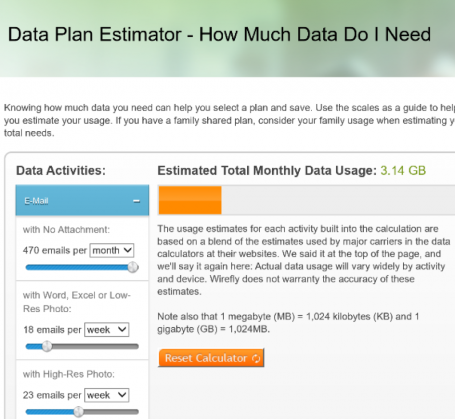
Pick your plan based on the estimated monthly usage, add another 1-2 GB as a buffer, and you’ll be worry-free.
#2 – Limit your mobile usage and set yourself a warning
Android devices give you a built-in mechanism that allows you to automatically turn off mobile data when you reach a certain limit. It also gives you a warning once you hit a certain threshold. This is easy to set up. Go into Settings, tap on Data Usage, and move the sliders to your personal limit:
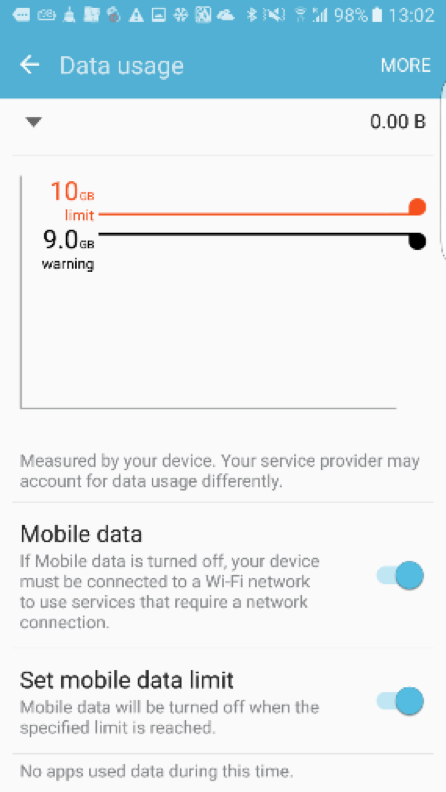
Flip the switch under Set mobile data limit.
#3 – Identify & stop the top traffic hogs
If you’re hitting your plan’s limit all too often, it’s high time you check which apps are actually responsible for this unnecessary drain. Some may be obvious and caused by your usage (e.g., if you stream Netflix all night, you will eventually hit the limit); others you may not be aware of.
Here’s where our free AVG Cleaner for Android comes in. Download it and let it analyze your apps behavior for a couple of days or a week. The APPS category shows the top Apps by usage; I was very surprised by which apps used up traffic over just two days.
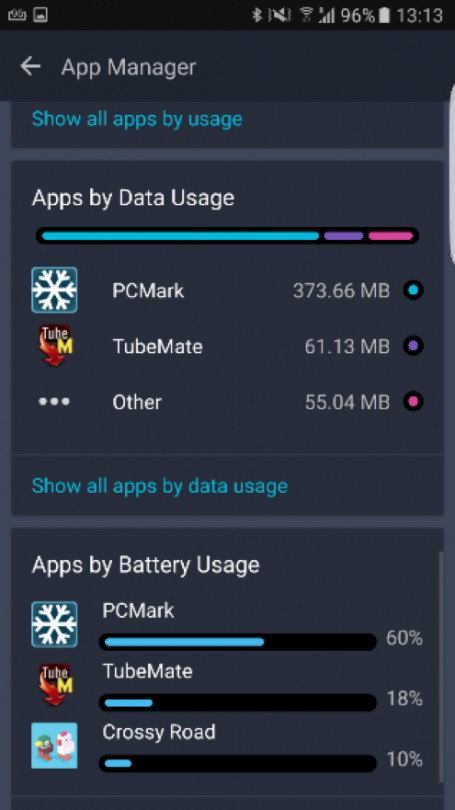
Oddly enough, I didn’t play Crossy Roads and I certainly did not download anything from TubeMate. These are the cases where you need to open the app and try to figure out how to stop this secret consumption – or delete the app if you don’t need it anymore!
#4 – Navigate offline
Google Maps is probably my go-to tool to navigate when I’m on the road. Unfortunately, at the end of the day, it’s not surprising to see it consume a couple of hundred megs if you’re using it heavily, as map data can be quite large (see below). Luckily, Google Maps allows you to store map data completely offline, which is not just brilliant for reducing data traffic but also for situations when data navigation is unavailable.
Here’s how easy it works. Launch Google Maps and tap on the little three lines in the top left corner:
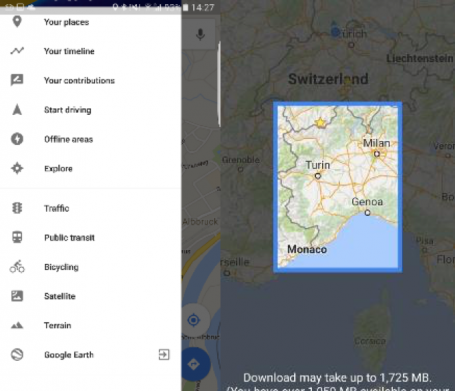
Tap on Offline Areas, hit the PLUS button and then select the area you’d like to use offline. This includes all POIs, all streets, everything.
#5 – Prevent auto-download of messenger photos & MMS
Using WhatsApp or other instant messaging apps? Well, if you’re like me, you’ll likely get auto-dragged into the oddest group chats and be the victim of countless of animated GIFs, photos, and videos. If you’re on 3G or 4G, turn them off to save some bandwidth.
In fact, we recommend turning off the auto-download feature completely, even on Wi-Fi, as a security measure. If you’re running older versions of Android that haven’t been patched for the Stagefright vulnerability, this auto-downloading feature can put you at risk.
But don’t worry, you won’t miss any messages. Turning these settings off just puts you in charge of deciding what gets downloaded onto your device. Look in the Settings of any messaging app to disable the auto-downloading feature. If your messaging app doesn’t have that control, we suggest getting a new one.
#6 – Use compression in your browser
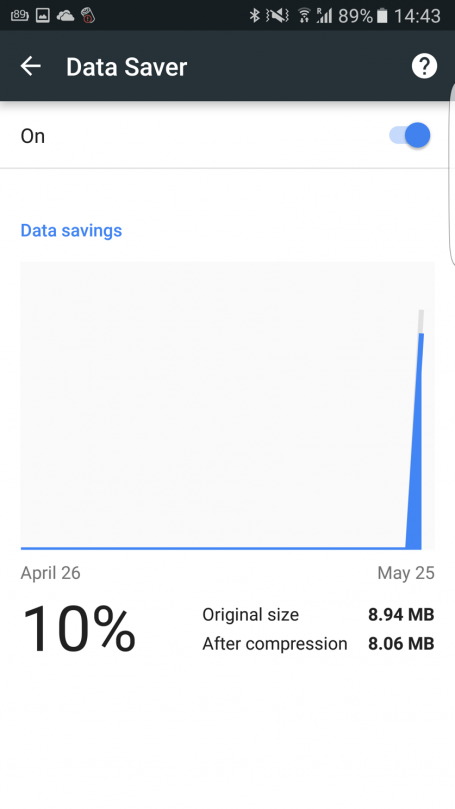
Most mobile browsers, such as Chrome or Opera, now sport compression features. Data will get rerouted through servers (e.g., Google’s), compressed, and then sent to you. You will notice that, for example, photos may look slightly fuzzier as JPGs as they will be compressed just a tad more. To turn it on, open your browser (Chrome in our example), and tap on Settings. Go to Data Saver and switch it on. The graph below shows that a single visit to The Verge that includes browsing a few pages resulted in a 10% data savings. Not bad!
There is a dark side to compression you need to be aware of. It also transfers your browsing history to whatever server is doing the compression and also disables any ad blocking.

