Category Archives: Panda Security

Panda Security

Why we should pay more attention to our Download folder

dowload

How many files have you got resting in your computer’s download folder? It’s normal that it gets filled with installation apps form all the different programs that we download from the Internet and then forget to delete. Although this seems harmless at first, what is certain is that it could lead to some serious problems for your computer.

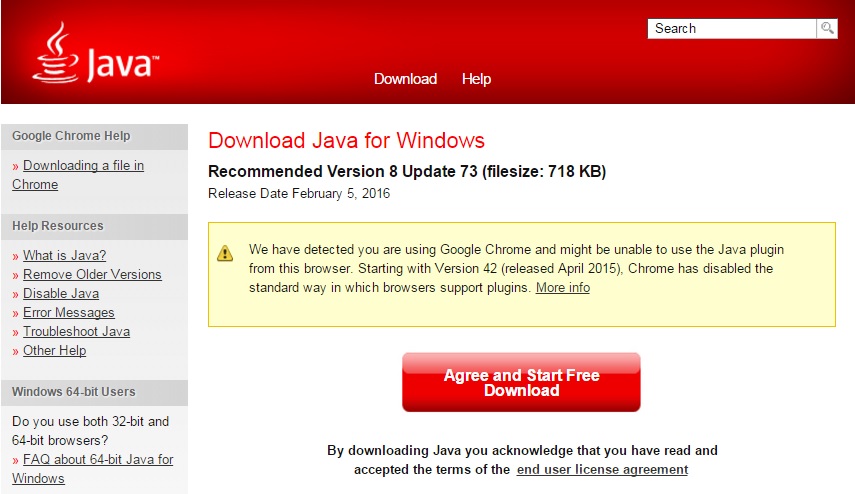
A recently detected vulnerability in the Java installation program, a platform that many applications and websites need to function correctly, has put this seemingly innocuous area at risk.

The Java software needs to update itself periodically with new versions so as to be able to maintain the performance and security of the tools that it helps to run.

Its distributor, Oracle, has warned of a security issue that affects the installation programs of the platform’s 6, 7, and 8 versions. The company has therefore advised its users to delete these programs from the download folder and replace them with new ones if necessary.

The reason given is that the installation software is designed to automatically search and load a set of files that are included in the installation pack (including its own .exe file) and to the  store them in the same folder.

Java

This procedure, which all installation programs carries out, shouldn’t pose a risk to your computer, as the majority of folders where they are stored aren’t vulnerable to attack. However, the “Downloads” directory is able to be modified.

If a cybercriminal manages to add this type of file (named Dynamic Link Library, or DLL), charged with malware, to the folder, the installation program will run it when the user wants to install Java for the first time, or if they manually update the tool by downloading a new installation program.

An added risk is that many browsers are set up to automatically download certain files, even if they don’t run later. Via an infected website, the attacker could use this feature to hide malware in the download folder without the user knowing about it. The files with malicious software would then be read to be executed by the installation program.

Deleting your browsing history would only help to eliminate the websites that you’ve visited, but not the programs that are already stored. Therefore, it is recommended that you delete the documents and software from your download folder every so often.

“Though considered relatively complex to exploit, this vulnerability may result, if successfully exploited, in a complete compromise of the unsuspecting user’s system”, says Eric Maurice, Head of IT Security at Oracle.

The post Why we should pay more attention to our Download folder appeared first on MediaCenter Panda Security.

Google to offer rewards to users who follow its security advice

security

Even though it’s for our own good, we are still struggling to follow classic security recommendations when surfing the Internet. We know how to create a secure password and the best way to avoid IT attacks and theft, but we don’t always put these tips into practice.

To ensure that web users are up-to-date with the latest security measures available, Google has decided to motivate them with a gift: all users who look after the security of their account will receive 2 GBs of storage on Drive.

The initiative, which was launched by the company to celebrate International Safer Internet Day, is actually rather simple:  all anyone needs to do is check the security of their Google account via this website and they’ll get more space on the cloud.

In just a few minutes, users can test the configuration of the two-step verification process, the information necessary to recover the account, and the applications that have permission to access it.

That means that, apart from testing the key elements for a secure account, users will enjoy extra storage space on the cloud. However, it isn’t the only thing that Google has up its sleeve to keep web users safe and interested in their own security.

Locks and question marks

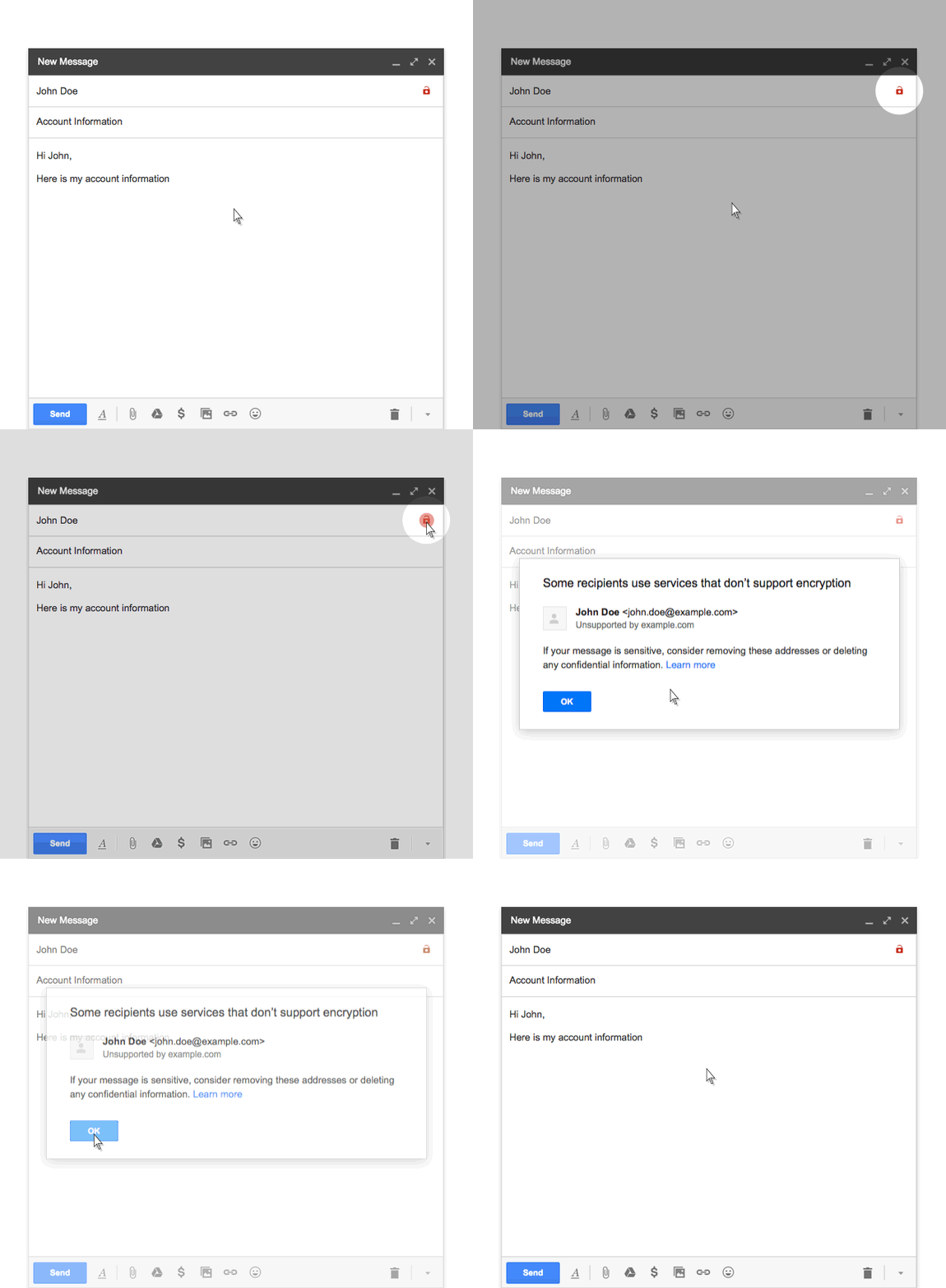
The owners of the popular search engine have decided to be brutal in showing us that not all services are as secure as theirs. As Gmail encrypts the content of sent emails, a small open lock will be shown every time that it isn’t possible to encrypt them, something which will happen when the platform used by the receiver doesn’t permit it.

keylock

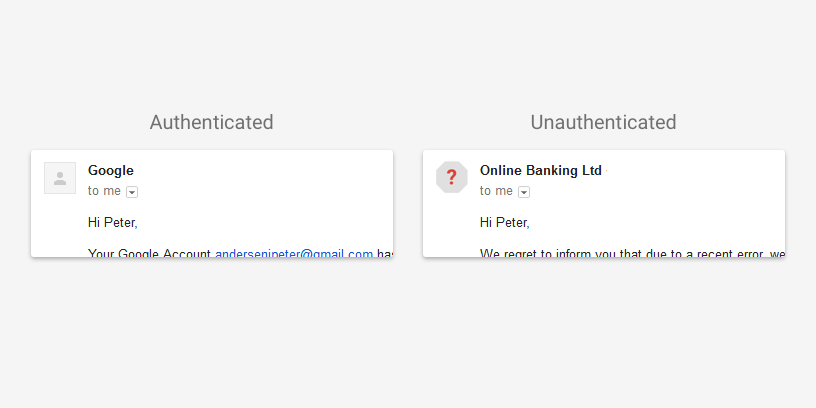
Also, Gmail will now display a question mark in place of the photo that shows who has sent us an email. It will only do this if it isn’t possible to verify the email address of the person we are talking to.

authenticated

However, this doesn’t mean that every email that Gmail users receive with the above features will be dangerous, but just that we should take extra caution before opening them.

What’s certain is that Google wants us to take the security of our data more seriously, and this time it’s going to offer us incentives to do so. Just remember, every little bit helps when it comes to staying safe on the Internet.

The post Google to offer rewards to users who follow its security advice appeared first on MediaCenter Panda Security.

10 cybersecurity basics that every business should tell its employees

office

As much as a company wants to protect its confidential information, the reality is that it’s usually the employees who shoulder most of the responsibility. The weakest link in the chain is always the human – it looks for shortcuts, is easily tricked, and sometimes doesn’t take the cautions that it should.

This is why it is important that employees know what to do to keep the company’s data and systems safe. Although some may seem like common sense, it’s fundamental that everyone is made aware of the rules and policies – not all members of your team will have the same experience, so you need to start with the most basic.

10 cybersecurity basics that every business should tell its employees

1. Confirm the identity of all that request information

This is especially useful for receptionists, call-center employees or tech support, human resources, and other professionals whose work requires the handling of personal information. Attackers take advantage of the naivety and good faith or these workers to get information in the simplest and most obvious of ways: asking for it. They do this by pretending to be providers, customers, or other members of the company that have a legitimate reason to require the information.

It’s very important that your team knows these tactics and that they make sure that the person on the other end of the phone or email is who they say they are before any information is shared.

2. Always keep passwords safe

If we take care of our own personal passwords that we use daily then we should give even more care to the ones we use to access corporate information. First of all, follow recommended steps to creating a secure passwords: don’t use the same one for different accounts, avoid ones that contain obvious personal information (birthdays, phone numbers, pet’s name, favorite football team, etc.), and ensure that it is made up of numbers and letters, with a combination of upper and lower case letters for good measure.

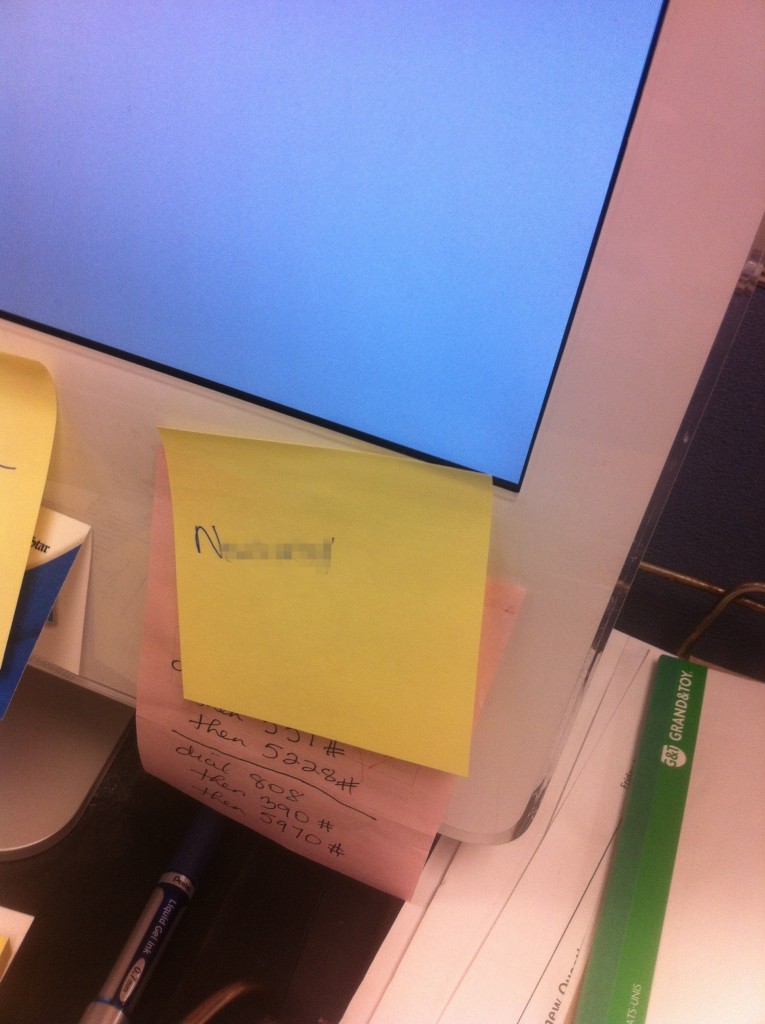
Also, in a corporate context, it is important that employees avoid keeping the Wi-Fi code written down anywhere (like on a post-it, for example). Finally, and returning to the first point, never reveal your password to anyone that asks for it by phone or email, even if they claim to work in the technical department of your company or the company which provides the relevant service.
postit

3. Your hard drive is foolproof

Saving information related to your business or customers on the computer’s hard drive is, in general, a bad idea. Computers are prone to breaking down and are exposed to attacks that could lead to the loss of valuable information. Laptops are also susceptible to theft or loss. It’s better to ask employees to save files on the company’s servers – if there are any – or on a cloud service.

If they simply must save something on the hard drive, it is essential that they make a security copy every so often to be able to recover the file should anything happen.

4. Security copies don’t mean a thing if they’re lost

It, again, may seem like common sense, but it happens more often than you’d think. If workers are using a laptop and make copies on a USB, it is fundamental that don’t store them together or carry them around at the same time. Just think about it, if you lose your backpack or it is stolen, and both the laptop and USB are inside, well then you’ve lost both copies.

5. Storage and sharing of information via the Internet

As we said, the best solution when a company can’t store internally is to look for a cloud service, be it for storing originals or copies. In general, cloud service providers are better prepared than a small or medium business to face any type of incident, such as cyberattacks.

However, there are some risks associated with the use of online tools which are similar to the ones mentioned above. The security and confidentiality of data that is stored virtually depends on the password used by the employee, so it’s vital that this isn’t shared with anyone who may have malicious intentions. Also, documents should never be uploaded to personal accounts, the cloud service shouldn’t be accessed from unprotected computers or via insecure connections, etc.

6. Email

One of the main tools that cybercriminals use to sneak into an organization and steal information is email. If you employees have a corporate account, the first thing that you need to do is make sure that they don’t use it for personal reasons nor should they use it on public forums or public websites, for example. It’s very easy for the email to end up on a spam list which could mean receiving emails that are not only annoying, but could end up being dangerous.

In general, the best advice that you can give your employees about emails is that they never respond to an email that comes from an unknown or suspicious source. They should also avoid opening or downloading any attachments from these sources as they may contain malware which can affect not only their computer, but possible the company’s entire network.
email

7. Don’t install programs from unknown sources

Again, they should only trust in what they already know. It’s normal that companies restrict what employees can and can’t install on their computers through the operating system’s permissions. However, if they are able to run new software on their computers, you must ask them to avoid downloading from suspicious webpages. In fact, they shouldn’t even browse them. The web browser is also an access point for some criminals.

8. Be careful with social media

The most recent, and thus unknown, risk is social media. What workers get up to on Facebook or Twitter while at work could be damaging to the company, never mind resulting in lower productivity. Not long ago we warned of the alarming rise in the number of selfies taken in critical infrastructures, which were then found posted on Instagram.

9. A good antivirus

Before using any computer or mobile device, the first thing you should do is install a good antivirus. If this step is important for home users, its importance for corporate users is enormous. A security solution that is especially designed for businesses protects computers and company data in a multitude of circumstances, even when the employees commit an error.

10. The easiest way isn’t always the safest

This point isn’t just for the workers, but rather aimed at the employers: if you make things too difficult for them, they will find a way to work around your security measures. Everything that we’ve explained to you is common sense and very important, but don’t go overboard.

If you ask them to changer their password every week, prepare yourself for the inevitable deluge of post-its stuck to monitors. If accessing a tool that they use for their work becomes too complicated for security reasons, they will use a different one (or, worse yet, one they already have for personal use). If they don’t know how to save files how you’d like, they will find their own way, which might end up being insecure.

So, a middle ground between security and complexity is necessary so that your employees play their part and listen to these tips. They may be your greatest allies or your worst enemies, but only you can choose which.

The post 10 cybersecurity basics that every business should tell its employees appeared first on MediaCenter Panda Security.


10 memory tricks for creating safe and easy-to-remember passwords

keylock

You’re probably sick of hearing how important it is to follow certain steps when creating passwords, but we assure you that it really is vital to keep them in mind. We also recommend that you change them every so often, that you don’t use the same one for various accounts, and that they aren’t related to anything personal about you (birthday, favorite football team, pet, etc.).

This is all common sense and we won’t stop reminding you, but we are also aware that remembering so many different, complex passwords is difficult. Because of this, we have some little tricks to share with you that will help you remember all of those tough-to-guess passwords!

1. Think of a sentence

Think of a saying or sentence that means something to you and, if possible, only you. It shouldn’t be too short, as it shouldn’t be easily guessable, nor so long that you forget it. If it contains upper and lower case letters, great. Symbols? Even better. “In the local pub the beers are €4”, for example. Now, take the first letter from each word and you get “Itlptba€3”, which is a good password. If you can’t think of anything maybe use the title of your favorite song, for example.

2. Combine two words

Choose two words (again, best if they only mean something to you) and make a different word by mixing up the letters. If you have chosen “Beards” and “Lighters”, the base for your new password will be “BLeiagrhdtsrs”. It doesn’t contain any numbers or symbols, but you can easily strengthen it by following some more examples that we’ll tell you about below.

3. Turn vowels into numbers

This is a trick that cybercriminals already know about, but it could work well as an extra to a different password method. Taking the previous example, our password “BLeiagrhdtsrs” becomes “BL314grhdtsrs”. Adding a few symbols would make it perfect to use.

4. Remove the vowels

Instead of replacing them with number such as in the previous example, we can remove the vowels completely. If we use our invented word “BLeiagrhdtsrs”, the password would turn out to be “BLgrhdtsrs”. Just be sure to add some extra numbers and symbols to make it even more secure.

password

5. The keyboard trick

Once again, this one consists of removing something. First of all, choose a sequence of numbers that is easy to remember (a postal code, for example), so imagine that we end up with 28921. Now, look for the numbers on the keypad and instead of using numbers, use the letters just beneath them: “2wsx8ik9ol2wsx1qaz”. To make it a little more complicated, you can change one of the characters for a symbol and put some into upper case.

6. Mix a number and a word together

This one is easy, so let’s imagine we use the word “Beards” and the number “28921”. So if we join them together, one letter and number at a time, and in reverse, we end up with “B1e2a9r8d2s”. All that’s missing is a symbol and you’re good to go.

7. Use the account as a base

Using the same password for various accounts and websites is a terrible idea, but a simple trick could turn your go-to password into one that could work for different accounts. For example, if you want to sign up to Facebook you could add “FB” to the start or end of the password. You could also try a variation of the website’s name by mixing upper and lower cases, symbols, and numbers until you have a password that you like. If we stick with the examples from above, we would end up with these two versions:

ElbdJptga3€_FB

F4c3b00k_ElbdJptga3€

8. Roll a dice

This system is a little more elaborate, but if an 11-year-old girl can do it, there’s no reason why you can’t. The method used, known as Diceware, generates completely random passwords – which are very strong and secure – by rolling a dice and a list of words. You can check it all out here and see what you think.

9. Sudoku style

This will involve you getting creative, so grab a pen and paper and draw a 6×6 square, with random numbers in each of the blocks. Now think of how you move your finger on your phone’s screen when unlocking it, and move your fingers over the Sudoku that you’ve just drawn. The numbers that you’ve just traced over will form the basis for your password, which you can add some letters and symbols to.

This might just be the best method on the list. If you change the numbers that you have placed in the blocks, the same movement with your finger will give you a new code. So by just remembering the movement and keeping the innocent looking piece of paper, you’ll have an infinite source of passwords.

sudoku

10. Final tip: don’t follow the crowd

Some attackers aren’t just clever, but they also dedicate a lot of time to thinking about how to guess passwords. They know all of these methods, so your ability to out-smart them depends on how you combine the different letters or numbers that form the base of your password. So, try to think a little outside the box, as the more unconventional your password, the harder it is for them to guess it.

The post 10 memory tricks for creating safe and easy-to-remember passwords appeared first on MediaCenter Panda Security.
Cryptolocker ‘Locky’. How it works

We don’t know if you’ve heard of the new Cryptolocker which is called ‘Locky’…

It works as follows:

  • It arrives by mail and the attachment is a Word document with macros.
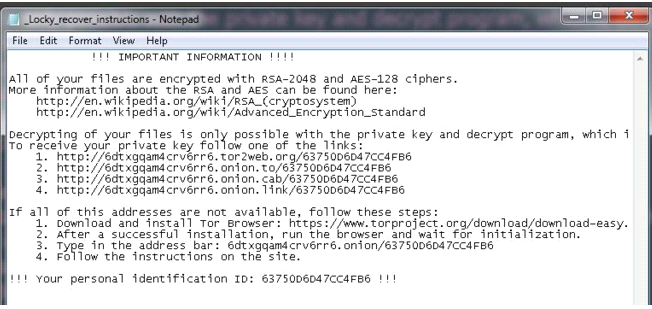
  • Upon opening the document the macros infects the computer.
  • It deletes any security copies that Windows has made and starts to encrypt the files.
  • Once finished, it opens a file called “_Locky_recover_instructions.txt” in the notepad.

 locky

In fact, if we suspect that we have been attacked by Locky we can look for one of these files in our computer – if they’re there, then we know Locky has paid us a visit:

  • “_Locky_recover_instructions.txt”
  • “_Locky_recover_instructions.bmp”

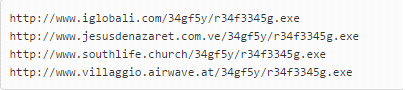
When the Word document that started the infection is opened, it downloads Locky, and what we have seen is that in all cases the malware comes from a legal website which has been compromised. It is there that the malware is stored. These are some of the URLs hosting malware:

locky ransomware

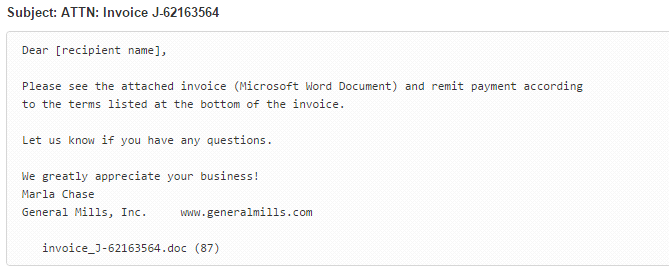
The email that it comes attached in is the following:

locky cryptolocker

In this case, the attached Word is called invoice_J-67870889.doc

Some of the variants that we have seen used PowerShell to carry out the downloading and running of Locky from the macro, with the rest of it being the same.

The post Cryptolocker ‘Locky’. How it works appeared first on MediaCenter Panda Security.

10 Tips to Prevent Phishing Attacks

phishing bank

As you know, phishing is a technique that involves tricking the user to steal confidential information , passwords, etc, into thinking you are a confidential site.

So far the hackers have used emails to launch this type of attack, but with the widespread use of social media networks and smartphones with internet access, the types of attacking are multiplying.

These emails include a link that takes the user to site known to have a confidential website, but they’re mere mimics with zero confidentiality.

Thus, overconfident users who do not have adequate antivirus protection, could be involved in attacks that are aimed to steal personal data.

And because of the economic crisis which is unfortunately affecting several countries, phishing attacks attracting people with the promise of a great job or an easy way to get money.

The question is … How can we prevent this type of phishing attack? 

10 Tips to Prevent Phishing Attacks

1. Learn to Identify Suspected Phishing Emails

There are some qualities that identify an attack through an email:

  • They duplicate the image of a real company.
  • Copy the name of a company or an actual employee of the company.
  • Include sites that are visually similar to a real business.
  • Promote gifts, or the loss of an existing account.
2. Check the Source of Information From Incoming Mail

Your bank will never ask you to send your passwords or personal information by mail. Never respond to these questions, and if you have the slightest doubt, call your bank directly for clarification.

3. Never Go to Your Bank’s Website by Clicking on Links Included in Emails

Do not click on hyperlinks or links attached in the email, as it might direct you to a fraudulent website.

Type in the URL directly into your browser or use bookmarks / favorites if you want to go faster.

4. Enhance the Security of Your Computer

Common sense and good judgement is as vital as keeping your computer protected with a good antivirus to block this type of attack.

In addition, you should always have the most recent update on your operating system and web browsers.

5. Enter Your Sensitive Data in Secure Websites Only

In order for a site to be ‘safe’, it must begin with ‘https://’ and your browser should show an icon of a closed lock.

6. Periodically Check Your Accounts

It never hurts to check your bank accounts periodically to be aware of any irregularities in your online transactions.

7. Phishing Doesn’t Only Pertain to Online Banking

Most phishing attacks are against banks, but can also use any popular website to steal personal data such as eBay, Facebook, PayPal, etc.

8. Phishing Knows All Languages

Phishing knows no boundaries, and can reach you in any language. In general, they’re poorly written or translated, so this may be another indicator that something is wrong.

If you never you go to the Spanish website of your bank, why should your statements now be in this language?

9. Have the Slightest Doubt, Do Not Risk It

The best way to prevent phishing is to consistently reject any email or news that asks you to provide confidential data.

Delete these emails and call your bank to clarify any doubts.

10. Check Back Frequently to Read About the Evolution of Malware

If you want to keep up to date with the latest malware attacks, recommendations or advice to avoid any danger on the net, etc … you can always read our blog or follow us on Twitter and Facebook . Happy to answer any questions you may have!

The post 10 Tips to Prevent Phishing Attacks appeared first on MediaCenter Panda Security.
Honey, they’ve hacked the TV: The security callenges facing Smart TVs.

remote control

If Facebook and many more Internet platforms are capable of showing personalized ads on your computer according to your online behavior, why shouldn’t the same be true for our smart TVs? Paul McMillan, a German security expert, has proven that smart TVs are so smart that they can analyze the programs or films that you watch so as to be able to choose ads that might interest you.

McMillan realized this while watching the film Inglorious Basterds on his Samsung device. A few minutes after starting, a pop-up appeared which invited him to join the army.

It isn’t the first time that someone has reported that these intelligent devices display publicity adapted to each user. However, to know their preferences, they need to analyze videos that are watched every day. So will they install a system to recognize the different content being watched?

The German investigator wanted to check if the ad continued to be shown despite changing the origin of the video. He used the same platform (via Amazon), but connected his computer to the television and watched the film from there. The pop-up returned again, meaning that the process depending on Samsung and not on the content provider.

Consumer Reports, which tests and analyzes new products, has already warned that smart televisions use an automatic content recognition system, which monitors videos that are watched, be it from YouTube or on DVD.

The companies could be sending this information to third-parties, which could include consultancy and publicity firms, who are both very interested in creating personalized advertising.

In general, it’s not businesses such as Samsung or LG who do this sneaky surveillance. What they do with user information should appear in their use and privacy policy, although they know that not many people bother to read it, and those that do most likely won’t understand a lot of the jargon. With these documents, companies leave open the possibility to insert ads directed at every type of audience.

However, the audience doesn’t need to accept everything that is thrown at them. Samsung has already faced complaints over its supposed use of voice recognition systems on its TVs to spy on conversations. In its service conditions, it stated that user should be careful with their words, as this and other information was being shared with third-parties.

smart tv

At the start of 2015, Samsung began to show Pepsi pop-ups on applications for streaming videos. The company brushed this off by saying that the ads formed part of a collaboration with Yahoo and that they were optional. The customer could disable the ads in their settings, but Samsung had previously failed to advise anyone of this.

In the case of LG, a British developer discovered that its smart TV collected information about user habits via the “smart ad” function and saved this information on the company’s servers (something which also appears in its terms of use).

Vizio, a manufacturer what operates mainly in the USA, also admitted that its televisions can recognize the content of the screen, which in the future could be used to send “ads in line with your interests”.

All of these firms earn money in exchange for advertising, which in turn allows them to sell their products at a more competitive price. However, their practices have placed security experts around the world on alert.

Nobody has asked their customers, whose only option (until now) seems to be in looking through the TV’s settings to find how to disable the ads. Will there be an ad blocker for smart TVs in the future?

More | Smart TVs have become the new target for cyber criminals

The post Honey, they’ve hacked the TV: The security callenges facing Smart TVs. appeared first on MediaCenter Panda Security.
The 5 best online services to sign up to

Few things give us more piece of mind than signing up for a service that you can cancel whenever you want and at no extra cost.

What we all want is to be able to try it out during a certain period and, if we like it, sign up for it fully. If after a few weeks we realize that the service doesn’t offer us what we need, we also want to be able to unsubscribe just as easily as we signed up.

This is why we want to present 5 of the online services that we use the most, although we’re sure you already know of a few of them.

The 5 best online services to sign up to

Netflix

PandaSecurity online services Netflix

You’ve surely heard of Orange is the New Black or House of Cards. Both of these give us a fair idea of what to expect if we sign up to this entertainment service. For a monthly fee you have multimedia content, especially TV series and films. You can try it for free and, later, sign up for a plan that best suits you.

Evernote

PandaSecurity onlines services Evernote

Taking something down on your phone and later forgetting it is there in front of us is something that happens to us all. If you want a solution to these mental lapses then Evernote is the tool for you. You can download it on any device and synchronize it across them. Also, if you want to use it on a more professional basis, it offers a professional version that allows you to scan business cards, edit PDFs, and save emails.

Spotify

PandaSecurity servicios online Spotify

It’s probable that you know the benefits of Spotify and that you’re already a user, but have you tried the Premium version? We recommend that you try out the free monthly trial, although we guarantee that you won’t be able to live without it after! You can download music, listen offline, avoid any ads, and most importantly, all of your music is stored in just one place.

Amazon

PandaSecurity online services amazon

If you’re already using Amazon for all your purchases, then you need to check out Amazon Premium. You can carry out all the purchases that you like and without having to worry about postage charges. As always, you can try it for free for a month and if you are convinced, become one of their millions of VIP customers. One thing, though… be careful with your purchases – with no postal charges, it’s very easy to go overboard on the purchases!

And, as we don’t want to miss out on all this, we invite you to try out our new online service:

Panda Protection Service

With Panda Protection Service you will have the best antivirus protection for an unlimited number of devices (computers, tablets or smartphones) and the advantage of being able to sign up for as long as you want. Forget about yearly subscriptions; Panda Protection Service’s monthly plan gives you total freedom and the first month even comes for free. You can also cancel your subscription whenever you want with no extra cost involved.

PandaSecurity online services panda protection service

Features of Panda Protection Service

  1. Protect your family
  • Control the browser for all your devices (PCs, tablets, mobiles)
  • Block inappropriate content
  • Protect your home network from intruders
  • Keep your photos and personal files private
  • Locate your devices at any time
  • Control the applications downloaded on your mobile devices
  1. Looks after your privacy
  • Keep your personal and banking data safe
  • Enjoy a real-time antivirus protection
  • Protect all your devices that are connected to a Wi-Fi network with instant alerts
  • Manage the passwords to all your accounts and always have them on hand
  • Remotely wipe your device in the event of loss or theft
  1. Optimize your devices
  • Know the location of your devices in real-time
  • Remotely block and delete files
  • Possibility of identifying the thief in event of mobile theft
  • Optimize the performance of your devices (PCs or mobiles) and improve battery life
  • Anti-theft system alerts

Also, as with all of our antiviruses, Panda Protection Service comes with the best security guarantee – should you get infected, we will offer a full refund.

Do you want to try our multiplatform antivirus for free?

The post The 5 best online services to sign up to appeared first on MediaCenter Panda Security.
Be careful with 1970! It could shut down your iPhone forever!

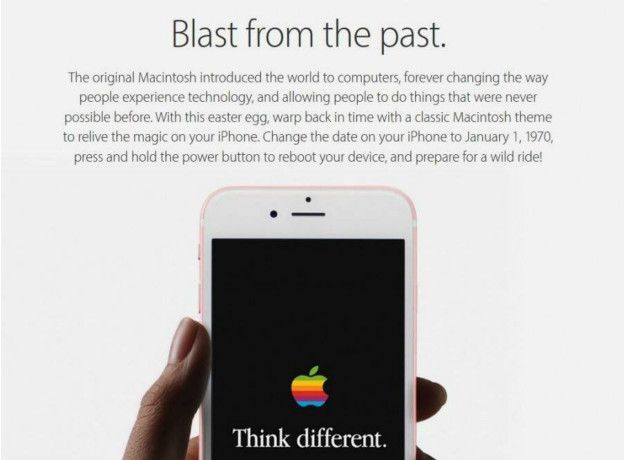
If you see this ad and suddenly want to take your iPhone back in time to January 1, 1970… don’t do it!

iphone 1970

The website 4chan, known for its memes, has shared a joke which claims that if you change the date on your iPhone to January 1, 1970 that the device’s interface will change to Apple’s vintage style. As you can imagine, this would likely render your iPhone completely unusable.

Apple has also stated, via its technical support team, that “manually changing the date on your iOS device to 1970 or before could make it impossible to restart your device”. Also, the company has promised that this problem will be solved with the next software update.

So, what can you do if you’ve already changed the date? Allow the battery to run out until the phone automatically shuts down, allowing for the phone to return to its normal state.

The post Be careful with 1970! It could shut down your iPhone forever! appeared first on MediaCenter Panda Security.

WhatsApp to advise users if they receive a dangerous file

WhatsApp is set to send a warning to users when they receive a dangerous file. The instant messaging application will introduce this feature during its next few updates, making the sharing of files a bit safer.

Under a new menu, named Documents, users will find a section which is similar to the current one which stores photos and videos that have been exchanged in the conversation. Now, however, there will be text documents, Excel files, presentations, and other office-style documents.

The danger of Excel files

As we’ve said on many occasions before, if you receive an Excel file by email then you should be suspicious. This is why Excel files require the permission of the user to run the file in a trusted mode, and this is exactly what WhatsApp is going to do, too.

whatsapp files

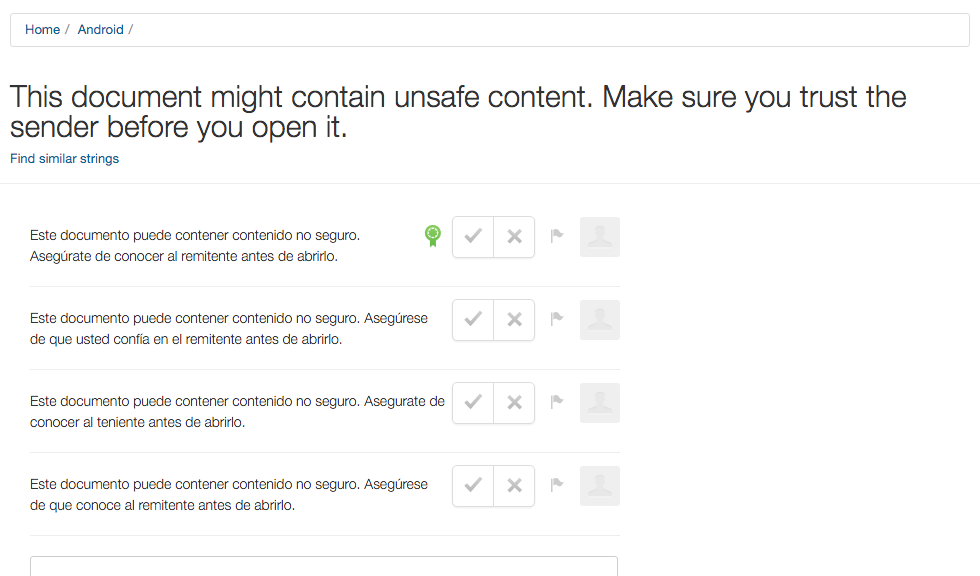
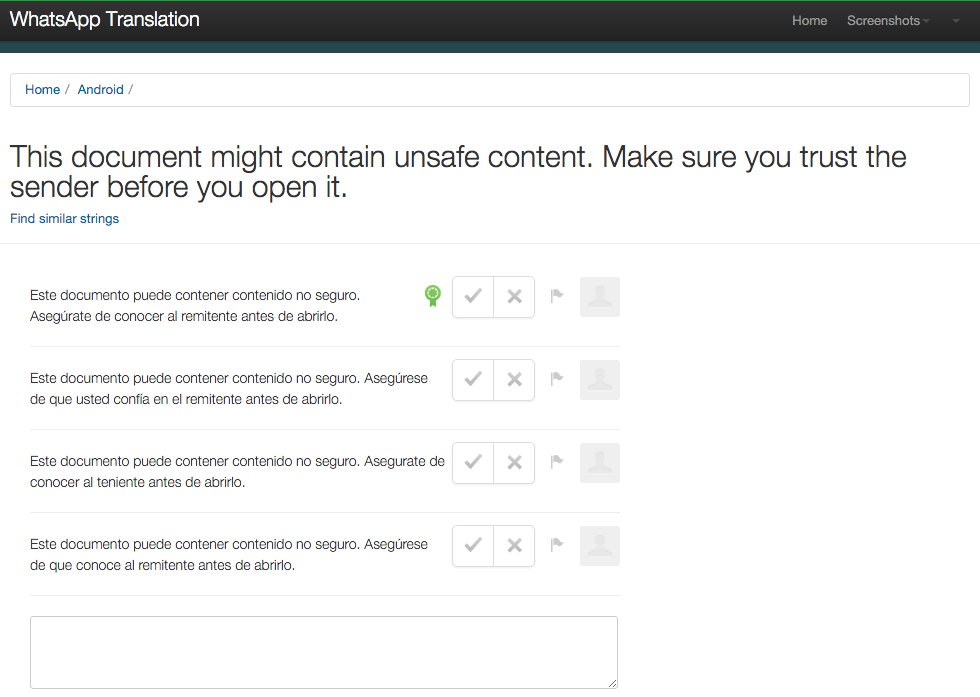
Once again, this piece of information has come from WhatsApp’s translation service. It seems that a security alert will appear before allowing you to run the office document.

By doing this, they hope to avoid the spread of malware via mobile devices. The message will be clear and direct – “This document might contain unsafe content. Make sure you trust the sender before you open it”.

This news confirms what we have always said: be careful with attachments and those that are sent via mobiles. Now, WhatsApp will also help us to remain a little more protected! 😉

The post WhatsApp to advise users if they receive a dangerous file appeared first on MediaCenter Panda Security.