HP Security Bulletin HPSBUX03166 SSRT101489 2 – A potential security vulnerability has been identified in the HP-UX running PAM using libpam_updbe in pam.conf(4). This vulnerability could allow remote users to bypass certain authentication restrictions. Revision 2 of this advisory.
Monthly Archives: February 2015
HP Security Bulletin HPSBUX03235 SSRT101750 2
HP Security Bulletin HPSBUX03235 SSRT101750 2 – A potential security vulnerability has been identified with HP-UX running BIND. This vulnerability could be exploited remotely to create a Denial of Service (DoS). Revision 2 of this advisory.
HP Security Bulletin HPSBGN03253 1
HP Security Bulletin HPSBGN03253 1 – A potential security vulnerability has been identified with HP Business Process Insight (BPI) running SSLv3. This is the SSLv3 vulnerability known as “Padding Oracle on Downgraded Legacy Encryption” also known as “Poodle”, which could be exploited remotely to allow disclosure of information. Revision 1 of this advisory.
14 easy tips to protect your smartphones and tablets – Part II
More easy things you can do to secure your smartphone and tablet.
On our blog last week, we shared the first 7 easy security measures to protect your Android devices and the data stored there. But we haven’t finished them. Let’s go a little further.
8. Keep an eye in your phone or, if you can, set Geofencing protection
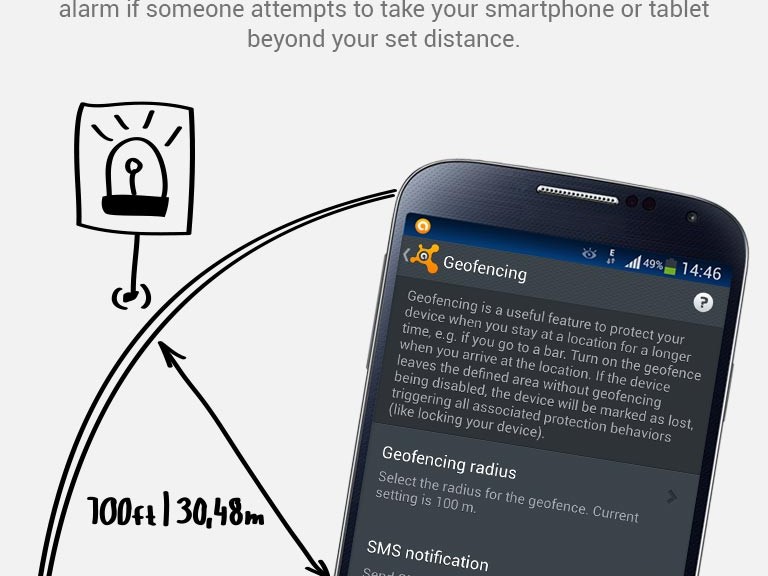
Don’t put your phone down and go somewhere else. And if you’re having fun in a bar and drinking a beer with friends, have a lucid thought before starting: Turn the Avast Geofencing module on. It’s easy. Open Avast Premium Mobile Security > Anti-Theft > Advanced Settings > Geofencing.
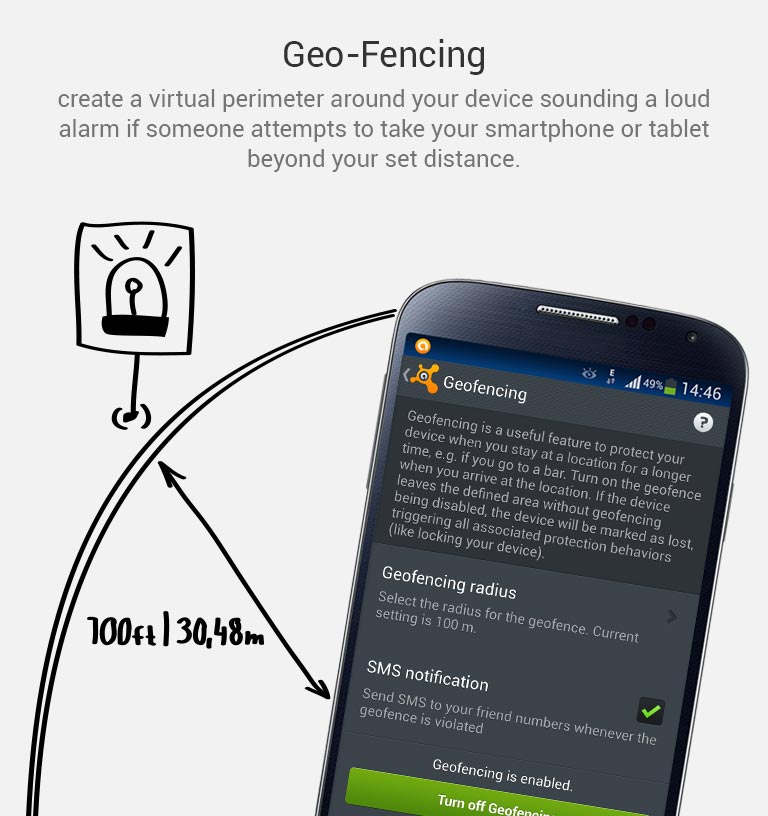
Set Avast Geofencing on your phone to protect it from theft while you are occupied.
9. Be aware of what permissions apps require
Why should a flashlight app need access to your contacts? Why would a calculator need access to your photos and videos? Shady apps will try to upload your address book and your location to advertising servers or could send premium SMS that will cost you money. You need to pay attention before installing or, at least, uninstall problematic apps. It’s not easy to find a way (if any) to manage permissions in a non-rooted Android phone.
We have written about this before as apps could abuse the permissions requests not only while installing but also on updating. Read more to learn and be cautious: Google Play Store changes opens door to cybercrooks.
10. Keep your device up-to-date
Google can release security updates using their services running in your devices. Developers can do the same via an app update. Allow updates to prevent vulnerabilities, the same as you do in your computer. But pay attention to any changes. See tip #9.
11. Encryption
You can encrypt your account, settings, apps and their data, media and other files. Android allows this in its Security settings. Without your lockscreen PIN, password or gesture, nobody will be able to decrypt your data. So, don’t forget your PIN! Nevertheless, this won’t encrypt the data sent or received by your phone. Read the next tip for that.
12. In open/public Wi-Fi, use a VPN to protect your communication
Cybercrooks can have access to all your data in a public, open or free Wi-Fi hotspot at the airport or in a cafe. Avast gives you the ability to protect all inbound and outbound data of your devices with a secure, encrypted and easy-to-use VPN called Avast SecureLine. Learn more about it here.
13. Set the extra features of Lollipop (Android 5)
If you’re with Android Lollipop (v5), you can set a user profile to allow multiple users of the same device. You can create a restricted user profile that will keep your apps from being messed with by your kids or your spouse.
You can also pin the screen and allow other users to only see that particular screen and nothing more. It will prevent your friends and coworkers from accidentally (or on purpose) looking into your device.
14. Backup. Backup. Backup.
Well, our last tip is common digital sense. If everything fails, have a Plan B, and C and D… With Avast Mobile Backup you can protect all your data: contacts, call logs, messages, all your media files (photos, musics and videos) and your apps (with their data if you’re rooted) in safe servers. If your device gets broken, lost or stolen, everything will be there, encrypted and safe, for you to restore to your new device.
Have you followed all our tips? Are you feeling safe? Do you have an extra protection or privacy tip? Please, leave a comment below.
CVE-2015-1564 (webgui)
Cross-site scripting (XSS) vulnerability in style-underground/search in Plain Black WebGUI 7.10.29 and earlier allows remote attackers to inject arbitrary web script or HTML via the Search field.
CVE-2015-1565 (compute_systems_manager, device_manager, global_link_manager, replication_manager, tiered_storage_manager)
Cross-site scripting (XSS) vulnerability in the online help in Hitachi Device Manager, Tiered Storage Manager, Replication Manager, and Global Link Manager before 8.1.2-00, and Compute Systems Manager before 7.6.1-08 and 8.x before 8.1.2-00, as used in Hitachi Command Suite, allows remote attackers to inject arbitrary web script or HTML via unspecified vectors.
CVE-2015-1566 (dotnetnuke)
Cross-site scripting (XSS) vulnerability in DotNetNuke (DNN) before 7.4.0 allows remote attackers to inject arbitrary web script or HTML via unspecified vectors.
CVE-2015-1567 (gd_infinite_scroll)
Cross-site scripting (XSS) vulnerability in the admin page in the GD Infinite Scroll module before 7.x-1.4 for Drupal allows remote authenticated users with the “edit gd infinite scroll settings” permission to inject arbitrary web script or HTML via unspecified vectors.
CVE-2015-1568 (gd_infinite_scroll)
Cross-site request forgery (CSRF) vulnerability in the GD Infinite Scroll module before 7.x-1.4 for Drupal allows remote attackers to hijack the authentication of users with the “edit gd infinite scroll settings” permission for requests that delete settings via unspecified vectors.
This is how a browser saves your password (and it is not secure)

It is much more convenient, of course. You are at work, in front of your computer, and the browser offers to memorize the passwords for the services that you use. Out of laziness, you give it the OK. Now you will not have to enter the passwords for your email, social network or favourite online store every day.
It is not only convenient for you, but in principle it is much more secure. If malware capable of capturing keystrokes (a keylogger) ever lands in your computer, it will not be able to disclose your passwords.
However, asking the browser you use at work to save your passwords could be a disastrous idea.
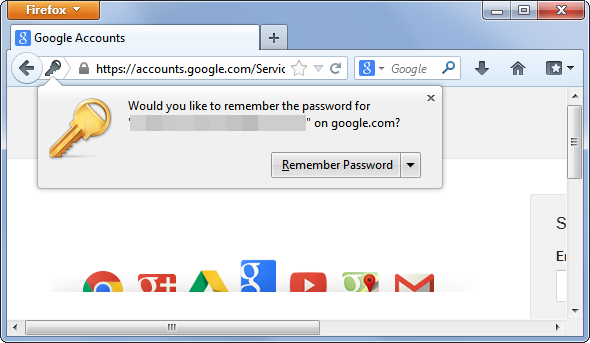
One of the weak points of storing passwords in your browser is that, obviously, it saves them somewhere. In addition, remember that you are at work and surrounded by colleagues. One of them could be waiting for you to get up from your workstation without locking your computer in order to carry out the famous David Hasselhoff attack on you (taking advantage that you are not there, someone changes your desktop wallpaper to the ‘Knight Rider’ star with very little on). If they can do this, bear in mind that they could do worse things.
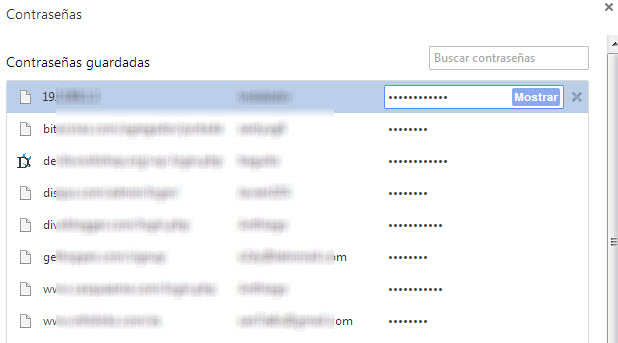
Without going any further, anyone could take advantage of your computer being unlocked to access the password file saved by your browser. It is not difficult, in Chrome you just need to go to chrome://settings/passwords to see the passwords that the browser has saved. A couple of clicks and anyone can find out how to access your mail, social networks, and every site for which you have decided to save the password through the browser.
However, leaving your computer locked does not guarantee that your passwords cannot be stolen. There are other methods.
There is probably a computer engineer working at your company. Do you get on well with him? If you had to think about the answer and you usually save your passwords in the browser, think twice about it. It is not that he is going to search you, but if he wants to give you a fright, he can.
Passwords stored by browsers are, in one way or another, on your computer. Even though they are encrypted and in a hidden place, with enough knowledge it is not so difficult to access them. The right malware could bring them to the surface.

Of course, remember too that not just any password will do. Worrying about where your passwords are stored is not worth much if you use the same one for everything and it is ‘12345’. In this case, there is no need for a cybercriminal to attack your computer or a lapse of yours to allow a colleague to use your computer.
The post This is how a browser saves your password (and it is not secure) appeared first on MediaCenter Panda Security.