Cross-site scripting (XSS) vulnerability in textAngular-sanitize.js in textAngular before 1.3.7 allows remote attackers to inject arbitrary web script or HTML via unspecified vectors to the editor.
Monthly Archives: February 2015
CVE-2015-1517
SQL injection vulnerability in Piwigo before 2.7.4, when all filters are activated, allows remote authenticated users to execute arbitrary SQL commands via the filter_level parameter in a “Refresh photo set” action in the batch_manager page to admin.php.
CVE-2015-2034
Cross-site scripting (XSS) vulnerability in the administrative backend in Piwigo before 2.7.4 allows remote attackers to inject arbitrary web script or HTML via the page parameter to admin.php.
CVE-2015-2035
SQL injection vulnerability in the administrative backend in Piwigo before 2.7.4 allows remote adminsitrators to execute arbitrary SQL commands via the user parameter in the history page to admin.php.
CVE-2015-2039
Multiple cross-site request forgery (CSRF) vulnerabilities in the Acobot Live Chat & Contact Form plugin 2.0 for WordPress allow remote attackers to hijack the authentication of administrators for requests that (1) change plugin settings or (2) conduct cross-site scripting (XSS) attacks via the acobot_token parameter in the acobot page to wp-admin/options-general.php.
CVE-2015-2040
Cross-site scripting (XSS) vulnerability in the Contact Form DB (aka CFDB and contact-form-7-to-database-extension) plugin 2.8.26 for WordPress allows remote attackers to inject arbitrary web script or HTML via the submit_time parameter in the CF7DBPluginSubmissions page to wp-admin/admin.php.

Cybersecurity is a “Shared Missionâ€
In his speech, before a hall full of business and tech leaders, students and professors, the President again emphasized the importance of the government and private sector working together.
He pointed out, “So much of our computer networks and critical infrastructure are in the private sector, which means government cannot do this alone. But the fact is that the private sector can’t do it alone either, because it’s government that often has the latest information on new threats. There’s only one way to defend America from these cyberthreats, and that is through government and industry working together, sharing appropriate information as true partners.”
Clearly this is a president who recognizes the dangers and complexities of cybersecurity, and equally wants digital safety to be a cornerstone of his legacy.
As he said elsewhere in his speech, “…. it’s one of the great paradoxes of our time that the very technologies that empower us to do great good can also be used to undermine us and inflict great harm… The same social media we use in government to advocate for democracy and human rights around the world can also be used by terrorists to spread hateful ideologies.” We are fortunate to have a president who “gets it”.
In his speech, the President outlined four basic principles for cybersecurity:
- First, the shared mission, between private and public, mentioned above.
- Second, both sides (public and private) need to focus on their individual strengths. As the President acknowledged, “it’s not appropriate or even possible for government to secure the computer networks of private businesses.” Likewise, private companies don’t have the wherewithal, bandwidth, or responsibility to alert other companies or industries to a cyberattack.
- Third, cybersecurity needs to constantly evolve. As the President said, “We’ve got to be just as fast and flexible and nimble [as hackers] in constantly evolving our defenses.”
- Fourth, and the most important, going about these protective measures in a way that protects the rights and privacy of American citizens. President Obama stressed, “When government and industry share information about cyberthreats, we’ve got to do so in a way that safeguards your personal information.”
(See a full transcript of the President’s speech here.)
The President followed his speech by signing an Executive Order that encourages and promotes the sharing of cybersecurity threat information within the private sector and between the private sector and federal government. As he stated, it will also “…encourage more companies and industries to set up organizations – hubs – so you can share information with each other.”
It’s no surprise that the President picked Stanford for his cybersecurity summit.
Besides being in the cradle of information technology and in the heart of Silicon Valley, Stanford announced a major Cyber Initiative in November that will address, through an interdisciplinary (and campus-wide) focus, the “crucial and complex opportunities and challenges raised by cyber-technologies.”
As regards the President’s speech, I like the practical realization that the government and business must work together; but most of all I like the fact that the President recognizes that the privacy of the individual is paramount. As a security firm our mission is to protect your data, but beyond that, it is to make sure that you, and your privacy, and the privacy of your loved ones, is secure. As we move forward, we’ll keep our eye on these policies and initiatives with that in mind.
Trey Ford on Mapping the Internet with Project Sonar
Trey Ford from Project Sonar describes the group’s initiative at Kaspersky’s Security Analyst Summit. The Rapid 7 service scans public-facing networks for apps, software, and hardware, then analyzes that cache of information to gain insight to trends and common vulnerabilities.
CESA-2015:C002 CentOS-7 centos-release BugFixUpdate
CentOS Errata and BugFix Advisory 2015:C002


The following updated files have been uploaded and are currently
syncing to the mirrors: ( sha256sum Filename )

x86_64:
89a6d526f11d2544adedaa554e010b772b644395689c5e246ef54f8205352741 centos-release-7-0.1406.el7.centos.2.6.x86_64.rpm

Source:
f2686a700e7c21c9117d2f418a1260c2cc80e4180c62ecf10544b3b1c85c9eac centos-release-7-0.1406.el7.centos.2.6.src.rpm


NOTE: This update adds CentOS-CR.repo to /etc/yum.repos.d/ .  It is disabled
by default.  If you want to enable the CR repo for future updates, then edit
/etc/yum.repos.d/CentOS-CR.repo and set the [cr] repo from enabled=0 to
enabled=1.

For more information on the CentOS CR repository, see:

http://wiki.centos.org/AdditionalResources/Repositories/CR
7 Essential Tips When Transferring To A New PC
Before you decommission that old XP, Vista or Windows 7 machine, you must first make sure that you’ve saved everything you need and prepared it to be out of action.
In this guide, I’ll show you what you need to do to get all your stuff backed up and set up.
Don’t forget your files!
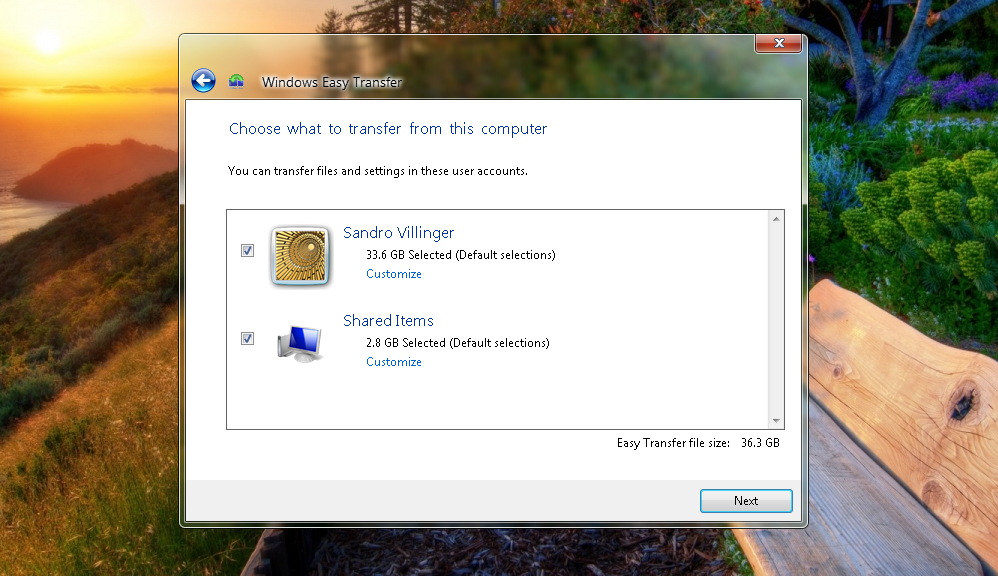
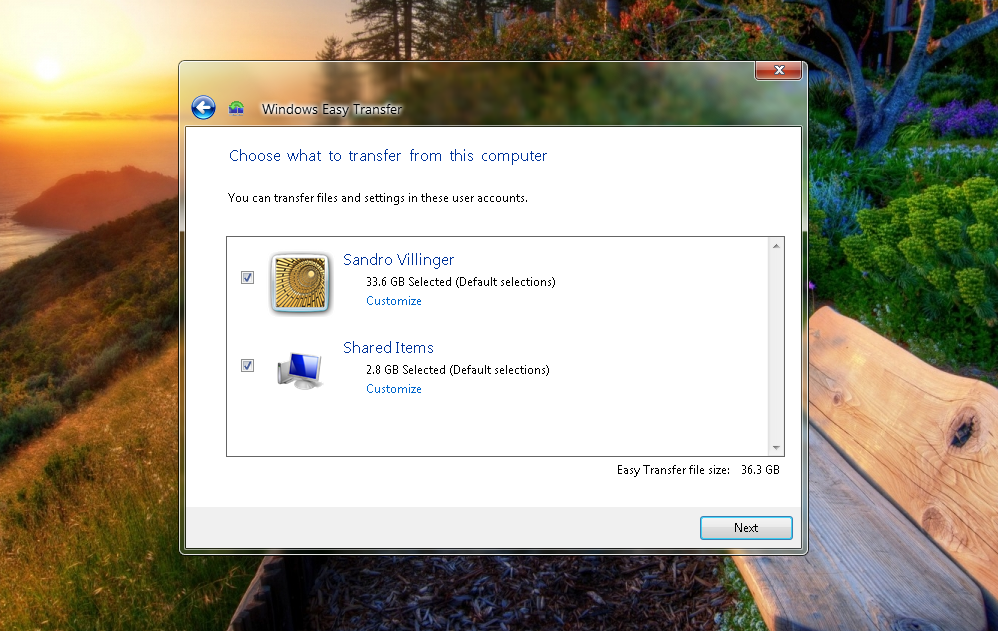
Windows has a great tool called “Windows Easy Transfer” which helps you easily move stuff from your old PC to the new one. Using an external drive, it collects files, emails, user accounts, and settings from your old PC. Here’s how it works:
Windows Vista and Windows 7:
- Insert a USB thumb drive or hard disk into your old PC.
- Click on the Start menu and type in “Windows Easy Transfer” in the search box. You’ll end up with a pretty big “Windows Easy Transfer File from Old Computer.mig” file, which you need to save on to your USB.
Windows XP
If you’re old machine is Windows XP you will need to copy “Windows Easy Transfer” from your new PC. Here’s how:
- Insert a USB thumb drive or hard disk into your new PC.
- Select “An External Hard Disk or USB Flash Drive”. Go to “This is My New Computer” and click on “No”
- Select “I Need to Install it Now”. This will copy Windows Easy Transfer to the to the USB drive so you can use it on your old XP machine.)
Save Your Bookmarks!
If you’ve had your old machine for a while, you’ve probably built a massive library of browser bookmarks or favorites. Make sure you take these with you by backing up your bookmarks.
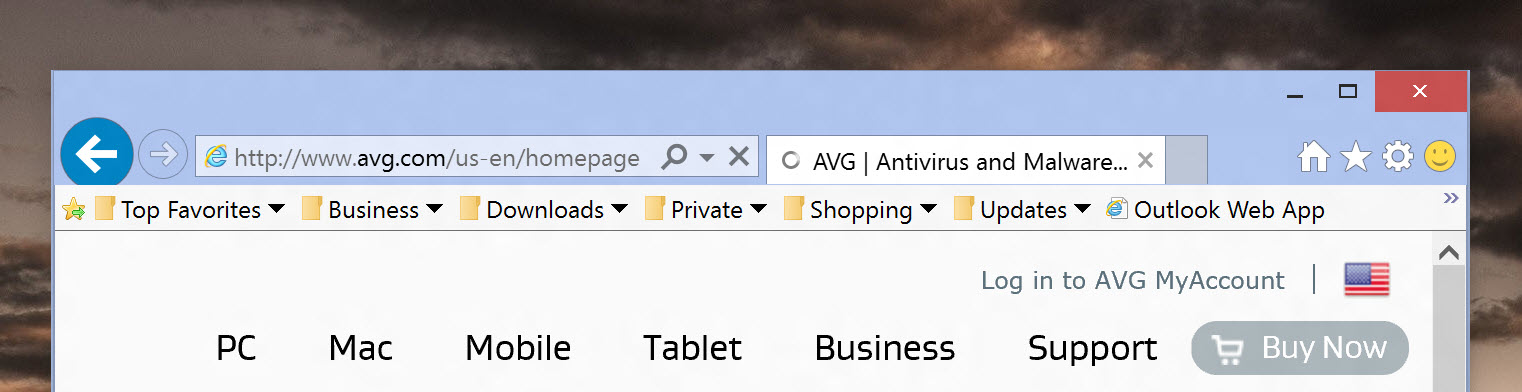
- Internet Explorer: Go to “Computer” and simply open up C:UsersYOUR_USERNAME_HEREFavorites. Copy the entire folder on to your new PC! XP users will find it under C:Documents & SettingsYOUR_USERNAME_HEREFavorites.
- Google Chrome: Chrome syncs your bookmarks once you’ve signed into your Google account. If you haven’t done so, sign into your Chrome browser on your old PC – and it will upload your bookmarks to the cloud. Do the same on the new PC to download the bookmarks again. Voilá!
- Firefox: The fastest way is to use Firefox Sync, which backs up all your browser settings – including bookmarks – to the cloud and gets it to your new PC easily once you’ve signed in. Here’s how it works.
Clean Up Your Old PC!
When migrating to a new PC, you don’t want to transfer any unwanted files, so it’s important to give it a good clean up before you make the switch.
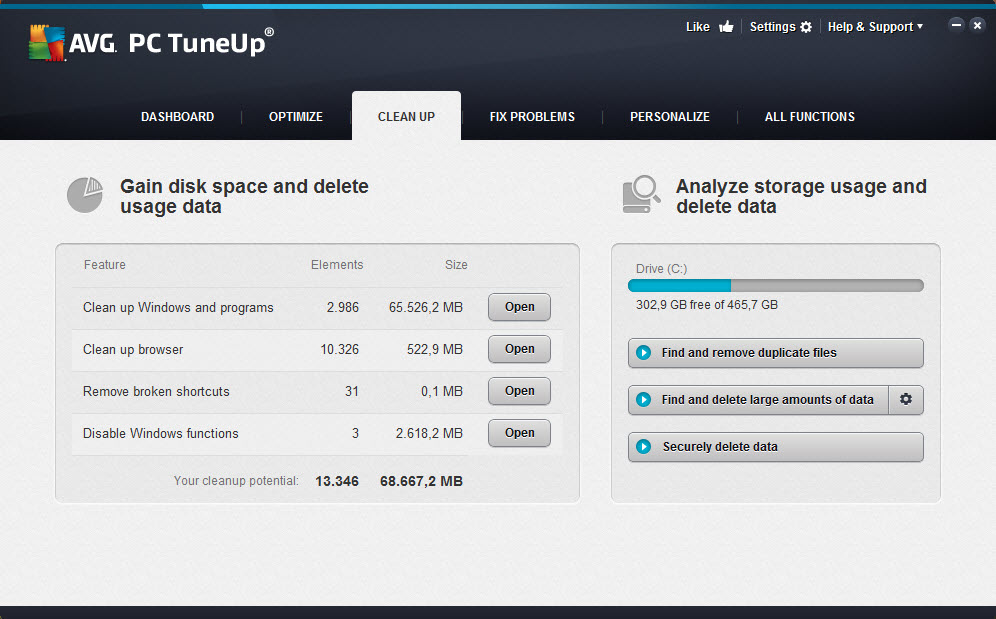
Probably the best way is to use AVG PC TuneUp’s Disk Cleaner which is part of our AVG Performance bundle – you can also try it out for free here. Disk Cleaner removes unwanted and junk files from over 200+ applications and Windows features, definitely things you don’t want on your new machine.
Click here for a step by step guide on how to clean up your PC with Disk Cleaner.
Find Those Hidden Files!
Even if you’re super-organized and painstakingly keep your files and folders in order, there’s always that odd folder or file that floats somewhere hidden or deep on your hard disk.
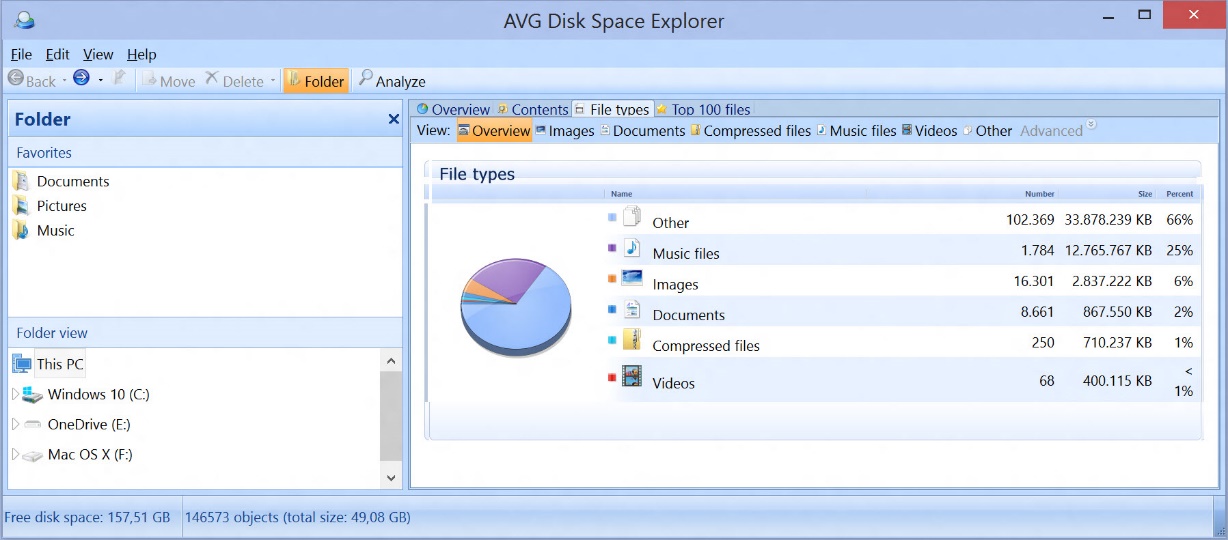
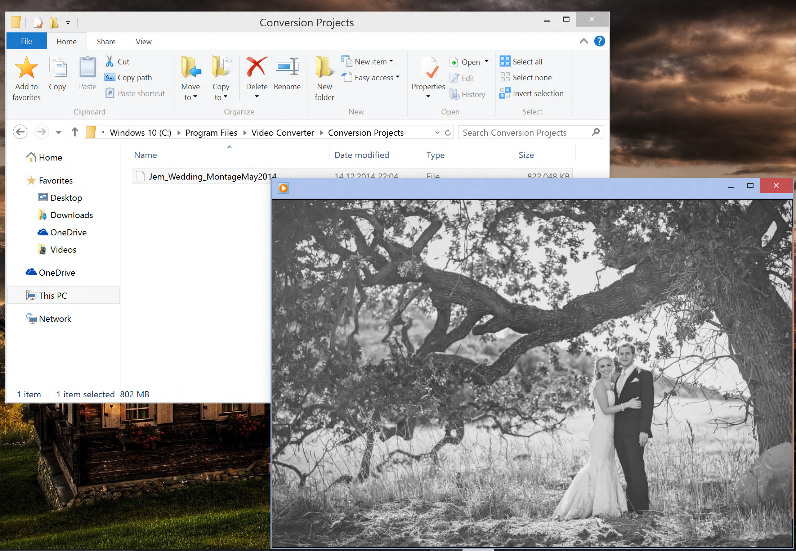
Case in point: I recently save my best buddy’s wedding montage, but the tool I used stored it under “C:Program FilesVideo ConverterProjects”. I would have totally forgotten about it, had I not used AVG Disk Space Explorer to get an overview of where music, videos, photos and more are stored on my disk….
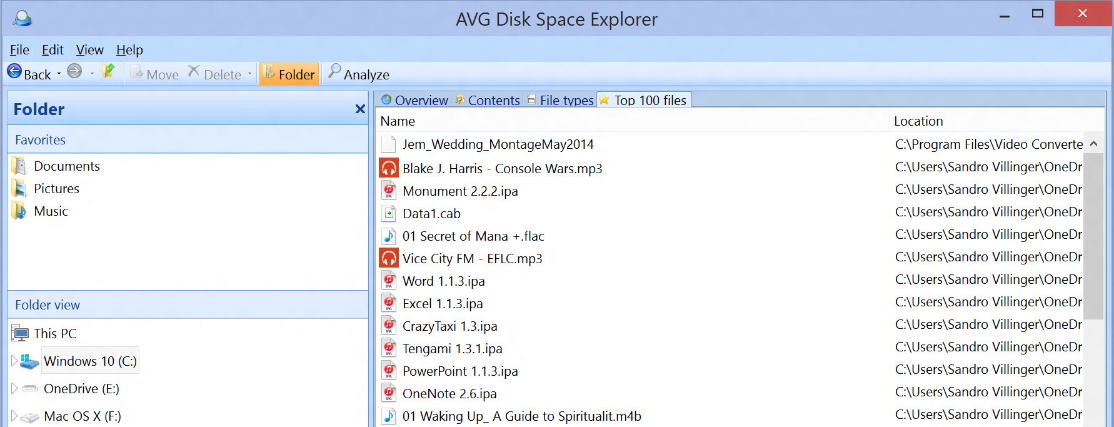
…but also where the “Top 100 files” are on my disk:
And there it was, sitting hidden on a old laptop I was ready to completely wipe clean…
Deauthorize your programs!
Some programs are tied to the computer they’ve been installed on, so you may not even be able to use them on a new PC unless you deactivate them on your old one.
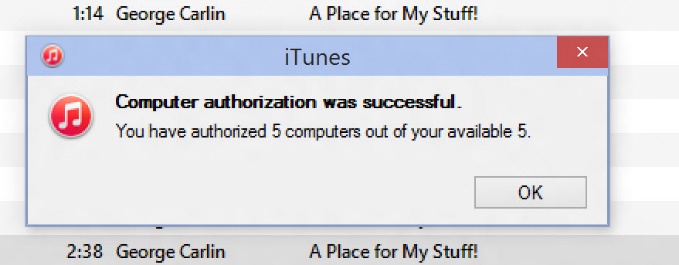
Popular example: iTunes! It allows you to activate up to five PCs to play (protected!) content. If you forget to deactivate an account on a PC and wipe it clean or give it away, it’s gone and you’ll soon end up seeing this:
To deactivate an old PC, simply open up iTunes and press the “CTRL” key. This will bring up the classic menu bar. Click on “Store” and “Deauthorize this computer”. Done!
Another example is the Microsoft Office 365 subscription, which allows you to install Office 2013 on up to five PCs or Macs, so you need to log in and go to your dashboard to deactivate the Office installs on your old PCs:
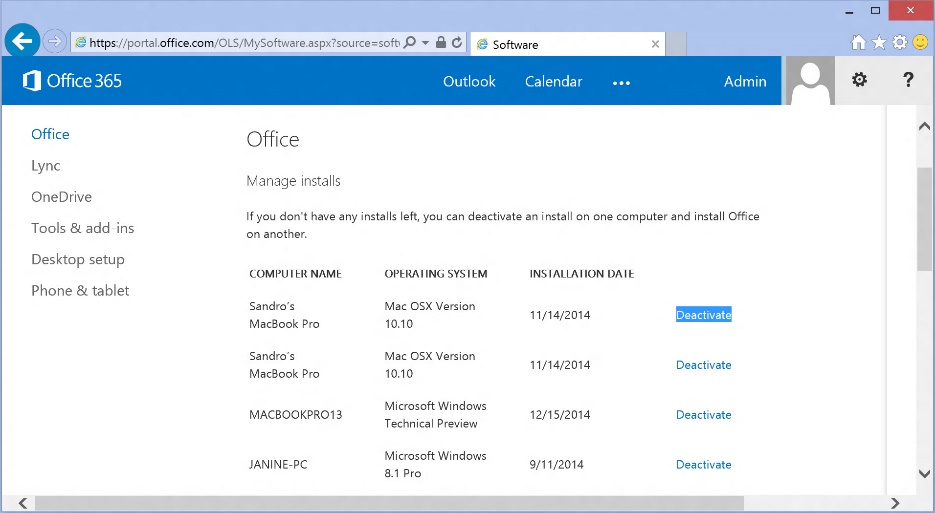
Don’t worry, many programs don’t have a limited number of licenses but it’s always worth checking – and keeping the old PC around for a few days while you’re setting up your old one.
Take a snapshot of your programs settings!
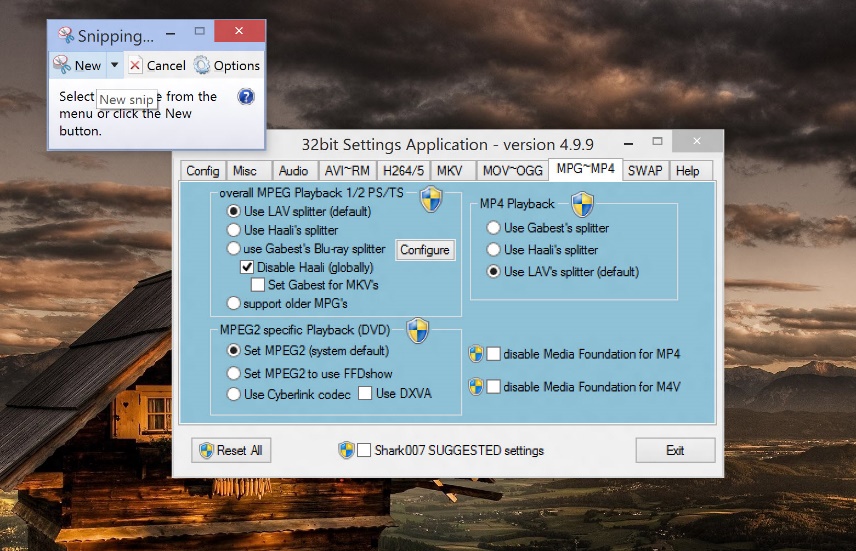
Got a complex program, such as Adobe Photoshop or Excel, perfectly set up for your needs? Then it’s a true pain to set it up and figure out your favorite settings. Here’s what I do: I just take a screenshot of my favorite settings and simply apply them to the new one.
For example, I just took a screenshot of my favorite settings in the video codec configuration tool Shark007 which I use to playback pretty much all audio and video files imaginable – and it’s complicated! So I just use Windows’ built-in Snipping Tool (just use the Start menu search and you’ll find it) to take a screenshot of the settings and apply them later. Sure, a bit crude and manual, but it works:
Don’t forget your savegames!
I recently wiped an old PC which had a 97% complete gamesave from my favorite game of 2011, Super Meat Boy. If you know the title, you’ll know just how frustrating that is!
That save game is gone and I never made it through the final stages. While many modern games save the gamestats under your “DocumentsMy Games” folder or synchronize them with the cloud (Steam, Origin), many games still hide the savefile in their program folder.
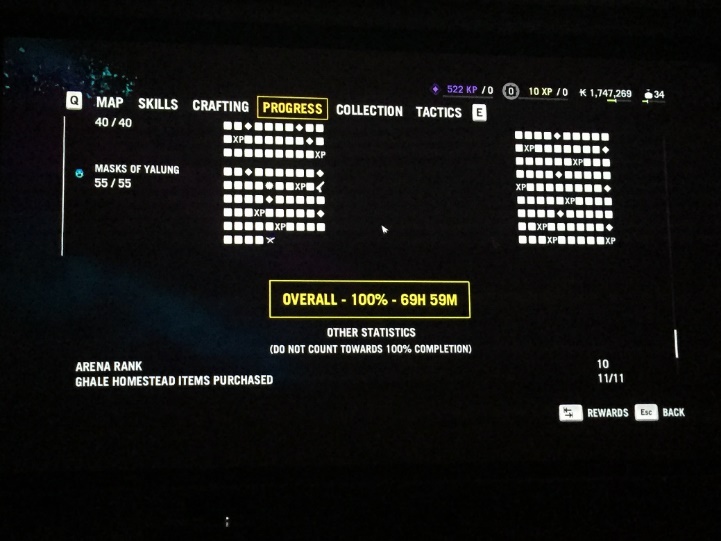
If you spend 69 hours completing Far Cry 4 or any other game, you better make sure you don’t lose that savegame. My advice if you can’t find the savefile: Google the games name and add “savegame location” and you will find a blog, a forum thread or a wiki that’ll show you where to look:
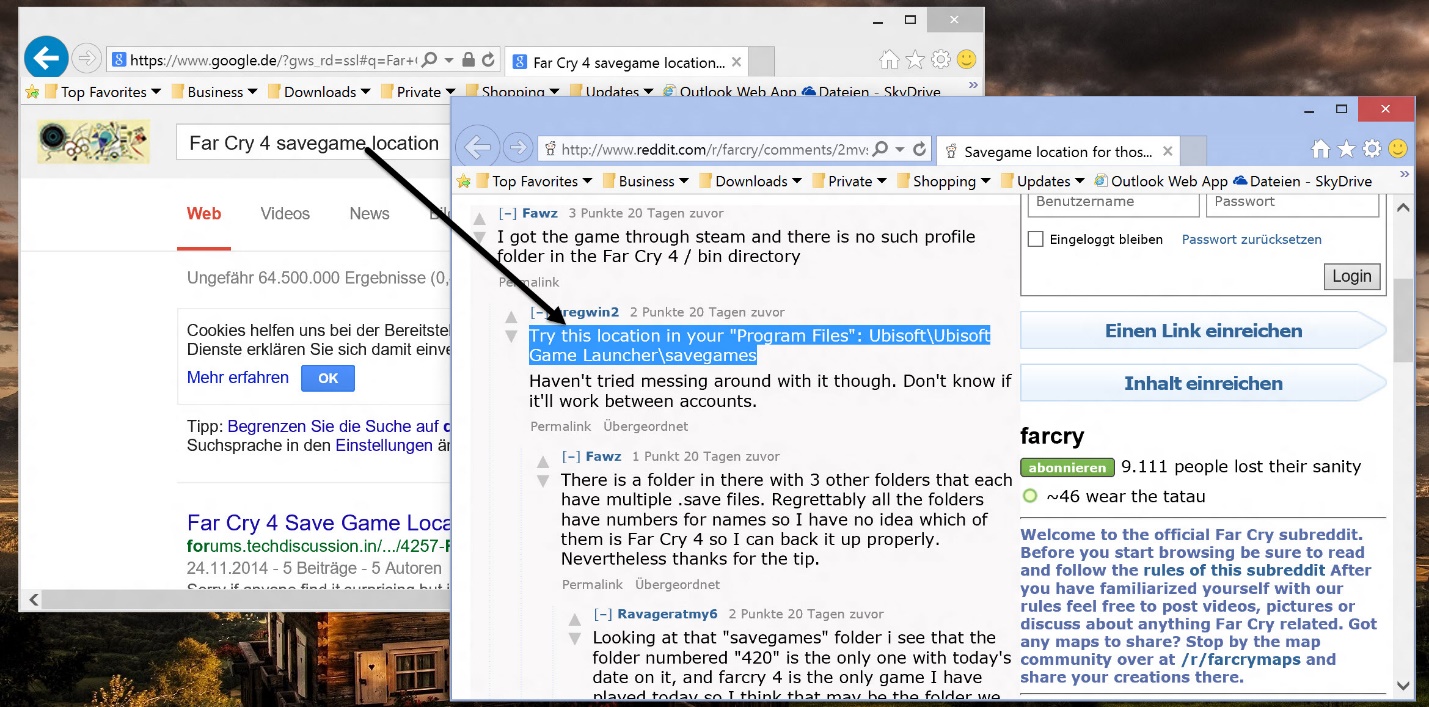
If you follow these simple steps you can be sure that you’re not leaving anything behind on your old machine and that your new system will have that personalized, familiar feeling.
Next week we’ll look at breathing new life into your old PC.