Monthly Archives: June 2015
LinkedIn Goes Public With Its Private Bug Bounty
Secret Service Agent Will Plead Guilty To Silk Road Bitcoin Theft
Kaspersky Lab Safe Money Technology Recognized for Outstanding Performance by MRG Effitas
Security in Windows 10: an app guardian, biometrics and the end of passwords
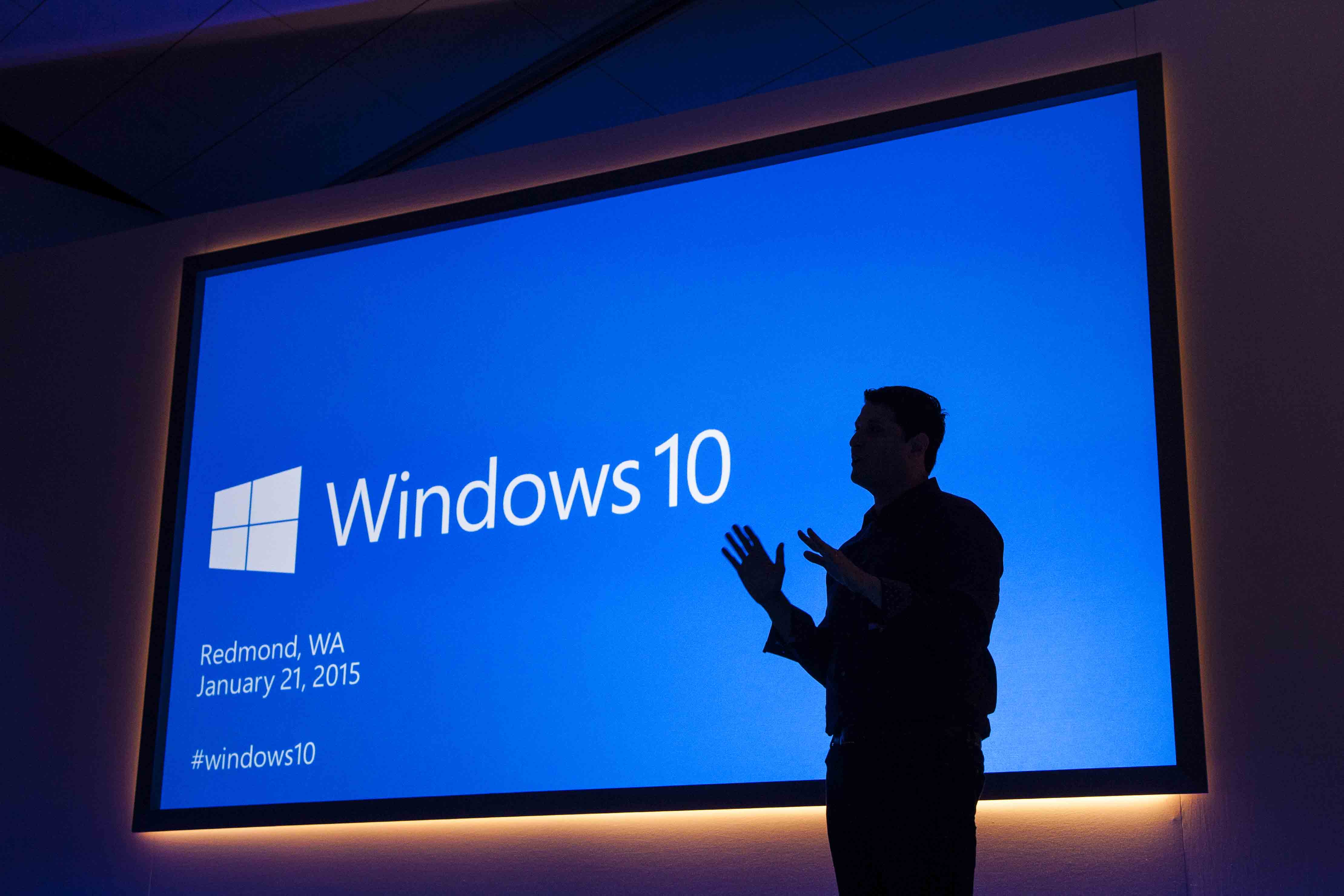
The date approaches. The next version of Microsoft’s operating system will be released on July 29 as a free upgrade for all users of Windows 7 and 8/8.1. Although, the corporate sector will have to wait a little longer: Windows Enterprise next edition will come later, but it will also be available through 2015.
The ‘back-to-school’ campaign and its traditional increase of computers sales, is the setting chosen by Redmond to deploy their new and expected product, a software that four million users have already tried in its ‘beta’ phase thanks to the Windows Insider Program. It is an unfinished product, with many details to sand, but it already allows to outline the general lines of the new operating system.
Beyond Cortana’s integration (the virtual assistant from Microsoft that gives Apple’s well-known Siri a run for his money) or the debut of Edge (the successor of the illustrious browser Internet Explorer), some new features of Windows 10 are especially interesting when it comes to security.
On the one hand, what we have already told you: Windows virtual store will include Android and Apple apps, which must exceed strict controls in order to add them to the Windows ecosystem. On the other hand, the catalogue of protection measures increases. These are the three most relevant:
Device Guard
It is responsible for monitoring the applications access to Microsoft. Basically, it will stop all programs that are not signed by their creators and Windows Store, and will only allow to run those which prove to be trusted.
“To help protect users from malware, when an app is executed, Windows makes a determination on whether that app is trustworthy, and notifies the user if it is not”, explained Chris Hallum, Microsoft security expert.
In addition, this decision making will take place in isolation, in a different environment, so that the machine will be protected from malicious applications even if an attacker has managed to compromise the rest or other part of the system.
Windows Hello
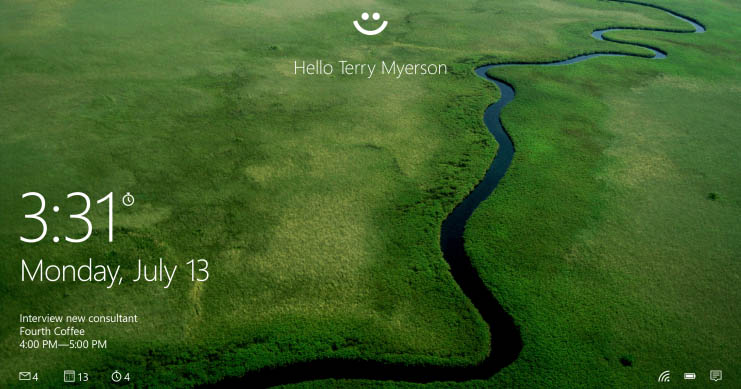
That biometrics is the identification’s future, it is something that already everyone is aware of, and Microsoft is not going to be an exception. While Google announced that its upcoming mobile operating system, Android M, will be compatible with iris and fingerprint readers, the company ran by Satya Nadella is preparing Windows next version to welcome these authentication systems.
We will have to say goodbye to passwords, of course, but only if the manufacturers get their act together. So, home users and employees of a company will be able to prove their identity thanks to biometrics and computers will have to incorporate scanners capable of reading this information. At the moment, all machines equipped with Intel RealSense 3D camera will be compatible with facial recognition, which allows the user to start the system without introducing any key or to unlock Passport without a PIN, among other things.
Passport
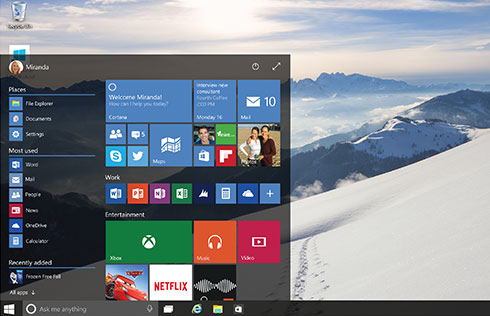
This is the second nail that Windows 10 has hammered in the coffin of old passwords. First, you must unlock it, proving that the person using the device is in fact the owner thanks to a PIN or to the above mentioned biometric information collected by Windows Hello. Then, Microsoft’s digital passport will allow you to navigate inside and outside the operating system without having to enter a ‘password’ every time you go through customs.
Applications, social networking, e-commerce sites… Almost everything that today asks you for a password, tomorrow will know you’re the one who wants to enter… and not an impostor with ill intentions. Thanks to this new security measure.
The post Security in Windows 10: an app guardian, biometrics and the end of passwords appeared first on MediaCenter Panda Security.
SAP NetWeaver Portal 7.31 XXE Injection
SAP NetWeaver Portal version 7.31 suffers from an XXE injection vulnerability. The problem is caused by a program error in ‘ValidationComponent’ due to the incorrect use of an XML parser. By default, the parser opens external entities referenced within an XML input, which can then lead to malicious content being parsed. This malicious content can reference internal resources, such as files. These internal resources can be disclosed in the response to the request, or can be used to perform a denial of service attack on the parsing system, rendering the application content temporarily unavailable.
Drupal Fixes Critical OpenID Bug
Drupal has patched several vulnerabilities in versions 6 and 7 of the content-management system, including a critical bug that enables an attacker to hijack administrators’ accounts and take arbitrary actions on target sites. That vulnerability lies in the OpenID module in Drupal that enables users to authenticate themselves using the OpenID protocol. The protocol is based […]
Must-know security tips for non-technical fathers
Few people’s idea of a relaxing Father’s Day involves getting to grips with IT security, but scammers typically target the holidays to catch out consumers.
The post Must-know security tips for non-technical fathers appeared first on We Live Security.

The Ultimate Witcher 3 Performance Guide
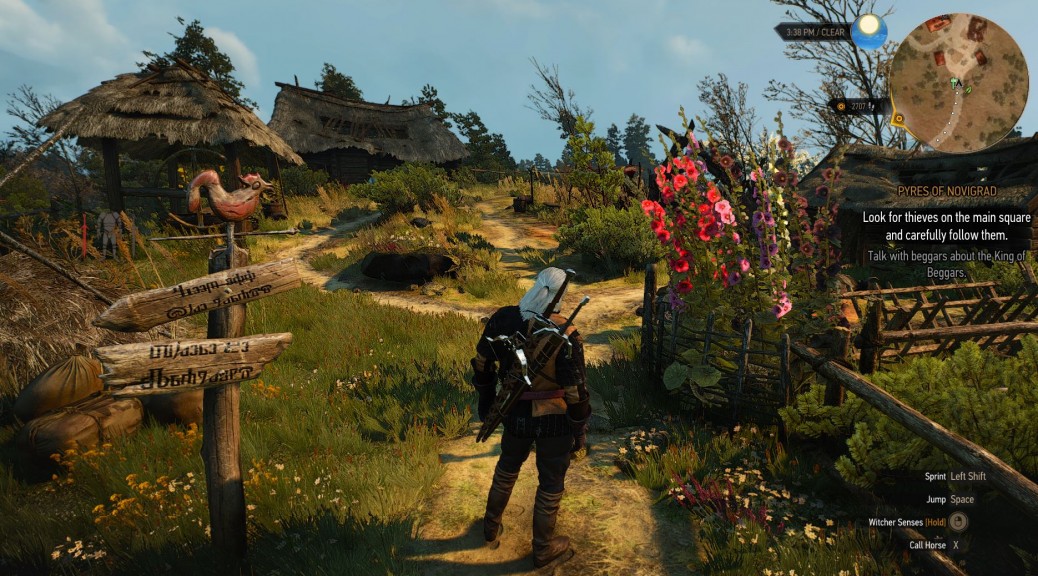
I’ve never touched a Witcher game before but this one really captured me, not just for it’s great storyline or epic scope but how real the forests and the cities look and feel:
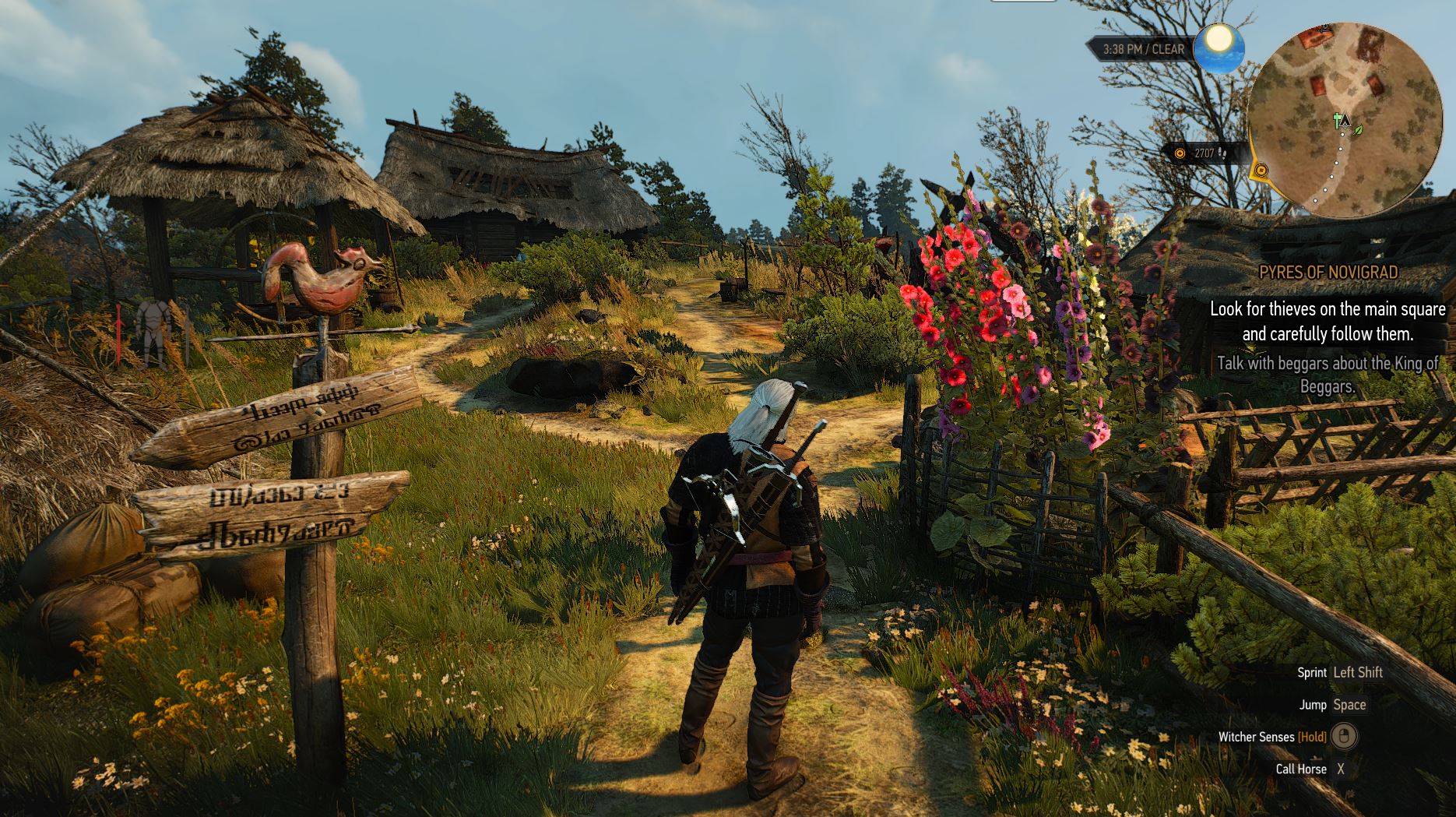
With graphics like these, you need three things: a fine-tuned PC, a decent graphics card and the right settings. In this guide we’ll look at making the Witcher 3 even more beautiful than it already is and also make sure that it runs super smooth on your machine. Ready?
Can your PC run The Witcher 3?
To run The Witcher 3, you need a fairly powerful PC as CD Project RED (the Witcher’s makers) have stated minimum requirements that are quite hefty:
OS: Windows 7 or 8.1
Processor: Intel Core i5-2500k 3.3 GHz or AMD Phenom II X4 940
Memory: 6GB
Video Card: NVIDIA GeForce GTX 660
With this kind of hardware, you’ll be able to play the Witcher 3 at low or medium levels at best. In order to crank up all the details at Full HD, you’re going to need a rig with a far more powerful GPU and more memory:
OS: Windows 7 or 8.1
Processor: Intel Core i7 3770 3.4 GHz or AMD FX-8350 4.0 GHZ
Memory: 16GB
Video Card: NVIDIA GeForce 970 GTX
This is what I’m using and the machine just about manages to produce 50-60fps (frames per second). But no matter whether you got the lower specs or a high-end gaming PC, we’ll show you how to get the highest quality and much smoother framerates.
#1 – Performance 101: 9 Tweaks to Optimize Your PCs and Laptops Performance
Before you start tweaking performance settings for The Witcher 3, I recommend that you follow the 9 essential steps to boost your PC or laptop speed that I published a while ago. This covers the basic steps to get your machine in top shape, including how to:
- Upgrade your graphics drivers and even use beta drivers
- Overclock your graphics card (safely!)
- Use our AVG PC TuneUp to turn off all performance-sapping background activity
- Defrag your hard disk
- …and more!
As The Witcher 3 takes its toll on your hardware, you got to be sure that it’s tweaked to its absolute limit before you jump into the game-specific settings.
#2 – Get the NVIDIA & AMD THE WITCHER 3 Drivers
As usual, NVIDIA have prepared a special driver optimized for The Witcher and enables dual GPUs and HairWorks as well as the best possible performance.
- AMD users click here to download the latest drivers. As of the writing of this article June 15th, version 15.5 is available as a Beta driver and supports The Witcher 3 as well.
- NVIDIA users click here to grab the latest drivers from the official page. Version 352.86 has been optimized for The Witcher so anything newer should be fine.
- Intel Iris: Owners of the mobile or desktop Intel HD Graphics chip, should go to this thread (jump to the latest page) and find the latest drivers to get optimal performance or the official Intel site (which sometimes don’t have the very latest beta drivers that help improve gameplay). However, don’t expect The Witcher 3 to run great – we can’t make any promises here.
#3 – Use SweetFX to Make The Game Look Gorgeous
The SweetFX tools have long been the first steps to making games look far more beautiful by adding various filters and graphic effects like sharpening and bloom or different anti-aliasing techniques. The thing is: SweetFX simply enables graphical modification, but there are dozens of great different profiles from users from around the world. The ones I’ve tried and can recommend are the following:
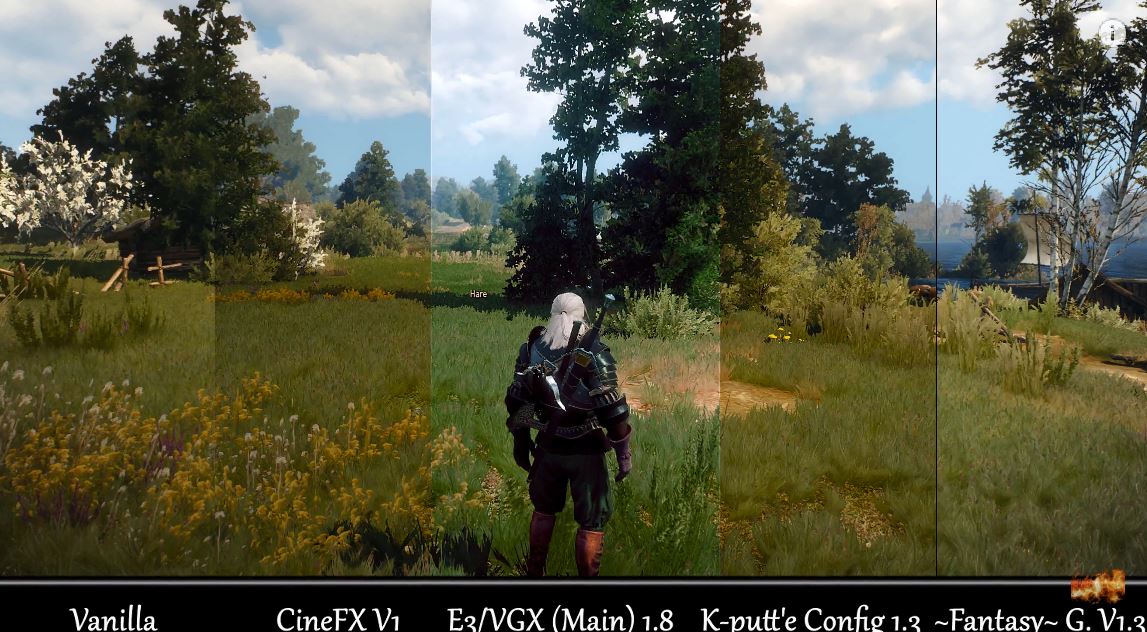
This video should help you get a great understanding of how the various SweetFX settings work.
Video
Witcher Three SweetFX
#3 – Tweak The Graphic Settings
The in-game settings in The Witcher 3 are very straightforward: You’ll find them both under the Options menu and Post-Processing and Graphics. You can chose between presets ranging from Low to Ultra and you should find the ones that really match your computers performance:
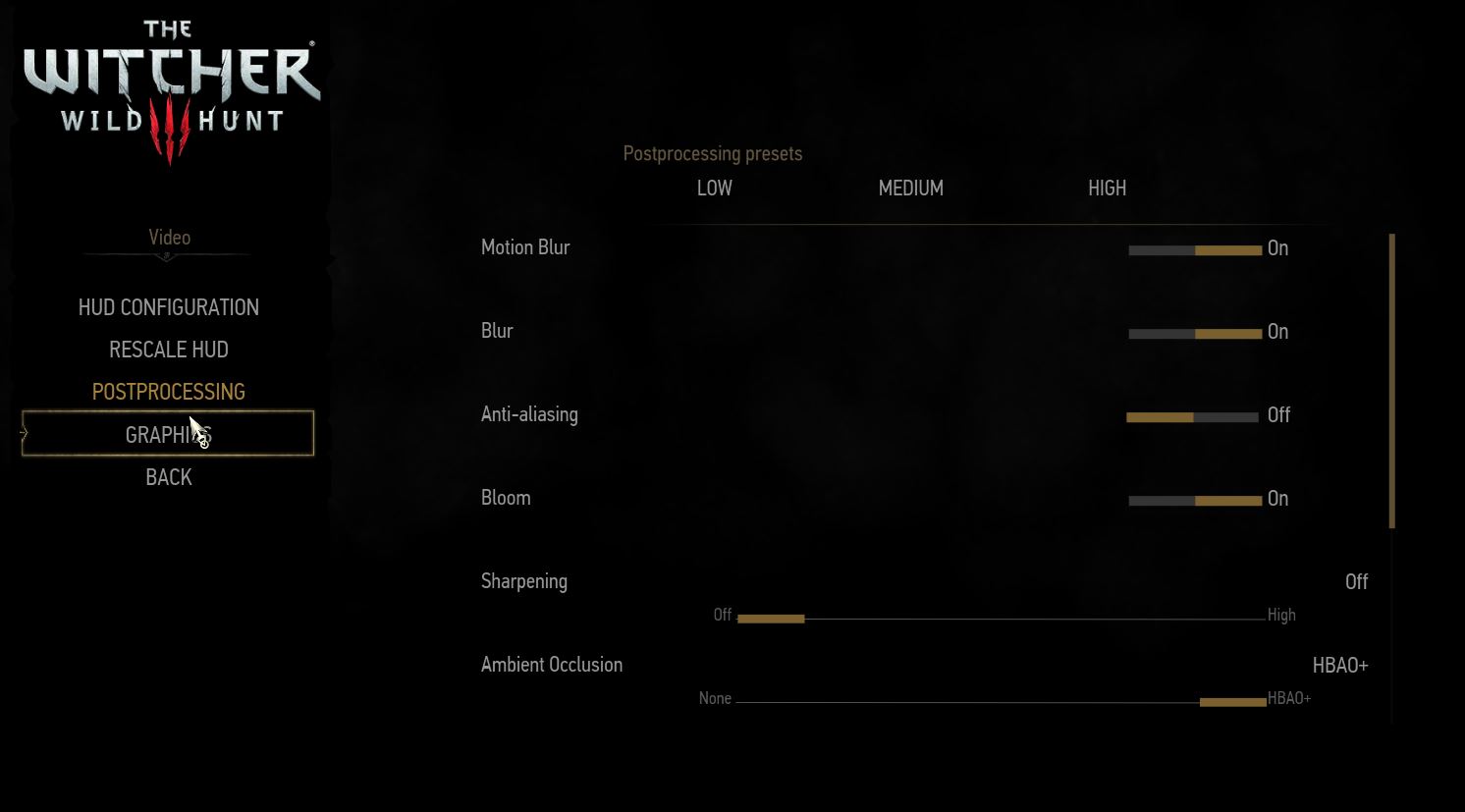
What I would recommend here is turning off Sharpening or setting it to Low as the Highest setting makes everything look just a bit too crisp and unnatural. The slightly blurry look adds to the immersion and also increases performance. If you’ve got a weaker PC, you should definitely turn off Anti-Aliasing and Ambient Occlusion, as these are the big performance eaters here.
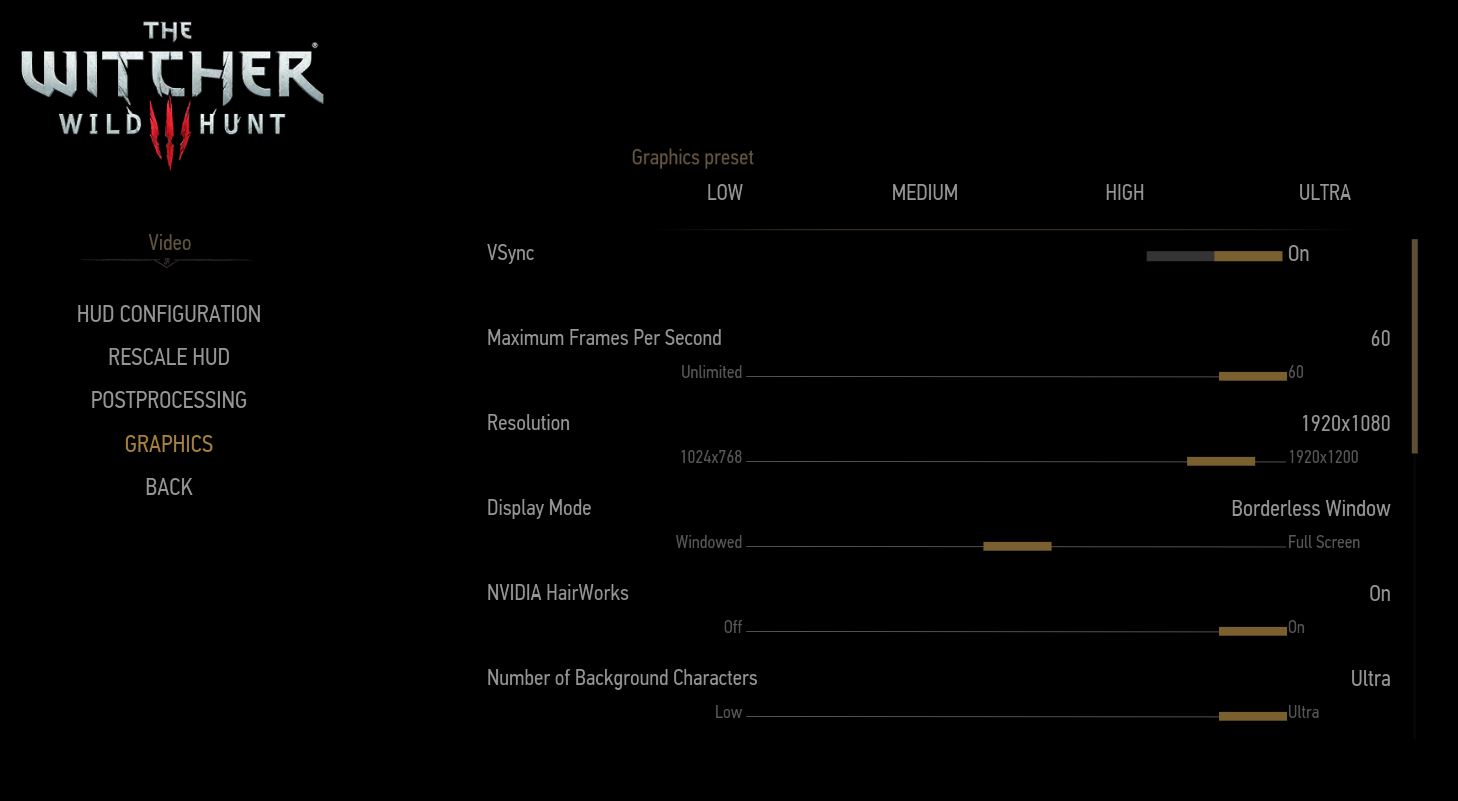
Moving to the Graphics setting, here are some interesting tweaks that made The Witcher 3 run smoother on my gaming PC: First, I switched from Full Screen to Borderless Window. Curiously, that reduced a significant lag when playing The Witcher 3.
The other bit that helped me was turning off Hardware Cursor. Other than that, it’s the usual deal: if the game stutters, try turning down settings one by one. The ones that don’t make everything look awful and still get you a few more fps are Grass Density, Water Quality, and Shadows.
Start lowering these settings first before you lower settings with a more visible effect such as Detail Level or Texture Quality or otherwise your game won’t look as gorgeous as this:
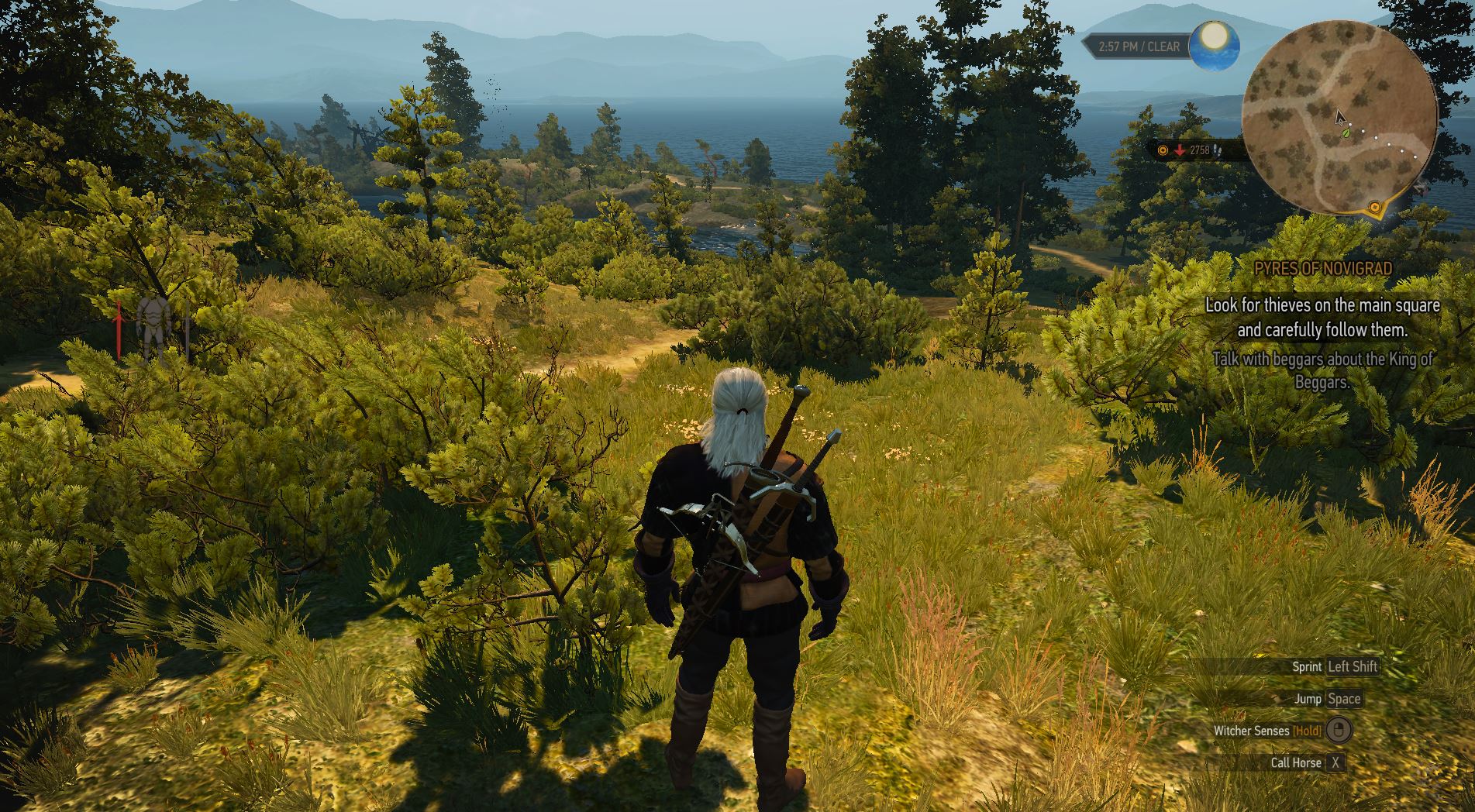
Other than that, a few words on the other options that could help you squeeze out more performance:
- Ambient Occlusion: HBAO+ should be enabled as it adds better shading and lighting effects to any scene at not too high of performance cost. If you’re really struggling with low frames per second, you should try the less taxing SSAO technique before turning it off (which really impacts the visuals). This comparison video will help you get a sense of the impact:
Video
Witcher 3: Ambient occlusion
- HairWorks: Hairworks is a NVIDIA specific technique that makes hair on both the protagonist Geralt and monsters look fantastic. If you don’t care about having every single strain of hair perfectly animated, you can save a ton of performance by turning it off.
- Grass density: Even on my rather powerful gaming PC, turning off grass density had a noticeable effect on smoothness in some scenes.
#4 – Boost Your Visuals with These 5 Hidden Tweaks
Got your Witcher 3 maxed out and it’s still super-smooth? Then let’s try a few hidden tweaks that’ll make The Witcher 3 look even more gorgeous than before. However, you need to do a bit of fiddling: First, you need to make sure that your in-game settings are perfectly tweaked (you’ll soon know why).
First, go to your user folder under “C:UsersUSERNAMEDocumentsThe Witcher 3”. Make a copy of the file “user.settings” and open it up with Notepad.
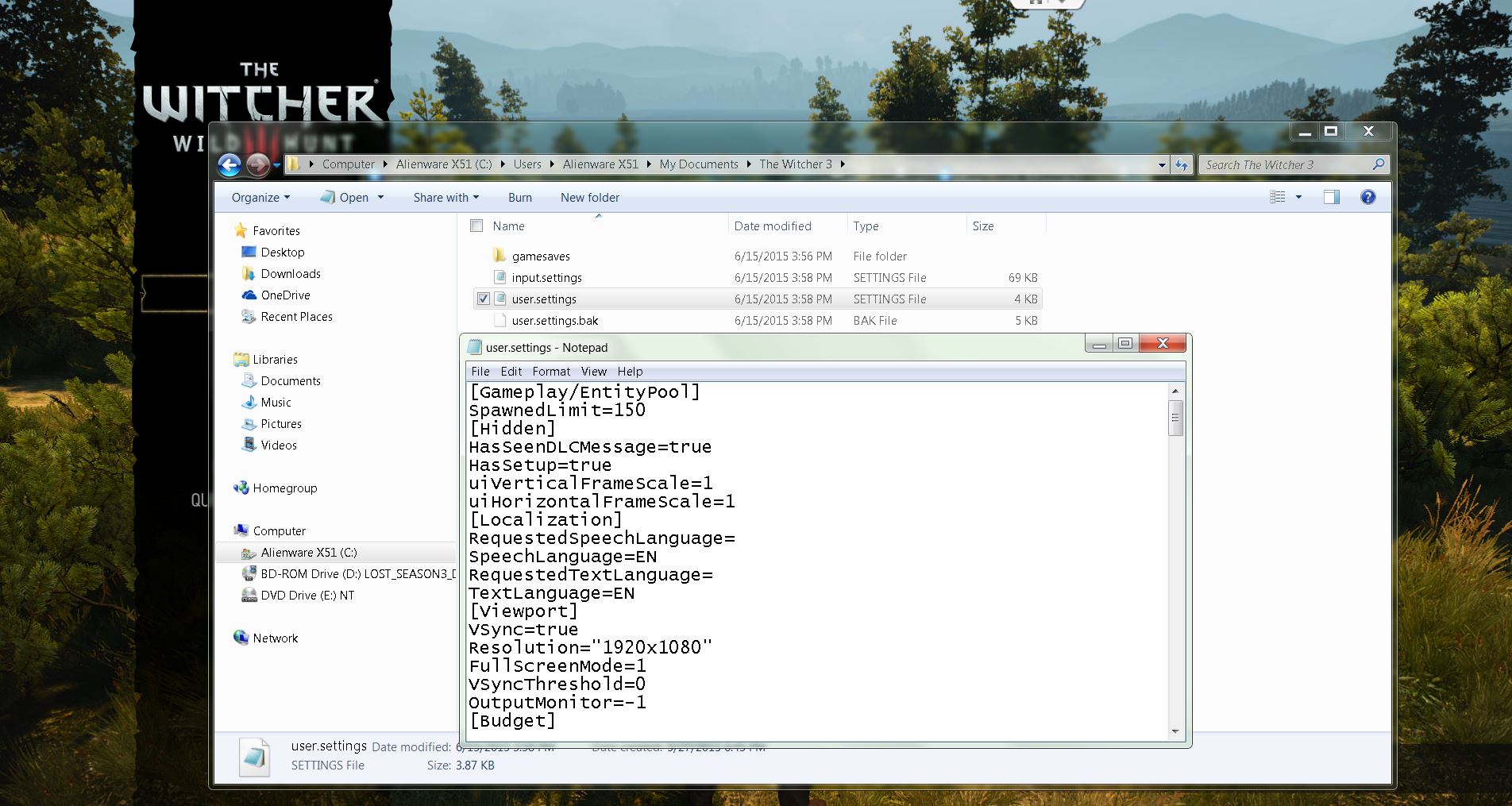
While a lot of these settings are still unexplained, users on the web have figured out the effect of some of these. First, jump to the line GrassDistanceScale and FoliageDistanceScale. This value defines the quality of every piece of nature you see on screen, such as grass, trees or bushes and the distance at which you can still see them.
If you go with the games Ultra setting, this setting will be at 1.5. If you’ve got a powerful rig, try cranking it up to 3 to get a noticeable improvement in The Witcher 3’s beautiful environment.
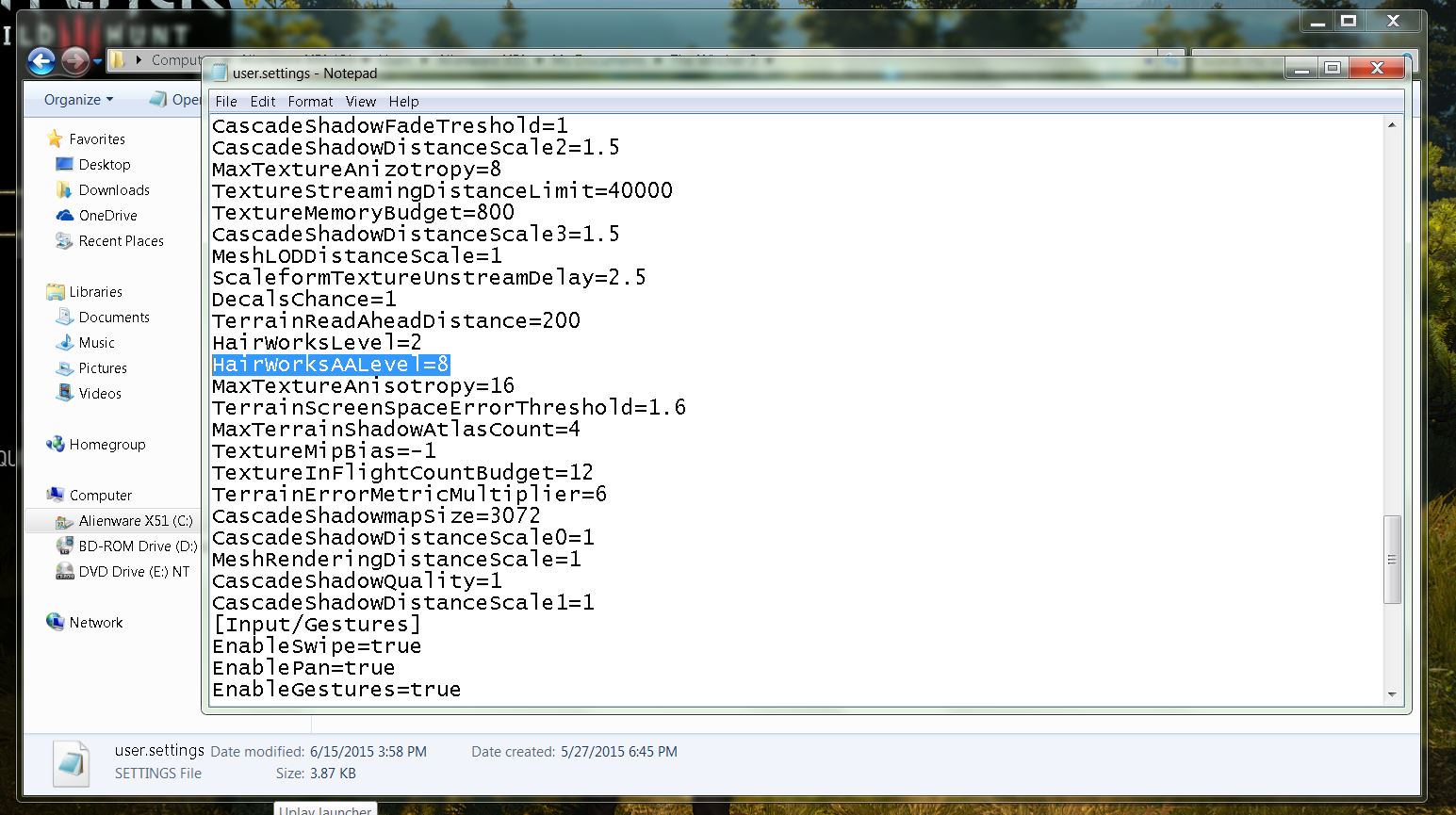
Next, we recommend adding a new entry under the [Rendering] section called HairWorksAALevel. This setting determines the level of anti-aliasing on hair on NVIDIA graphic cards. If you set this to 8, hair will render without jaggies or other strange artifacts at the cost of just a few frames per second.
Done with all the settings? Save the file! But here comes the important part: To prevent the game from changing the settings back to its default, you have to make the file ready-only. To do that, right-click on the user.settings file and select Properties. Check Ready-only and hit OK to write-protect it! Hint: In addition to that, AMDs support pages recommend setting the EnableTemporalAA setting from True to False on multi-GPU systems (AND CrossFire: More than one AMD/ATI card in one system).
#5 – Make Sure Your NVIDIA & AMD card is set up properly
If The Witcher 3 is stuttering when you’re roaming about in towns, there is a specific setting you have to make within your NVIDIA or AMD cards control panel:
- NVIDIA: Go to Manage 3D settings and scroll to the Maximum Pre-rendered Frames.
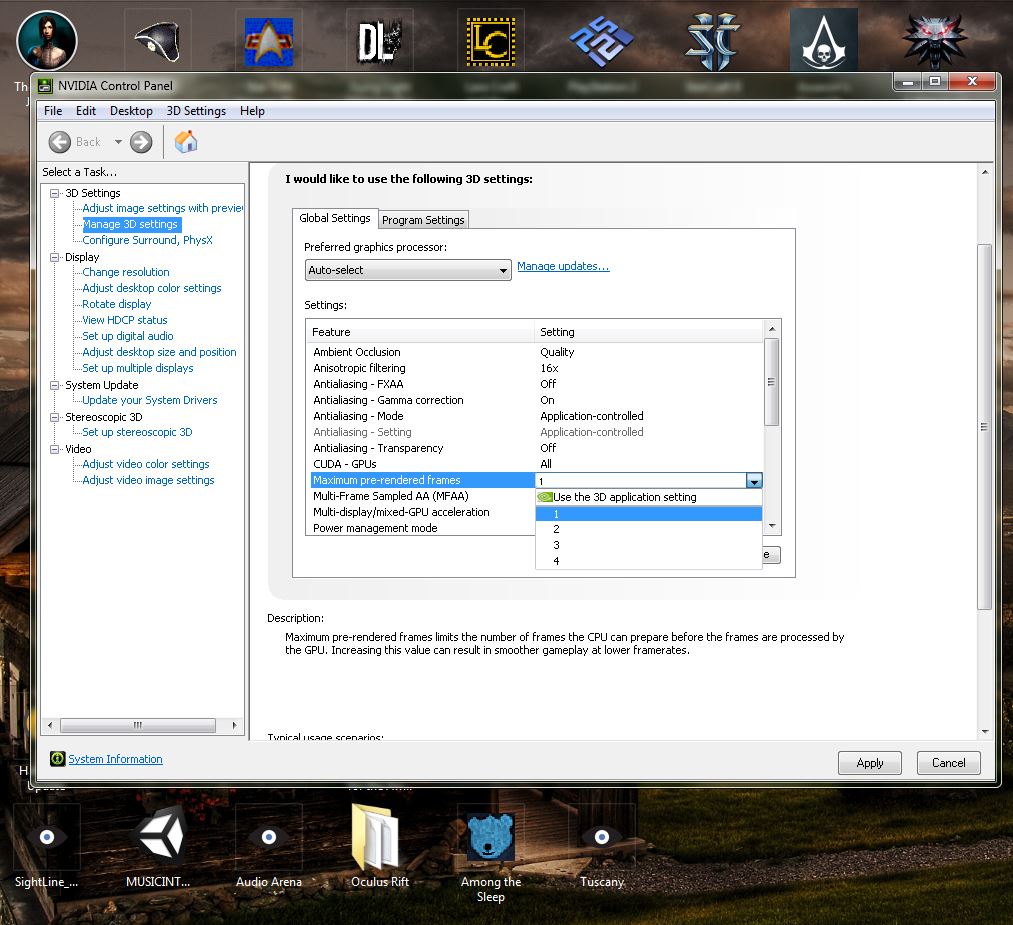
- Set this to 1 to reduce any stuttering.
- AMD: Under Radeon Pro, create a new profile for The Witcher 3 and set the Flip Queue Size to 1.
We hope you can enjoy The Witcher 3 thanks to our gameplay tweaks and remember, these are only recommendations based on my own tests.


CEBA-2015:1121 CentOS 5 zsh BugFix Update
CentOS Errata and Bugfix Advisory 2015:1121

Upstream details at : https://rhn.redhat.com/errata/RHBA-2015-1121.html

The following updated files have been uploaded and are currently
syncing to the mirrors: ( sha256sum Filename )

i386:
3ecb6704717882aec843e22e49efa7d59846b49e2295429423a3a94a0352fa81  zsh-4.2.6-10.el5_11.i386.rpm
7fc0317cf5cfa6aaa1a3b3e87b1998baf5718add74a207d2efe9f66a5ff159e6  zsh-4.2.6-6.el5.i386.rpm
374337598116204c78e8b4f162e1056e662310b9becaacdbde5358c527014d94  zsh-4.2.6-9.el5.i386.rpm
5a6ee8a6f2718ef6e9490b0c49d75919b0db0377eec830f264faa6b4aa19d344  zsh-html-4.2.6-10.el5_11.i386.rpm
ee07bde1578a55e768646c30d80a50a6f98524f03da791cbde2f5cb9d813560b  zsh-html-4.2.6-6.el5.i386.rpm
9c0c571845d106cd6b4900cffb14e629fe14a0d5e61116f7740d94675158a1a1  zsh-html-4.2.6-9.el5.i386.rpm

x86_64:
c90d1747512e70e819d9cfcc95a9c73378e2025c55dd0f9458b108a196241277  zsh-4.2.6-10.el5_11.x86_64.rpm
db34cc125f988008c0b0df49ce1e34bcb8d1aa6e3c5a4db47904872f5173af69  zsh-4.2.6-6.el5.x86_64.rpm
41650c3369845496fc026d0528b786de138c12cc9ad1296e06b407eef80f6785  zsh-4.2.6-9.el5.x86_64.rpm
02aa107b60b099ade4bc04c3a2e6112b7ab16716d2d661321e18fac59a4dadee  zsh-html-4.2.6-10.el5_11.x86_64.rpm
55f93601774552476fe53dd402ff25782924b68bf5ba99c593c5cccbe91a3037  zsh-html-4.2.6-6.el5.x86_64.rpm
333f1b959b16c6d2cdc22e03b3e334222414d114e6c353f010335295c6a5ba90  zsh-html-4.2.6-9.el5.x86_64.rpm

Source:
0ad42d4828fce8dfecca044e4a9dee8ba36bfa3634c284718f9f2cba35c5de6a  zsh-4.2.6-10.el5_11.src.rpm
d9a3a25956d8b67f64d499592a5232b2fc9a05b82bfac12c9d17a560c4492319  zsh-4.2.6-6.el5.src.rpm
64c7491d2435f7fffa0382c046108f0cb643f2a02ae8ffa0c9a2d0c27c760811  zsh-4.2.6-9.el5.src.rpm