RealTimes (Realplayer) versions 18.0.1.6 and below suffer from a desktop service trusted path privilege escalation vulnerability.
Monthly Archives: June 2015
LastPass Has Been Breached: Change Your Master Password Now
Luckily no passwords were actually stolen in the attack on LastPass last Friday, according to the Company’s Blog: “In our investigation, we have found no evidence that encrypted user vault data was taken, nor that LastPass user accounts were accessed.” Nonetheless account email addresses, password reminders, server per user salts, and authentication hashes were compromised.
Because of that everyone using the LastPass service will receive a mail, prompting them to reset their master password, according to the blog entry. On top of that the company will also require users who log in from a new device or IP address to verify their ID via mail if multifactor authentication is not enabled for the specific account.
Considering your stored passwords the blog says: “Because encrypted user data was not taken, you do not need to change your passwords on sites stored in your LastPass vault. As always, we also recommend enabling multifactor authentication for added protection for your LastPass account.”
So apparently there is no need to change every password you have stored with them. You can if you are really really concered for your accounts, but according to LastPass there is no need for it. Just make sure none of the other passwords you use is the same as the master password of your LastPass account.
The post LastPass Has Been Breached: Change Your Master Password Now appeared first on Avira Blog.
Fedora 21 Security Update: openssl-1.0.1k-10.fc21
Resolved Bugs
1231051 – CVE-2015-3216 CVE-2015-1789 CVE-2015-1790 CVE-2015-1792 CVE-2015-1791 CVE-2014-8176: OpenSSL multiple security issues [fedora-all]
1228603 – CVE-2015-1789 OpenSSL: out-of-bounds read in X509_cmp_time
1228604 – CVE-2015-1790 OpenSSL: PKCS7 crash with missing EnvelopedContent
1228607 – CVE-2015-1792 OpenSSL: CMS verify infinite loop with unknown hash function
1228608 – CVE-2015-1791 OpenSSL: Race condition handling NewSessionTicket<br
Multiple moderate and low impact security issues fixed.
Fedora 22 Security Update: openssl-1.0.1k-10.fc22
Resolved Bugs
1231051 – CVE-2015-3216 CVE-2015-1789 CVE-2015-1790 CVE-2015-1792 CVE-2015-1791 CVE-2014-8176: OpenSSL multiple security issues [fedora-all]
1228603 – CVE-2015-1789 OpenSSL: out-of-bounds read in X509_cmp_time
1228604 – CVE-2015-1790 OpenSSL: PKCS7 crash with missing EnvelopedContent
1228607 – CVE-2015-1792 OpenSSL: CMS verify infinite loop with unknown hash function
1228608 – CVE-2015-1791 OpenSSL: Race condition handling NewSessionTicket<br
Multiple moderate and low impact security issues fixed.
A beginner’s guide to starting in InfoSec
Much ink has been spilt about the shortage of people trained in information security – especially the lack of women in the industry. Lysa Myers discusses.
The post A beginner’s guide to starting in InfoSec appeared first on We Live Security.

Bugtraq: WebdesignJiNi Cms Sql Injection Vulnerability
WebdesignJiNi Cms Sql Injection Vulnerability
Bugtraq: Productsurf Cms Sql Injection Vulnerability
Productsurf Cms Sql Injection Vulnerability
Bugtraq: [RT-SA-2015-002] SQL Injection in TYPO3 Extension Akronymmanager
[RT-SA-2015-002] SQL Injection in TYPO3 Extension Akronymmanager
Bugtraq: [SECURITY] [DSA 3289-1] p7zip security update
[SECURITY] [DSA 3289-1] p7zip security update

Snapchat rolls out two-factor authentication
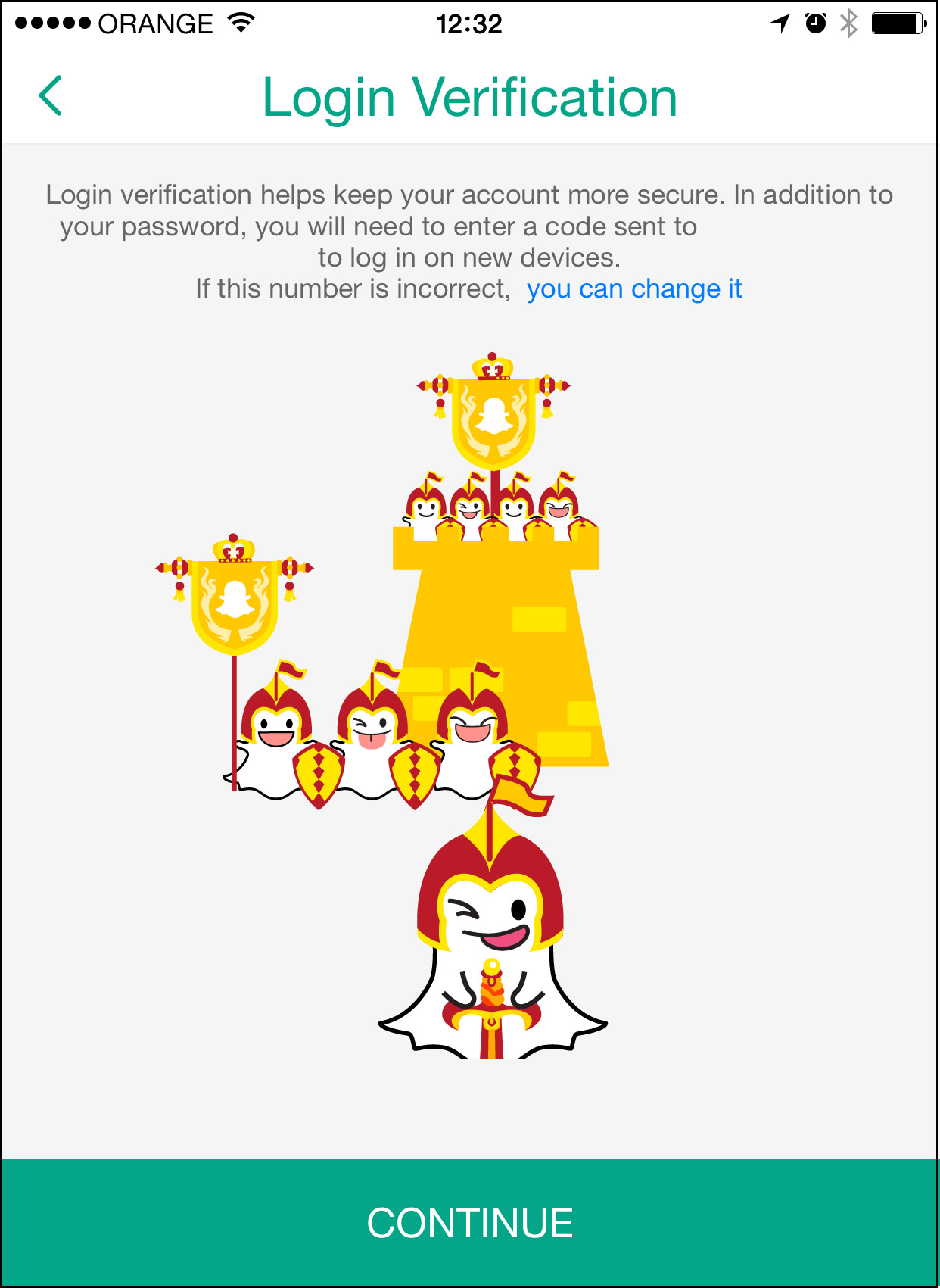
The feature, known as ‘login verification’, is a way that users can help protect the privacy of their Snapchat accounts.
Two Factor Authentication is a way to help secure your online accounts by adding another step when you login. With Two-Factor Authentication, your regular password won’t be enough to gain access to your account. You will also need a code which is sent to your mobile device, either in form of a text message or via an app.
In Snapchat’s case, the first time an account is accessed from a new device, Snapchat will require a code sent via SMS to the mobile number registered on the account. This code can then be used to access Snapchat normally. Afterwards, the authorization will not be required on that device again (unless you instruct Snapchat to ‘forget’ the device.)
For more information on two-factor authentication, check out the video below from AVG Academy.
Video
Two Factor Authentication
How to enable login verification on Snapchat
As detailed in Snapchat’s support page, here’s how to enable login verification in the app:
- Tap the ghost icon at the top of your camera screen
- Tap the Settings gear in the top right hand corner of your Profile screen
- Tap ‘Login Verification‘ under the ‘My Account’ section
- Tap the ‘Continue‘ button
- Enter the verification code sent to your mobile phone and tap ‘Continue‘
Once you have completed the login verification process, your device will remain a verified device until you elect to forget it.

