There exists a buffer underflow vulnerability in devenum.dll!DeviceMoniker::Load when attempting to null terminate a user supplied string.
Monthly Archives: January 2016
Microsoft ends support for old Internet Explorer versions
With more of a whimper than a bang, Microsoft has followed up on its August 2014 promise to end support for older versions of Internet Explorer. As of today (January 12th, 2016), Microsoft will end support and security updates for several versions of Internet Explorer running on various versions of Windows.
The post Microsoft ends support for old Internet Explorer versions appeared first on We Live Security.

WordPress Symposium Pro Social Network 16.1 Cross Site Scripting
WordPress Symposium Pro Social Network plugin version 16.1 suffers from a cross site scripting vulnerability.
Your smartwatch may be revealing your card’s PIN code
Wearable devices bring us a whole world of technological innovation, yet at the same time it appears as though they also bring with them a serious security risk.
The post Your smartwatch may be revealing your card’s PIN code appeared first on We Live Security.

From Today Onwards, Don't You Even Dare to Use Microsoft Internet Explorer
Yes, from today, Microsoft is ending the support for versions 8, 9 and 10 of its home-built browser Internet Explorer, thereby encouraging Windows users to switch on to Internet Explorer version 11 or its newest Edge browser.
Microsoft is going to release one last patch update for IE8, IE9 and IE10 today, but this time along with an “End of Life” notice, meaning Microsoft will no longer


Simple Yet Effective eBay Bug Allows Hackers to Steal Passwords
A simple, yet effective flaw discovered on eBay’s website exposed hundreds of millions of its customers to an advance Phishing Attack.
An Independent Security Researcher reported a critical vulnerability to eBay last month that had the capability to allow hackers to host a fake login page, i.e. phishing page, on eBay website in an effort to steal users’ password and harvest credentials

SEC Consult whitepaper: Bypassing McAfee Application Whitelisting for Critical Infrastructure Systems
Posted by SEC Consult Vulnerability Lab on Jan 12
SEC Consult Vulnerability Lab released a new whitepaper titled:
“Bypassing McAfee Application Whitelisting for Critical Infrastructure Systems”
– the dinosaurs want their vuln back
Link to blog overview:
———————-
Including slides from presentations on this topic (with details & demos on
vulnerabilites & vendor responses):
http://blog.sec-consult.com/2016/01/mcafee-application-control-dinosaurs.html
Direct link…
Top 5 troubleshooting tips for Windows 10
If you have recently upgraded to Windows 10, of if you’re still trying to, you may be suffering some of the problems we’ve seen. We answer the top questions to your burning issues on Windows 10 that have plagued many users out there.
#1 – The Upgrade to Windows 10 doesn’t work
Even on my machines I had this problem: Despite multiple Windows Update attempts, the upgrade to Windows 10 seems to never show up. The same goes for installing new versions of Windows 10, like the November 2015 update.
Here’s how I eventually solved the problem. Unfortunately, it involves a bit of fiddling with the Windows registry, which – in this instance – is totally safe. No worries, we’ll talk you through this:
- Press the WINDOWS+R keys at the same time.
- Type in “regedit” (without the quotes) and press Enter.
- Using the tree navigation that appears, open up the following folders:
HKEY_LOCAL_MACHINESOFTWAREMicrosoft
WindowsCurrentVersionWindowsUpdate - Right-click on WindowsUpdate, select NEW and DWORD-Value.
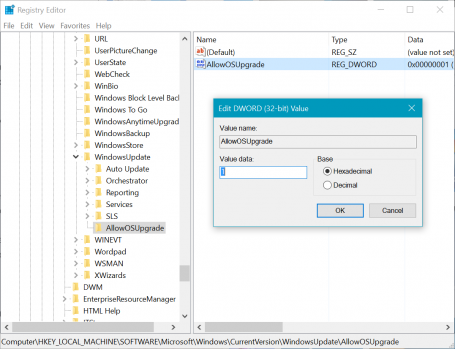
- Name the new folder “AllowOSUpgrade” (see the example picture)
- Within that, add the DWORD value called “AllowOSUpgrade”, double-click on that and type in a “1”
- Reboot your PC, use Windows Update again to download and install Windows 10.
Sounds complicated? Here’s how it should look:
If this still doesn’t work, you should then try running this Windows Troubleshooter to resolve the issue, as described by Microsoft in this article.
#2 – Sound not working or volume too low
Can’t hear any sounds or music following an upgrade to Windows 10? First, you should check your PCs manufacturers page for the latest sound drivers.
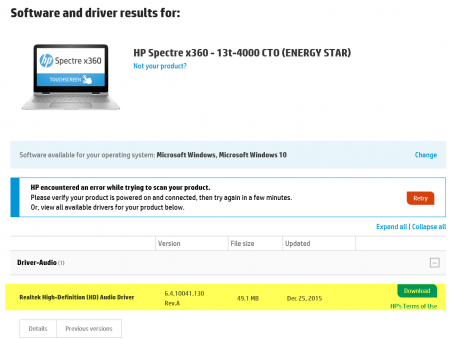
For example, on my HP Spectre x360, the official driver website offered me brand-new drivers for the integrated Realtek HD Audio chipset:
Installing the latest drivers should help with most of these issues and should be the first step to take. However, if that didn’t do anything: Open up the start menu and type in “Control Panel” to open the classic settings. Then go to Hardware and Sound, Sound and double-click on your default sound chip. Usually it’s the one with the green checkmark.
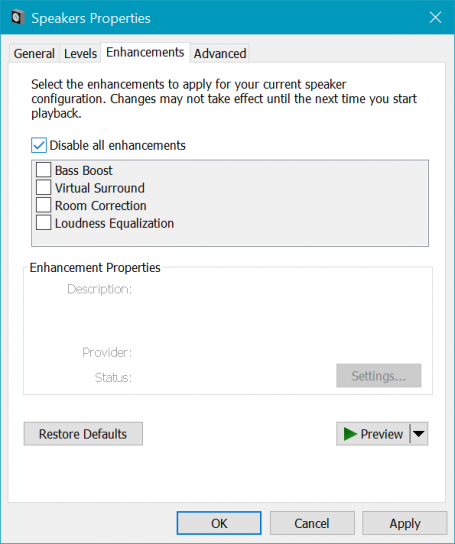
Next, move to the Enhancements tab and check Disable all Enhancements, which should instantly enable your audio.
#3 – Annoying Default Programs
I feel like every time I install a Windows Update, it defaults back to the standard apps for photos, music and websites – or pops up these annoying screens:
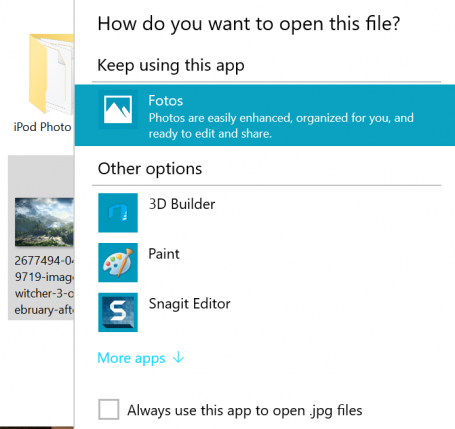
In some cases, even if you check Always use this app to open .xyz files, it reverts back to the default or asks the same question over and over again. To avoid this from happening, you should go through the Defaults settings once and decide what should happen if you open a file. To do that, click on the Start button and hit Settings. Head over to System and then on Default apps.
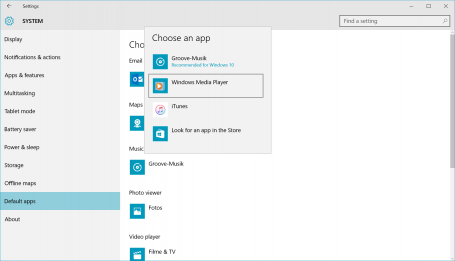
Once you set this here, Windows 10 should remember this!
#4 – Turn off Quick Access
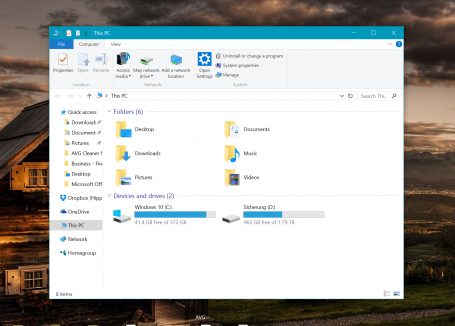
The new Windows 10 file explorer has a Quick Access view when you launch it, which is divided into Frequent folders and Recent files. If you’re like me (and many others), you don’t want this view as it messes with your muscle memory of opening up file explorer and going to a specific folder. Thankfully there’s an easy fix: Open up File Explorer and click on the File button in the top left corner. Next, click on Options. Here you can decide whether you want file Explorer to open with Quick access or the more familiar This PC view:
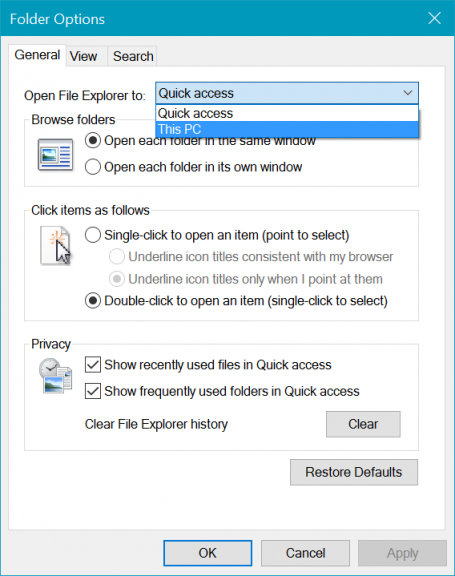
Much better, isn’t it?
#5 – OneDrive doesn’t sync anymore
I really do love OneDrive as I use it to sync all my photos, documents, songs and even my entire desktop across my gaming PC, my laptop and my office workstation. But it’s got its little annoyances, for example when it crashes after a reboot or won’t sync files. The one thing that always helps me is to reset OneDrive: To do that, press the Windows key and R at the same time:
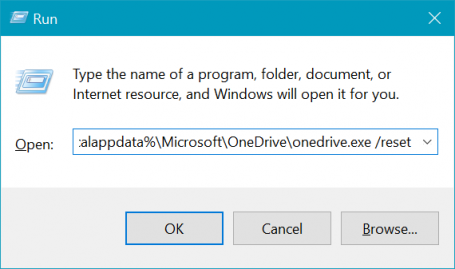
Click OK. The OneDrive icon should disappear and then reappear after a while – and then it should hopefully all be good and sync again.
Got any more Windows 10 issues that are totally annoying to you? Follow us on Facebook. We’re gathering more issues and will follow up in a couple of months with new fixes.


3118753 – Updates for ActiveX Kill Bits 3118753 – Version: 1.0
Revision Note: V1.0 (January 12, 2016): Advisory published.
Summary: Microsoft is releasing a new set of ActiveX kill bits with this advisory. These ActiveX kill bits are included in the Internet Explorer cumulative update released on January 12, 2016.
3123479 – Deprecation of SHA-1 Hashing Algorithm for Microsoft Root Certificate Program – Version: 1.0
Revision Note: V1.0 (January 12, 2016): Advisory published.
Summary: Microsoft is announcing a policy change to the Microsoft Root Certificate Program. The new policy no longer allows root certificate authorities to issue X.509 certificates using the SHA-1 hashing algorithm for the purposes of SSL and code signing as of January 1, 2016. Using the SHA-1 hashing algorithm in digital certificates could allow an attacker to spoof content, perform phishing attacks, or perform man-in-the-middle attacks.