Prevent strangers from using your Wi-Fi network

If you’re running an open Wi-Fi network, you’re opening yourself up to risk in several ways.

  1. You could be liable for crimes someone commits using your network: it’s your Wi-Fi network, so it’s your name that will show up when the police start looking.
  2. You’re exposing your PC or mobile devices to hackers:if anyone can join your network, they can find all the other devices connected to it too.
  3. You could be paying for other people’s use of bandwidth:if you thought your data plan was expensive, imagine what it could look like if your neighbors start streaming movies at your expense.
  4. You could be violating the terms of services from your Internet Service Provider: they are selling their connection to you, not your neighborhood.

Basic ways to secure your home Wi-Fi:

Most of these security measures can be done by connecting to your router’s settings.

  1. Change your network name: Don’t use any personally identifiable names for your home network, like your own name or business name. It just makes it easier for someone to target you specifically. Use something that’s random or private.
  2. Use WPA2 encryption: Your router likely has settings for various forms of encryption, but stick with WPA2, the strongest variant.
  3. Make sure you use a strong password:Use a long password, at least 20 characters long. That seems long, but you can write it down on a sticker and place it on the router itself.

These basic tricks should help you keep your home Wi-Fi network safe from uninvited guests…

Give Your Android Device More Space, Speed & Battery Life

Ready to use our new AVG Cleaner for Android™ 3.0 and its new one-tap ANALYZE view or Smart Photo Cleaner? We’ll guide you through the most important steps of a typical clean-up to make sure you’re not missing anything.

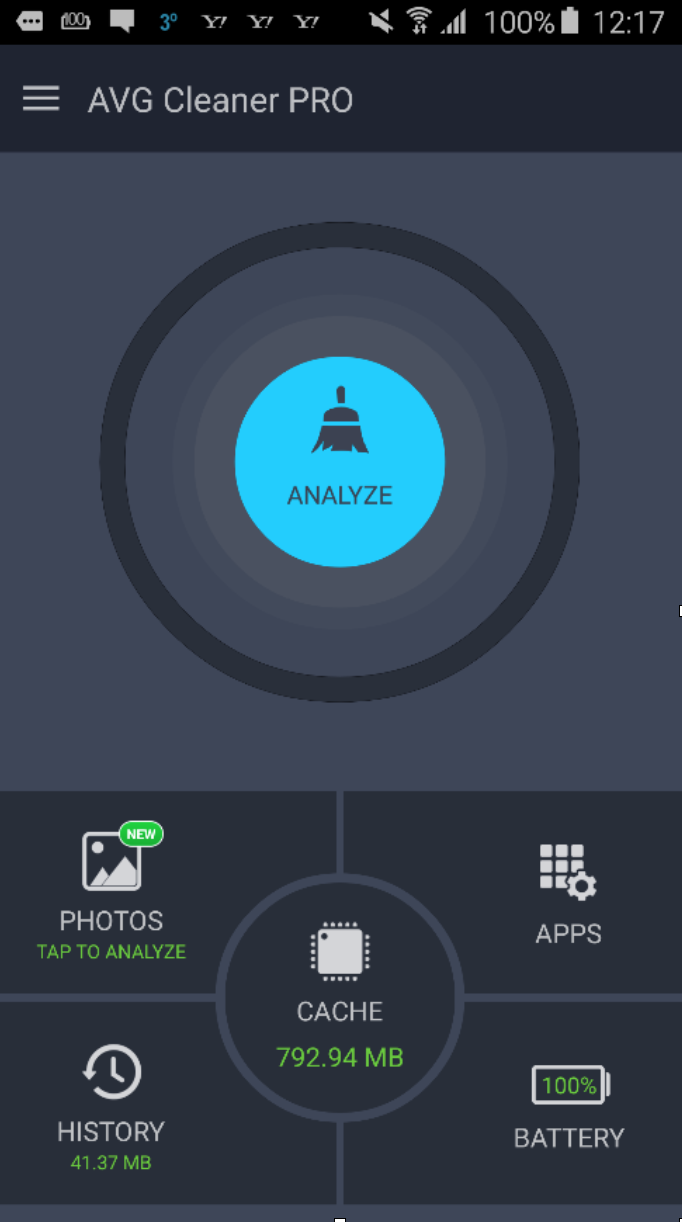
Step 1: Download & launch the new app! Got it? Tap the Analyze button.

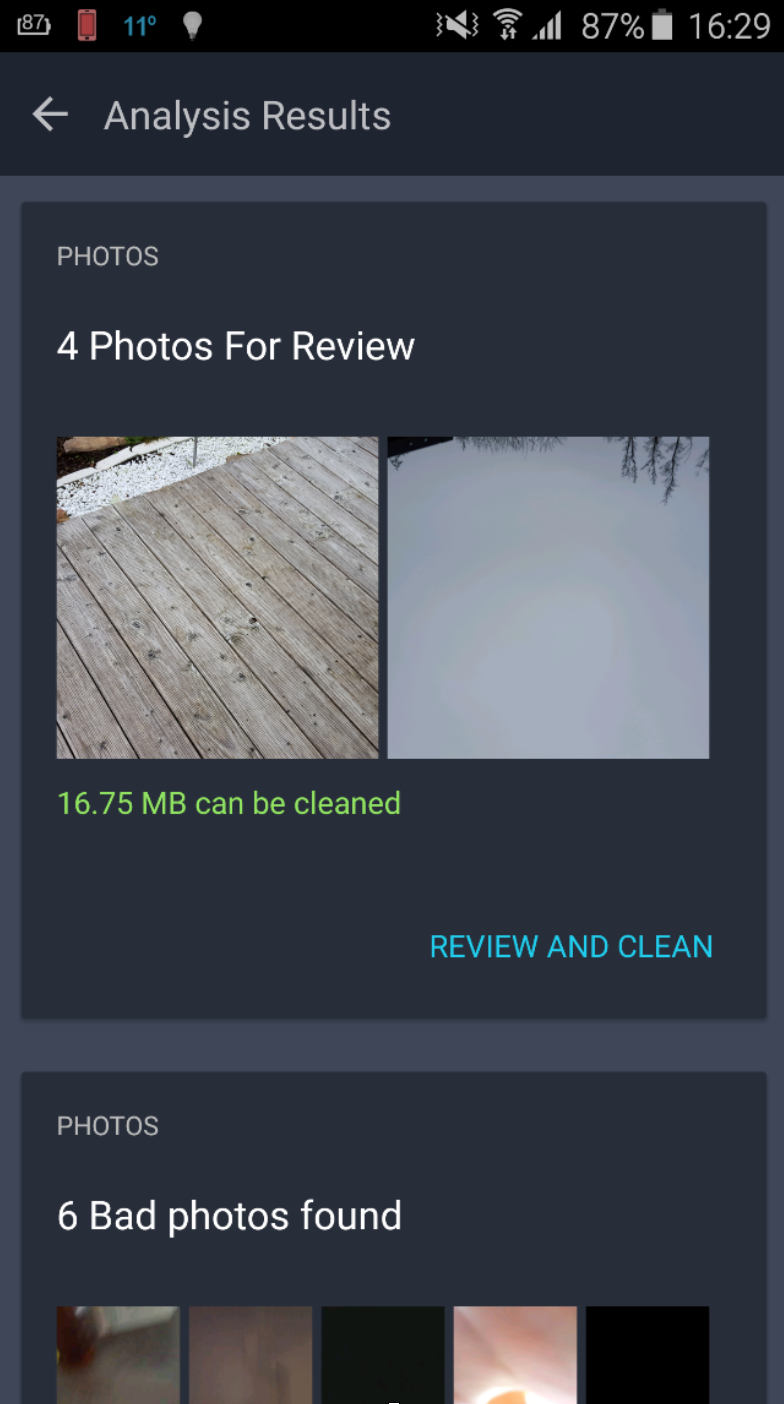
Step 2: Clean up photos! Wait for the results. In this example, it found 4 photos that were classified as bad or potentially unwanted:

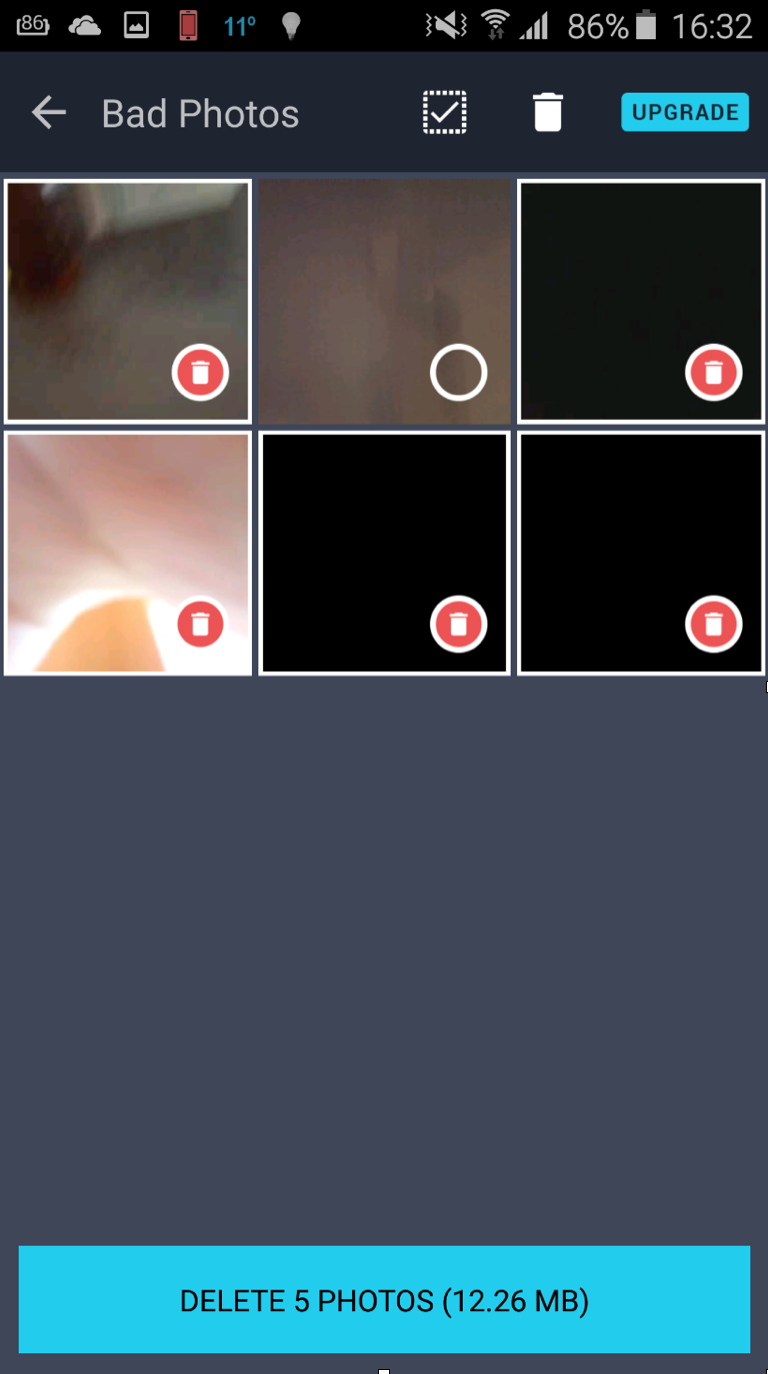
Tap on Review and Clean, and then use either thumbs down/thumbs up or swipe left or right to delete a photo or keep it. AVG Cleaner for Android will now start learning which photos you like or don’t like to give you more personalized suggestions. But no worries, it will never automatically delete anything – the choice is always yours! Next, go to the Bad Photos and Similar Photos sections to clean up the ones you no longer need. Here, you can mark photos you no longer want:

Got them all? Tap on Delete X Photos! You’ll then find yourself in the Analysis Results area again.

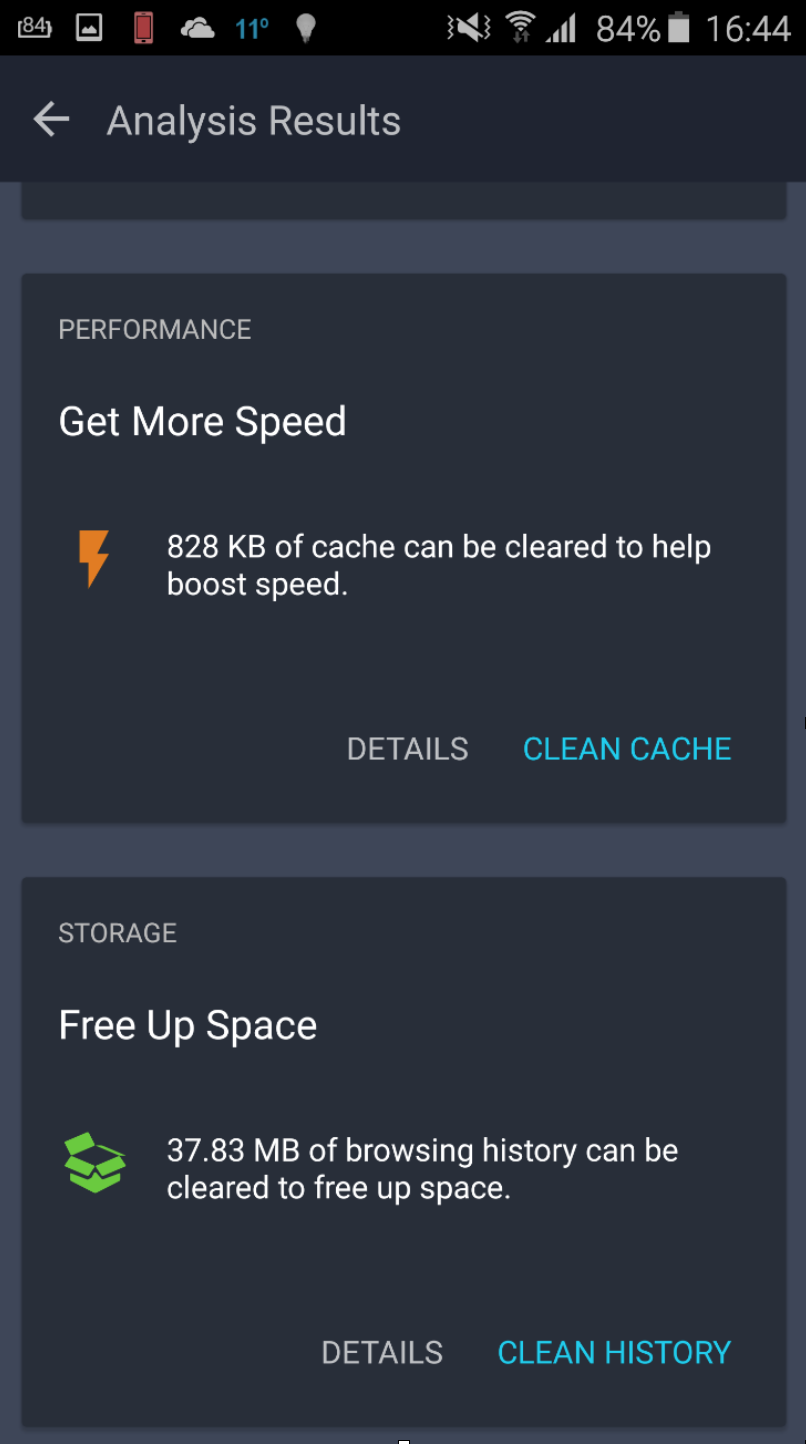
Step 3 – Clean cache: Every time you use your apps, they create what’s called “cache” files. For example, Facebook temporarily stores data from your timeline once you open it to access it quicker next time you open the app. However, many apps tend to forget to delete this data which can accumulate to quite an amount wasted storage. Just tap on Clean Cache and be done with it!

Step 4 – Clean history: Your browser leaves behind traces, such as cookies, temporary browsing data and long-forgotten downloads.

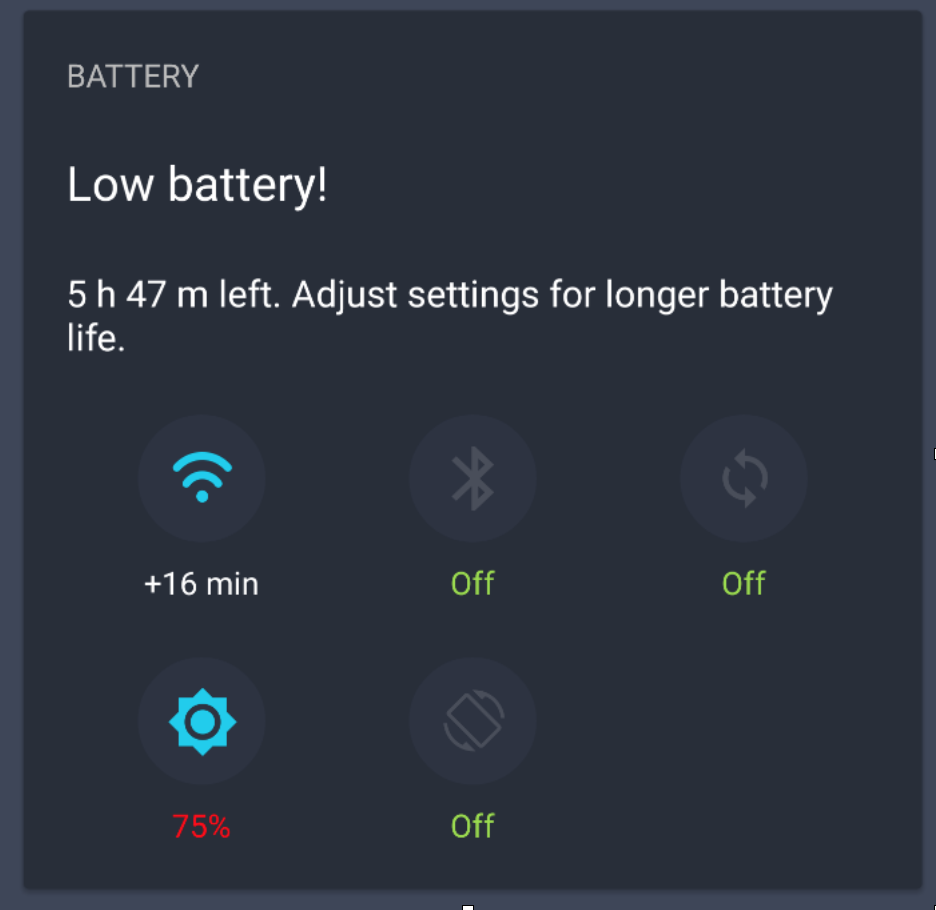
Step 5 – Stop Battery Hogs: The next slice shows you which features of your phone draw the most battery life from your phone – and allows you to turn it off!

Tap to turn anything off you might not need, especially if you’re on the go and without a power outlet in sight.

Step 6 – Stop Memory Hogs: If any currently running app is consuming more than 1% of your memory, they will show up here. You can then go ahead and Force Stop them or Uninstall if you don’t need these anymore.

Step 7 – Get rid of Battery-draining apps: Is your phone not making it to the end of the day without recharging? It may not be your phone itself, but some renegade app(s) that run(s) all the time in the background or does things they’re not supposed to. This section helps you find out which ones are the top drainers – and allows you to stop or delete them!

Step 8 – Free up space: Still struggling to store photos, music or apps on your phone? Then have a look at the last section, Free up space, to see which apps consume the most storage – and get rid of the ones you no longer want!

How much space were you able to free up? How many photos were cleaned up thanks to our new Smart Photo Cleaner? And how many performance-draining apps have you put an end to? Let us know in the comments section below.

If you’re looking for a quick clean-up of all of your unwanted photos, check out our newly re-launched Cleaner today for free!

RHSA-2016:0043-1: Moderate: openssh security update

Red Hat Enterprise Linux: Updated openssh packages that fix two security issues are now available for
Red Hat Enterprise Linux 7.

Red Hat Product Security has rated this update as having Moderate security
impact. Common Vulnerability Scoring System (CVSS) base scores, which give
detailed severity ratings, are available for each vulnerability from the
CVE links in the References section.
CVE-2016-0777, CVE-2016-0778