Category Archives: Antivirus Vendors

Antivirus Vendors

Thoughts on Mobile Digital Parenting

Dear Abby: My birthday is in 26 days…And I really want an iPod Touch for school. I’m in the fifth grade and everyone in my class has an iPod Touch, iPad or iPhone. EXCEPT ME!

Desperate Girl in North Carolina


This was a real letter sent recently to the venerable U.S. newspaper advice columnist Dear Abby. In her response to the 10-year-old, Abby wisely advised the “desperate” girl of some of the possible reasons for her parents’ opposition (among them, the ability to afford a device) and then encouraged the girl to talk with her parents about their concerns and how they could address them.

Digital-age parenting means there is a lot to consider about if and when is the right time for a child to get their own cell phone or other digital devices. Depending on the research you look at, between 56% (CTIA) and 30% (Kaiser) of children aged 8-12 have cell phones. In most cases, the research is a few years old – which means the percentage is likely to be much larger.

On the “pro” side a cellphone can be a great device to keep you connected to and keep track of your kids. On the “con” side, it also connects your kids more readily to the vast and not-always-friendly online world of social media, videos, games, movies, music, and TV shows and more.  Online safety and protection for our kids is a paramount concern.

In research we conducted earlier this year, 42% of parents said they worry that their child is spending too much time online. They are also unsure of what their kids are exposed to and many are uncertain as to how to keep them safe.

If your child is ready for a mobile phone, it’s important to educate them and have rules. Here are a few suggestions, starting with some rules:

House Rules

  • Consider a basic phone as a starter phone. Turn off extras if you are passing down an older model phone.
  • Set limits. Such as: Designated times the phone can be used. Number of minutes that can be used. Caps on number of texts that can be sent.
  • Block internet access and calls from unapproved numbers.

Some Do’s and Don’ts

  • Just as in the real world – never talk to strangers. Never respond to messages, emails, and texts from people they don’t know.
  • Always tell an adult if they receive any hurtful messages online… or requests from online friends to meet offline

In addition to our online and mobile security software, we’ve attempted to help parents by giving them other tools to address online safety. We’ve collaborated with the international children’s safety organization, Childnet, to create a guide to online and mobile phone safety starting at an early age, with our new Magda and Mo eBook series …The series, developed from a child’s eyes, using a series of click-and-tell stories that parents can use to help educate and foster dialogue with their kids about online safety.

Six tips to make sure your personal photos don’t end up on the Web like those of Jennifer Lawrence

girl-with-computer

Increasingly, personal and private information is ending up on public view on the Internet. You may not have posted it yourself, you might have just stored it in the cloud, yet some ill-intentioned individual can access and publish it. Photos, videos and other personal data can easily fall into the wrong hands without your permission.

Since last September, more than 100 celebrities have been victims of this type of invasion of privacy. After having uploaded compromising photos to the Apple iCloud, they discovered these images posted on the Web. Someone had accessed and leaked the pictures.

All eyes then turned to Apple. The attack was caused by a security flaw on its mobile devices. A cyber-criminal claimed to have hacked the company’s services to get hold of the images, although the company has rejected this claim on several occasions.

Nevertheless, here we offer six tips to help protect your photos… just in case!

IMAGEN 1C

1. Be careful about what you store in the cloud

If these actresses and models hadn’t uploaded compromising images, it would have been considerably harder for the hackers to get hold of them. Even if you are not a public figure, it’s always a good idea to think about what kind of things you want to store on your phone.

2. Don’t share your account user names or passwords with others

Even though a friend or colleague may have your complete trust, the fewer people who know your credentials, the less chance there is of others finding out. Most online platforms (Facebook, Apple, Google and Yahoo) allow you to boost security with two-factor authentication. If available, it is always a good idea to use it. It basically involves another step in the verification of the user’s identity. This could involve generating a code that the page sends to your phone or another means of contact to verify your identity.

3. Strengthen your passwords to make sure they can’t be guessed by cyber-criminals

One useful tip is for them to contain a mix of numbers, special characters and upper and lower case letters, i.e. make them has complex and varied as possible. The same goes for your Wi-Fi password. It’s also a good idea to change them frequently.

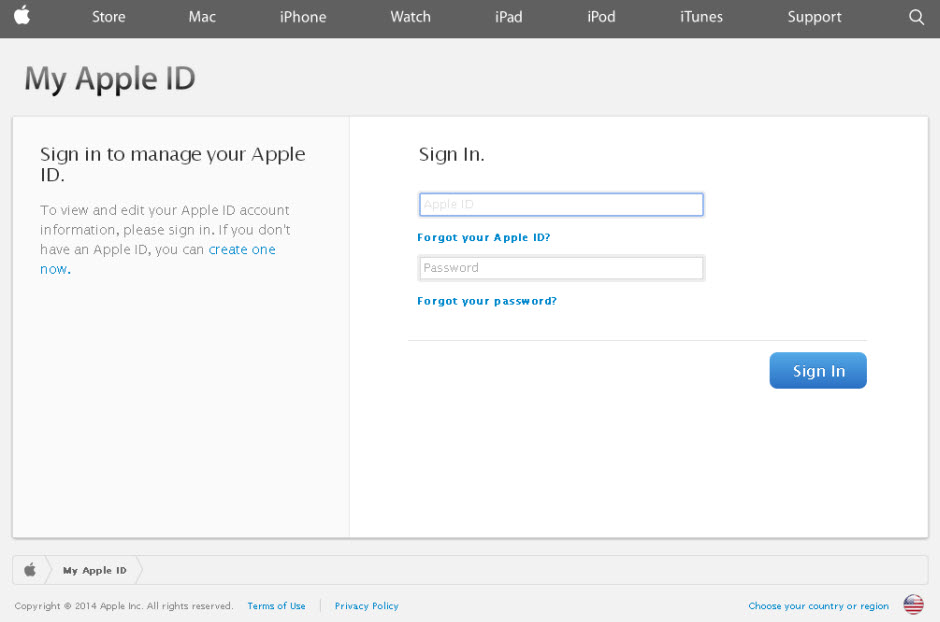
apple-id

4.  With email, it’s wise to have different addresses for different purposes

Use different accounts for professional, personal or financial affairs. If somebody manages to gain access to one, at least all your data won’t be at risk.

5. Take care with your profile on social networks

Check the privacy options from time to time as sometimes they can be changed or the default settings are re-established without notice. And be careful with what you post online.

6. Use a good antivirus

It will not only keep your computer virus-free but will also identity and help keep Internet fraudsters at bay when, for example, you’re shopping online. Find the antivirus that best meets your needs from out 2015 product lineup.

The post Six tips to make sure your personal photos don’t end up on the Web like those of Jennifer Lawrence appeared first on MediaCenter Panda Security.

Cleaning Up Your Right Click Menu

In this blog post, we’ll show you how to easily clean up your context menu in no time. It requires a little bit of tinkering with Windows, but if you follow our instructions you’ll find it easy to follow. Let’s do it:

All entries that show up under your “Right-click menu” or “Context menu” are stored in a rather secret location, called the Windows registry. Here’s how to open it:

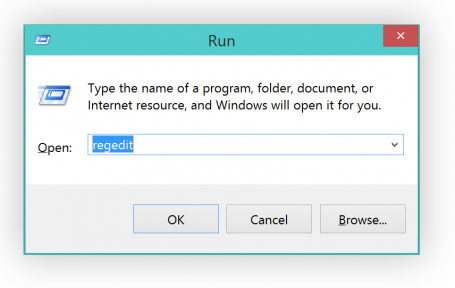
  • Hold down the “WINDOWS” key on your keyboard and then press the “R” button. This will bring up the following screen:
Command Menu

  • Type in “regedit” and hit Enter.


I recommend creating a back up before making any changes


  • To create a backup, simply click on “FileExport” and type in the file name.
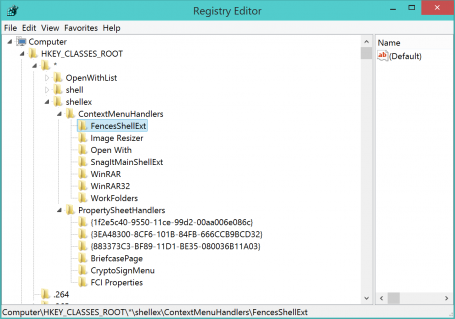
  • Next, open the following folders: HKEY_CLASSES_ROOT*shellexContextMenuHandlers. All the folders you see below represent entries in the right-click menu:


OK, let’s move on to actually getting rid of that folder. So, for example, the “AVG Shredder Shell Extension” folder represents the following item:If you like to get rid of it, simply delete that entire “Folder”.

  • In this example, I want to get rid of the entry for a nice desktop organization tool called “Fences” that I use a lot. Click on “FencesShellExt” (don’t touch the OpenWith or WorkFolders entries, though!) and hit the “Delete” key on my keyboard.


Now, once I cleaned it up, my context menu looks very clean:Plus, you may even be able to solve problems related to the context menus and delays when working with files.


Pro Tip:

If you’d like to add or remove items in your “Create New…” menu there’s a great (and much easier) solution for you. All you need is AVG PC TuneUp:

  • Once installed, go to “Personalize” and click on the “Personalize and behaviors”.
  • Head over to “File Types” and “New”
  • In this area you can easily get rid (or even add!) items that appear under the “New” menu, which I personally like to keep very clean as I only create a few files that way.


Got any questions? Let us know!