Google has fixed several vulnerabilities in Chrome, including a pair of cross-origin bypasses and a high-risk scheme validation error.
Tag Archives: google
Reddit to Move to HTTPS-Only
In the two years since the details of the NSA’s deep penetration of the Internet infrastructure began to emerge, there has been a major movement afoot among Web companies to encrypt more and more of their resources and services. The latest large property to make this move is Reddit, which by the end of the […]
Google rolls out a new password manager
Unveiled at its 2015 I/O developer conference, Google has begun to roll out a new security feature to all Chrome browsers and virtually all Android devices: the Smart Lock Password manager.
From now on, any website login details that you save in your desktop Chrome browser will be accessible via any Android device signed in with your Google account. So, if you’ve saved your login details for, say, Facebook or Netflix, you will be automatically signed in when accessing them from the Chrome browser on your Android device, and vice-versa.
In addition, if you were to install the Facebook or Netflix apps on your phone, they will also be able to automatically retrieve your login details from your Google account and sign you in.
The last feature requires individual app developers to include the newly released API codes from Google, but it’s a relatively simple matter, so we expect to see this feature rolling out across a variety of apps soon.
How to feel about Google managing your passwords for you is for you to decide. If you’re already saving these accounts in your Chrome browser, chances are you will enjoy this feature. However, you’re now putting more of your eggs in the same basket, so make sure that your main Google Account is locked down with strong passwords and two factor authentication.
So given our recent post about the fragmented nature of Android update deployments, when can you expect this feature? Well, for the last few years, Google has been using the Google Play Services app to get around this roadblock and send out major system updates to Android users, regardless of brand or make (but that’s a story for another time).
Any device running Android 2.3 or above will be receiving the update to Google Play Services 7.5 and be able to use the feature.
How to turn on or off Smart Locks Passwords
Interested in using the feature, or just want to make sure it’s turned off and Google isn’t vacuuming up all your passwords?
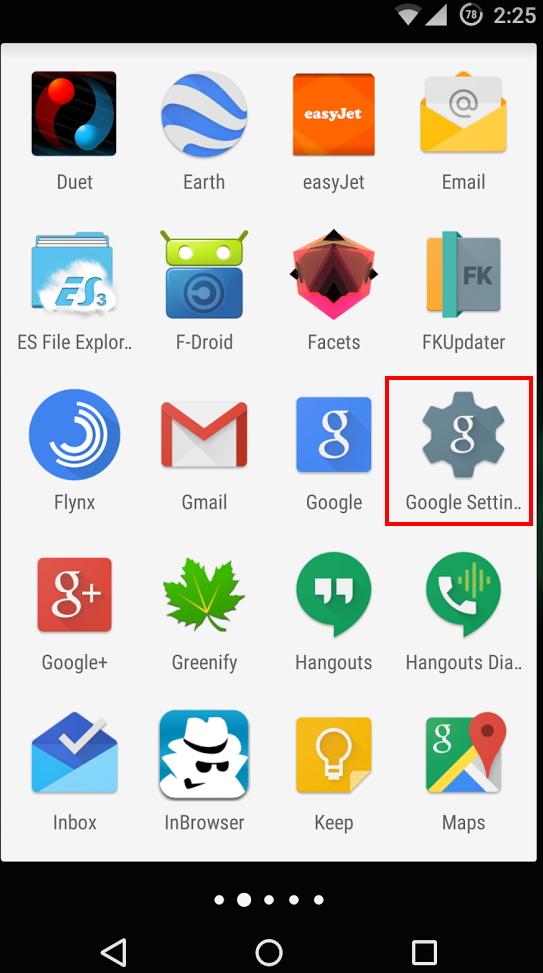
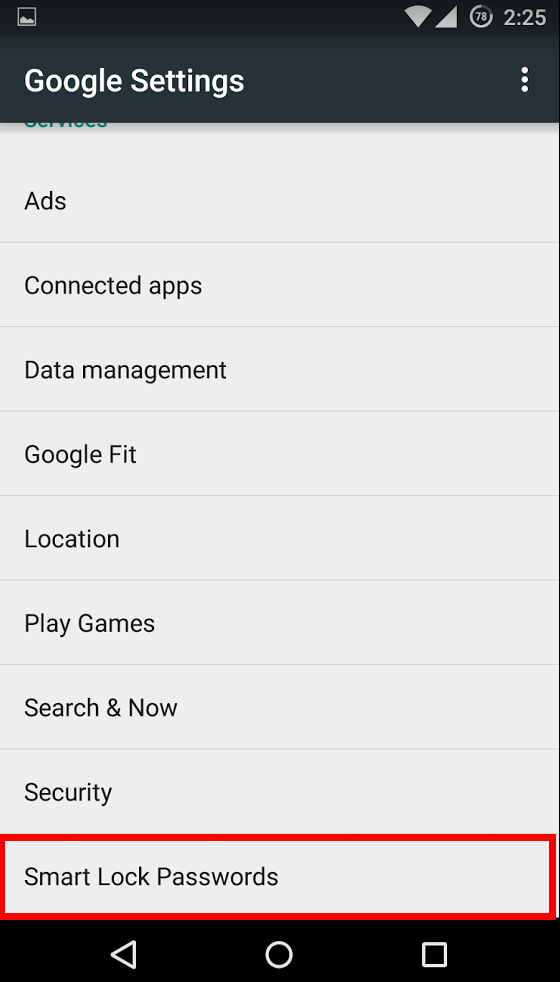
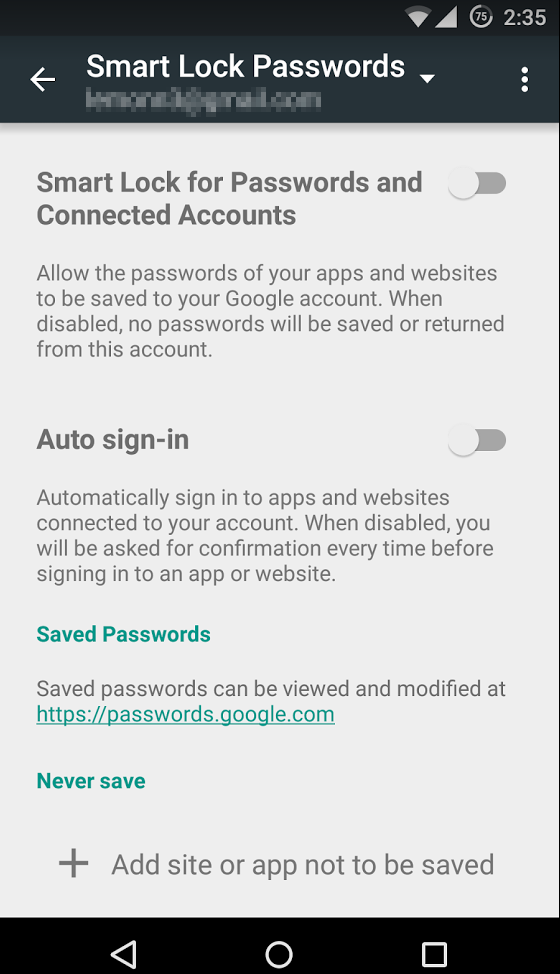
In your Android device, open the Google Settings app. This where all the details concerning your Google Account reside. You’ll find the Smart Locks setting at the bottom of the main menu in the Google Settings app. From there, you can select to turn on or off the password manager, allow auto-sign ins, and add exceptions to certain sites or applications.
From your Chrome Browser, you won’t find the Smart Locks name per say, but you will find where to manage the passwords saved in your browser. Just click on the menu in the top right corner of the browser, and select settings.
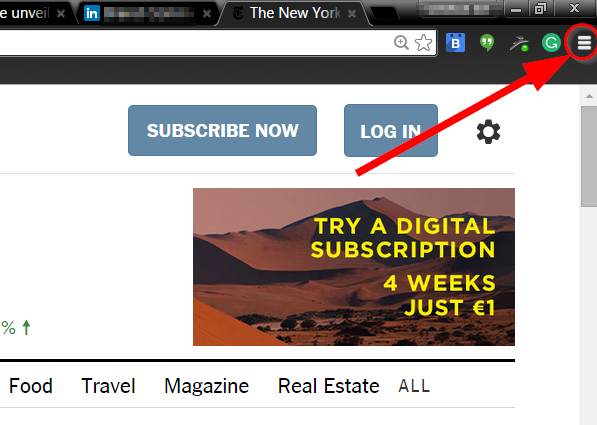
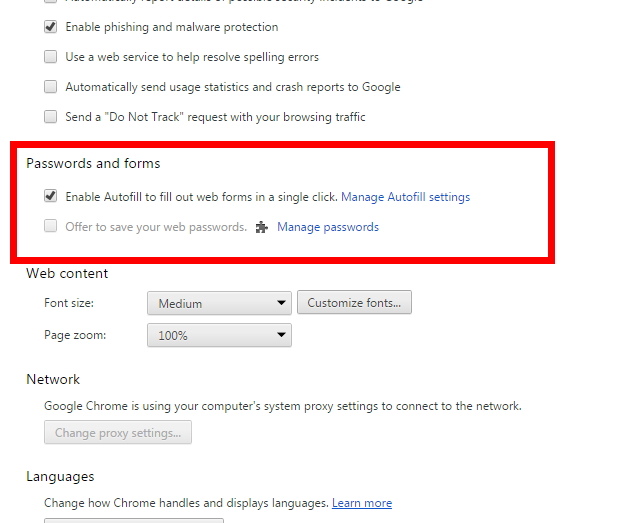
At the bottom of the settings page click on “Show advanced settings”. From there, you can scroll down to “Passwords and forms”. Any passwords you’ve saved can be found here.
If you feel the convenience isn’t worth the privacy tradeoff, you can delete them and also set the browser to no longer automatically sign you into websites. Just keep in mind: you will regularly be asked if you want Chrome to save your logins when you sign in to websites. Remember to say “no” and “Never ask for this website again”.
As always, stay safe out there.


Bug Bounties in Crosshairs of Proposed US Wassenaar Rules
Bug bounties and rewards programs provide researchers with a measure of income, and if the proposed Wassenaar rules are implemented in the U.S., that initiatives could be adversely impacted.
Which is the most secure Android Smart Lock?
If you’re one of the lucky few to be running a phone or tablet with Android Lollipop (5.0 or above), you might be tempted to use one of its new Smart Lock security features. These features bypass your lock screen when certain conditions are met.
Here, we examine the various kinds of Smart Locks Lollipop offers, where they fail, and how reliable they are.
Trusted devices
Trusted devices is perhaps the safest of the new smart lock features. It works by confirming your identity with “something you have”; in this case a bluetooth device or NFC trigger. When your devices pair, your lock screen will be removed. The feature seems to have been designed with smartwatches in mind, but any bluetooth device like car or wireless headset will work.
This is particularly secure, as bypassing this lock would require both your devices be stolen at the same time. The other workaround includes spoofing the MAC address (or identity) of your bluetooth device, which is a difficult and highly unlikely process.
Trusted places
Trusted places creates geofences around specific areas you designate as “safe”. Usingbuilt-in GPS, WiFi scanning, and other location services, your device can determine whether you are inside the area and disable your phone’s lock screen. When the phone leaves the area, it automatically locks up again.
This feature can be particularly useful and safe if you designate your home as a safe zone, especially if you’re home is in an isolated area. However, we wouldn’t recommend setting any location you do not fully control as safe. Any passerby in the “safe zone” could potentially pick up your phone and use it. Furthermore, the feature isn’t as precise as it could be: the diameter of the “safe zone” can be up to 80 meters wide (nearly 90 yards or 262 feet).
Trusted face
Trusted face essentially confirms your identity by looking at you, using your device’s front facing camera to recognize your face. Because of that, hardware can be a limiting factor in this method’s reliability: a poor front-facing camera can quickly become a liability.
While the system is smart enough not to get fooled by a static photo of your portrait, it still requires you to “teach it” to recognize your face in several different lighting conditions or wearing various accessories.The more you do this, the more reliable it becomes, but it can require more “teaching” than most users would feel comfortable providing. Essentially, every time your phone doesn’t unlock is an opportunity to teach it.
Oh, and you can give up on getting this to work in low lighting conditions.
We leave it to you to determine the likelihood that a look-a-like will snatch your phone. Just don’t use this feature if you have an evil identical twin.
Trusted voice
Trusted voice relies on vocal recognition to confirm your identity. It works particularly well if you are a consistent user of Android’s voice activated features, since those learn to recognize your speaking patterns to better interpret your queries. If you do not use them often, you may find the reliability of this method to be somewhat limiting.
A secondary annoyance is that it relies on triggering the Google Launcher’s signature “Ok, Google” to unlock your screen, which will then wait for a search query or command. Unless you are a heavy user of the Launcher or Google Now, we don’t recommend this.
On-body detection
This is easily the least secure of the methods revealed so far, and we strongly recommend you do not use it. On-body detection relies on your phone’s internal accelerometers and gyroscopes to determine if you are carrying your phone. Unlock it once, and it will stay unlocked while in your hands or pocket. Put it down on a table, and it will lock immediately.
While this may seem to make sense and greatly simplify your life, it’s also a godsend to any pickpocket or straight-out thief that would snatch the phone out of your hands. So long as the phone is in movement, it doesn’t care who unlocked it. With over 3 million smartphones stolen every year in the US alone, and 2000 a day in the UK, we really cannot recommend this method.
How to turn the Smart Lock features on
If you decide you still want to use one or more of these securityfeatures, you’ll need to turn them on first, and Google has not made that easy.
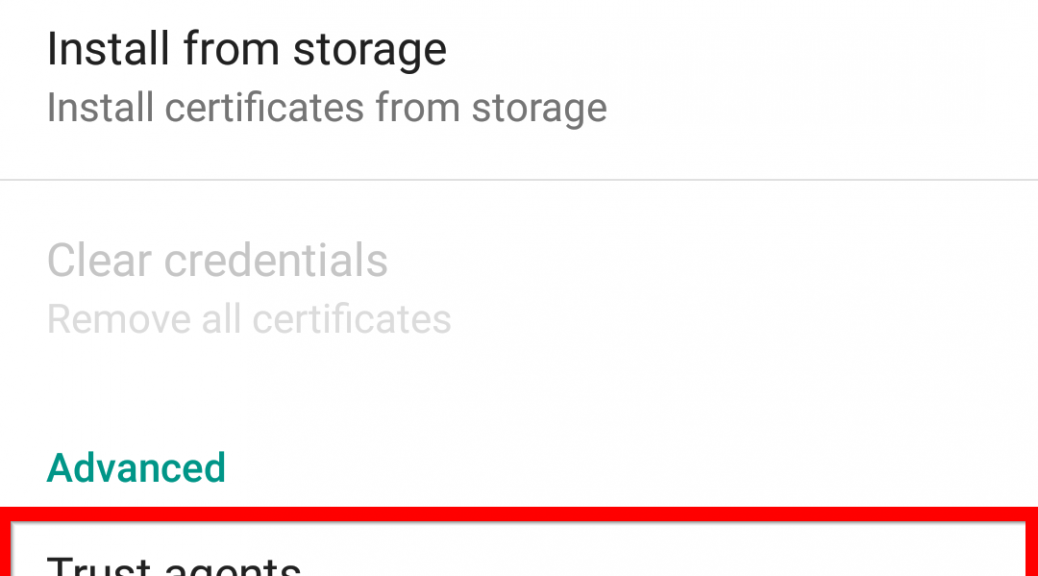
First, in the Settings menu, you’ll need to scroll down to Advanced and select Trust agents. Inside this menu, you’ll need to activate the Smart Lock option.
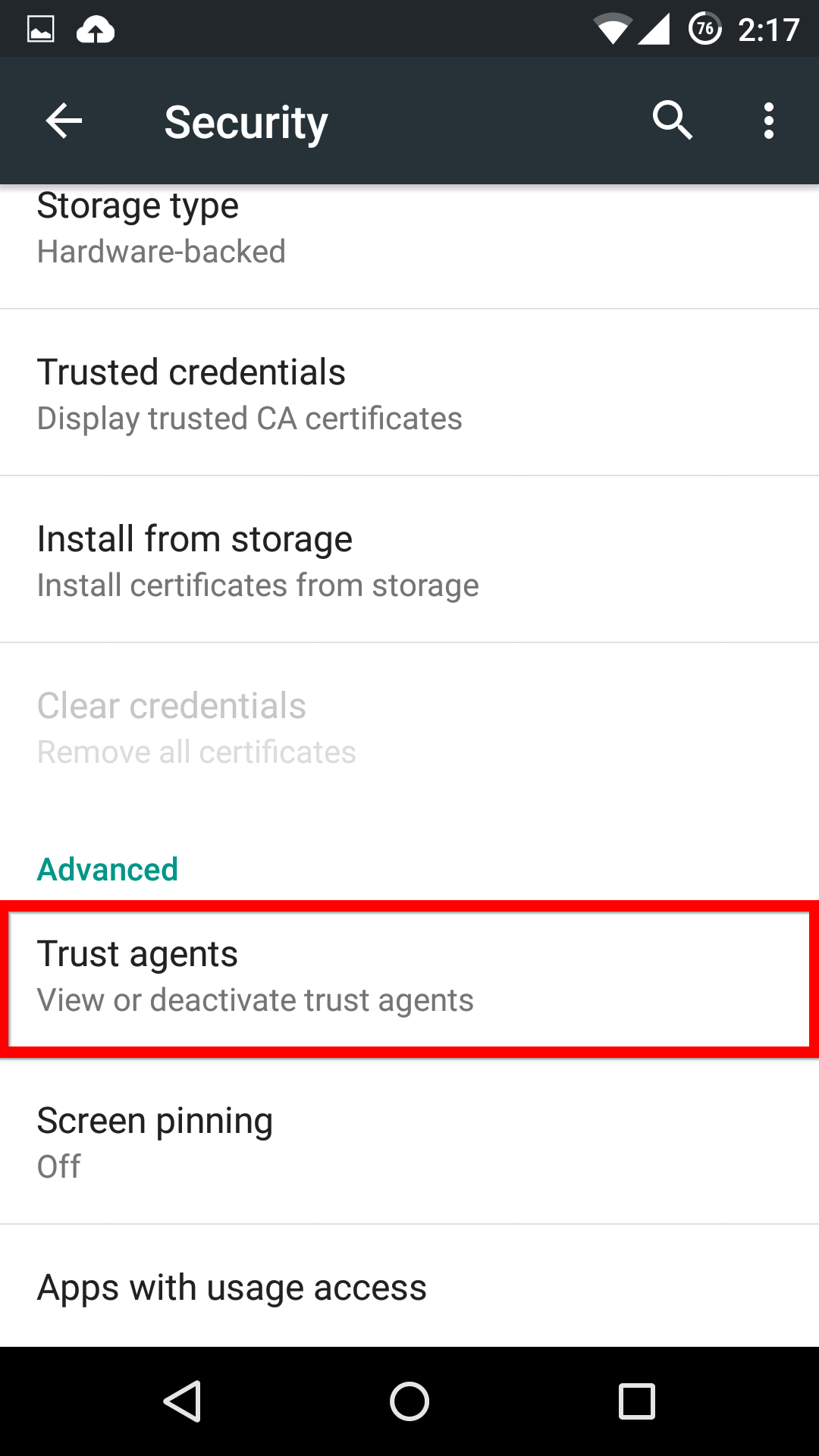
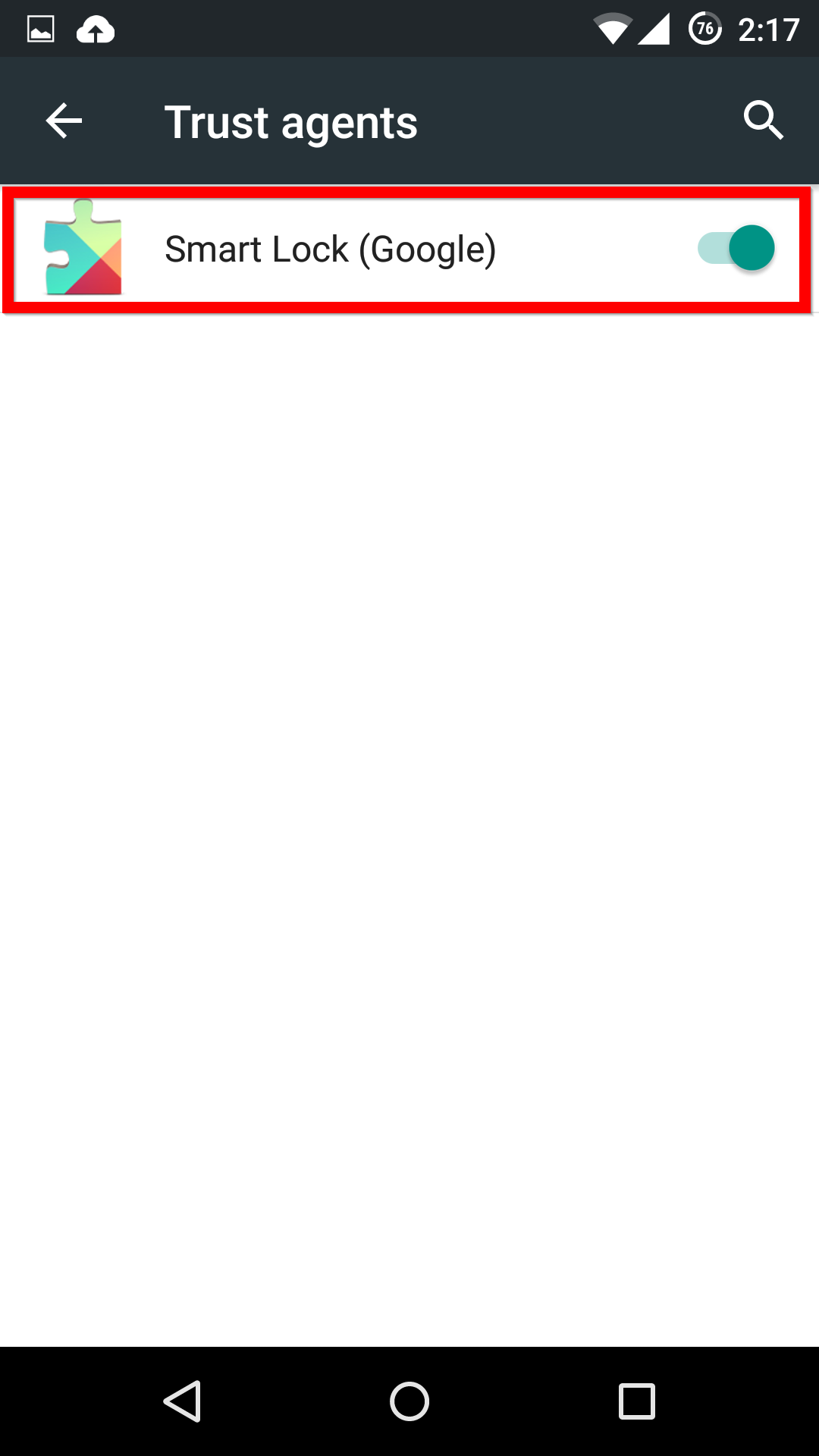
Now, when you head back into the main Security menu, you’ll be able to find the Smart Lock menu, and activate whichever features you want.
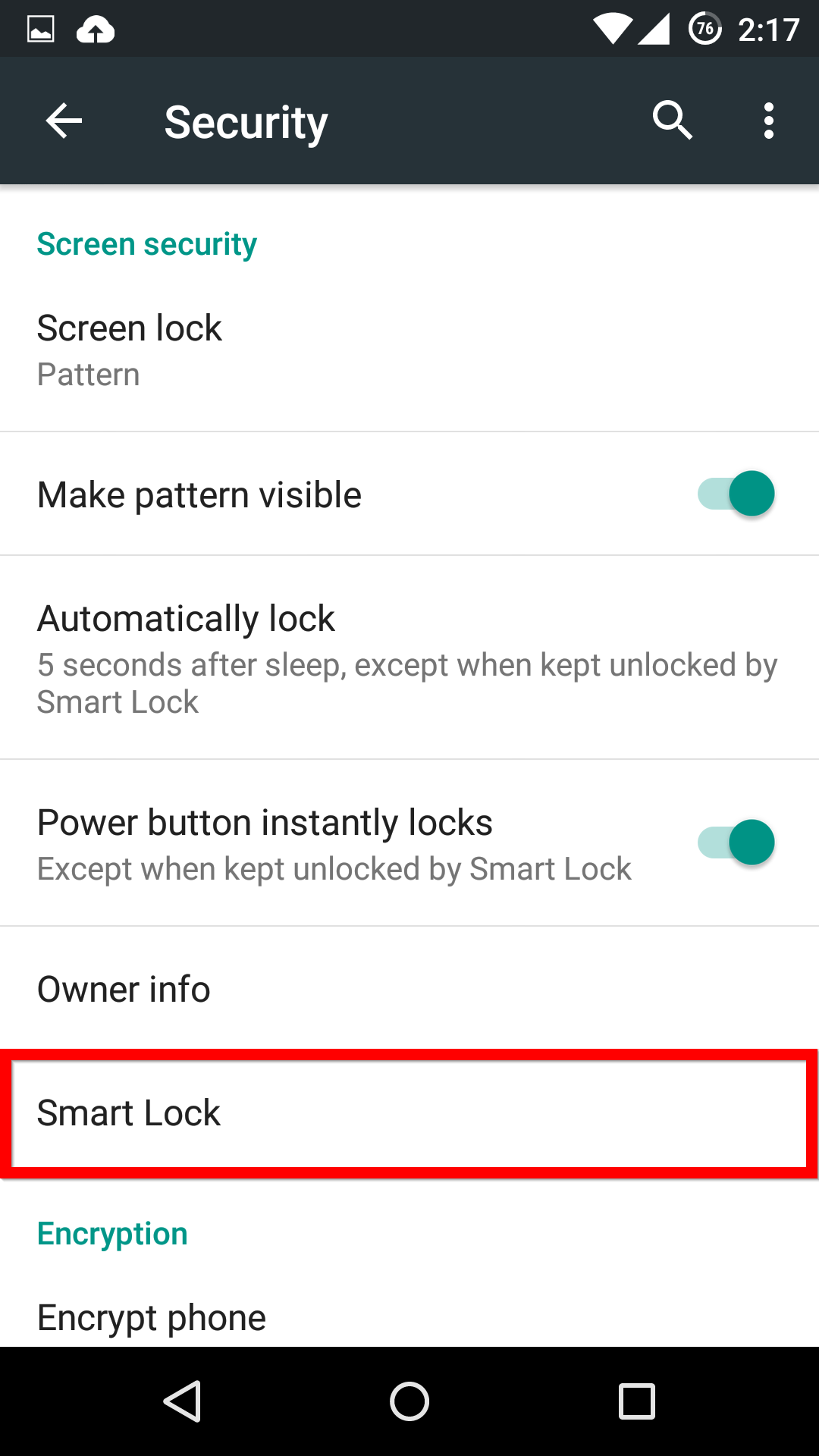
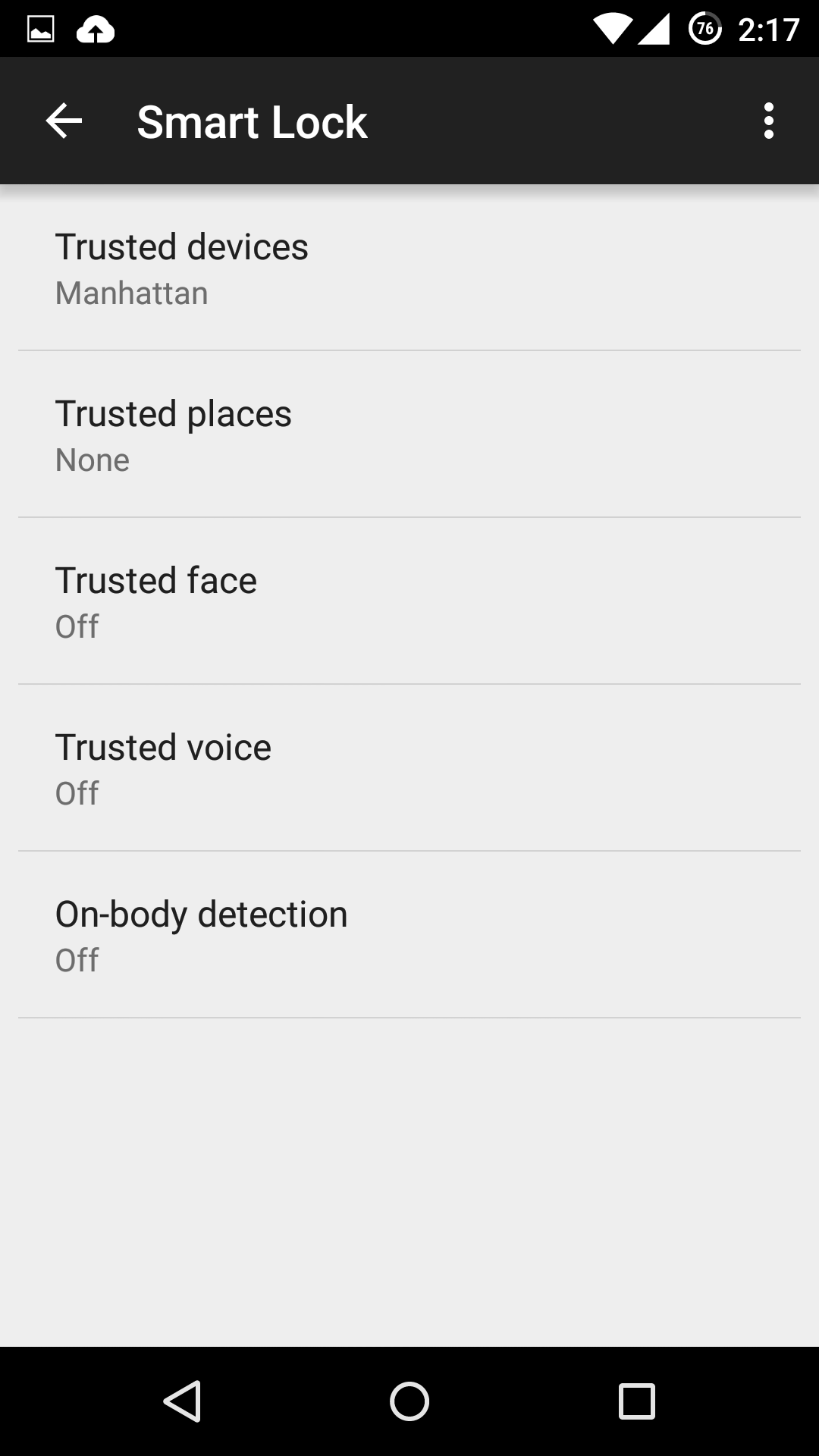
If you see one of these features missing, make sure that you’re Google Services app is up-to-date.


Zero-Day Disclosed in Unity Web Player
A zero-day vulnerability has been disclosed in the popular Unity Web Player browser plugin. The flaw allows an attacker crossdomain access to websites and services using the victim’s credentials.
Google Introduces My Account, Makes Your Privacy and Security Control Easier
Worry no more: The search engine giant now wants to take you by the hand and help you with your privacy and security information. In order to do so Google just released a new dashboard from which you can access and change all the important setting.
According to the Google blog article some of the features of the new My Account are:
- “Take the Privacy Checkup and Security Checkup, our simple, step-by-step guides through your most important privacy and security settings.
- Manage the information that can be used from Search, Maps, YouTube and other products to enhance your experience on Google. For example, you can turn on and off settings such as Web and App Activity, which gets you more relevant, faster search results, or Location History, which enables Google Maps and Now to give you tips for a faster commute back home.
- Use the Ads Settings tool to control ads based on your interests and the searches you’ve done.
- Control which apps and sites are connected to your account.”
The new My Account dashboard looks neat and tidy and consists of three sections: Sign-in & security, Personal info & privacy and Account preferences. Though most of the settings are not actually new and were available before on different subpages, it is nice to have them all in one place.
In addition to the dashboard Google also set up a new page concerning why it collects your data and what it does with them. To learn all about it, visit privacy.google.com.
The post Google Introduces My Account, Makes Your Privacy and Security Control Easier appeared first on Avira Blog.
Android’s factory reset may leave data behind
We’ve given tips in the past about what you could do with an older smartphone, and a few of those involved donating it to charity or selling it. A vital step before doing either of these is to perform a factory reset to clear out your data. New research has emerged that says that a factory reset may not be enough to keep your data safe from some more advanced data retrieval techniques.
Researchers at Cambridge University have just released a study outlining several flaws in the way most Android handsets handle factory resets. The issue arises from the way devices store information on flash memory. Reading data has a negligible impact on flash drives, but writing new data to them can cause considerable wear.
To prolong the drive’s health, instead of deleting content directly (“writing off” the data), flash drives will instead designate memory blocks where the data resided as “logically deleted”–meaning they are available to be overwritten.
So when you perform a factory reset, those “logically deleted” content blocks aren’t being overwritten, as they are already considered “empty” by the system. Given enough time and the right tools, the researchers were able to retrieve personal data such as photos and chat logs. They were also able to retrieve the master tokens for automatically signing in to Gmail and other Google apps as well as Facebook apps an alarming 80% of the time.
How to protect your data
If you are looking to sell or donate your phone, there are a few things you can do to help keep your data private. We suggest you do all of these steps:
Encrypt your phone before factory resetting your data.
Devices running Android 3+ or above all allow you to encrypt your phone. The option can generally be found in the settings under the Security tab. Encrypting your phone before the reset ensures that any data that survives the factory reset has to be decrypted.
The Cambridge researchers were able to retrieve some encrypted data and run brute strength attacks until they found the right passwords. So make sure you create a long password of over 15 characters, using upper and lower cases, numbers and symbols: a longer, more complex password would take years to crack. Ideally, use a password generator: you don’t have to remember this password, since you’re “erasing this data”. Now complete the factory reset.
Remove your device from your Google account
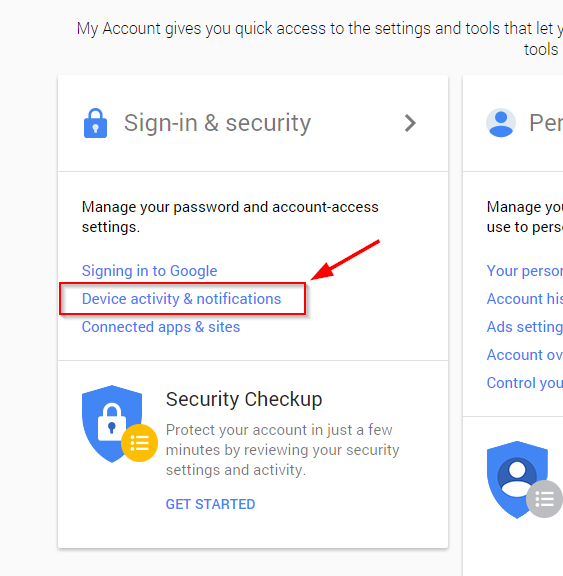
From a browser on a new device, go to myaccount.google.com. Under Sign-in & Security you’ll find the Device activity & notifications section, which allows you to review all the devices currently connected to your account.
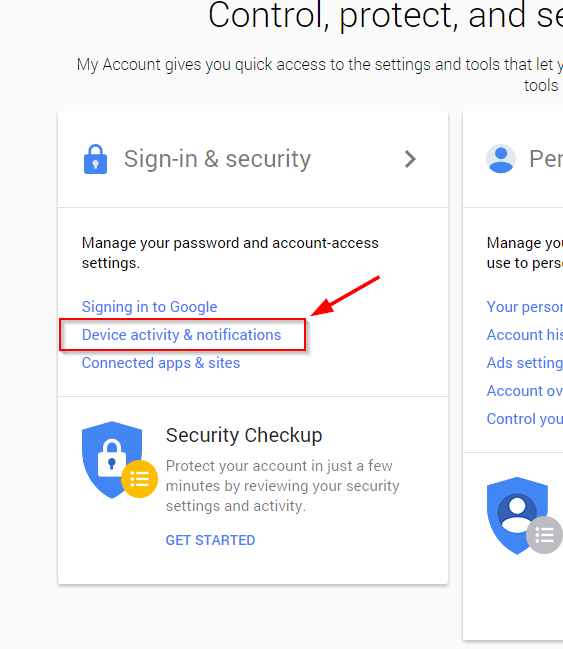
Select your old device, and Remove it. This will prevent any automatic sign-ins from your old device.
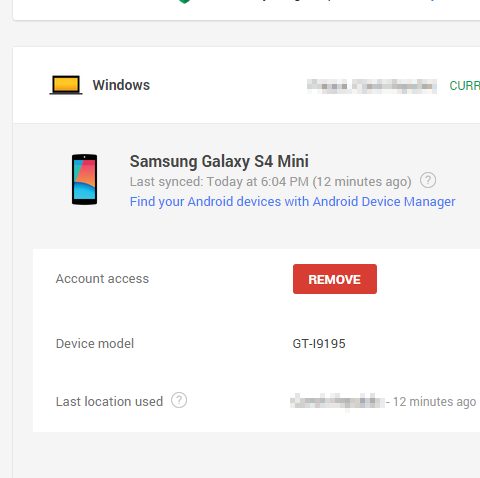
Change your account passwords
Changing passwords regularly is simply good digital hygiene, so it makes a lot of sense to change your passwords when changing devices. Even if a hacker were to somehow retrieve your passwords to your Facebook or Google accounts after the factory reset, they would no longer work.
Though the risks of your data being exploited this way are relatively low, it pays to take extra precautions. With these three steps, you should be reasonably secure from even a determined criminal.
As always, stay safe out there!


Google to add permission controls in upcoming Android M
At the Google I/O event in San Francisco, the company announced a number of changes to its Android mobile operating system, including the option to deny any app individual permissions.
The post Google to add permission controls in upcoming Android M appeared first on We Live Security.
