Tag Archives: Tips

How to get the best out of your computer

plane

You have surely, at one point or another, missed the speed at which your computer once worked when it was new. Now, when you turn it on, it takes an eternity to start up and you’re sat there wasting time.

With time it is normal for the performance of your PC to drop due to the buildup of unnecessary files which reduce the space available on the hard drive.

Likewise, the fragmentation of files, which can also take excessive amounts of time, plays a role in slowing down your PC’s performance.

With this in mind, it is recommended that you do a clean out of your PC every so often, eliminating unnecessary files, etc.

Seeing as we can’t give you a new computer, we came up with a solution to help your PC regain its former glory. Even if you didn’t think it possible, you can do this with an antivirus software.

Cleaning the PC: solution for a slow computer 

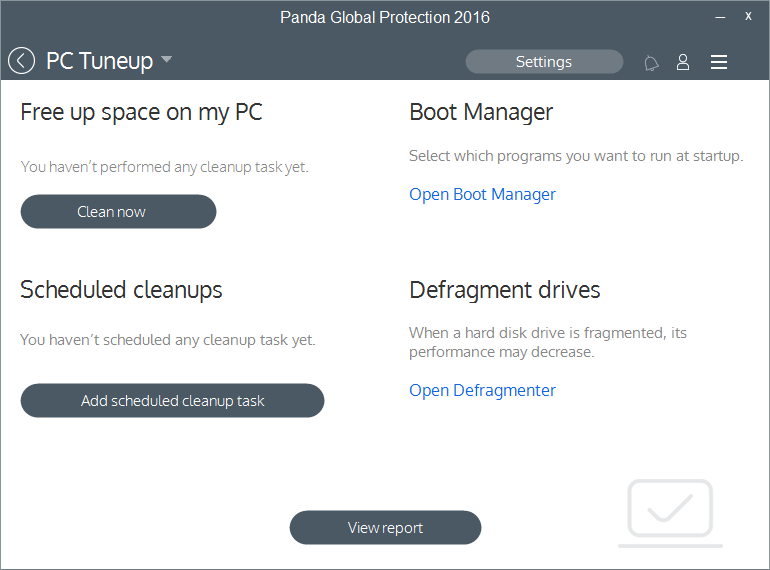
The PC Tuneup feature is present in the 2016 antivirus protection line through the Panda Global Protection 2016 and Panda Gold products.

best computer

With this you can:

  • Clean cookies and unnecessary, temporary files that can slow down your PC.
  • Eliminate invalid entries on the register which can affect your PC’s start up.
  • Manage the start up of your computer. You will be able to see all running programs and deactivate them if necessary. Also, the product constantly monitors and advises the user in the event of a program installing itself during the start up process.
  • Optimize your Android devices to increase performance and battery life.

Do you want to try it out? Give our new 2016 consumer solution products a go and tell us what you think!

Remember that we can only help you if you contact us via the technical support page.

The post How to get the best out of your computer appeared first on MediaCenter Panda Security.

Protecting your wallet in the digital age

In days gone by, keeping your wallet safe while out and about just meant making sure it was still in your pocket. But with a variety of new payment technologies such as contactless payment or Chip and PIN being developed and rolled out, and hackers becoming increasingly creative about how they access and use your information, times are changing fast.

While we all want speedier, more convenient payment options, have you stopped to consider the level of personal information you now carry around about yourself, and whether you are still doing such a good job of keeping your wallet safe in today’s digital age?

As National Cyber Security Awareness month continues, I’ve jotted down a few of my top tips:

When is a wallet, not a wallet?

There has been much talk of the ‘digital wallet’ in recent years, but with NFC payments now enabled through schemes such as Apple Pay and Android Pay, your smartphone could now be considered a wallet on its own. As such, you’ll need to consider both its physical and cyber security. This means taking steps such as considering where you’re carrying and using your phone, making sure you have software to protect it from malware, and ensuring you only use it at trusted locations for sensitive transactions such as money transfers.

Does you wallet speak for itself?

With contactless payment systems becoming more popular, especially in Europe, even cards in your wallet could speak without you knowing. If you card has the ‘contactless’ Wi-Fi type symbol on it then it most likely has RFID technology that allows details to be read from the card without the need to swipe or insert into a chip and pin reader. This also means that if a cybercriminal can get close enough to your card then they might be able to read some of the data from it. Wallet manufacturers are now producing wallets that add pockets of protection for you to store cards of this type. I recently purchased one and now it stores both my driver’s licence and contactless cards in the protected zone.

Putting a PIN in your security

With the increase in payment technologies such as Chip and PIN and contactless, the contents of your traditional wallets are also more vulnerable than ever before. So what steps should you take here?

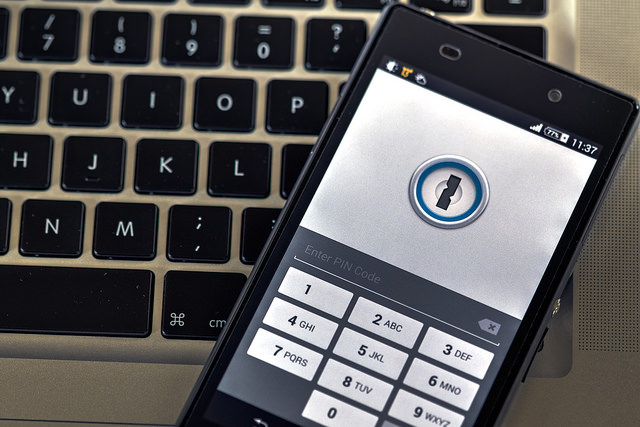
Just as you wouldn’t leave your house keys in your front door, your card or phone’s PIN number should never be written down and certainly not left with the card or phone itself. If you have trouble remembering the PIN provided by your bank, you should change it to a number that’s easier for you to remember – but not so easy that others could guess it. When entering your PIN, you should also hide it from anyone who might be looking!

While not yet mainstream in the U.S., ‘touch and go’ NFC payment from a phone or ‘contactless’ RFID from a credit card is already common in Europe. Making a payment in seconds is appealing to many of us, but this convenience comes with a number of other security considerations. In the UK, there is currently a cap of $45 (£30) on such purchases – minimising the risk of significant purchases being made on a stolen card or phone. For anyone still feeling nervous, it is possible to ‘opt out’ and request a simple Chip and PIN card.

Beyond these more ‘high-tech’ tips, there are other points of best practice that should always be observed in protecting your financial security.

Check what you’re paying for

As cashless payment becomes the norm, it’s easy to lose track of what you’re spending, and even if you’re the one spending it! Always make sure to check your bank statement, even if online, for any ‘rogue’ payments. Many of us have the attitude that ‘it won’t happen to me’, but fraudsters will often start with small amounts that may go unnoticed to those who aren’t vigilant.

Bin those receipts

Is your wallet bulging with six months’ worth of receipts? If so, de-clutter! Receipts can carry a whole host of valuable information including your credit card details or signature. Keep any important receipts for returns, warranties or business expenses, at home and make sure to shred the rest. Expired cards should also be cleared out of your wallet. While you can’t use them anymore, your information could still be of use to a potential fraudster.

Having taken my wallet with me on various travels abroad recently, I know I’ve kept these tips in mind, and fingers crossed, remained fraud free! Hopefully they will help you do the same!

10 easy-to-follow online safety tips for grandparents

grandparents security

Online security has no age limits and we can all protect ourselves from cybercriminals without being experts in the field. All you need to do is adopt the traditional “don’t speak to strangers” advice and apply it to your online habits.

Here we’ll recap ten simple steps that all of the family, including your grandparents, can follow to ensure safety while online.

10 easy-to-follow online safety tips for grandparents

1. Don’t trust every email that you receive

Some cybercriminals can pass themselves off as another person with the aim of stealing your personal information. So, how do you know when you’re being tricked? The easy way to stop this is to avoid conversations with people you don’t know. You should also avoid clicking on links sent by an unknown source and never give your personal information to a website that doesn’t begin with https:// (you’ll see a lock in the browser). Also, your bank will never ask for your email address, so don’t give it away.

2. Be wary of downloading attachments

If you receive an email from an unknown source with an attachment that is either ‘.zip’, ‘.rar’, ‘.exe’, a Word document, or a seemingly innocent photo, don’t download it. These could all contain malware that could infect your computer also be wary of emails from friends, as unwittingly, they could send you malware. It’s best to check with them before opening it, if you weren’t expecting to receive an email from them.

3. Surf the web safely

Don’t just give away your personal information to any website without thinking why they demand it. You should also trust your browser, as if there is anything suspicious it will inform you that the website is potentially dangerous. It’s best to pay attention.

4. Use different passwords and change them frequently

If you want to register yourself on trusted website, be sure to use a password with a mix of letters, numbers, and symbols (although a few websites will ask you for this anyway). Never use the same password for all of your accounts and make sure you change them every so often. Also, don’t send your password to anyone or leave it written down anywhere. It might seem a little extreme, but you need to stop others from accessing your network.

grandparents computer

5. Eliminate annoying ads

You never know what an innocent click can do until your browser is filled up with annoying banners, pop-ups, and ads that you don’t want to see. To avoid them, install a blocking service such as Adblock.

6. Be careful of SMS

Cyberattackers are now using this messaging service to carry out attacks, so you should also be wary of what these messages contain. A few months back there was a malware that was spread by this medium which simply asked “is this your photo? – Once the victim clocked on the link, an app was installed onto the device which was able to spy on their contacts.

7. Install an antivirus on all your devices

Leave the experts to worry about your computer or smartphone by letting the antivirus software look after and protect your device from malware. They help to ensure that you are safe when buying online and allow you piece of mind when surfing the net.

8. Exert caution with public Wi-Fi zones

Many is a time that you arrive at the train station, the café, or the hotel and have connected to the Wi-Fi that is offered freely. Although it is convenient, keep in mind that it is a public connection and you should be extra careful about what you do while connected. While browsing, make sure that the lock symbol is present and avoid carrying out bank transactions.

9. Remove your tracks when using other computers

If you log in to a personal email account or another service while using a different computer, be sure to delete all browsing history, including cookies. If you aren’t sure of where to find out how to delete your tracks, follow this simple tutorial from Chrome.

10. Allow updates to your software and operating system

The old saying “better the devil you know” doesn’t really apply to the internet. If your operating system or any of the apps that you have installed is saying that there are updates available, read it carefully and install it. Even if you need to adapt to a few changes, it’s better to have the most up-to-date version as it will be the one that the developers have installed the latest security updates for.

The post 10 easy-to-follow online safety tips for grandparents appeared first on MediaCenter Panda Security.

How to set up your household router to protect yourself from attack

set up router

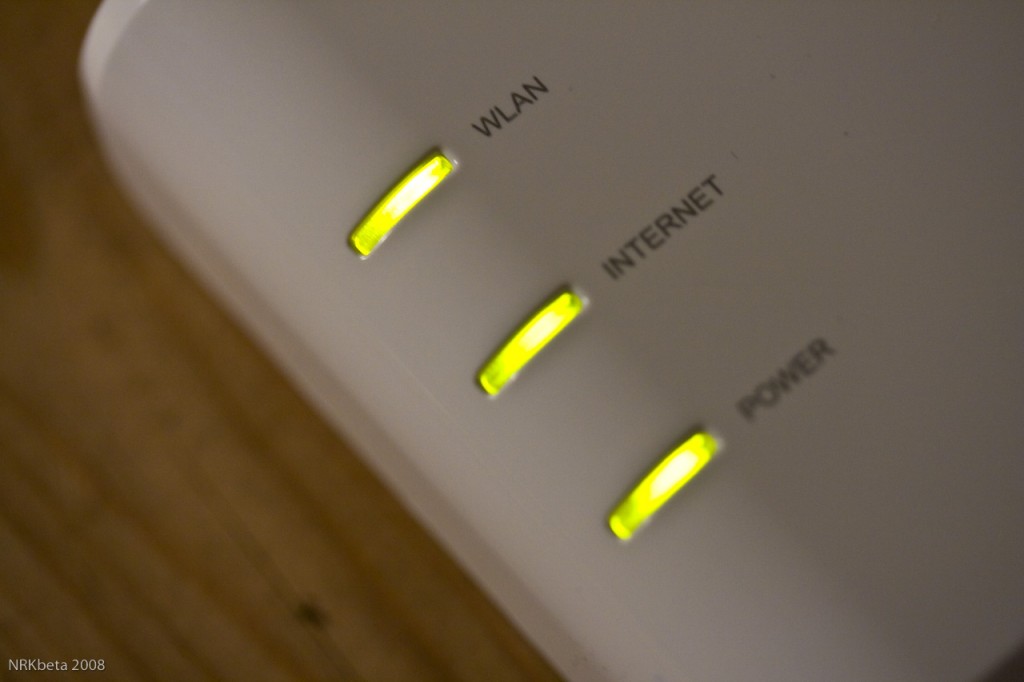
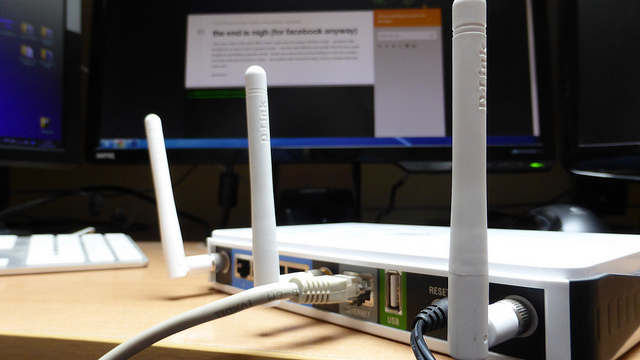
To keep your electronic devices secure, it isn’t just important to be aware of cyberattacks that could arrive via emails or false links. You need to keep an eye on your router, which provides you with your Internet access, which has become a target for the cybercriminals.

Using these apparatuses as a way to launch attacks is becoming more and more popular and it has been brought to light by two Spanish organizations – the Instituto Nacional de Ciberseguridad (INCIBE) and the Oficina de Seguridad del Internauta (OSI).

They base their warnings on information registered by the INCIBE during the past few weeks. The experts at the organization have detected that the number of daily attacks targeted at routers have increased, reaching nearly 5,000. What the cybercriminals try to do is to install a type of malware on the device and make it form part of a network in which they carry out a denial of service attack (DDoS).

denial service attack

DDoS attacks use a series of computers and other devices with Internet access to saturate server requests where files are stored on a web page, which then stops working and remains inaccessible to others.

  • Each router that was compromised had activated the option of remote administration, which permits access to users outside of the network, allowing any IP address to control its settings.
  • Also, the INCIBE has indicated that the owners of these devices hasn’t modified the access details from the default settings (user name and password). By keeping the original default settings, it was very easy to access them remotely.
  • These factors allow cybercriminals to modify the working options of the router and set up access to a local network. Later, they would only have to install the malware which makes it work as if it were a bot, carrying out massive attacks.

router

  • One of the measures put forward by the OSI to avoid your router being attacked is to change the administrator details and to use better passwords.
  • Also, it isn’t advisable to activate the remote administration unless it is necessary and, in this case, do it during as short a period as possible, so as not to give the attackers a chance to detect its vulnerability.
  • Every router is configured the same, although the interface where you do it and the access options vary slightly depending on the brand. Changes are carried out from the web browser by entering the IP of the device (it comes in the manual, on the tags that are attached to it, or you can find it in the connection settings within the Control Panel).

Finally, if these tips reach you too late and your device is already infected, the best option is to reinstall the firmware (the program that controls the router) from a security copy.

The post How to set up your household router to protect yourself from attack appeared first on MediaCenter Panda Security.

10 Tips to help make your smartphone battery last longer

As PC sales continue their downward trend, and mobile device usage continues to grow, we’re using and relying on our mobile devices more than ever these days – according to a study by comScore in the US, between 2013-2014 mobile usage accounted for 60% of our time spent using digital media.

Trends aside, you know how much you use your mobile device, surely you don’t want it to quit on you when you need it most, right?

That’s why we have 10 easy tips to help make your smartphone (or tablet) battery last longer:

  • Keep your device fully charged and topped up: Older Nickel Metal Hydride (NiMH) batteries needed to be fully drained before being recharged so that they lasted longer, but newer one’s like Lithium-ion don’t require you to do this anymore, in fact if possible, avoid full discharges and charge the battery more often between uses.
  • Turn it off: If it’s not essential for your device to be on, turn it off to save power for later use.
  • Disable live wallpapers: If your smartphone or device is capable of displaying animated wallpapers, disable them. If possible, use a flat dark background as your wallpaper for your login and home screens.
  • Reduce screen brightness and disable auto brightness: The dimmer your screen the better. Also, disable the automatic brightness feature. This will help reduce battery usage considerably.
  • Disable vibrate and reduce volume: Vibrating requires the battery to drive a rotating mechanism which requires a fair amount of energy. Turn it off, and while you’re about it reduce the ringtone volume too.
  • Turn off Auto-sync, Background Data or Background App Refresh:  This feature, known on Android devices as ‘Auto-sync’ or ‘Background Data’ and on iOS devices as ‘Background App Refresh’, allows your devices apps to refresh in the background, use location services, sync data or send you push notifications. Depending on how many apps you have that use this feature, it could use a lot of data and drain your battery. Switch it off.
  • Turn off Bluetooth: When enabled, Bluetooth regularly checks for devices it can connect to. If you are not using it, disable it and you should see a small amount of energy being saved.
  • Turn off GPS:  GPS communication with satellites is done regularly and for extended durations, which requires a lot of power and also prevents a mobile device from going into an energy saving mode. If you’re not using your smartphone’s GPS, disable it for considerable savings in battery consumption.
  • Keep out of the heat: Once your device’s battery is damaged by heat, its capacity can’t be restored. So always store your device in a cool place and never leave it exposed to direct sunlight for long periods of time.
  • Close overly active apps: Close processor hungry apps that are regularly performing background calculations, refreshing or syncing. Take a look at the AVG Android app performance report for Q1 2015 to see which apps are some of the biggest battery drainers.

If you want to go that extra step and save even more power to extend your device’s battery life, we recommend installing a power management app like AVG Cleaner for Android

For more great tips on getting the most out of your devices, visit us at www.now.avg.com and follow us on twitter or Facebook.


Keeping tabs on your employees in a multi-device environment

connected devices

The traditional desktop computer is no longer the only device we use to get work done. For the past few years workers have increasingly begun to use their own smartphones and tablets for work. According to a study carried out by Tech Pro Research, 74% of businesses allow, or are planning to allow, their employees to bring their own devices to the office.

Despite the benefits to companies, such as being able to communicate easier with the employee when they aren’t at their workstation, security remains a priority and with the culture of BYOD (Bring Your Own Device), it’s important to keep on top of it.

The variety of devices used in the workplace, and the resulting loss of control held by the business, means that cybercriminals are able to take advantage of the many vulnerabilities in mobile devices to access the company’s network.

The National Cybersecurity Institute of Spain, the INCIBE, has advised businesses of the dangers that they face when adopting a BYOD culture and have therefore suggested some measures to avoid such threats.

So, instead of asking your employees to remove their work email from their mobile devices, the best thing you can do is follow the tips given by the INCIBE which will better protect your employees’ devices and guarantee the confidentiality of your company’s information.

  • Assign someone to be in charge of managing the devices

You need to give the responsibility to a member of the IT department to make it easier to control. If you company is small, you can contract an external service or one on the cloud.

  • Give support to all platforms possible

    The IT department of the business has to guarantee technical support for all devices used by employees so as they can work in a safe an effective manner.

smartphone

  • Educate about security

The first people who need to be aware of the vulnerabilities of their devices are the workers. Therefore, INCIBE recommends training them so that they know not to visit certain websites and that they are conscious of the risks involved with installing applications.

  • Keep on top of updates and avoid localization

Updating all of the applications and operating systems on the devices is a basic necessity – old versions of Android are exposed to a whole host of vulnerabilities. Deactivating the GPS is another tip that you should pass on to your employees, so as to avoid someone being able to localize them.

  • Keep your information secure

If an employee accesses relevant documents from their mobile device, it’s possible to add an extra password or encrypt the device so as to stop cybercriminals from getting their hands on the information.

  • Control access to highly confidential information

Give out ID cards (PIVs) and restrict access to confidential information to only those who need it for their daily work.

  • BYOD isn’t suitable for all businesses

In some networks, such as industrial control systems, it isn’t advisable for employees to use their own devices.

  • Be careful with external devices

Our mobiles leave traces and things such as Find My iPhone or Android’s administrator options help us to find them easily. We can also use these tools to control which devices are accessing our network and stop our information from being spied on from outside parties.

The post Keeping tabs on your employees in a multi-device environment appeared first on MediaCenter Panda Security.

Cybersecurity tips for business travelers

business trip - working late

Sensitive business data is at risk when you travel. Take precautions to protect it.

Cybersecurity is not limited to your office or home. Nowadays, many of us use the same devices for work and personal business, so when traveling we need to be extra diligent to protect our devices and the data we have on them. If you use common sense and a bit of Avast technology, all your devices – laptops, smartphones, and tablets, can remain secure wherever you are.

Here are a few things you can do before you go and while you’re on-the-road:

1. Install antivirus protection. Your first and best line of defense on your PC or Android device is antivirus protection. Install it and make sure it is up-to-date.

2. Keep your operating system and software up-to-date. Hackers take advantage of software with security holes that have not been plugged, so take time regularly to make sure that your software and apps have patches and updates applied.

3. Lock down your device. Make it a habit to lock your PC and phone with a PIN, password, or even a fingerprint. Avast Mobile Security even allows you to password-protect your apps. Before you travel, make sure your critical apps, like access to your bank, are protected.

4. Turn off auto-connect. If you have your phone set to automatically detect and connect to available wireless networks, then turn it off. It’s much better to choose yourself. The new Avast W-Fi Finder can help you find secure Wi-Fi hotspots. Look for it to be released soon.

5. Avoid unencrypted Wi-Fi networks. Free Wi-Fi hotspots sure are nice, but they are not worth the risk to your personal data. They are unsecured and can give cybercrooks access to your internet-enabled devices. The safest way to use free Wi-Fi, even that supplied by your hotel, is to connect via a virtual private network, otherwise known as a VPN. The name sounds complicated, but with Avast SecureLine VPN, it is as easy as pushing a button.

6. Use smart passwords. Using a password like 1234 or password is not a smart thing to do at any time. But discovering that your account was hacked when you are traveling can ruin your trip. Plan ahead and manage your passwords in an intelligent way. There are plenty of memory tricks you can use to create unique passwords or you can let a password manager take care of the heavy lifting for you. Look for a new Avast password manager coming soon.

7. Think before you overshare. There are differing opinions about oversharing your location on social networks. Some say that broadcasting to the world that you are away invites a burglar into your home. Others say that broadcasting your whereabouts with regular updates is security in and of itself, because your friends and family know where you are in case something happens. And it could protect your contacts from the “I was arrested in Niagara Falls and need you to send bail money via Western Union” scam. Talk with your family and decide how you want to handle that.

8. Guard your devices. Thieves often target travelers. Don’t let yourself get so distracted that you lose track of your devices. Install Avast Anti-Theft before you leave. One of its useful features is called Geofencing. This allows you to set a perimeter, say around a table at an airport cafe, and if your mobile phone leaves that perimeter, an alarm will sound. If you discover any time that your smartphone or tablet has been stolen, Avast Anti-theft lets you control your cell phone remotely. You can locate and track your lost phone, remotely lock or wipe the memory, and even activate a customizable siren or alarm.

The best thing about all these tools is that they are free (or in the case of SecureLine, a free trial), so the next time you start packing for your business trip, make sure that your devices are ready to go too.


Follow Avast on FacebookTwitterYouTube, and Google+ where we keep you updated on cybersecurity news every day.

5 security measures that experts follow (and so should you!)

security

When you’re watching a movie and you see the typical computer screen filled with green coding (you know the type, rows of 1s and 0s) you might get the impression that IT experts are magicians that work wonders with a mouse and a keyboard. Theirs is a difficult professions, but they are also humans that suffer from the same human errors and doubts as the rest of us.

At Google they are well aware of this and for this reason they have carried out an investigation that tries to shed light on the security measures that IT professionals follow, and that for the rest of us seem impossible to imitate.

The conclusion they reached leaves us all in a bad light – what seems difficult really isn’t that complex at all. The majority of the steps taken by IT professionals to protect themselves from digital threats are based on pure common sense and are easy enough for the average use to put into practice.

The people behind the study compared the precautions taken by experts and those taken by regular users and discovered that the latter are skipping some of the basic steps. Here are the main ones.

5 security measures that experts follow (and so should you!)

1. Always stay updated

Make sure you have the latest version of software installed on your operating system and the programs that you use. This is the same for both computers and mobile devices. The manufacturers usually correct vulnerabilities as soon as they realize them, so it’s up to you to make sure you install the latest version. You can always allow for automatic updates if you want to.

secure keyboard

2. Strong and unique passwords

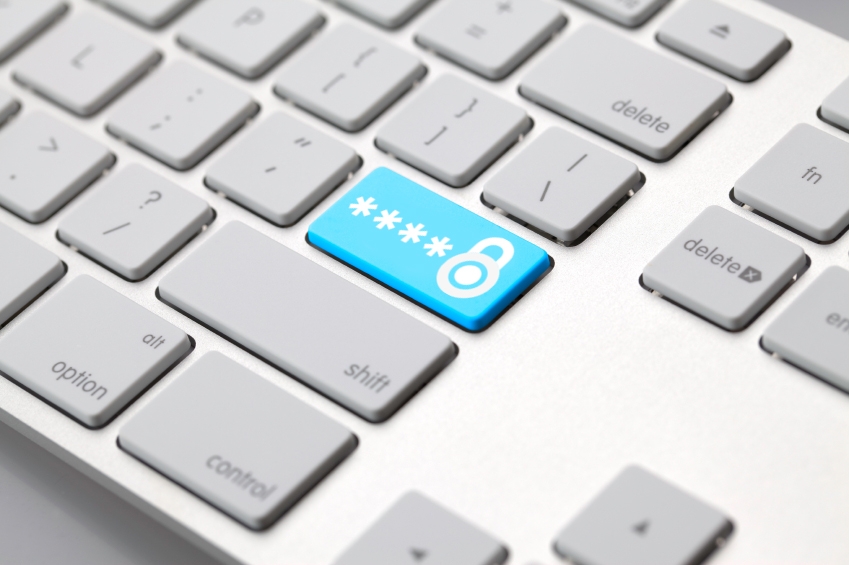
Although passwords are on the verge of extinction, they are still the main way to protect your devices. You should make sure to follow these basic guidelines for choosing passwords which include a different one for each service, ones that are hard to guess, and ones that contain a mix of letters, numbers, and symbols.

3. Two steps are always better than one

If you choose a secure password, you’re on the right path, but that still isn’t enough. The experts recommend activating the two-step verification process whenever possible (in Gmail or Facebook, for example). This way, if anyone tries to access your account then the service will ask for a code which is only sent to your mobile. This should be out of bounds for a cybercriminal.

private connection

4. Surf carefully online

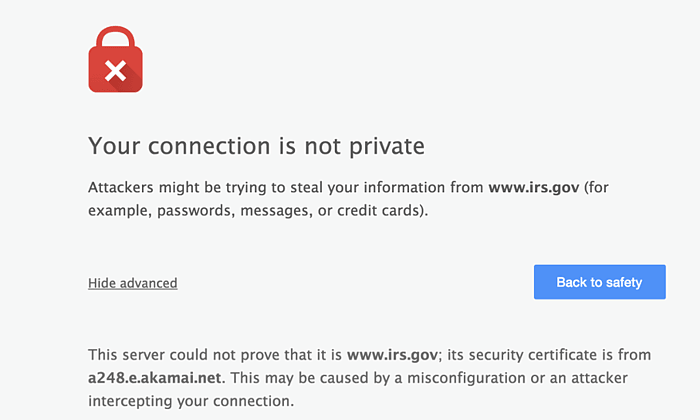
There are very few things that can’t be found on the Internet. Every day you can find something new while surfing online, but you need to be careful where you click. Not all websites are safe and some hide nasty surprises. If your browser says that something’s not right, then pay attention to its warning. Unless it’s a website that is totally secure, a warning that the website isn’t following correct security protocol should be enough for.

5. An antivirus is essential

Although some doubt its effectiveness, what’s certain is that an antivirus software with firewall is the best barrier against attacks. Surfing the web without an updated or reliable protection is an unnecessary risk that the experts at Google aren’t prepared to take. So why do some users continue putting themselves at risk?

If some of these measures don’t form part of your routine, then you should adopt them immediately. Not only because the experts consider them common sense, but because, above all, they are very easy to adopt and can save you a lot of problems.

The post 5 security measures that experts follow (and so should you!) appeared first on MediaCenter Panda Security.

All that you need to know about security changes within Windows 10

windows 10 protection

The moment has arrived to make a tough decision: install Windows 10 or stick with the old version until you have no other choice but to update. If you still aren’t sure of what to do and are worried about losing a document or important program, you can wait a while, although sooner or later you’ll have to take the leap. When this moment arrives, be it tomorrow or in a few weeks, we have a few tips to help you protect your PC.

The first characteristic of Microsoft’s new operating system that we should be aware of is that it has been designed like a cloud service. This means that now, whether you like it or not, you will share more information than ever with Microsoft. Fortunately, there are some things that you can configure to minimize the damage if you consider this to be a threat to your security.

Even though some users, after trying the beta version, accused Microsoft of having put a keylogger in its operating system to register the information entered by the users on their keyboards. To put you at ease, there is no such thing on the new Windows 10 system. What a few of the Office 360 programs do (just like Google Drive, or Apple’s Siri), however, is analyze the keystrokes in order to improve, among other things, the orthography. It also registers words if you are dictating texts, to fine tune its voice recognition.

If you aren’t at ease with the multinational knowing your every keystroke and syllable that comes from your mouth, you need to know that this feature (which has caused uproar) can be deactivated. All you need to do is enter “settings” and select the privacy options from there.

Windows 10 features

Another of the characteristics of Windows 10 that has caused much debate amongst those concerned with privacy is the Advertisement ID. It is basically a code, a unique identification number, which works like the cookies of a webpage. Thanks to them, advertisers will be able to tailor ads to our preferences.

Microsoft assures us that this code isn’t linked to the user in any way (not with their name, email account, or any profile that contains personal information).In any case, if you don’t want anyone to know what your likes and dislikes are, you can easily deactivate this feature  in the settings under the part of “General”.

The new localization options that Microsoft has included in the new version of Windows might also be bothersome. Even though your computer doesn’t have GPS, as is the case with smartphones and tablets, keep in mind that, by desactivating it, limits the possibilities of Cortana (Microsoft’s virtual assistant) which takes note of where you are from time to time in order to complete its mission.

This is the same as what happens with Apple’s Siri and Google Now, whereby the tool needs to access a large amount of personal information to answer possible user questions.

panda con windows 10

If, having applied these measures, you still aren’t sure and want your computer be even more protected after installing Windows 10, the best thing that we advise you to do is get a good security solution. Panda’s antivirus protection is compatible with the new Microsoft operating system.

The post All that you need to know about security changes within Windows 10 appeared first on MediaCenter Panda Security.

Windows 10 not playing DVDs? Here’s why.

Microsoft has included the DVD Player software for free in Windows 10, but only if you’re upgrading from any of the following versions:

  • Windows 7 Home Premium, Professional or Ultimate
  • Windows 8 or 8.1 with Windows Media Center.

It’s free for a limited time, but Microsoft hasn’t given any indication as to how long that will be. So if you haven’t already upgraded and qualify for the free DVD software, you might want to consider upgrading soon.

It’s important to note that to receive the DVD Player app from Microsoft for free you must upgrade Windows 10 from your existing version of Windows.  A clean install of Windows, despite this being the preference for many people, won’t work.

What if you don’t want the Windows DVD Player app? No problem, there are free and open source alternatives available, such as VLC Media Player

While you’re at it, remember to keep all software on your PC up-to-date and install an antivirus solution like AVG AntiVirus Free to prevent infections against viruses and malware.

If you have any tips for Windows 10 you’d like to share, please let us know via Facebook or Twitter. Until next time, stay safe out there.