Category Archives: Antivirus Vendors

Antivirus Vendors

A new strain of ransomware is on the loose! Watch out!

Our colleagues at PandaLabs have detected a new strain of ransomware: Trj/RansomCrypt.B. Known as CTB-Locker, what is different about this example is that if you pay, you can access all the locked files.

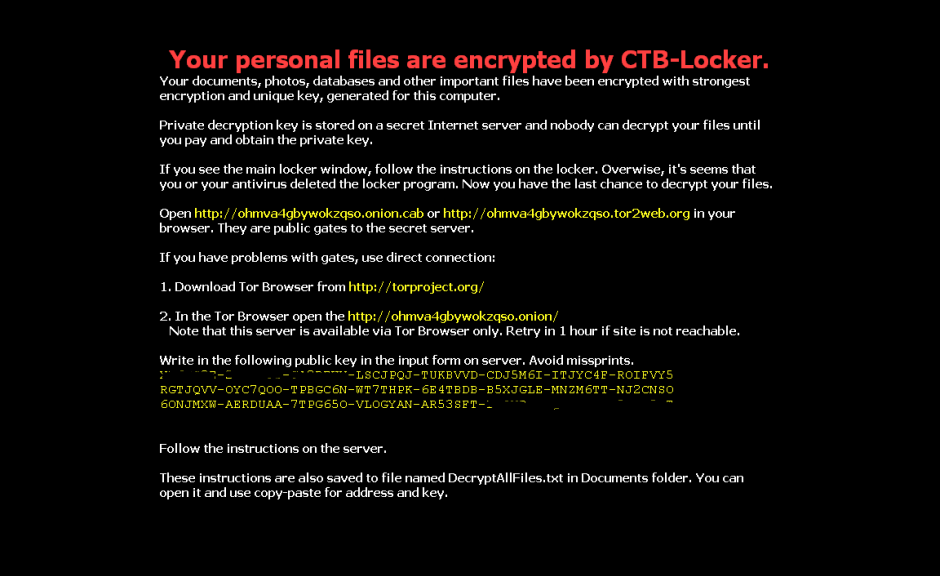
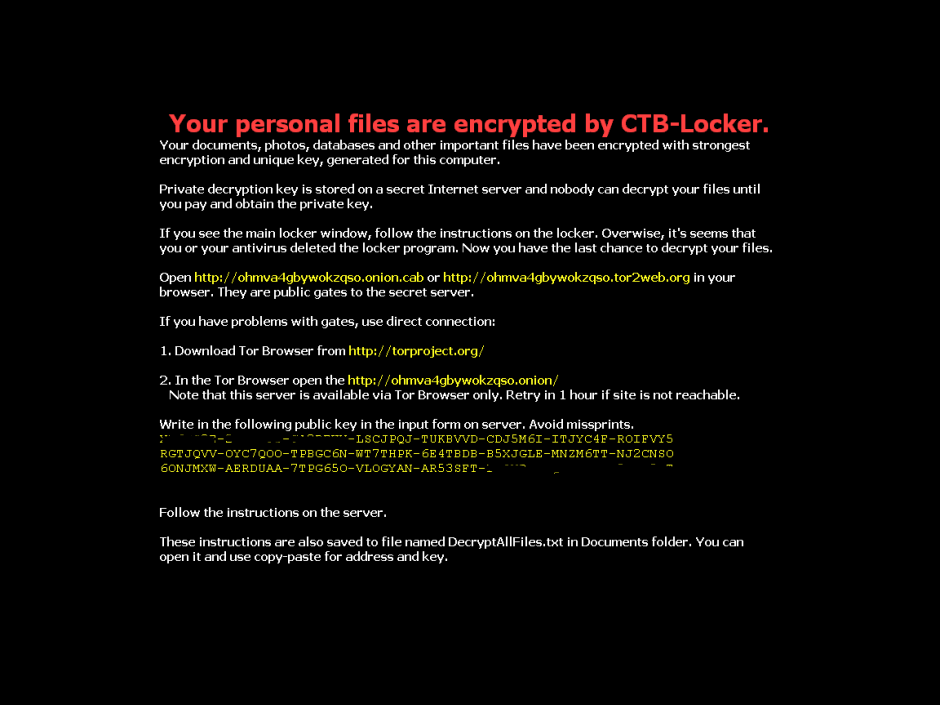
This type of malware normally reaches users via email, convincing the user that it’s a legitimate message and getting them to run the file. When run, the malware encrypts image files and documents on the victim’s computer and changes the desktop wallpaper for the following image. It also creates a text file with the same information.

However, if you have any of our Internet security software, you can rest assured, as Panda Security detects and blocks this threat.

RansomCryptB

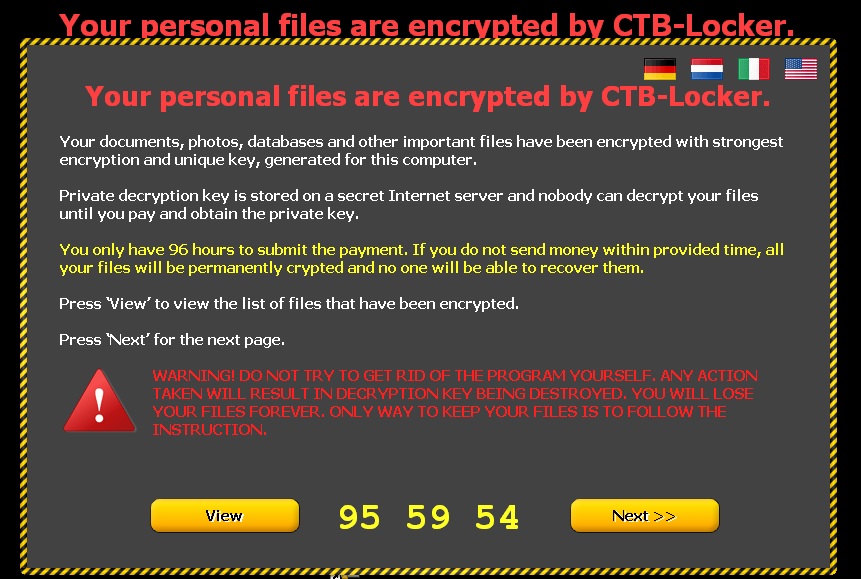
The following screen then appears, demanding a ransom before the specified time. If the ransom is not paid in time, the amount of money demanded increases.

files encrypted

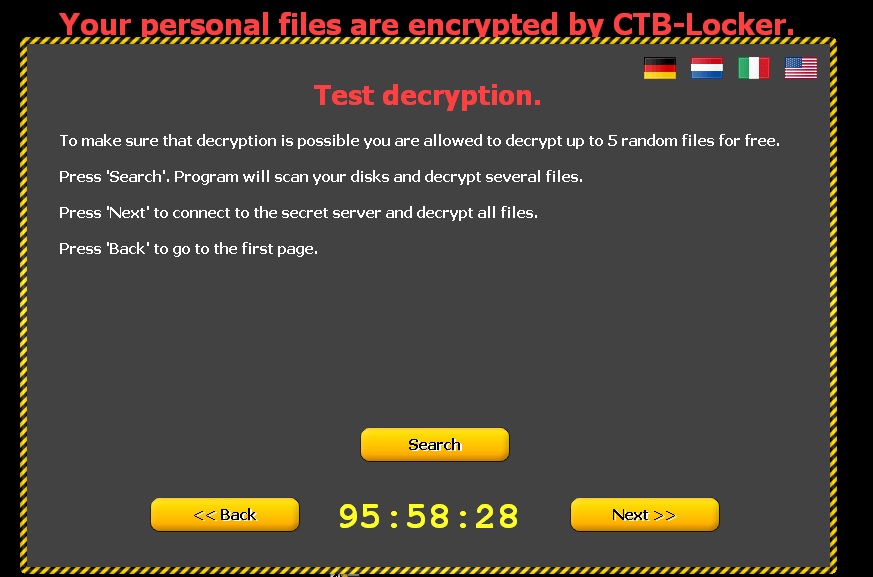
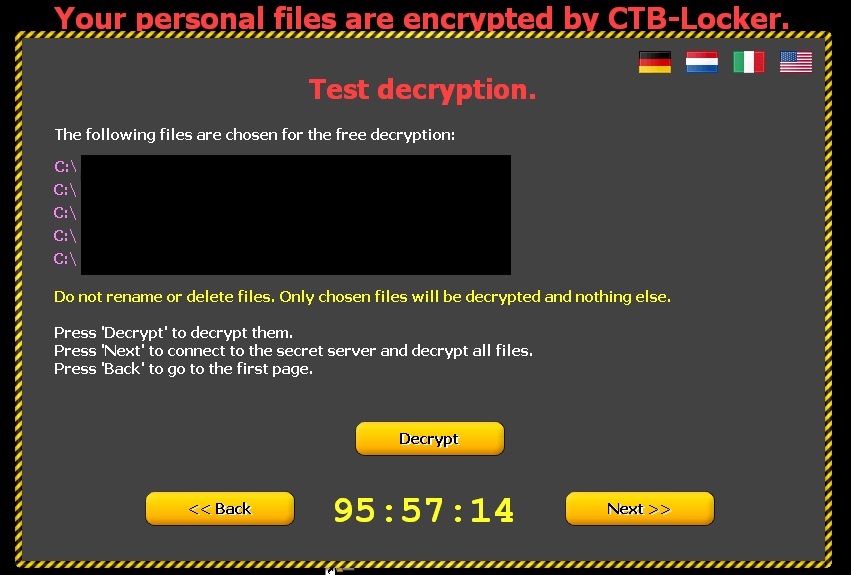
Clicking ‘Next’ leads to the following window informing victims that if they pay, the files will be unlocked. To demonstrate that this is true, five documents are released.

CTB Locker ransomware

personal file encrypted

How to recognize CTB-Locker?

  • This malware comes in an email with an attachment. This is either a Word file with a .doc or .rtf extension, or a compressed file (.zip) containing a .scr file.
  • Some variants, in addition to encrypting files on the computer, also steal the address book to identify new potential victims. Worse still, they fake the address of the sender so the message may appear to have been sent from a known contact.
  • You can see some examples of these emails here.

How to avoid Ransomware?

  • Keep your operating system up-to-dateto prevent security flaws.

Make sure you have antivirus software installed and up-to-date.

  • Don’t open emails or files from unknown sources.
  • Don’t browse suspect web pagesor those with unverified content.

The post A new strain of ransomware is on the loose! Watch out! appeared first on MediaCenter Panda Security.

Do Not Disturb: How to disable messages, popups, and alerts in Avast

Make Avast quiet when you are playing games or giving presentations.

We know you love Avast, but when you are giving a presentation to the big boss, or concentrating on playing an important game, it may not be the best time for a popup that says your computer is running slowly to appear. That’s why we made it easy for you to silence Avast.

Avast silent/gaming mode for presentations

This is NOT a good time for an Avast notification to appear. Learn how to silence Avast when you need to.

Silent/gaming mode

Activate the Silent/gaming mode when don’t want to be interrupted. This will cause Avast to run in silent mode when a full-screen application is running. This means your games or other full-screen applications will not be interrupted with annoying popups or other messages.

Turn this mode on quickly by clicking on the orange Avast icon located in your computer’s system tray. Right-click on the Avast icon and a short menu will appear. Click on Silent/gaming mode to turn it on.

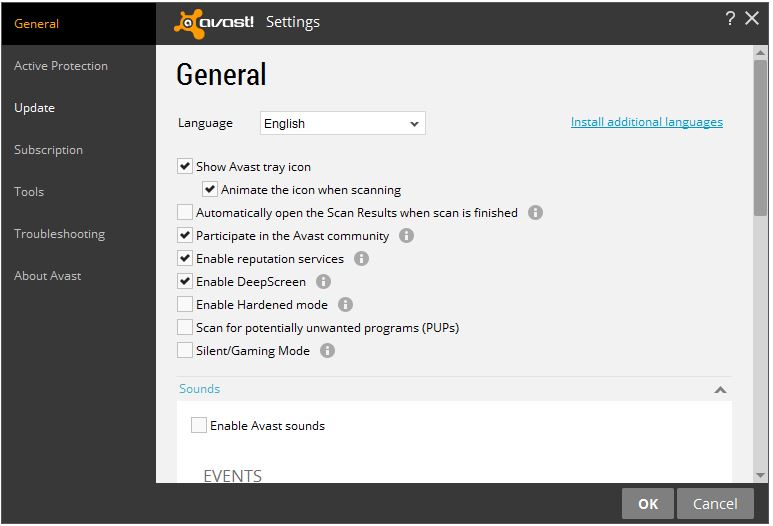
You can also access this option within the main user interface. Go to Settings>General and check the box for Silent/gaming mode. This will disable messages, popups, and alerts in Avast.

Avast sounds

Turn off sounds

Silence notifications: Open the Avast user interface. Click Settings>General>Sounds and uncheck the Enable Avast sounds box. You can also uncheck the Voiceovers within the Sounds settings.

Choose the notifications you want to silence: Avast has six “events” that have notifications associated with them.. These events are Threat detected, Suspicious item detected (we suggest you keep these two on), Potentially unwanted program (PUP) detected, Scan complete, Automatic update, and Firewall query. You have the option to uncheck these boxes as well.

Turn off popups

Occasionally, we offer our users great products like GrimeFighter but we understand if you don’t need to see the notifications anymore. Our customers who have a paid-for version of Avast, have an option for you to turn those off completely.

Once again, open the Avast user interface and go to Settings>General. Scroll down a bit, and you’ll find a heading called Popups. Expand that and you’ll see all kinds of options. You can discontinue seeing all popups, but you might miss a warning or alert, so we don’t suggest that. Instead, you can tweak the duration (how many seconds the popup appears) of the different types of popups. It’s all laid out for you, so you can adjust all you want.

Users of our free product have the option to change the duration of the popups.

Turn off GrimeFighter

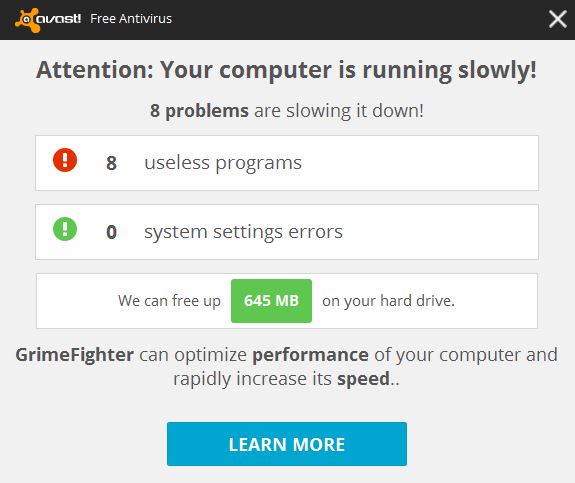
GrimeFighter is a standalone optimization tool that cleans and speeds up your system by removing bloatware, trialware, adware, and other unwanted ‘Grime’ so that your computer is running in its most optimal state. If you have an old laptop like I do, you may have seen a popup similar to this.

popup example 2

Instead of turning it totally off, we suggest that you modify the settings. For example, you can tell GrimeFighter to notify you only if it finds a certain amount of issues or after a specific amount of time, say, once a month.

But if you want to turn off GrimeFighter pop-ups, then open your Avast interface and go to Settings>Tools>GrimeFighter and click the Customize button. Uncheck the box that says Always test this computer for Grime. You can also turn off GrimeFighter completely in Settings>Tools. Move the slider to the OFF position.

Turn off Software Updater

Software Updater is an extremely useful feature because it notifies you about outdated software that needs your attention. You can, however, check for outdated software manually by opening the user interface. So if you want to disable the notices, then go to Settings>Tools>Software Updater and click on Customize. Uncheck the option Notifications (popups) enabled.

You can also turn off Software Updater completely in Settings>Tools. Move the slider to the OFF position.

Mobile health IT security challenge: way bigger than HIPAA?

Wearable technology and other health-related devices were big at the 2015 Consumer Electronics Show (CES) earlier this month. This recorded webinar explains why these and related technologies present big challenges for data privacy and security.

The post Mobile health IT security challenge: way bigger than HIPAA? appeared first on We Live Security.

The future of smart glasses still looks bright

At the 2015 Consumer Electronics Show earlier in January, wearable digital technology was the darling of the show.

While most of the buzz was around smart watches, Google Glass remained a status symbol worn by some geeks attending the show.  The yet-young “smart glasses” scene even boasted new entrants by major players like Sony and Epson.

So, it was surprising to some, when Google announced last week that as of Monday January 19th 2015, it was halting sales of its glasses and going back to the drawing board. Perhaps not so surprising to anyone outside the bubble of CES.

The consumer product media had ridiculed the glasses and its adopters for everything from how the device looks, to potential privacy infringements.

Google announced that Tony Fadell, the father of the iPod while at Apple and the CEO of smart-home device maker Nest Labs, which Google acquired last year, would undertake the Glass re-boot.

Tony Faddell

Image courtesy of mojandroid


Under Fadell’s expert hand, the product’s redesign should help Google Glass, though concerns about the smart glasses concept remain. I recently wrote about wearable devices and adoption, and privacy issues, particularly in the workplace. The focus of that piece was a potential ban on smart glasses and what companies need to do to prepare for the Wear Your Own Device (WYOD) trend. For now, it looks like the negatives outweighed the benefits, on the consumer side at least.

However, I believe that the smart glasses concept has great potential in other areas – one of which, is healthcare.  Boston’s Beth Israel Deaconess Medical Center is a prime example of how smart glasses can assist medical staff. It has developed a system that allows an ER doctor to look up information on patients by using Google Glass to scan a Quick response (QR) code on the wall of each room. It’s a great project and you can read a doctor’s blog about it here.

More recently, smart glasses for healthcare applications got another boost in the form of Augmedix, a startup with the aim of providing medical professionals with a Glass-powered records management solution.

Augmedix

Image courtesy of Augmedix


Enabled by Google Glass, Augmedix expedites the time physicians spend daily entering or retrieving data from electronic health records, allowing them to focus on patient care. According to the company, first launched in 2012, the service has a nationwide patient acceptance rating of more than 99 percent. The company’s CEO reports to Forbes that the Glass reboot is not cause for concern, as Google will continue to supply Glass to enterprise customers.

According to Forbes, Augmedix was one of ten companies Google lists as certified Glass at Work partners, focused on Glass-based enterprise services. More than half of them list healthcare as a major focus.

Of course, privacy issues will be consummately important for smart glasses in healthcare scenarios – as patient privacy is rigorously protected by the Health Insurance Portability and Accountability Act (HIPAA) and vigilance is of critical importance to all of us.

It’s not just about healthcare though, I think the smart glasses category has a lot to offer many fields that need quick and hands-free information, including things like rescue operations and engineering on a drilling platform.

So, where are digital glasses going? Suffice it to say, for now, it looks like away from the consumer market and into business ones.

Image courtesy of knowyourmobile

How To Boost Your Home Wi-Fi Signal (Part 1)

Do you regularly lose connectivity to your Wi-Fi network at home? Are network speeds so low that it takes forever to even copy a simple picture or music file across your PCs – let alone stream video? In this two-part series, we are covering the most important lessons and tips for boosting wireless (WLAN) throughput across your home network. Ready? Let’s dive in!

Figure out the best possible router position

Have you wondered why your wireless signal is strong in some rooms and incredibly weak in others? It’s not only a matter of distance between your wireless router and your PCs or laptops. It’s also a matter of what objects (walls, doors, furniture, electrical equipment/outlets) interfere with a good signal.

In many scenarios, you will be able to boost wifi strength significantly by just repositioning either your router or the connected PCs slightly.
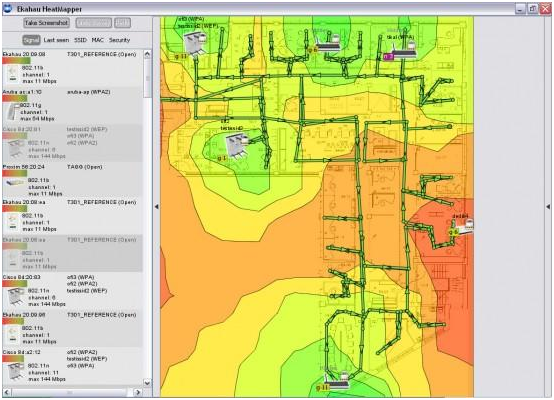
Now, the “Trial and error” method works eventually, but is a waste of time. To get the best possible location you need to create a visualization of network coverage across your home. Heatmapper, a free software for Windows, will do just that:
Click here to download Heatmapper (100 MByte). Note: A registration is required to download this free tool.

After installation, the program asks you if you’ve got a map of your map of your floor – no worries, if you don’t, you can create this heatmap based on a grid. Simply walk around your apartment or house with a laptop in your hand running Heatmapper. As you walk (slowly!), use the left-click button frequently as you walk. Walk through all the areas of your home left-clicking as much as you can.

When you’re done, right click and HeatMapper will create a map of your home, showing you where the Wi-Fi signal is stronger or weaker. Here’s how my map at home looks like:
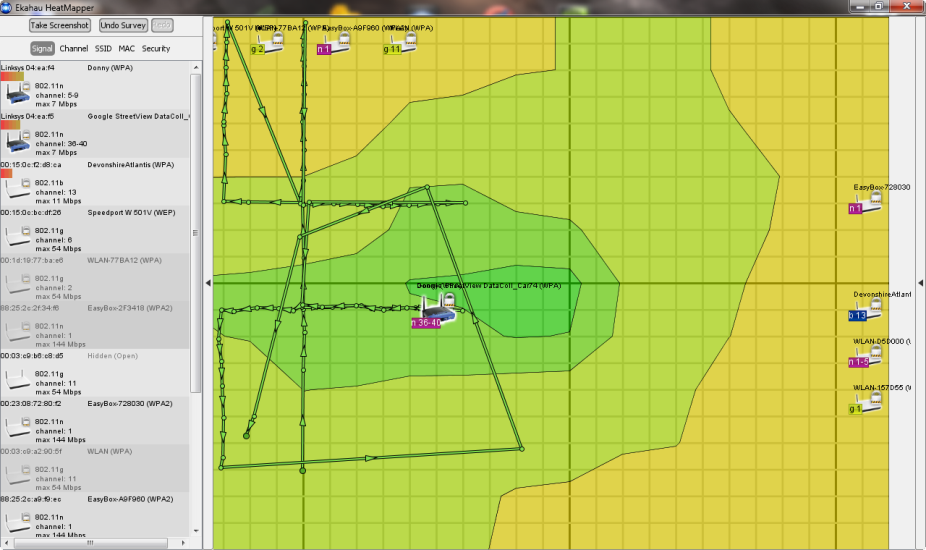
The green area in the middle is also the center of my apartment – a good location for the router! However, in the bedroom (upper part of the screen) I only get „ok“ wireless strength because the router is blocked by three walls.

By looking at the heatmap, I quickly knew where to position the router in order to get a better Wi-Fi signal!
General advice: Make sure not to position the router directly on the floor or next to thick walls. Ideally, the best position is in the center (probably the corridor) of your apartment with no or minimal objects blocking the signal!

Use the latest drivers and firmware

It’s rare to find firmware for a router or driver for a network adapter that works perfectly right out of the gate. Most „V1“ drivers and firmwares of network equipment I have used were bad and came with all sorts of problems: slow connections, drop outs, missing features and other quirks. The first thing I always do when I get a new network device is: look for updates!
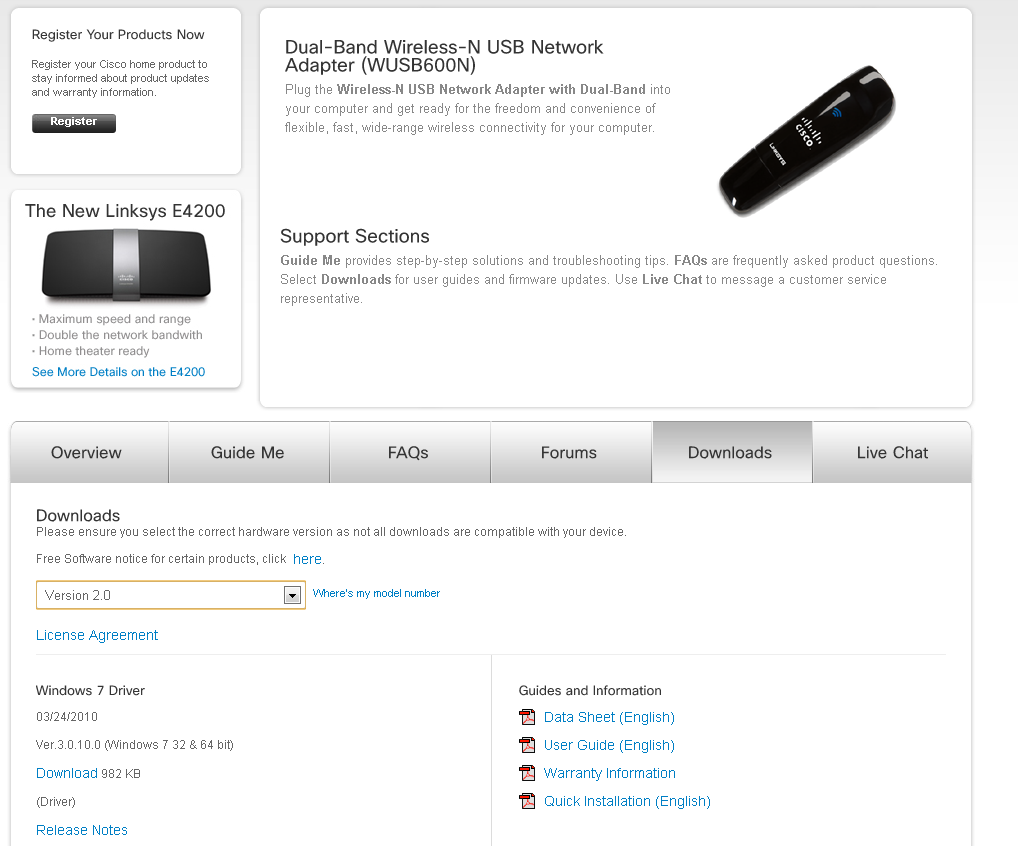
For example, when I bought my Linksys WUSB600N adapter it didn’t work (at all!) under the 64-bit-version of Windows 7. I actually bought the device and couldn’t use it for a couple of weeks until the manufacturer delivered an updated driver that worked under the x64 architecture.

Upgrading the firmware of your router has become somewhat easy over the past couple of years: Simply open up the firmware configuration page in your browser (see below) and find the „Firmware Upgrade“ page.
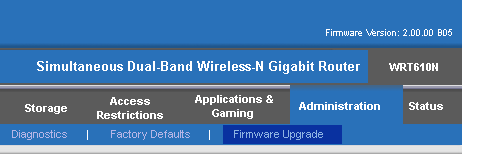
Here you will find direct links to drivers for some popular router manufacturers:

These links will you to the most recent Wi-Fi drivers available. Your wireless adaptor is not on the list? You haven’t found anything using popular search engines? Hit the comment section and provide us with the detailed specs of the Wi-Fi adaptor as shown in your device-manager.


Upgrade your Wi-Fi hardware

If you’re using the 802.11g (or even b/a) wireless standard, more bandwidth-related tasks such as video streaming, launching remote applications or file copy operations will be painfully slow. All three network standards provide a relatively low maximum bandwidth:

Theoretical speed

802.11 (1997) 2 MBps
802.11a (1999) 54 MBps (short range, high cost – mostly in business use)
802.11b (1999) 11 MBps (slower, but higher range than a)
802.11g (2002) 54 MBps (long signal range)
802.11n (2006) 300 MBps (through multiple channels and frequencies)
802.11ac (2012) 1 GBps (through multiple channels and frequencies)

As you can see, 802.11ac is the way to go these day– over the next couple of months, it’ll replaced the older 802.11a/b/g networks, and offers much improved speed, coverage and reliability. In general, 802.11n is at least twice as fast than its predessor “n” while promising theoretical speeds of up to 1000 Mbp/s.

If you’re suffering from a low network bandwidth, be sure to pick a router and Wi-Fi adapters that supports at least the 802.11n specification. If you bought a PC or laptop within the last couple of years, it’ll (very likely) have a 802.11ac wireless adapter. To go check, simply fire up Device-Manager…
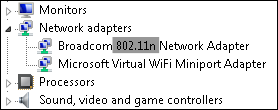
…or take a look at your hardware specification sheet, for example:
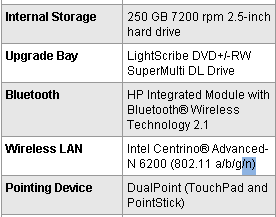
If your adapter does not support 802.11n or ac but your router does, it’ll obviously use the lower N, G, B or even A modes. So make sure that all parts of your wireless chain are “n” compatible!

When shopping for a new network adapter or a router that supports 802.11ac, you should take the following three tips into consideration.

Pick a dedicated USB adapter:

Even if your laptop or desktop has a built-in 802.11ac adapter that is connected to a full-fledged 802.11n router, you might want to look into getting a dedicated (external) USB wireless adapter. Sounds ridiculous, but in my experience many external Wi-Fi adapters perform much better than built-in devices.

When I first got my Linksys WRT610N router, I got quite mixed results and only an average of 100-170 Mbps when the theoretical limit of this beast is around 300 Mbps. So I drank the cool-aid and ordered the adapter that, according to the manufacturer Linksys, “works best with” my router – the WUSB600N USB wireless adapter! And what a difference that made: Signal strength did not change, but the speed went up significantly. Here’s a screenshot of my laptop that’s using both the built-in Wi-fi chip as well as the external USB adapter to connect to the router:
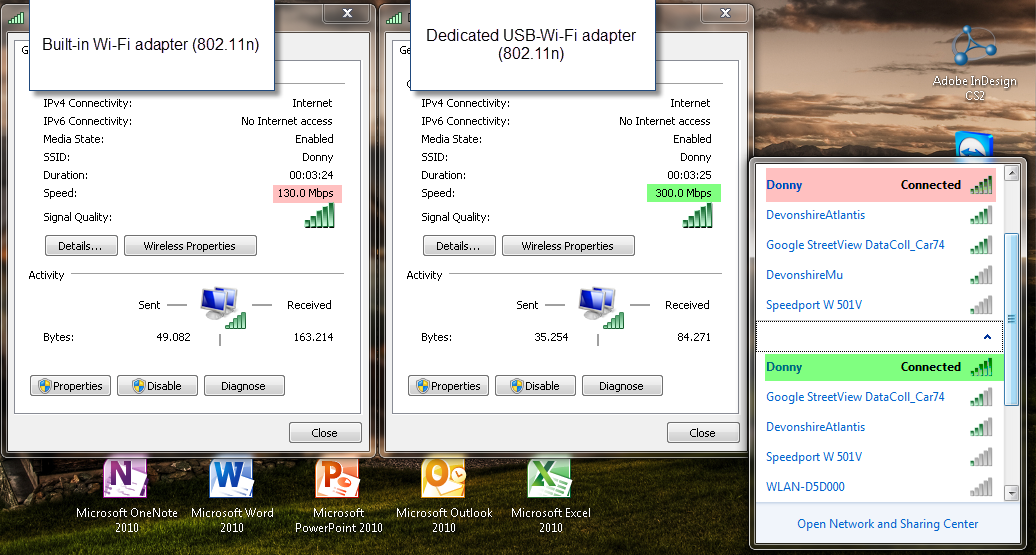

The maximum speed meter went up from 130 Mbps to 300 Mbps. Of course, that is the peak value, but only with this little addition was I able to stream full-definition 1080p video across my apartment with no stuttering or delay whatsoever.

Stay in the family: Besides using external dedicated Wi-Fi devices, I’d also recommend to pick a router and the adapter from the same company. Now, that doesn’t mean that a Linksys router wouldn’t work with a Broadcom or D-Link network adapter, but it’s also my experience that you get the best-possible performance if you „stay in the family“. Now I know that this is what the manufacturer wants but in this case I’d go with it.

Use an external antenna for your router. You can significantly boost your Wi-Fi connection by replacing the antenna or add another external antenna. This guide as well as this one help you figure things out.


Change the Wi-Fi channel

All modern routers are capable of communicating to your PC or laptop on several different channels. However, if your neighbours Wi-Fi equipment is communicating on the same channel, your network speeds and reliability might suffer. Windows offers a built-in solution that lets you see on what channels all your surrounding Wi-Fi networks conmunicate. This is how it works:

Step 1 – Launch the command line. To do that, click on the Start orb, go to „All ProgramsAccessories“ and click on „Command Prompt“.

Step 2 – Type in the following command: netsh wlan show all.
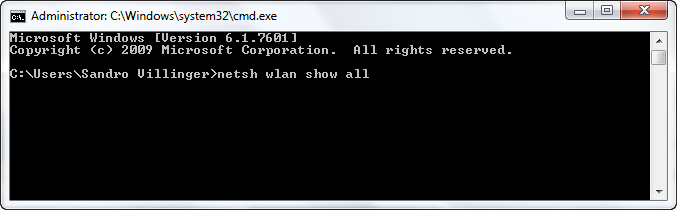

Step 3 – You’ll see a large list of all wireless networks in your area.
Scroll through the list and watch out for the entry that says „Channel“. Out of those 7 networks, 4 are using channel 6 to send data, two use channel 5 and one is using channel 13.

This is why I should probably choose either a lower channel or a channel between 6 and 13.
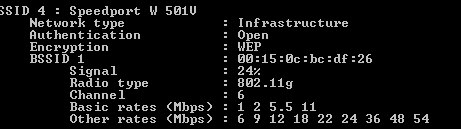
Try changing the channel on the routers configuration page.

To open the page, you’ll usually enter it’s IP adress into your browser (check the manual to see which address you need to type in), for example http://192.168.1.1, and enter the user name and password you specified at setup – or the default credentials if you never specified it (which is potentially dangerous)!

Find your wireless channel settings. On my router, that’s under the “Wireless” tab right in the “Basic Wireless Settings” category:
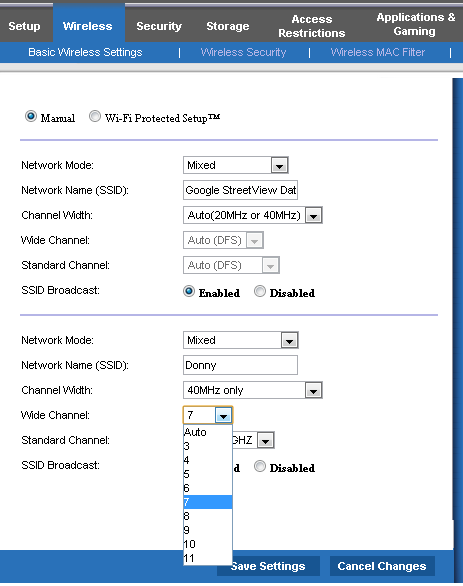
Pick the channel that is not (or barely) used in your area. In my example, I choose channel 10. Reconnect all your devices and see if you’ve got better speed or if you’re reliability issues are fixed!
That was part 1 – look out for part 2 that’ll show you even more in-depth tricks to improve your wireless network speed!