A ‘widespread’ malicious advertising campaign that sent web browsers to immitation websites has been stopped by Google
The post Google puts a stop to Adsense malvertising campaign appeared first on We Live Security.
Antivirus Vendors
A ‘widespread’ malicious advertising campaign that sent web browsers to immitation websites has been stopped by Google
The post Google puts a stop to Adsense malvertising campaign appeared first on We Live Security.
In the minds of many, cybercrime was just something that was poorly depicted in movies from the past couple of decades, but the general public is starting to take it much more seriously now that major attacks are becoming a regular occurrence.
There are a number of reasons why this point in time has brought about so many online attacks. One of the most obvious ones is that many of us are moving more of what we do online or into the digital world, and the criminals are just following the trail. This digital shift applies to our communication and data, but it also applies to our financial transactions. The chances are high that you’re using less physical money and more digital payment solutions and credit or debit cards.
Since your data and money are moving around digitally, a criminal doesn’t need to make contact with you or your property in a personal way to inflict damage. Because of this, they can also attack more people in less time, and if you’re a criminal, that’s an attractive proposition.
Additionally, we often talk in a positive way about how easy it has become to learn new tech skills online, but there is a dark side to online education, as well. While there are plenty of ways to learn useful technical skills online, the Internet has also become a haven for cybercriminals to recruit others, share techniques, and coordinate attacks. Whether they’re a prior criminal or not, someone with bad intentions can learn a lot with just a few targeted online searches. The publicity that many attacks have been getting could even encourage certain individuals to do this research and see what’s involved in making the attacks happen.
There’s certainly no end in sight to cybercrime. As we continue to rely on digital solutions to an even greater extent and the systems containing this data continue to be analyzed from top to bottom by criminals, we can count on our perception of crime to become even more digital than it is today.
The post The changing perception of cybercrime appeared first on Avira Blog.
Earlier in January, thousands of attendees and exhibitors descended on Las Vegas for the 2015 Consumer Electronics Show (CES).
One of the most exciting and talked about trends was the mass market arrival of the Internet of Things, something that I have been talking about since August 2013.
The Internet of Things (IoT) is a catch-all term for the growing number of Internet enabled devices in our lives. If you wear an activity tracker, have a smart Nest thermostat, or remote access CCTV in your home, these are all part of the IoT.
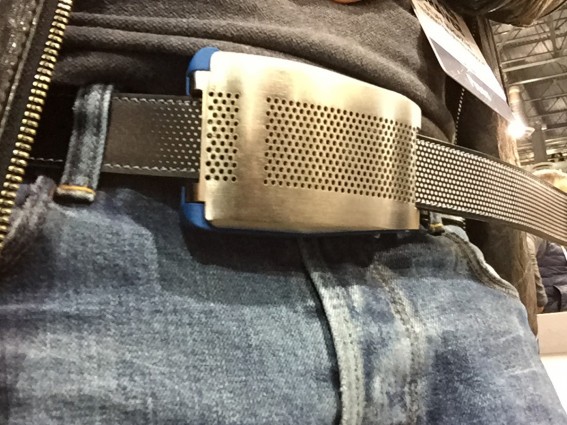
What we saw at CES was a potential glimpse into the future. We saw smart dog bowls, smart baby monitors and even Belty, a smart belt.
Apart from excitement, all smart devices have something in common, they create data. They generate data that helps us as users to take more steps each day, brush our teeth for the required time, not forget to water our plants etc.
All this data is very useful but it is also very real privacy concern. In fact, shortly after CES, the chairwoman of Federal Trade Commission Edith Ramirez warned that privacy and security should be a key consideration as we add more devices to the Internet of Things.
She outlined three major concerns brought about by the IoT:
I couldn’t agree more with Ramirez, as we have seen with voice recognition technologies, the connected world of the IoT has witnessed a land grab. Companies are developing smart devices as quickly as possible and putting them out into the market without proper consideration for what is safe or how data should be used responsibly.
The line between our connected lives and physical lives is more blurred with each passing year and we must change the way we view data and personal information.
I don’t believe that collecting data is a bad thing, in fact its data collection that allows many of the web’s most popular services to function at all. What I do insist on, however, is that data collection is transparent, easy to understand and most important of all, consensual.
People have come to learn that their data has value, and they should be the ones to decide who they share it with, and how it can be used.
If you’re a regular online shopper like me, you’re sure to be familiar with your credit card security code – otherwise known as the card verification value (or CVV).
If not, you can find the 3-4 digit code on the back of your VISA/MasterCard (the final 3 digits of the number printed on the signature strip) or on the front of your Amex card (the separate 4 digit code above the card number).
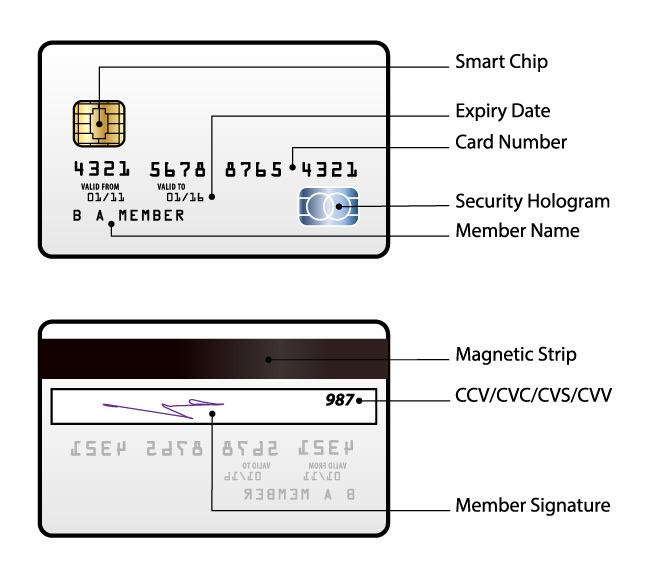
The intended purpose of the CVV is to provide added security when making purchases over the internet – it helps to verify that you’re in possession of the card, as the code shouldn’t be known to anyone other than you as the card holder. So it’s essentially a way of counteracting credit card fraud.
For online shopping, the answer is generally yes – it’s just simply a good idea to stick with well-known, reputable companies that you trust. You’ll find that most online retailers nowadays do require a CVV for purchases, which is encouraging because it means that they’re actively trying to prevent fraudulent transactions occurring on their site.
You may also be asked for your credit card security code when processing a payment over the telephone. As with online transactions, it’s usually safe to do this – you just need to be sure that no one overhears the details you give out (so avoid public places when doing this).
On the other hand, when purchasing an item or service in person, you should never provide the details of your CVV. In fact, there’s no need for the retailer or service provider to request this – it doesn’t show up when the card is scanned normally and they have other ways of verifying that you’re the authorised card holder (signature or another form of identification) should they need to.
Handing over your CVV for purchases completed offline serves no purpose other than providing someone with the opportunity to steal the information. Because if they were to do this, they’d have everything they need to go ahead and make a bunch of fraudulent online transactions – on you!
To avoid any issues with security or credit card fraud, there are a few things you can do:
Have you had any dramas when using your credit cards online? Share your story with us below.
Don’t repeat the mistakes of the past, and be prepared.
Especially if you’ve only just got rid of all the Windows XP computers in your company.
The post The end of mainstream support for Windows 7. Learn from past mistakes appeared first on We Live Security.
Many of Corel’s photo, video and media editing programs contain DLL hijacking vulnerabilities, a security researcher has discovered.
The post Corel vulnerabilities could allow hackers in via DLL hijacking appeared first on We Live Security.
The Swiss state owned Banque Cantonale de Geneve has confirmed that hackers have released confidential customer correspondences after the bank refused to pay the ransom demanded by the attackers
The post Swiss bank data released by hackers appeared first on We Live Security.
PC gaming is a $25 billion industry – and it’s growing! No longer is it limited to the young folks, but the industry now delivers blockbuster titles that bring in more revenue than some movies. If you’re one of those gamers, we’ve got a couple of treats for you over the next couple of weeks and months: This week, we’ll kick off a new series around optimizing your PC for the latest games and also how to tweak the blockbuster releases of 2014, such as GTA V, Dark Souls 2 or Watch Dogs, with great tips, downloads and our own AVG performance product, which help boost performance!
If there’s anything that’s not optimized about your PC, your games speed will suffer: they’ll stutter and will look not as beautiful as they could. That’s what this series about: making your games look stunning, fluid and simply more enjoyable.
However, optimizing your PC is just part of the equation: Games themselves have ton of hidden potential that can drastically improve the way they look and feel. For that reason, over the next few months we’ll look at the biggest games and discuss how to maximize their potential. Which games you ask? so far, this is on the list:
Anyway, before we dive into each game, let’s have a look at the top things you need to do in order to get your PC or laptop in shape for the latest blockbuster releases:
Your graphics card is the center piece of your gaming experience (more on that below), but it can’t unfold its true performance without the proper software installed on your PC or laptop. Going from the driver that came either with your PC or with your graphics card to the latest version can make a large performance difference. Just look at nVidias latest graphics drivers, for example:

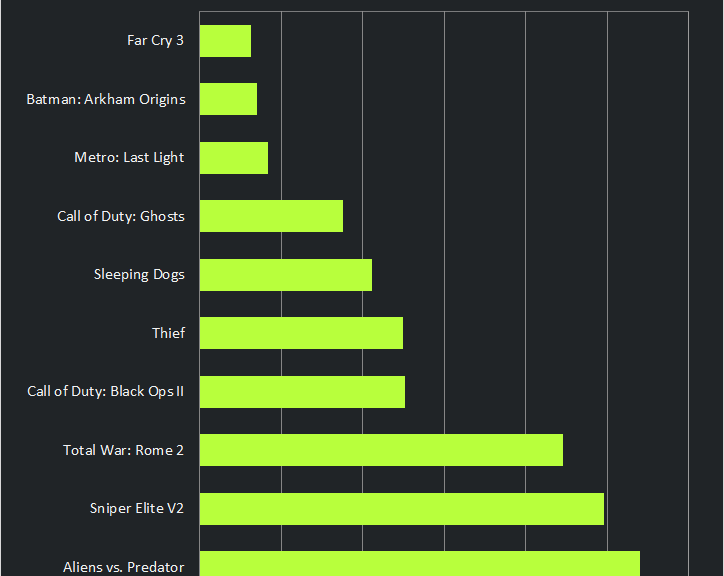
As you can see, even with some older games (such as Skyrim or Tomb Raider) you will see a performance increase between 6% and 64% on a GeForce 700 series GPU. That’s because game makers and the big graphic behemoths like AMD, nVidia and Intel constantly work together to make games faster. So let’s have a look at where to get the latest drivers for the three big graphic card types out there:
Not a problem: To find out the maker and exact serial number, all you need to do is follow these steps. First, go to “Control Panel” and head to “Hardware and Sound”. From here, click on “Device Manager”:
This will bring up a list of all the built-in devices of your system. Head over to where it says “Display adapters”:

In these cases, you’ll see an Alienware X51 gaming rig with two graphic chips (the nVidia is usually always the faster one) and a laptop with a GeForce GT 650M. At any rate, make sure you’re using the latest drivers!
Your gaming performance is mostly dependent on the power of your graphics chip – even more so than on how much memory your have or how fast your processor is! The bottleneck and the reason for stuttering gameplay is in almost all cases the graphics chip. To improve performance, you may want to look at running the graphics card beyond the factory speed setting – or in other words: overclocking! Now, 5-10 years ago, I wouldn’t have recommended overclocking as it posed a significant threat to your hardware, but nowadays most systems turn themselves off automatically before they take any damage. Besides, I only recommend a slight overclock by about 10-15%.
On my desktop gaming PC, an Alienware X51, I pushed the GeForce GTX 660 TI roughly 15-20% above its factory clock. On my main laptop, a MacBook Pro with Retina Display and a GeForce 650M running Windows, I always push the GPU from its factory 900 MHz to 1035 MHz (CPU) and the memory clock from 1800 MHz to 2100 MHz with no problems.
Bear in mind that overclocking increases the stress on and temperature of all of your hardware, not just the CPU or GPU, so it should be done with extreme care. In both cases, I ended up with a system that’s 5° Celsius hotter than before, but still well within the limits:
To overclock the GPU, I recommend two tools:
GPU Tweak –a classic overclocking tool from ASUS.
EVGA Precision X – allows overclocking of both the GPU and memory clocks.
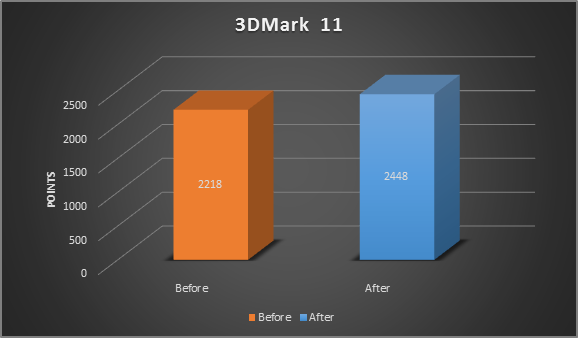
Using 3DMark 11 I measured that overclocking my system as described above yielded a 10% performance boost:
Windows® keeps getting slower and slower with each program you install on your PC or laptop – and that has a direct effect on all of your games! The reason for this is that a lot of programs run some sort of background activity, even when they’re not being used. AVG makes it easy to uninstall programs that you don’t use and even reduce the impact of ones that you need.
Uninstall those old programs you don’t need! Download AVG PC TuneUp from this page (don’t worries, the 15 day trial works fine). Once you’ve installed the suite, go to the “Optimize” category and click on “Uninstall Programs” first. Now what sets us apart from the built-in Windows uninstaller is a filtering feature that allows you to look for programs you haven’t used in ages. Click on “Filter list” and go to “Rarely used programs” and “Programs not used for a long time”.
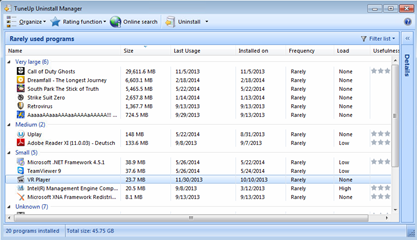
Found a program you don’t need? Click the “Uninstall” button!
Turn off programs you need! But what about all those other programs you use on a regular basis that are still reducing your day-to-day performance? Well, with our AVG Program Deactivator, you can turn them off safely. Just go to “Turn off programs” and browse through the list of all applications that affect your PCs performance.
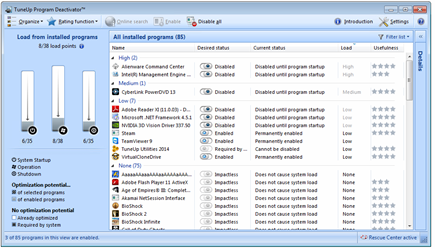
By flipping the switch to “Disabled”, our little helper turns off all background activity of your programs when you don’t need them and turns it back on when you actually do. In short: with no heavy background tasks, your PC will run almost as good as new and your games will run faster.
Earlier last year I noticed that my Late 2011 Radeon 7850 was quickly running out of steam with the latest titles such as Tomb Raider or Crysis 3. Gameplay was choppy at 1080p with full details. Since I wanted the full graphical experience and also did not want to spend more than $300, I opted for the best bang for the buck which was – in my opinion – the GeForce GTX 660 TI (I went for the EVGA version). There’s even a newer version, the 770, out now.
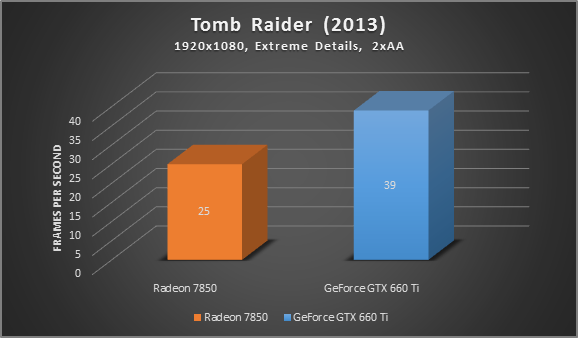
* Tests were performance on a 2012 Alienware X51 Gaming PC: Core i7 3.4 GHz, 8 GB RAM, GeForce GTX 660 TI
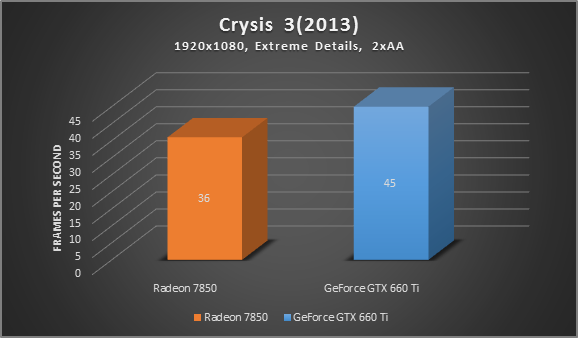
* Tests were performance on a 2012 Alienware X51 Gaming PC: Core i7 3.4 GHz, 8 GB RAM, GeForce GTX 660 TI
As you can see, upgrading from the older 7850 to the GTX 660 TI brought an increase of about 25-50% in Crysis 3 and Tomb Raider. That’s probably still the most effective way to boost performance.
SSDs are much faster than mechanical hard disks and while this most certainly doesn’t boost your game’s frame rate, it will definitely reduce load time in game.
My recommendation is to go at least with an SSD with more than 250 GB as most games these days take up between 8-20 Gigabytes. My Steam folder, for example, clocks in at a massive 60 Gigabyte and all I bought was Age of Empires III, Bioshock 1-3, Far Cry 3, Tomb Raider and Crysis 3. Add to that Windows (another 30 GB), your personal data and some applications. You’re approaching the 256 GB quickly.
I tried the Samsung 840 which offers a fantastic value (250 GB for 139$). However, I went for the 480 GB SanDisk 480 GB Extreme which boosts an incredible 540 MB/s of sequential read and 460 MB/s of sequential write, for my Alienware X51 gaming rig which – before – featured a stock 7200rpm drive. The performance difference is mindboggling:
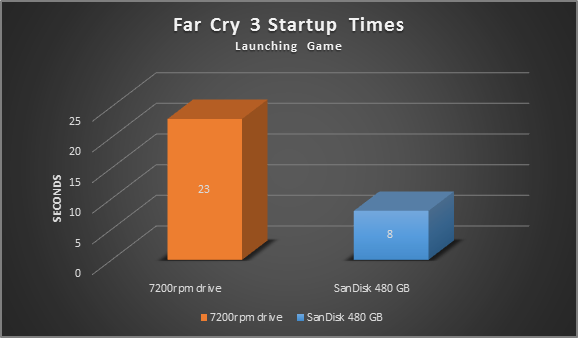
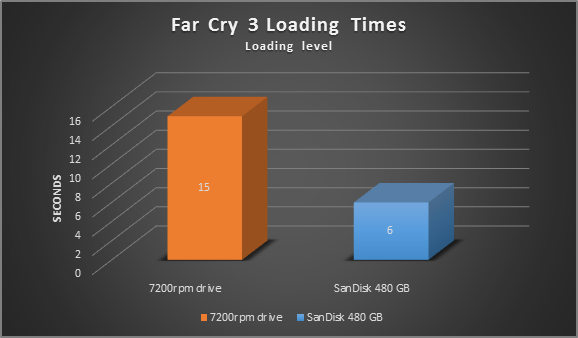
As you can see it has slashed my load times, meaning I spent more time playing and less time waiting!
Both SuperFetch and Prefetch are Windows features that are supposed to boost Windows and applications startup times. For games, however, I noticed that loading times and background activity actually increases when these features are enabled. That’s why I recommend turning them both off if you’re an avid gamer. Here’s how:
To do this, go to “Control Panel”, “System and Security”, “Administrative Tools”, and “Services”. Scroll down until you see the “SuperFetch” entry, double-click on it, and choose “Disabled” from the list.

Hit “OK” and close all windows. Next, open up the registry; click on the Start orb and type in “regedit”. Hit Enter, and go to “HKEY_LOCAL_MACHINESYSTEMCurrentControlSetControlSession ManagerMemory ManagementPrefetchParameters”. Double-click on “EnablePrefetcher” and enter “0” (default value is “3”) to disable the Prefetcher.
Note: Please follow the above instructions precisely as deleting or changing the wrong values in the registry may cause problems with your PC.
As data is written or deleted from your hard disk, files become fragmented and will physically spread out all over the disk drive. This will lead to a significant performance hit, especially with games, as the hard disk will first need to collect all of these portions in order to be able to fully process the entire file. As both your games and their files usually take up several GBs, it is vital that all of these files can be read in a continuous manner.
1. To defrag the disk, fire up the Start menu, and go to “All Programs”, “Accessories”, “System Tools” and “Disk Defragmenter”.
2. Select your Windows disk, and hit “Defragment disk”. Note, if you have an SSD, you should not defrag. Instead, use the TRIM command to optimize them.
3. In Windows 8, Microsoft integrated the TRIM command into the Disk Defragmenter—so, simply hit “Optimize”. Windows 7 doesn’t offer this, so be sure the TRIM command gets executed regularly. To see if TRIM is enabled, open up a command prompt by clicking on the Start orb and typing “cmd” into the search bar. Right-click on the first result (“cmd”), and click “Run as administrator”. Next, type in the command “Fsutil behavior query disabledeletenotify”, and hit Enter. If this returns the result “= 0″, you’re good to go! Otherwise, TRIM isn’t supported and needs to be enabled. Try entering the command “fsutil behavior set DisableDeleteNotify 0″. If that doesn’t help, a firmware upgrade might be necessary to enable TRIM.
All NVIDIA drivers come with their own control panels that let you tweak the most essential 3D settings. While you can set many of the following options in-game, some are not available or directly controlled by the driver. This is why it’s always a good idea to go through the list of all options and tweak them to best balance performance and visual quality.
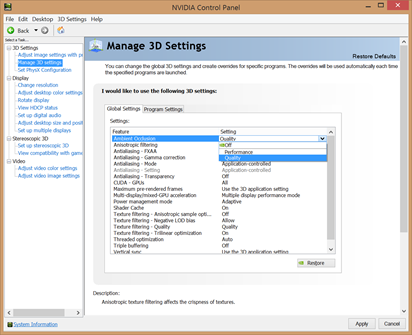
To get to the NVIDIA Control Panel, right-click on your desktop, select “NVIDIA Control Panel” and head over to the “Manage 3D Settings” category on the left. These are the some of the lesser known but still important settings to tweak:
• Maximum Pre-Rendered Frames: This controls the number of frames that the processor prepares before transferring them to the graphics card. Increasing this value results in smoother game play, but you may notice a lag when using the mouse and keyboard. To eliminate the lag, try the “1″ setting.
• Threaded Optimization: This option should always be “On”, as it allows the support of multi-threaded optimization for modern multi-core processors.
• VSync: It synchronizes the frames that your graphics card renders with the refresh rate of your monitor. If you disable it, you might find that games run more smoothly; however, you will notice that some parts of the screen might not be rendered correctly and appear to lag. Disable it only if your monitor has a higher frame rate than your gameplay.
The AMD/ATI Control Center is another fantastic way to squeeze out more performance and increase the visual quality of your games. To fire it up, right-click on your desktop, select “Catalyst Control Center” and head over to the “3D Application Settings” on the left.
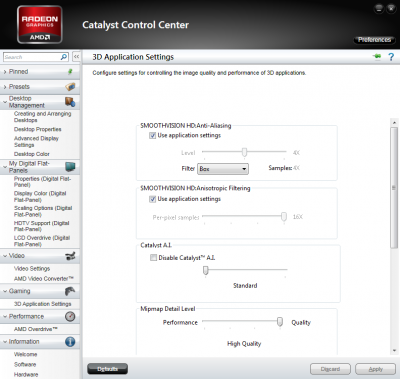
These are the most important settings:
• SMOOTHVISION HD: Anisotropic Filtering: The higher this setting is set, the sharper distant textures will appear. However, this will also increase the processing load on your graphics card. If your GPU is powerful enough, enable it and see if there is a noticeable visual difference.
• Mipmap Detail Level: It determines texture quality. You can choose between “High Quality” (which equals the original texture quality) and “High Performance” (which omits many details and thus produces a higher frame rate). I found that having “High Performance” makes games look blurrier. If your GPU is powerful enough, make sure to set it to “High Quality”.
• Wait for Vertical Refresh: Vertical Sync (or Vsync) synchronizes the frames that your graphic card renders with the refresh rate of your monitor. If you disable Vsync, you might find that games run more smoothly, however, in most cases, you will notice that some parts of the screen might not be rendered correctly and appear to lag. Disable Vsync only if your monitor has a higher framerate (for example 60hz) than your gameplay (for example 40 FPS).
You can achieve the right balance of performance and visual quality with nearly all of the settings described above. There is no right way to configure your ATI Control Center—it depends on what games you play and the power of your ATI graphics card. If you have a relatively new graphics card but play games that are a couple of years old, we recommend adjusting all of the options to the maximum settings (except Mipmap).
Now that we’ve explored 8 critical tweaks to improve gaming performance, what kind of an effect can you expect? Well, it depends on the hardware you’re using. If you’re running on an older laptop or PC that wasn’t meant for gaming at all, our tips can very well mean the difference between stuttering and smooth gameplay.
But even on faster PCs or laptops and gaming rigs, things will feel faster and loading times will decrease when you’re playing games.
Followed most or all of our advice? Now it’s time to dig deep into the upcoming blockbuster titles to make sure they run great from the get-go.
Earlier this week, Google announced that they will no longer release patches for WebView versions JellyBean and older.
WebView is a core Android component which is used to display web pages on mobile devices and has been a target for exploitation from hackers. Google’s decision to stop patching old versions of WebView could potentially leave millions of users at risk.
Here is a video of Elad Shapira, one of our mobile security experts, executing an exploit on WebView.
While it’s quite common for companies to pull support for legacy products, Android is a special case as there are many devices still running old versions of the operating system.
In fact, the latest mass-market version of Android (4.4, KitKat)- only makes up 40% of the overall Android market meaning that up to 60% of all Android devices might receive no further WebView patches.
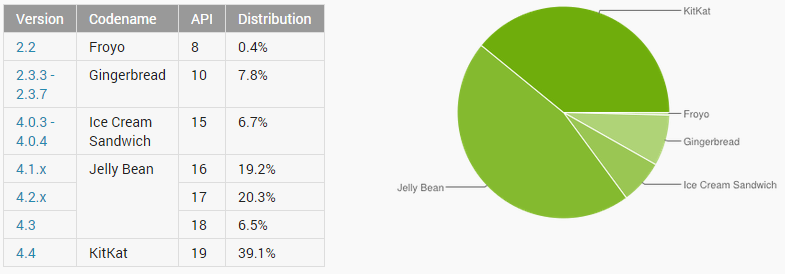
Support in the form of patches and security fixes are one of the most important ways to keep our devices safe. New vulnerabilities in operating systems and apps are found all the time and can cause privacy and security concerns for end users.
Software developers use security patches to protect fix these vulnerabilities and protect users from harm.
Having said that, Android is by its very nature open source, so there is always the possibility for newly discovered vulnerabilities to be patched by the Android community but that is a Band-Aid fix at best.
The most straightforward step to help stay safe (and the one Google is likely hoping we all adopt) is to upgrade to the latest version of Android. For some however, this would prove prohibitively expensive and would require the purchase of a new device.
Those with recent devices should be able to upgrade to KitKat without much problem and people with brand new devices should be on version 5, Lollipop.
As a complementary measure, having a fully updated security app running on your device will help keep you safe from most scams and malware.