Tag Archives: featured1

Mr. Robot Review: wh1ter0se.m4v

via: USA Networks Mr. Robot airs on Wednesdays at 9/10 central on USA

via: USA Networks Mr. Robot airs on Wednesdays at 9/10 central on USA

This week’s episode answered A LOT of questions — we met the infamous White Rose and found out why the Dark Army backed out of the planned takedown of Steel Mountain a few episodes ago, we found out why Cisco blackmailed Ollie into infecting AllSafe with malware and we (kind of) found out who Mr. Robot and Darlene really are! Although many of my questions were answered in this episode, I also found myself asking “what?” and “why?” throughout it. What is a honeypot? What is reverse engineering and why is Tyrell talking to Mr. Robot? Why is Tyrell happy about Fsociety hacking E Corp?

I turned to my colleague Ivan Jedek, malware analyst at Avast, to get some answers to my questions.

At 11 minutes into the show, Gideon has a meeting with Tyrell to tell him that AllSafe is determined to find the hackers that hacked into E Corp. He explains to Tyrell that AllSafe has air gapped E Crop’s private network, implemented a honey pot and reconfigured all firewalls. Tyrell cuts Gideon off to question the honeypot and Gideon explains that a specific server was involved in the last FSociety hack, CS30. He explains that if there is a chance hackers are in the network, honeypot will ensure they cannot cause damage. They will log in to the decoy server they set up thinking they are in they’re in E Corp’s main network — he is personally keeping tabs of all the traffic.   

Stefanie: What is a honeypot and what is it used for?

Ivan: A honeypot is a trap to catch cyberattackers. It comes from the idea that you can lure a bear by attracting it with a honey pot. As Gideon explained in this scene, a honeypot is a decoy. In this case, Gideon set up a honeypot to look like an E Corp server appearing to be connected to the company’s network. In reality, it is isolated and, like Gideon explains to Tyrell, is being monitored for unauthorized access.

At 14:26, we see the AllSafe employees frantically trying to get to the bottom of the malware attack that hit them and Elliot tells Ollie he is trying to reverse engineer the malware.

Stefanie: What is reverse engineering? Is it something that you guys in Avast’s Virus Lab do often?

Ivan: Reverse engineering is when you take something apart to see how it was built or put together. In this case, Elliot is disassembling the malware to see what it does and where it came from. We do reverse engineer malware in the Virus Lab, but we don’t wear lab coats when we do this! If we receive a virus sample that our system didn’t automatically detect, for example, then we like to reverse engineer the sample to find out how it works — then, we can create a detection for it to send to our users. Sometimes we reverse engineer malware because we find interesting or to observe how a certain malware family is progressing

During Elliot’s meeting with White Roe, Elliot learns that by targeting Terry Colby, he opened a vulnerability and raised Gideon’s suspicion. Elliot puts the pieces of the puzzle together and realizes that the Dark Army targeted AllSafe with malware to monitor Gideon, which lead to the Dark Army’s discovery of the honeypot, which is why they pulled out of the deal to take down Steel Mountain. When Elliot leaves the meeting, he is on a mission to take down the honeypot so that FSociety can access the Steel Mountain network to take down E Corp. Elliot goes back to the AllSafe office and in the meantime, Darlene has sent 100 MMS to get Gideon’s phone, which forces him to charge his phone and leave it unattended while a video made by FSociety plays in the AllSafe conference room. While everyone is watching the video, Elliot gets the security token and logs into Gideon’s account to submit a request to take down the honeypot.

Stefanie: Why send all those MMS? What is a security token?

Ivan: Elliot had Darlene send Gideon’s 100 large MMS files to overload his phone and drain his battery. This caused Gideon to charge his phone and allowed Elliot to take it while the video distracted the company. A security token is a temporary password that is sent to a device. The token helps prove one’s identity, as it is sent to a separate device. In this case, Gideon set up two-factor authentication on his AllSafe account so that an additional, temporary password would be sent to his phone whenever anyone attempted to log into his account.

Stefanie: Interesting! Do you also happen to know the reason why Tyrell and Mr. Robot met?

Ivan: That I do not know! I guess we will have to wait till next week to find out.

What did you think of this week’s episode? Let us know in the comments below!

Avast Mobile Security users can help develop a new app

We all know how bothersome finding and connecting to Wi-Fi networks in public places can be — often, we encounter frustrating roaming fees or slow connection speeds in crowded spaces. At Avast, we want Wi-Fi connection to be a safe and simple process for our users. As a result, we’re currently working on new product that will help people to detect and connect to public Wi-Fi networks without any security risk.

Introducing Avast’s new product pioneering program

We’ve recently rolled out a new feature within Avast Mobile Security called the product pioneering program. This program helps harvest nearby Wi-Fi hotspots available for users when they need to connect to public Wi-Fi networks. The feature also supports the creation and growth of our own trustworthy and up-to-date hotspot database, which we need in order to deliver information about nearby Wi-Fi hotspots to our users. As we know that Avast users place great importance on their security and privacy, we are asking our users to lend us a helping hand in collecting and identifying hotspots in their local surroundings. This requires us to request the GPS position permission of our users during the installation or upgrading process of Avast Mobile Security.

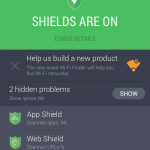
In-app notification informing users about our product pioneering program.
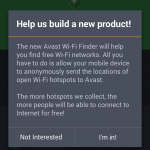
Opt-in message shown when users click on in-app notification.
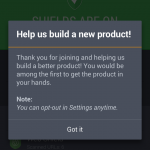
Users have the options of opting out of the program in Settings.

Upon installing or upgrading Avast Mobile Security, users will receive an in-app notification that informs them of our product pioneering program. If a user chooses to opt in to the product pioneering program, it is only then that his or her GPS location information will actively be gathered.

How does the program actually work?

Whenever users connect to an open Wi-Fi hotspot, we will check for an available Internet connection and then anonymously obtain the user’s location along with the name of the hotspot. We will be presenting this gathered information to our users once our Wi-Fi Finder app is ready to be launched in a few months. The app will be available for both Android and iOS.

It’s important to note that our product pioneering program gathers data anonymously from users. Specifically, the program only gathers the names and rough locations of nearby hotspots.

Our users’ participation in our product pioneering program is highly appreciated. We’d like to thank each and every one of our product pioneers in advance for their aid in helping us deliver our new product! Download Avast Mobile Security for free on Google Play.


Follow Avast on Facebook, Twitter, YouTube, and Google+ where we keep you updated on cybersecurity news every day.

Introducing the new multiplatform and multi-device solutions in the 2016 Consumer Product range!

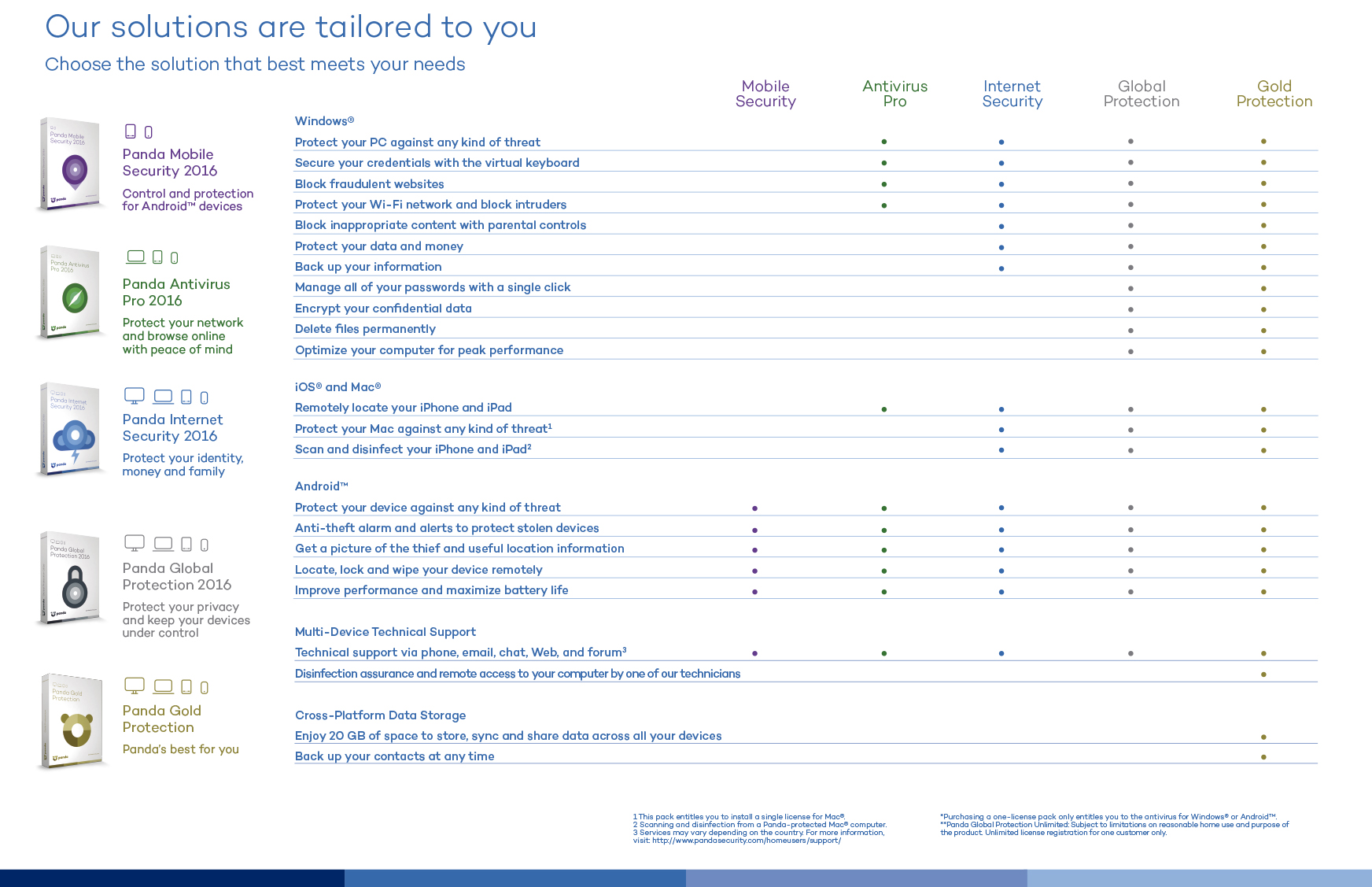
The new 2016 Consumer Solutions range by Panda Security is finally available! In an increasingly global and multi-device environment, the 2016 Consumer Solutions range is designed to make the digital world easier and more secure.

antivirus 2016

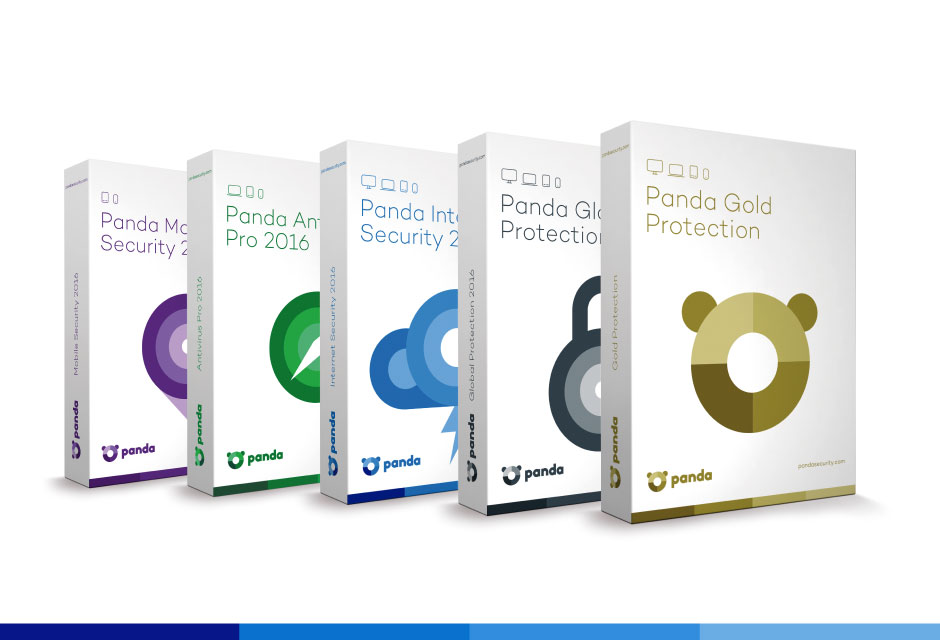
The solutions portfolio for protection on all devices includes:

  • Panda Gold Protection 2016
  • Panda Global Protection 2016
  • Panda Internet Security 2016
  • Panda Antivirus Pro 2016
  • Panda Mobile Security 2016
  • Panda Antivirus for Mac 2016
  • Panda Free Antivirus 2016

It allows you to shop and browse online safely; protects families against inappropriate content; keeps identities and confidential information safe. The monitoring and optimizing of different devices is now easier than ever with the new Panda products.

Multiplatform and multi-device solutions

All of the products in the new 2016 Consumer Solutions range, from the most basic to the most advanced, offer multiplatform protection, providing service on Windows (including Windows 10 compatibility), Android, Mac and even antitheft for iPhone and iPad.

Mac systems and iOS devices are also becoming victims of attacks and threats. Therefore, the new 2016 Consumer Solutions range includes Panda Antivirus 2016 for Mac, a complete protection against viruses and other Internet threats for Mac users. It offers updates, quarantine and the possibility to analyze your iOS devices from your Mac.

The entire range includes an app for iOS that allows for the remote location of the device in case of loss or theft.

Features of the 2016 Consumer Solutions range

  • Data protection (Data Shield) to prevent the stealing of information relating to the devices. In addition Panda Global Protection 2016 and Panda Gold Protection 2016 allow for the safeguarding of files so no one can access them
  • Protection of Wi-Fi networks to display the computers on the network and detect intruders. It also allows for network audits to check its safety and potential vulnerabilities, and to block access from unknown computers.
  • USB protection, providing immunization and a protective shield to analyze the USB when inserted into the device.
  • Improved features such as Parental Control; application control, a highly effective protection against zero-day malware; PC recovery system, safe browsing, and password management and an easier, more intuitive interface (Panda Simplexity).

This is what you can find in the new 2016 Consumer Product range by Panda Security:

consumer comparative

The post Introducing the new multiplatform and multi-device solutions in the 2016 Consumer Product range! appeared first on MediaCenter Panda Security.

Understanding tech companies’ privacy policies and their effect on users

Tech companies’ privacy policies have the ability to help or hinder users.

When was the last time you sat down and read through the entirety of a tech company’s privacy policy, even if you visit the site every day?

In an article recently published by TIME in collaboration with the Center for Plain Language, a selection of the world’s leading and regularly visited tech websites were ranked in a list in relation to their privacy policies. In short, they rated the companies based on the manner in which they communicated with the public while walking them through their privacy policies. In this case, it wasn’t the actual data that these companies collect from current and potential new users that was being analyzed. Instead, this study looked at the way in which that information is brought to the attention of these users.

When picking apart a company’s policy, it’s important to think about how users can actually benefit from taking the time to read it. While that may sound obvious, we’ve all come across our fair share of unfortunate company pages (such as T&Cs, FAQs, or even About Us sections) that add up to a bunch of unintelligible language that we ultimately digest as gibberish. Regarding the level of clarity in a company’s policy, TIME writes:

Does the policy, for instance, make it easy for people to limit the ways in which the company collects their personal information? Or are instructions about opting out obscured in the policy’s hinterlands with no hyperlinks?

In addition to Google, within the list are three social media platforms that many of us use on a regular (if not daily) basis: Facebook, LinkedIn and Twitter. When taking a closer look at these four websites’ policies, it becomes clear that they approach the issue of individuals’ privacy and personal information in very different ways:

1. Google: Unsurprisingly, Google does a great job of spelling out their policies using language that users can easily understand – hence, it came in first place in this study. The Center for Plain Language concluded that by reading through Google’s privacy policy, users’ trust in the company can actually increase. Impressive, considering that most people’s trust in Google is already considerably high to begin with.

2. Facebook: While certain policies simply acknowledge that they store and analyze user information, Facebook’s “What kinds of information” section takes it a step further, breaking down each kind of interaction users have while using the site and clearly explaining which information is collected and stored while those interactions are being executed.

Photo via TIME

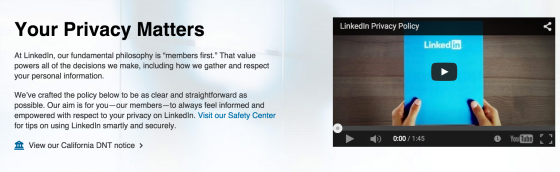
3. LinkedIn: Coming in at number three on the Center’s list, LinkedIn is an example of a company with a privacy policy that is mediocre in its clarity and messaging. However, LinkedIn does claim to have crafted “the policy to be as clear and straightforward as possible”, so the company’s third place rating could be a bit of subjective judgement call.

Photo via TIME

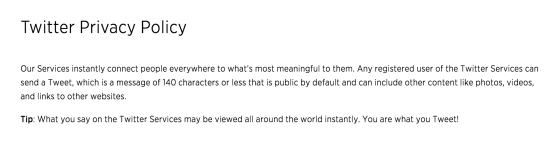
4. Twitter: Jump down to the second to last place on the list, and that’s where you’ll find Twitter. In a series of long and hard-to-read paragraphs, users are left wondering what it was that they just read when trying to pick apart Twitter’s privacy policy. This social media channel is a good example of what not to write when attempting to be transparent with audience members.

This study goes to show that it’s not only privacy policies that are crucial – it’s also important to pay attention to the way in which these policies are written and shared with users. Users should always be able to feel that they understand how and why their personal information is stored, analyzed, and/or shared on websites that they frequently use. Read the full report from the Center for Plain Language for a complete privacy policy analysis.


Follow Avast on FacebookTwitterYouTube, and Google+ where we keep you updated on cybersecurity news every day.

10 careless errors that we keep making in IT security

computer frightened

You have read and reread numerous lists with tips on how to browse online safely, make online purchases, avoid your most intimate photos ending up online, stopping cybercriminals from ruining your vacation, or how to enjoy your favorite games without risking your privacy…

You’ve heard the same basic precautions time and again, but you keep ignoring almost all of them. It could be down to laziness or recklessness, or simply just forgetting them. This, however, could have dire consequences for your online security.

This is why we wanted to bring together, in a single list, the most basic security measures you should remember and stick to!

1. Opening any attachment that you receive by email

If you receive an email from a suspicious source or you don’t have a good feeling about it, don’t open the attachment. As we’ve said on numerous occasions, documents that look inoffensive (such as a Word document, for example) could be hiding malware and even a simple photo could prove to be dangerous.

2. Clicking on shortened links without thinking

If you use Twitter then you’ll know what we’re talking about – these links, which are becoming increasingly more common, are spread using sites such as bit.ly, the famous ow.ly from Hootsuite or goo.gl by Google. Usually, they lead you to nothing dangerous such as a blog or an online diary, but some links aren’t as inoffensive as they seem. If you want to assure yourself that the links are safe, take a look at these tips.

3. Using public Wi-Fi without taking precautions

There have been many articles written that warn us about the dangers of using public connections such as the ones that we find in cafes, hotels, airports or libraries. Even a 7-year old girl, without any technological know-how, is capable of spying on your online communications. To keep safe, don’t share confidential information (passwords, bank details, etc) and, if you can, use a virtual private network (VPN) and only access pages that use safety protocol (you’ll know it by the http in the address bar).

wifi

4. Ignoring security updates

If your operating system tells you that you need to install or update something, you should pay attention and do it. A lot of times it consists of measures to cover up weaknesses that have been recently detected that cybercriminals could use to their advantage. The same goes for your cellphone; always use the latest version of Android or iOS available and keep aware of what apps you have installed.

5. Using the same passwords on different accounts

Even though it’s the easiest way to remember them all, it’s a really bad idea, because if someone gets hold of your password then they have free rein on all of your accounts. Also, any attack on a company’s database (which is also becoming more common) can wind up with your credentials being sold on the black market. When a cybercriminal gets his hands on them, he’ll be able to access every protected account. To avoid this, activate the two-step verification tool such as the ones for Gmail or Facebook.

6. Thinking that an antivirus isn’t important

A good antivirus software is the best barrier you can put between your computer and cybercriminals. New vulnerabilities, different ways of compromising your private information, and ways to raid your bank account are discovered every day. Only security experts at specialized firms are aware of antivirus updates necessary for when a threat emerges. By the way, if you have a Mac, it’s also necessary to have an antivirus. The idea that Apple products don’t have viruses is a myth.

7. Thinking that backing up files is a waste of time

Making a backup of your files is much easier than it sounds, but if you get lazy just thinking about it then remember that you have many tools at your disposal that handle everything. The Panda security solutions, without going any further, allow you to program backups to save your files in the cloud and retrieve them quickly and easily.

Backup

8. Not paying attention to your browser when it says the connection isn’t secure

When we surf the net, we tend to act on autopilot and ignore any warnings that we come across. If Chrome says that a web is not safe, we ignore the warning. If Firefox asks for confirmation before downloading a file, we give our approval without thinking. Science says that we have become accustomed to these messages so that we no longer notice them. For you sake, pay attention! Neither Mozilla nor Google show these messages to annoy you.

9. Giving out information on social media

This is especially true for when we go on vacation and share all the details on Facebook or Twitter, but also when we reveal our location without thinking about who could use it for malicious purposes. Sometimes we forget, but all the information we publish on social networks is capable of ending up in the wrong hands.

10. Downloading applications from anywhere

The malware designed for mobile devices is booming and one of its main pathways are the dangerous downloads outside of Google Play and the Apple Store. The official stores have certain security measures to prevent spread malware and you can read reviews from other users before deciding to install an app, in case there was something suspicious. Conversely, if you download from an unofficial page and install it on your own, the likelihood of it containing malware is higher.

The post 10 careless errors that we keep making in IT security appeared first on MediaCenter Panda Security.

Take control of your antivirus for Android from your Smartwatch with Panda Mobile Security!

Did you know that the new version of Panda Mobile Security, our antivirus for Android, is now available in the Google Play store?

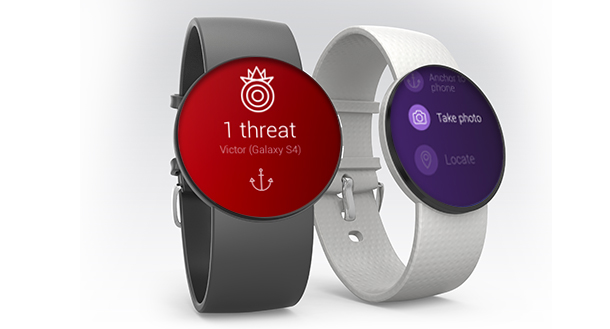
The main difference with this version is that you can access the features directly from your Android Wear Smartwatch. That means, that if you have a smartwatch, you can control the antivirus from your wrist.

New Panda Mobile Security

This is what you can do:

  • Analyze your telephone / tablet from the smartwatch.
  • Antitheft and locking of device.

But that’s not all, if you have the PRO version, Panda Mobile Security allows you to:

  • Connect your watch to your device; an alarm will ring if they are too far apart.
  • Remotely activate an alarm on your device.
  • You can get a picture remotely on your Android device from your Smartwatch.

Panda Mobile Security, protects your smartphone or tablet against viruses, malware and spyware. In addition, it protects user privacy by blocking those applications that access confidential data without permission. And now, you can use it from your Android Wear™ smartwatch as well!

The post Take control of your antivirus for Android from your Smartwatch with Panda Mobile Security! appeared first on MediaCenter Panda Security.

How to scan and remove viruses when your computer is offline

Some sophisticated viruses hide when you turn on your computer (also known as booting up your computer), and even antivirus software like Avast, with its boot-time scan feature, can be prevented from seeing it. If you believe your computer is infected with a virus, the first step you should take is to download and install Avast Free Antivirus and run an entire system scan. If for some reason you are unable to do that, and you have exhausted all other alternatives, like asking our support team for help by submitting a request online at http://www.avast.com/support, then you can create an Avast Rescue Disk that will scan, detect, and remove most malware. This bootable version of Avast attacks a virus from outside of your computer system, catching it before it hides or camouflages itself.

rescue disk

To run a virus scan when offline, create an Avast Rescue Disk.

You can create the Avast Rescue Disk from any Avast product. All you need is an uninfected computer with Avast Antivirus 2015 installed and an empty USB flash drive (make sure it is fairly new so that it supports booting) or a blank recordable CD/DVD.

Follow these easy steps:

  • Open the Avast user interface.
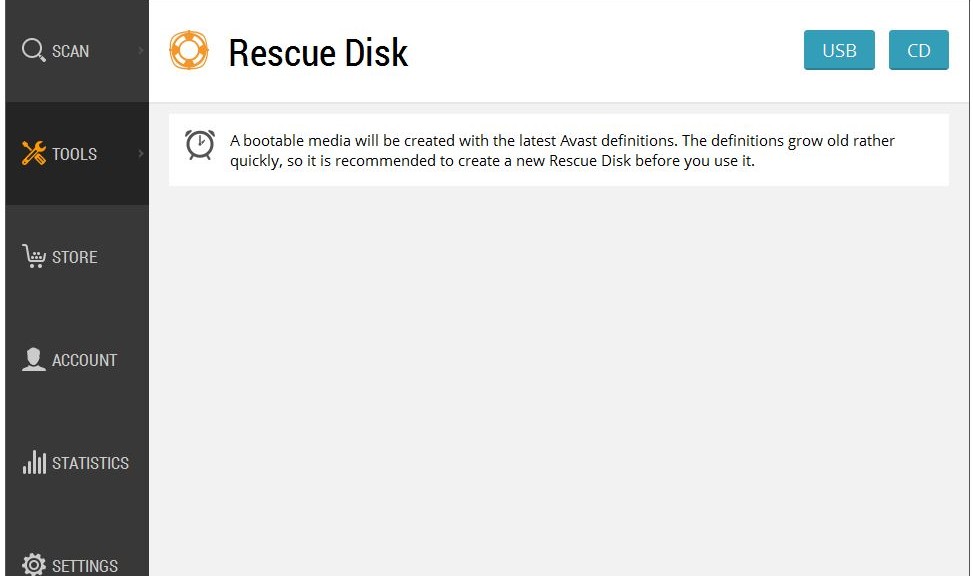
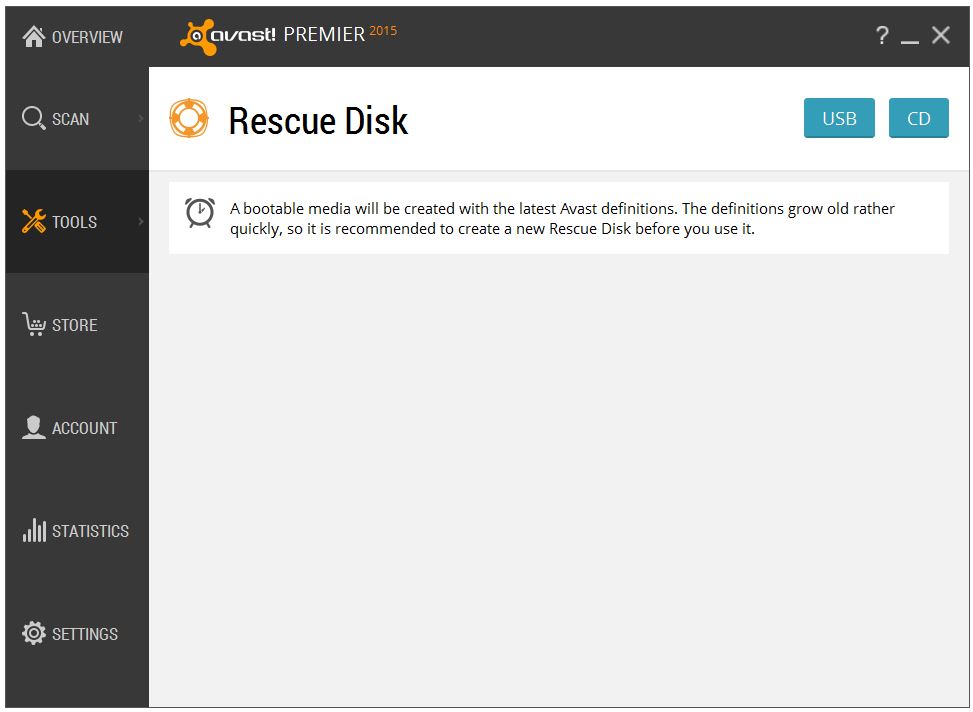
  • From the menu selection on the left, select Tools, then click Rescue Disk.
  • Choose the media type that you want to use; an empty USB flash drive or a recordable CD/DVD.
  • Follow the directions. Creating the rescue disk only takes a few minutes, depending on the speed of your computer and internet connection.

For detailed instructions with screenshots please visit our FAQ: Create Avast Rescue Disk as a bootable USB flash drive or CD.

Once you have created the Rescue Disk, plug it into your infected computer and reboot. There are a variety of ways to boot into the so-called Recovery mode; the ESC, F11 or F12 keys are the most common way to enter the boot menu. Our FAQ: Start up your computer from external bootable media with Avast Rescue Disk explains in more detail how to boot up your infected computer using the USB flash drive or CD/DVD that you created.

The Avast Rescue Disk wizard will walk you through the steps to scan for malware on your infected computer. You can choose to scan your entire computer or you can select specific folders or disks.

When the scan has finished the wizard will show you an overall results page and you will receive a scan log report listing the threats that were found. From there you may decide to repair or delete the infected files.

There are two options when a threat is found:

  1. Avast can remove the malicious code automatically. If it fails to repair the files, they will be automatically deleted.
  2. You may choose to work with the files manually. You have the choice to repair selected files or delete selected files. After you’re done, just to be on the safe side, you may want to start another scan.

Once you are done and your computer has been restarted, you can remove Avast Rescue Disk. You can also safely use Avast Rescue Disk to scan and disinfect other Windows PCs, but since virus definitions are always being added, it’s better to create a fresh Rescue Disk when needed.

Avast evangelist, Bob G. made a video about Avast Rescue Disk when it was introduced. It still works the same way, even though the Avast program interface looks a little different. Thank you, Bob, for making informative, helpful videos.


How to turn a pen drive into a security key for your Google account

keys

Due to the increasing prevalence of cyber-attacks resulting in massive data leaks, it is of utmost importance that we keep our profiles under lock and key so as to avoid becoming another victim.

We have already commented on this on more than one occasion – enabling a two-step verification for all services that we use (Gmail, Facebook, etc) is a basic security measure that we should not overlook. It requires a bit more effort than simply entering a password, yes, but the protection it offers you is worth it.

The confirmation might be a code that arrives by SMS to your mobile phone, an automatic call in which a robot reads the code, an email that you receive within the associated service, or a notification in the app. The bottom line is that it makes it harder for the attacker to access your account as they won’t have the code available.

However, the techniques thought up to circumvent the two-step verification have become more sophisticated. Cybercriminals can create webpages almost identical to the official pages of Google or Facebook, for example, which will demand the verification code sent to your mobile phone. This way, if they manage to fool you, they can access your account without needing to have the device which contains the code.

pen

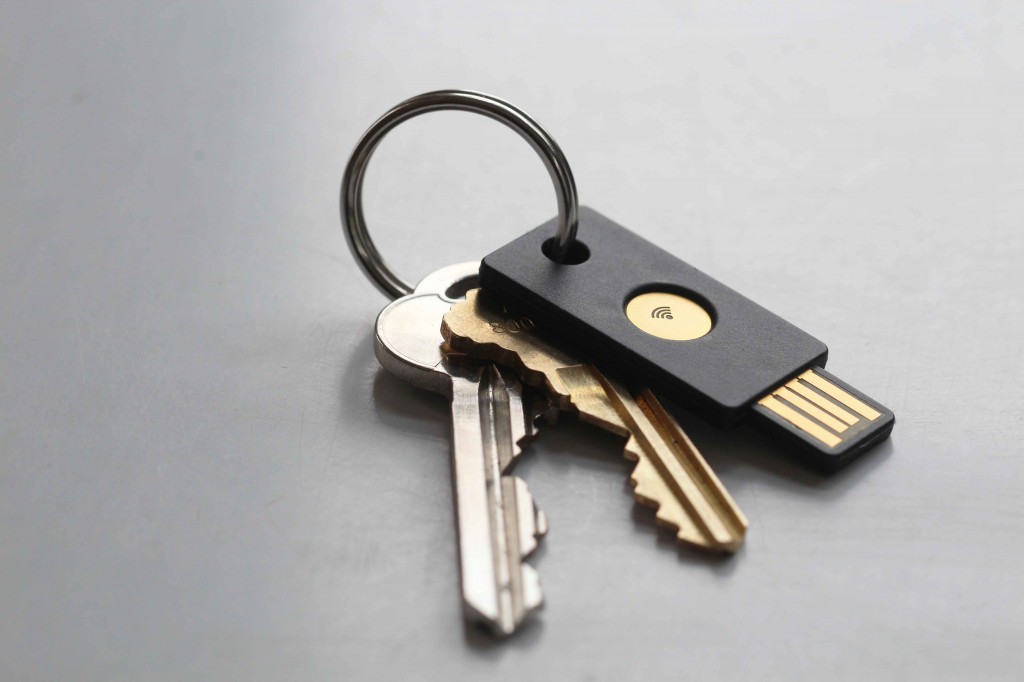
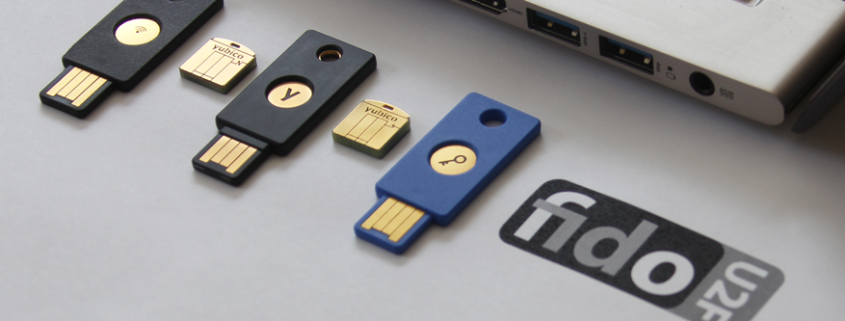
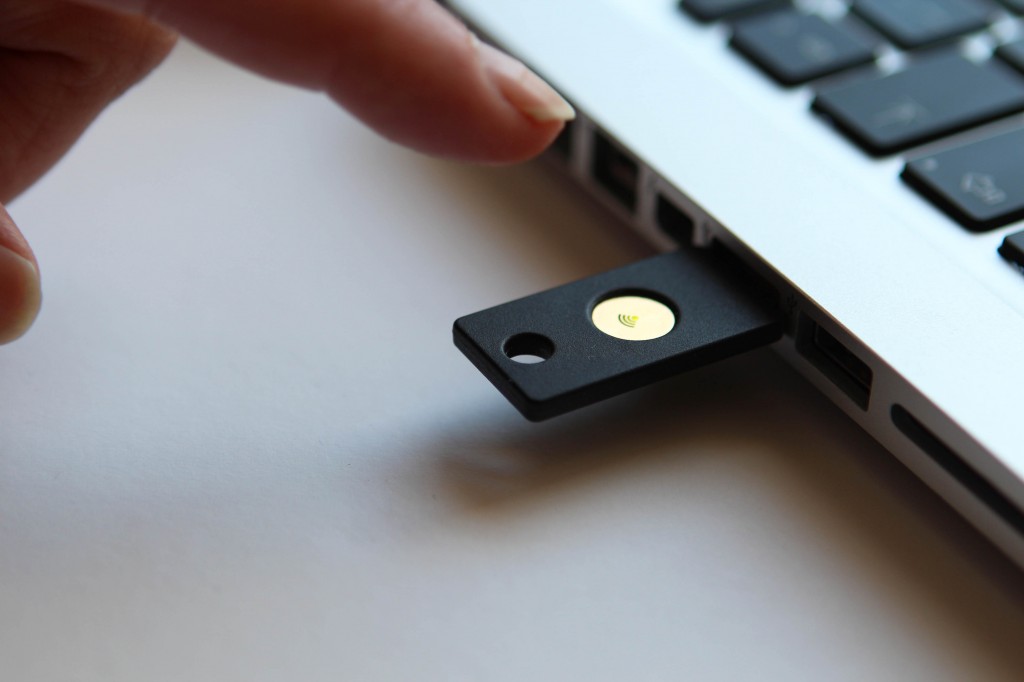
The answer to all this has arrived in the form of a pen drive. Lead by Google, FIDO Alliance is developing a technology (U2F Security Key) that makes it imperative that you have the gadget in order to access the account.

This gadget is a USB device that can be purchased for under 6 euros through Amazon. Google accounts are also now supported if you access it through the Chrome browser. It’s simple – you enter your username and password in Gmail, as usual, but instead of a code that’s sent to your phone, you need to insert the pen drive into the port on your computer – and click on the button which says add – to complete the second step of the identification process.

A would-be attack, who isn’t in possession of the device, will be denied access. It won’t be of any use to them to try to trick you, because there isn’t any code that you need to enter. The key, whose function is based on cryptographics, takes care of it all.

pendrive

Although it’s not the first time that a USB has been suggested as a second verification mechanism, the U2F technology is the only one so far that has the backing of an internet giant like Google. The seal of approval from the search engine set the ball rolling for this tool, which is now an open standard controlled by the FIDO Alliance, a working group which also includes multinationals like Microsoft and Samsung.

In fact, it’s not only your Google account which can benefit from this security measure. Using the Chrome browser, any company can adopt this key to protect its intranet, email manager or any other corporate application.

The main drawback of the U2F protocol is that by relying on a USB port and the Chrome browser, it is unsuitable for use on mobile devices – the solution, however, is on the way. Yubico has produced similar devices which offer the same service without the need to insert a pen drive, but rather by NFC (near field communication), which is the same technology used by major mobile payment platforms (Apple Pay, Android Pay, and Samsung Pay).

The post How to turn a pen drive into a security key for your Google account appeared first on MediaCenter Panda Security.

Going on a trip? Be sure to pack Wi-Fi protection.

Protect your devices when on unsecured Wi-Fi with Avast SecureLine VPN.

Protect your devices when on unsecured Wi-Fi with Avast SecureLine VPN.

Relying on your hotel to protect you when using their free guest Wi-Fi  is not a good idea.

Even the best hotel chains are vulnerable to hackers, so having a Virtual Private Network (VPN) is vital for your protection. I will tell you how easy it is to use below. But first, here’s how cybercrooks can get their victims: One way is through buggy equipment such as the critical vulnerability discovered last March in ANTlabs’s InnGate product used by 277 hotels, convention centers, and data centers in 29 countries. The InnGate provides temporary guest access to a Wi-Fi connection. By breaking into this piece of equipment, an attacker gets full read and write access to a Linux file system and from there can launch attacks against guests on the affected hotel’s Wi-Fi. Another tactic hackers take is to create a fake Wi-Fi network, call it something innocuous like “Hotel Guest Wi-Fi”, and lure unsuspecting victims to their rogue connection. What the hackers do is set up their own access point and hope you’ll connect to theirs instead of the public Wi-Fi network.

What do hackers want?

It depends on who you are and what information you have on your devices. For normal people with normal jobs, typically, the hacker can watch your online activity, read your email, steal your account passwords and if they go deeply enough, potentially steal your credit card information, which is the precursor to identity theft. “There is seemingly no limit to what they could do,” say the researchers who discovered the InnGate vulnerability. Victims’ laptops or mobile devices can be also be infected with malware. Last year, the DarkHotel cyberspies gained access to the computers of high-level executives, government agencies and NGOs, and U.S. executives traveling in Asia, probably to steal nuclear secrets.

How do you protect yourself on free Wi-Fi?

Maybe you’re not packing your country’s nuclear launch codes, but allowing someone to snoop around your private files and steal your Facebook or bank passwords is not acceptable. Thankfully, there is an easy solution to protect yourself when you log on to any free Wi-Fi hotspot anywhere in the world. SecureLine VPN is a one-push-of-the-button little program that connects you to one of 23 servers around the world, giving you your own private encrypted network that no one can spy on. You can use SecureLine on your PC, Mac, and Android devices. All you do is install the program or app, then when you log onto the free Wi-Fi, you start up SecureLine and it automatically connects to the nearest server. You can also choose to connect to any of the other servers, which gives you the benefit of seeing geo-restricted content when you’re traveling. Usually these connections are super-fast, so you don’t even notice a slow-down. SecureLine VPN is a subscription service offered by Avast, but comes with a free trial. Install it now and see how easy it is to be protected.


Follow Avast on FacebookTwitterYouTube, and Google+ where we keep you updated on cybersecurity news every day.

How SMBs in the UK Handle their Company’s Security

UK Avast for Business INFOGRAPHICIn February, Avast launched the world’s first free, easy to use, cloud-managed security offering, Avast for Business, protecting SMBs from viruses and cyberattacks. We conducted a survey amongst our Avast for Business users in the UK to gain further insight into how local SMBs handle their security.

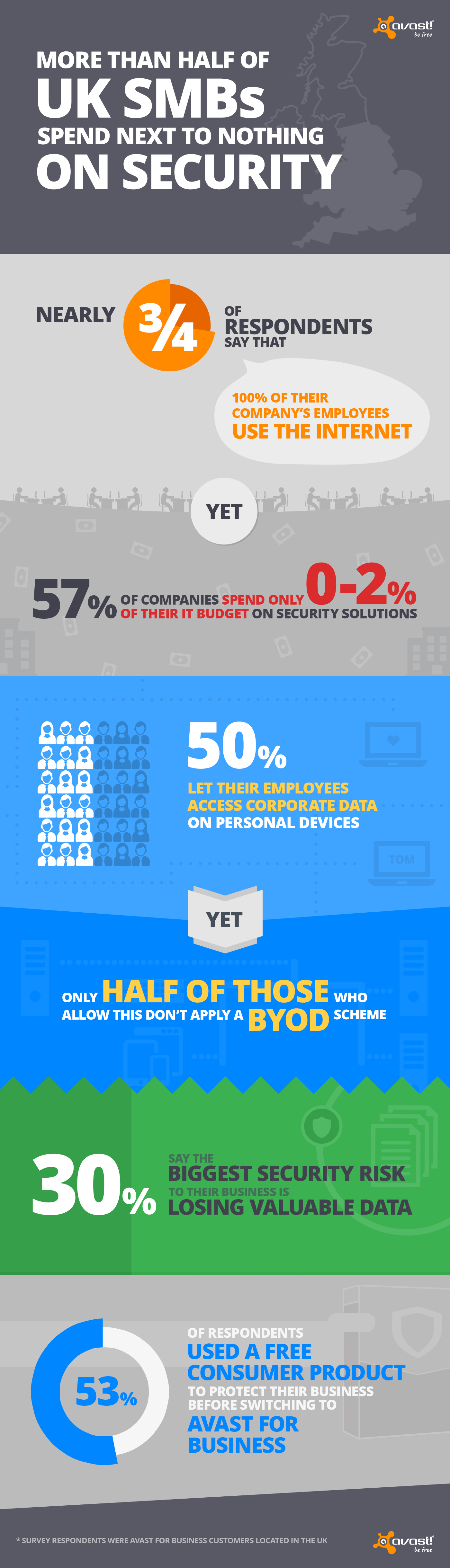
Nearly three-quarters (73%) of respondents said that 100% of their company’s employees use the Internet. Businesses, whether small or large, retail or non-profit, often have a database of valuable customer data, making them an attractive target for cybercriminals.

Cybercrooks use social engineering to attack businesses, tricking employees via phishing scam to, for example, gain access to a company’s network. Despite the high number of data breaches, 57% of SMBs in the UK invest only 0-2% – little to nothing – of their IT budget on security.

Who handles IT support services for SMBs in the UK?

  • 1 out of 10 said an employee (not a designated IT admin) handles the company’s IT support services
  • Nearly 50% have an in-house technician
  • 1 out of 10 have an external supplier/technician handles the company’s IT support services
  • 28% of SMB business owners handle their company’s IT

BYOD

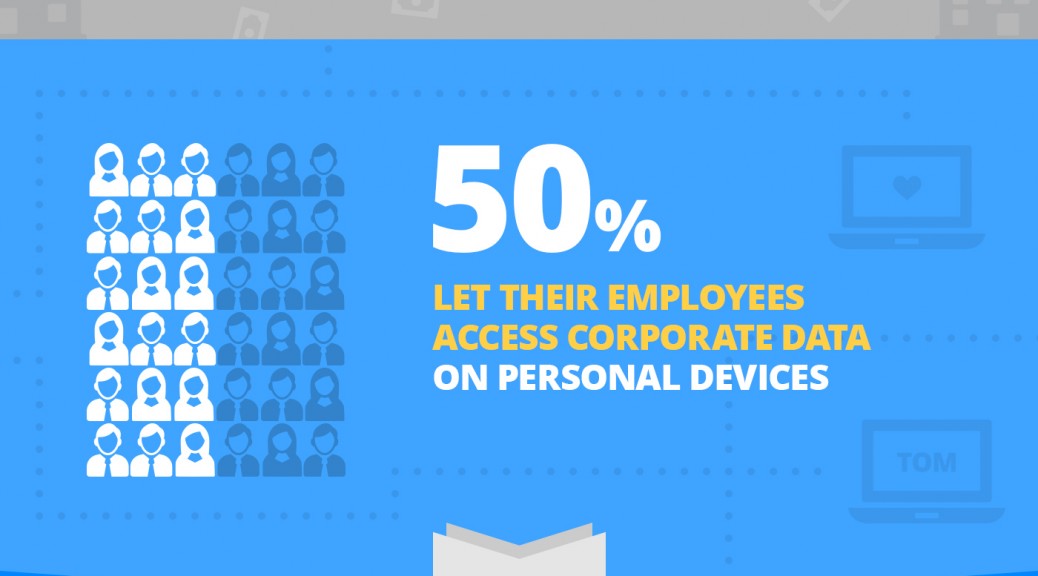
More than half of SMBs in the UK allow their employees to access company data from their personal devices. Bring your own device (BYOD) is a convenient practice SMBs have embraced, as it saves costs and encourages productivity.

However, BYOD can be risky, if not handled properly. Not only can hackers target the device to gain access to sensitive corporate information, but if the device is lost or stolen, the company data stored on it goes with the device. More than half (52%) of SMBs authorize employees to access corporate data on personal devices, yet the majority (54%) doesn’t run a BYOD scheme. 

Threats

Losing valuable and confidential data (31%) is the greatest security risk to UK SMBs along with productivity (23%) and losing customers (16%). We asked our business users if a virus or threat had infected them before switching to Avast for Business. When it came down to it, threats and hacks cost six out of 10 businesses productivity, followed by data loss (19%).

Types of security solutions SMBs used prior to switching to Avast for Business:

  • More than half (55%) used free consumer security solutions
  • 23% used premium business security solutions
  • Nearly one out of ten used premium consumer security solutions
  • Nearly one out of ten either do not know what kind of security solution they used before switching to Avast for Business or did not use any security solution (3%)

If your SMB has a low IT budget or if your business is currently using a consumer security solution, make sure you check out Avast for Business. Avast for Business is FREE and can be downloaded here.