Tag Archives: News

The Most Effective Tools to Keep Your PC Malware-free

pandasecurity-panda-cloud-cleaner

Malware creation continues to break records on an international level, as proven with the data from Q1 of 2016. Experts are identifying new malware samples every day that endanger the internet security on all of our devices.

Our day-to-day lives are effected, if not immersed, in unprecedented technological changes. As the world continues to become more digital, our personal and work environments continue to be susceptible to the +227,000 new threats that lurk on the internet.   Although our online habits continue to change and reflect these developments, we must remember that technology also opens the door for extremely aggressive cyber-attackers who are financially motivated. But, if we take preventative and adequate security measures, we will be able to protect ourselves from financial harm.

Panda Security would like to accompany our users in their digital transformation by offering solutions for a wide variety of devices and for different budgets; let’s work together to prevent, detect, and remove any kind of malware that is trying to sneak into your computer (and your bank account). Taking care of our computers’ “health” is the best way to save money… don’t wait until it’s too late! Tools like our Panda Cloud Cleaner are the best for working against cyber-crime.

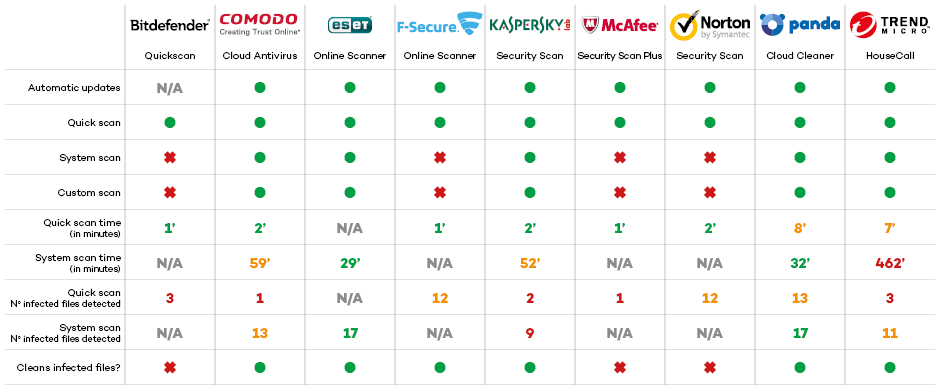
In a recent test comparison, Panda Cloud Cleaner has proven to be one of the best free anti-virus tools in the market. Among the number of solutions tested and analyzed, Panda Cloud Cleaner was rated as outstanding in analysis modes (it is both fast and complete), and was able to eliminate all malware without having to install another anti-virus tool.

pandasecurity-table-cloud-cleaner

As you can see, Panda Security’s solution is rated as one of the most effective solutions for detecting and disinfecting malware.

Businesses maximize their profits by taking advantage of the newest technology and latest products that are lighter, more efficient, and easy-to-use. One of the tools you can add to this is the newly designed Panda Cloud Cleaner, with new ways to detect, disinfect, inform, and protect from the start. Panda’s top priority is to keep users safe and maximize security in all aspects of our digital lives.

The post The Most Effective Tools to Keep Your PC Malware-free appeared first on Panda Security Mediacenter.

7 Secrets in the Windows 10 Anniversary Edition

In this blog, we’ll guide you through seven new and hidden things in the upcoming Windows 10 release so you’re fully prepared for what’s about to come to your PC.

The Windows 10 Anniversary Update comes out in July 2016.  This is both good and bad news for you.

Let’s do the bad news first: On July 29th, Windows 10 will no longer be available as a free upgrade. You will only be able to purchase it as a standalone item (or via the purchase of a new PC or laptop). So if you haven’t got it already, you better act quick and make sure you’ve reserved your free upgrade for all your Windows 7 and 8.1 devices.

The good news: Windows 10 Anniversary Update is more than your traditional Service Pack. Its slightly updated look combines more performance tools, bug fixes, and features than any other update that has come before. Free of charge.

In this blog, we’ll guide you through seven new and hidden things in the upcoming Windows 10 release so you’re prepared for what’s coming to your PC. Note that most of this is already visible if you’re running Windows 10 Insider Build.

  1. Restarting The Start Button…again?

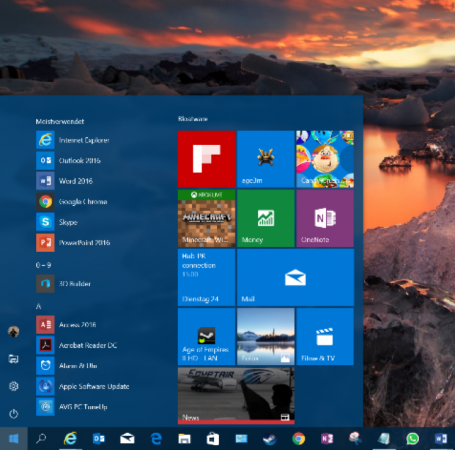
I can still hear the outcries when Microsoft introduced the Start screen in Windows 8, a full-screen cluster of tiles and that infamously removed the classic Start button and menu combination. Sure enough, they backpedaled with their “Big 10” last year and reintroduced the start menu, much to everyone’s satisfaction. But apparently Microsoft still isn’t quite happy with the Start menu, so they’ve been tweaking things.
/var/www/now.avg.com/18.46.0/wp content/uploads/2016/06/windows0

The three entries All Apps, Power, and Settings have now been reduced to icons – that will make it a bit tougher for beginners to find these. But it leaves more space for the list of apps and your tiles. Also new are interactive tiles. For example, the map tile will not just show you information but also let you interact with it. This is nothing revolutionary, but nice tweaks going forward.

  1. Information Overload: The New Notification Center
/var/www/now.avg.com/18.46.0/wp content/uploads/2016/06/windows1

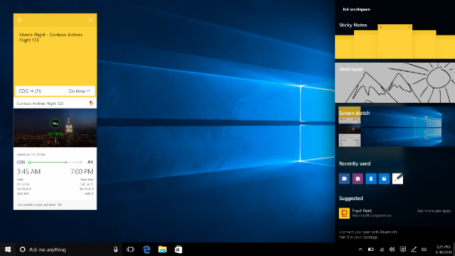
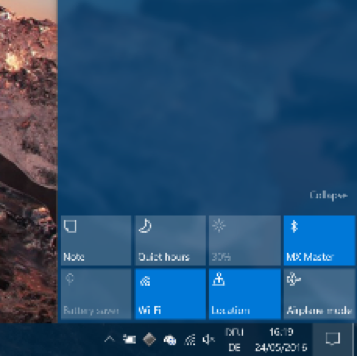
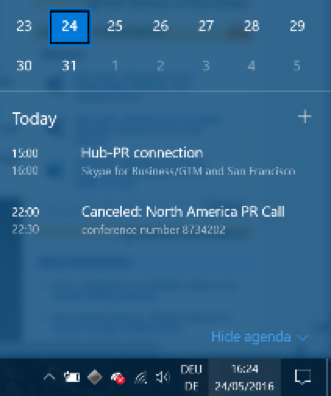
Clicking on the little speech bubble in the lower right corner will reveal a drastically updated notification center, which you can use to pin sticky notes, quickly sketch something, get access to apps you most recently used, and customize quick-action buttons, also in the lower right corner:
/var/www/now.avg.com/18.46.0/wp content/uploads/2016/06/windows2

Going forward, this area will also link to your phone to display notifications such as incoming text messages that you can reply to from your PC. Microsoft’s new browser (“Edge”) will show notifications, so you can stay up-to-date on news from your favorite websites. Upcoming calendar appointments will also make an appearance to give you a quick-glance look at what’s happening.
/var/www/now.avg.com/18.46.0/wp content/uploads/2016/06/windows3

  1. Dark Mode

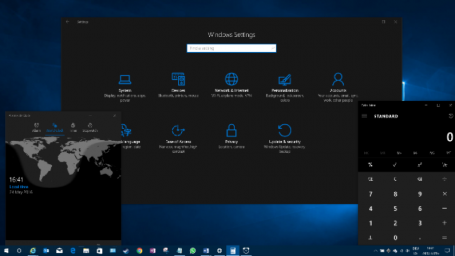
For those dark souls among us: Microsoft has gone “cool”, with a Windows 10 Dark Mode, which “paints” all third-party apps and certain parts of the Windows user interface black. This won’t just look a bit sleeker (to some), but it will also match the color schemes used by many applications (such as our own AVG products or Adobe’s Creative Suite) quite nicely. At the same time, it draws attention to the center of the screen and not Windows itself:
/var/www/now.avg.com/18.46.0/wp content/uploads/2016/06/windows4
Once you have Windows 10 installed, simply head over to the Personalization category in your Windows Settings app and click on Dark!

  1. Linux + Windows = Bash!

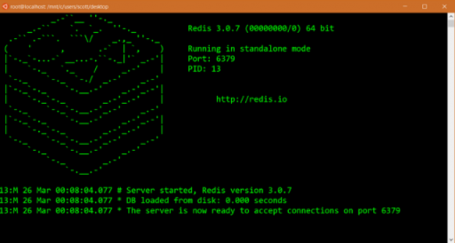
For all those (super) tech geeks among you, the new Bash shell integrates a complete Linux command line into Windows. However, it’s not a full blown Linux virtual machine. Rather, it is simply a developer toolset that integrates some useful Linux commands and environments into Windows. All you coders out there using both Windows and Linux developing tools, head on over to Microsoft’s Scott Hanselmann for more information.
/var/www/now.avg.com/18.46.0/wp content/uploads/2016/06/windows5

(Credit: Microsoft)

  1. On the bleeding Edge

Windows 10’s default browser, Edge, is also getting some welcome improvements that might just make me switch from Chrome or IE. First of all, Edge is being opened to long-awaited plug-ins (extensions), with some software makers getting an (invitation only) head start. Once the Windows 10 Anniversary Update rolls out, we will see what these add-ins are capable of. Many of you can’t live without plug-ins like LastPass in your browser – so it’ll be exciting to see if such plug-ins boost Edge adoption.

Plus, here’s another benefit close to my heart: Edge will pause Adobe Flash content that’s not critical to a website you’re looking at, putting a stop to nonsense advertising or animation that’s slows down your PC’s performance and shortens battery life.
/var/www/now.avg.com/18.46.0/wp content/uploads/2016/06/windows6
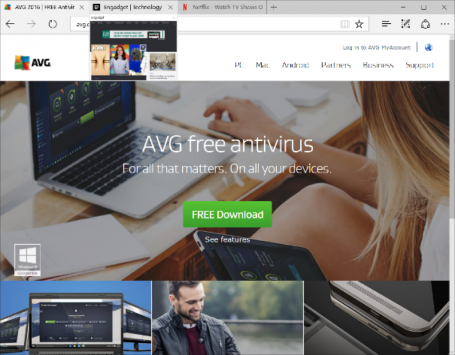
Also new in Edge are Tab previews that give you a peek at websites loaded in the background without you having to look away from your current page.

  1. Battery Saver 2.0

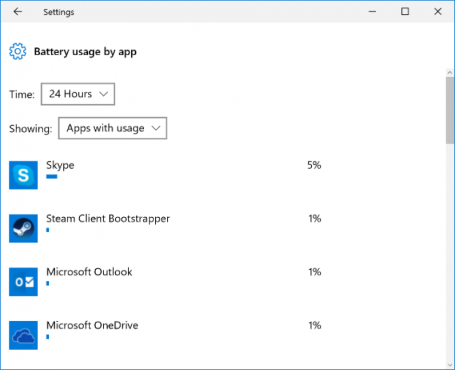
If you’re out and about, the new battery saver in Windows 10 will give you a sneak peek into which apps or traditional Windows programs are draining your battery.
/var/www/now.avg.com/18.46.0/wp content/uploads/2016/06/windows7

To help boost battery life, you can put Windows Apps to sleep using Windows’ own Battery Saver. You’ll find that in the new Windows Settings app under Devices and Battery.  (To get even more life from your battery, we suggest using our own AVG Performance in Economy Mode.)

  1. Smarter Cortana

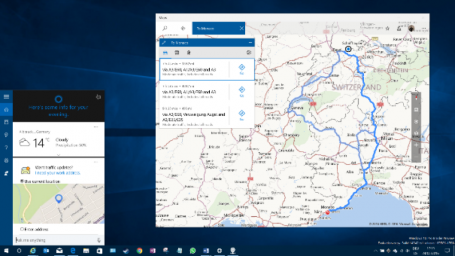
Voice assistant Cortana is getting a major overhaul in Windows 10 Anniversary Update. What was once very limited to local files and online (Bing) search results will now be tied deeply to your default Windows, email, calendar, and Office applications. This will give you more contextual voice commands, such as “Send Joe the Word file I worked on an hour ago”. It will also give software developers the ability to integrate Cortana into their own apps. That would, for example, give you the opportunity to order a pizza via a simple voice command on your PC. Neat. Even in the currently available Windows Insider preview, Cortana works quite well on the desktop. A simple voice command (“Give me directions to Monaco!”) showed me this:
/var/www/now.avg.com/18.46.0/wp content/uploads/2016/06/windows8

In less than a second.

These are my seven highlights for Windows 10. Again, make sure you’re making good use of the free Windows 10 upgrade offer while it’s still available, and have fun checking out the new stuff as it’s rolled out in July or August.

Why It’s Important to Take Your Own Advice

Mark Zuckerberg’s social media accounts on Pinterest and Twitter were hacked by an organization who call themselves OurMine. The hackers cheekily sent Mr. Zuckerberg a message from his account.


Mark Zuckerberg’s social media accounts on Pinterest and Twitter were hacked by an organization calling itself OurMine. The hackers cheekily sent Mr. Zuckerberg a message from his account, saying, “We are just testing your security”.

The hackers reportedly gained access through account details exposed by the LinkedIn data breach in 2012 when over 100 million accounts were compromised.

Two questions immediately spring to mind.  Firstly – why hasn’t he activated stronger login protocol using 2 factor authentication through his mobile phone? And secondly – has Mr. Zuckerberg not changed his password since then?

In 2011, Facebook itself introduced ‘Login Approvals’, so that when you login in from an unknown device, it authenticates you through a text message sent to your mobile phone. The blog post on Facebook’s page that announces the feature states:


“As more individuals and businesses turn to Facebook to share and connect with others, people are looking to take more control over protecting their account from unauthorized access”


You would assume that Mr. Zuckerberg would understand the risks associated with his own social media accounts, having developed a solution for users of his own social media site.

We can all understand that we sometimes use the same password on several sites; we are all guilty of that.  But to not have changed the password on those sites after such a big data breach, such as LinkedIn’s, could be described as naïve – maybe irresponsible.

Let’s not judge too quickly, though, because we have to remember that most celebrities and billionaires don’t Tweet and post content themselves (I do all my own!).  It’s normal to have teams of marketing and public relations people controlling their online presence and identity as part of their overall brand.  These teams likely have access to the same account, maybe using the same login credentials year after year. Securing an account that has shared access requires using Tweetdeck and then every user needs to setup their options authentication. Then each user signs in in with their own twitter account and has access to the shared account, they can manage their own settings and while they can setup 2 factor authentication they also might not and therefore your shared account is as strong as the weakest settings of the shared account users.

There are solutions out there that allow shared access, and Tweetdeck, for example, offers this for Twitter, but it was not released until 2015. The Twitter account of Mr. Zuckerberg has not shown a Tweet since 2012, until it was recently hacked.  An account that is not used to post content is probably not thought to be a risk, which of course is wrong.  And the account may not even be used to consume content.

The moral of the story is that we should:

  • Enable 2 factor authentication, using either the option to validate using a mobile device every time you login or at least to authenticate when a new device is trying to access your account.
  • When there is a data breach that may involve your data, do not sit back and think it will not happen to you, change passwords. If you are using the same password on several accounts, change it on them as well and make them all unique.
  • Delete or suspend inactive accounts that you no longer use; if suspending them, turn on 2 factor authentication so that only you can re-activate them at a later date.

Personally, I use the option to authenticate through my mobile phone.  While this causes some inconvenience when logging in, it does provide me with the confidence that I have the best option to be secure turned on.

Mr. Zuckerberg got lucky this time around as the hackers just wanted the kudos of hacking his account. I can only imagine the chaos this caused his marketing and PR people, running around in panicked circles, vowing to never let this happen ever again.