Category Archives: AVG

AVG

New 2016 AntiVirus and Remote Control Options Available for AVG Managed Workplace

We have seen an incredible excitement in the MSP market surrounding our release of Managed Workplace 10. This month, we have continued this momentum with new security and key enhancements.

Managed Workplace 10 now includes integrated advanced security features from our award-winning AntiVirus 2016 engine, in addition to expanded remote control functions, alerting and customized reporting enhancements.

This is all part of our Managed Workplace Service Pack 1 release, available now.

A few highlights include:

  • Advanced AVG AntiVirus 2016 Engine
    • Advanced heuristics: Through a combination of Artificial Intelligence and advanced algorithms, stops emerging and known threats from ransomware, malware, viruses, spyware, worms, rootkits, and Trojans
    • Cloud-based outbreak detection technology: Helps identify even the newest malware variants in real-time
    • Advanced scanning engine: Scans your systems without impacting the day with boot-time scanning, scheduled and on-demand scans
    • Online shield: Uses cloud-based detection to identify dangerous downloads fast
    • LinkScanner: Assesses web pages in real-time for safe surfing, searching and downloads
    • Identity protection: Shields passwords and credit card numbers from hackers and scammers
    • Email protection: Protects confidential data from latest spam and phishing attacks
    • Firewall protection: Strengthens your perimeter of defense, stops the spread of viruses
  • Enhancements to Premium Remote Control
    • Ad hoc and on-demand sessions: Offers remote support to anyone on the Internet without the need to have Managed Workplace deployed.
    • End-user consent: Respects the privacy of your customers by requesting access to initiate remote control to their devices.

AVG partners are already taking advantage of Service Pack 1.  An AVG channel partner in Ontario, Canada shared his feedback:

  • “Managed Workplace’s integrated AV will allow us to manage threat policies and customize update and scanning schedules while centralizing threat detection into one platform.”
  • “The Enhanced Remote Control feature is a welcome addition to the already fantastic Premium Remote Control client. The ability to prompt users for remote control authorization and provide remote assistance to any user via the on demand feature means we no longer need to purchase and maintain a separate remote control solution for our clients.”

Put the new features to the test today. If you’re new with Managed Workplace, join our Daily Demo by clicking here. As always, please continue to share your feedback.

SPF 50 protection for your tech this summer

Make traveling this summer a cool breeze by preparing your tech gadgets for the trip. A few actions prior to leaving will ensure you can enjoy the hard earned vacation.

If your carry-on luggage is like mine, you have a lot of thing that need connecting to the internet.  Between my wife, son and myself it is not unusual for us to carry 3 laptops, 3 phones, an iPad and a gaming tablet – and that doesn’t even include our wearables!  That’s at least 8 devices I need to think about charging and that’s also the first thing I think about when booking a hotel.  I look for those magic words, “unlimited free WiFi”.

Having a safe vacation isn’t just about going online safely but it’s also about securing your finances and your family’s digital life.  And it doesn’t start when you arrive.  See below for my safety tips from start to finish:

Before you go…

  • If you are traveling abroad be sure to let your bank and credit card company know, they look for fraudulent transactions and if your card is used in a different country then it may get blocked until you confirm its actually you. Avoid this with a proactive phone call before you go.
  • If you are bringing a laptop, consider leaving some data at home by removing sensitive documents. In the event someone steals your laptop, then that’s all they get.  This helps safeguard your identity.  Be sure to back-up your data before you leave for the airport.
  • Secure your mobile devices and laptops with strong passwords and if you have not already set up anti-theft software on your smartphone, then download it and register. AVG AntiVirus for Android has this feature.
  • You can avoid running up significant cell phone bills by disabling data roaming. If you don’t want to disable it completely then at least go through your apps and disable it for the non-critical ones. Games and parking apps don’t need to update themselves when you are on the beach!
  • Be cautious not to advertise the fact that you’re away from home by posting your minute-by-minute location on social media sites. You can switch off location services that might automatically check you in somewhere exotic.
  • If you are going to use public wifi, then consider installing a personal VPN product on the devices that you are going to connect. HMA’s VPN products can be installed several devices with a single subscription and they are part of the AVG family of security and privacy apps.
  • Update your security software and applications, this will ensure the latest security patches are installed and reduce the risk of you getting a malware infection. This is more important when traveling as you may not know which sites are reputable when you land in a foreign

Once you’re there…

The minute the plane lands, the mad rush to switch on the phone begins.  What did you miss while flying?  Probably not much.  Airport, coffee shops and hotels are the destinations of choice for those needing a vital connection. How do I stay safe on public WiFi?

  • The first thing to remember may seem obvious but many people don’t think of it. That’s to take a look behind you. Yes, that person behind you on the plane or in the coffee shop has direct visibility of your screen and if you log-in or make a transaction, they may well be watching.
  • When the list of Public WiFi networks is displayed don’t trust them without asking. Make  sure you connect to an official one rather than a fake one that a cyber-criminal may have set up in order to trick you.  If in doubt, ask the manager at the shop.
  • Use a VPN when connected. This encrypts the connection in case any snoopers are watching the data running on a public network and they won’t be able to see what you are doing. Tools to snoop are readily available and easy to use making this a real threat.
  • When possible, leave transactions to the privacy of your hotel room or if I can wait until you get home – that’s the best option. Booking tickets is one task that will not wait, so use a credit card rather than a debit card.  Credit cards have limits and do not give someone access your bank account.

And possibly the best tip of all – disconnect and enjoy your vacation without the interruptions of technology!  Last year, this was forced upon me when we found that the national park we stayed in had no cell service and the nearest WiFi was 50 miles away. It was frustrating to start with, but great once we got used to it.

Receive BIG savings this summer when you download HMA’s VPN  for a limited time only.

MSPs Share Positive Feedback on AVG Managed Workplace

Monitoring and managing your customers can be challenging as demands increase and environments become more complex. Your tools must present fast and complete information– reducing complexity, not adding to it.

In April, we introduced AVG Managed Workplace 10 – a simplified approach to RMM that enables MSPs to deliver managed services and advanced security in a simplified, scalable and applied way that also meets their own business goals.

Feedback from our AVG partners indicates we’re on the right track – take a look:

“We have used Managed Workplace since 2006; it is our eyes and ears to everything. We looked at Kaseya, LabTech, Microsoft Systems Center – but AVG had the full featured RMM solution and with Managed Workplace 10, keeps improving.” 

“Managed Workplace 10 is helping us reduce our onboarding time. The change to service plans was a big step forward in terms of architecting a managed service offering. We have gained immediate time savings and it’s easier to roll this out for our technicians.”

“The AVG Managed Workplace service templates are a stroke of genius. We literally onboarded a new customer on the first day of the product’s release and applied a monitoring, antivirus and proactive plan for a new customer within 10 minutes.  We removed about five days of technician time thanks to the solution.”

“We can see that AVG Managed Workplace represents a significant improvement. We like the ability to apply a service plan to a site and like the fact that these are customizable.  We also see the ease of use in setting up services and linking these to the service plans and speeding onboarding.” 

“Using AVG Managed Workplace 10, onboarding is a breeze. There are multiple things you need to do when onboarding customers and setting up a site but with AVG Managed Workplace’s service plan model, all the alerting is pre-configured and ready to go. You don’t have to go in and customize each individual client based on the service plan they are part of and you can see quickly how the customer is being supported and the specific environment.”

“During the beta process, AVG really encouraged us to put Managed Workplace through its paces. They gave us a checklist of items to try and it enabled us to experiment with everything – it was a fantastic approach. We upgraded all customers without a hitch.”

We have used different RMM tools in the past but they either had terrible support or too much required maintenance.  AVG has a good balance of necessary information, self-management, and of course, price point. With the new Managed Workplace 10, we were able to easily transition our clients into standardized Service Plans.  It was easy to reassign sites into their proper service plans.  Configuration changes can now be adjusted very easily and only one time!”


Put Managed Workplace to the test today for your business. Join our Daily Demo and experience the simplicity by clicking here.

7 Secrets in the Windows 10 Anniversary Edition

In this blog, we’ll guide you through seven new and hidden things in the upcoming Windows 10 release so you’re fully prepared for what’s about to come to your PC.

The Windows 10 Anniversary Update comes out in July 2016.  This is both good and bad news for you.

Let’s do the bad news first: On July 29th, Windows 10 will no longer be available as a free upgrade. You will only be able to purchase it as a standalone item (or via the purchase of a new PC or laptop). So if you haven’t got it already, you better act quick and make sure you’ve reserved your free upgrade for all your Windows 7 and 8.1 devices.

The good news: Windows 10 Anniversary Update is more than your traditional Service Pack. Its slightly updated look combines more performance tools, bug fixes, and features than any other update that has come before. Free of charge.

In this blog, we’ll guide you through seven new and hidden things in the upcoming Windows 10 release so you’re prepared for what’s coming to your PC. Note that most of this is already visible if you’re running Windows 10 Insider Build.

  1. Restarting The Start Button…again?

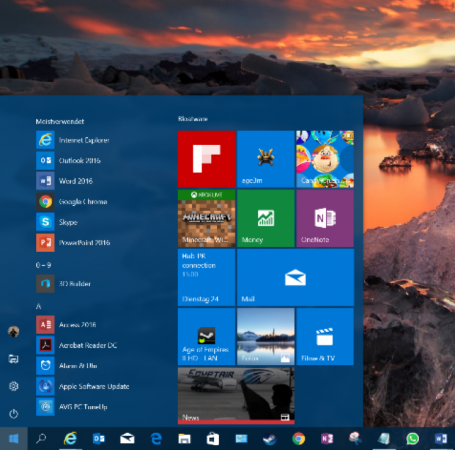
I can still hear the outcries when Microsoft introduced the Start screen in Windows 8, a full-screen cluster of tiles and that infamously removed the classic Start button and menu combination. Sure enough, they backpedaled with their “Big 10” last year and reintroduced the start menu, much to everyone’s satisfaction. But apparently Microsoft still isn’t quite happy with the Start menu, so they’ve been tweaking things.
/var/www/now.avg.com/18.46.0/wp content/uploads/2016/06/windows0

The three entries All Apps, Power, and Settings have now been reduced to icons – that will make it a bit tougher for beginners to find these. But it leaves more space for the list of apps and your tiles. Also new are interactive tiles. For example, the map tile will not just show you information but also let you interact with it. This is nothing revolutionary, but nice tweaks going forward.

  1. Information Overload: The New Notification Center
/var/www/now.avg.com/18.46.0/wp content/uploads/2016/06/windows1

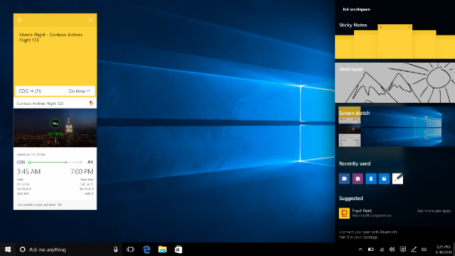
Clicking on the little speech bubble in the lower right corner will reveal a drastically updated notification center, which you can use to pin sticky notes, quickly sketch something, get access to apps you most recently used, and customize quick-action buttons, also in the lower right corner:
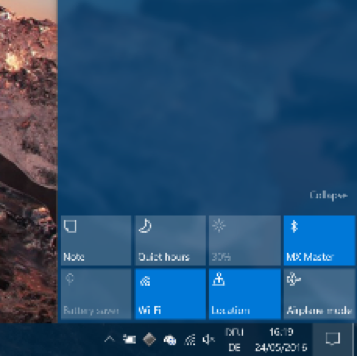
/var/www/now.avg.com/18.46.0/wp content/uploads/2016/06/windows2

Going forward, this area will also link to your phone to display notifications such as incoming text messages that you can reply to from your PC. Microsoft’s new browser (“Edge”) will show notifications, so you can stay up-to-date on news from your favorite websites. Upcoming calendar appointments will also make an appearance to give you a quick-glance look at what’s happening.
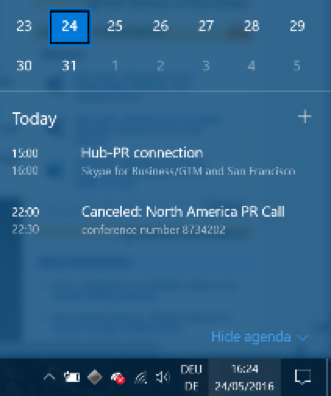
/var/www/now.avg.com/18.46.0/wp content/uploads/2016/06/windows3

  1. Dark Mode

For those dark souls among us: Microsoft has gone “cool”, with a Windows 10 Dark Mode, which “paints” all third-party apps and certain parts of the Windows user interface black. This won’t just look a bit sleeker (to some), but it will also match the color schemes used by many applications (such as our own AVG products or Adobe’s Creative Suite) quite nicely. At the same time, it draws attention to the center of the screen and not Windows itself:
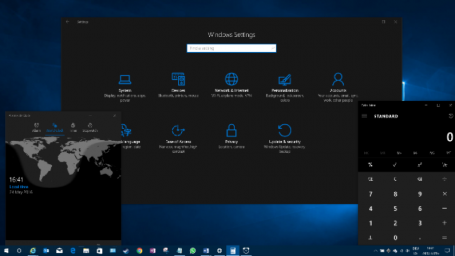
/var/www/now.avg.com/18.46.0/wp content/uploads/2016/06/windows4
Once you have Windows 10 installed, simply head over to the Personalization category in your Windows Settings app and click on Dark!

  1. Linux + Windows = Bash!

For all those (super) tech geeks among you, the new Bash shell integrates a complete Linux command line into Windows. However, it’s not a full blown Linux virtual machine. Rather, it is simply a developer toolset that integrates some useful Linux commands and environments into Windows. All you coders out there using both Windows and Linux developing tools, head on over to Microsoft’s Scott Hanselmann for more information.
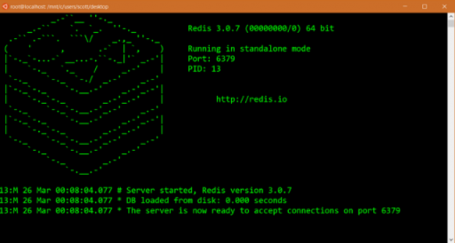
/var/www/now.avg.com/18.46.0/wp content/uploads/2016/06/windows5

(Credit: Microsoft)

  1. On the bleeding Edge

Windows 10’s default browser, Edge, is also getting some welcome improvements that might just make me switch from Chrome or IE. First of all, Edge is being opened to long-awaited plug-ins (extensions), with some software makers getting an (invitation only) head start. Once the Windows 10 Anniversary Update rolls out, we will see what these add-ins are capable of. Many of you can’t live without plug-ins like LastPass in your browser – so it’ll be exciting to see if such plug-ins boost Edge adoption.

Plus, here’s another benefit close to my heart: Edge will pause Adobe Flash content that’s not critical to a website you’re looking at, putting a stop to nonsense advertising or animation that’s slows down your PC’s performance and shortens battery life.
/var/www/now.avg.com/18.46.0/wp content/uploads/2016/06/windows6
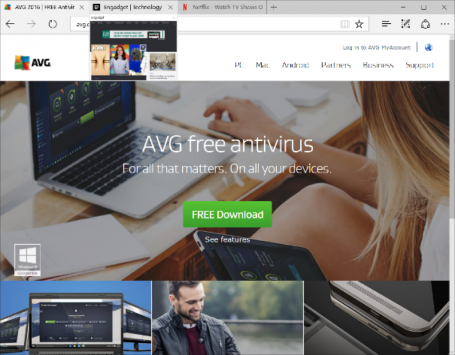
Also new in Edge are Tab previews that give you a peek at websites loaded in the background without you having to look away from your current page.

  1. Battery Saver 2.0

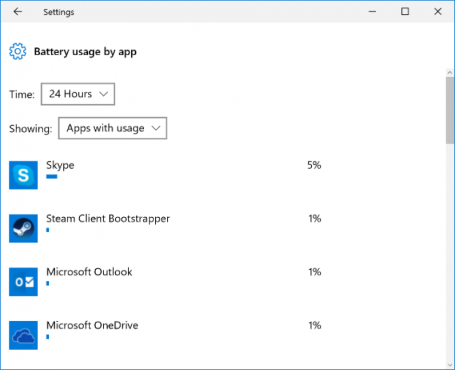
If you’re out and about, the new battery saver in Windows 10 will give you a sneak peek into which apps or traditional Windows programs are draining your battery.
/var/www/now.avg.com/18.46.0/wp content/uploads/2016/06/windows7

To help boost battery life, you can put Windows Apps to sleep using Windows’ own Battery Saver. You’ll find that in the new Windows Settings app under Devices and Battery.  (To get even more life from your battery, we suggest using our own AVG Performance in Economy Mode.)

  1. Smarter Cortana

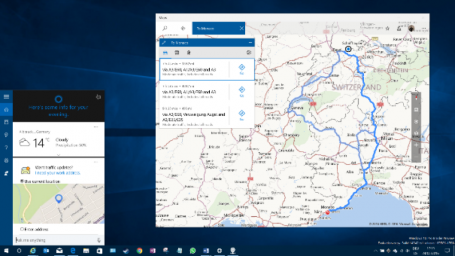
Voice assistant Cortana is getting a major overhaul in Windows 10 Anniversary Update. What was once very limited to local files and online (Bing) search results will now be tied deeply to your default Windows, email, calendar, and Office applications. This will give you more contextual voice commands, such as “Send Joe the Word file I worked on an hour ago”. It will also give software developers the ability to integrate Cortana into their own apps. That would, for example, give you the opportunity to order a pizza via a simple voice command on your PC. Neat. Even in the currently available Windows Insider preview, Cortana works quite well on the desktop. A simple voice command (“Give me directions to Monaco!”) showed me this:
/var/www/now.avg.com/18.46.0/wp content/uploads/2016/06/windows8

In less than a second.

These are my seven highlights for Windows 10. Again, make sure you’re making good use of the free Windows 10 upgrade offer while it’s still available, and have fun checking out the new stuff as it’s rolled out in July or August.

5 Great Ways To Reduce Mobile Data Usage

Most mobile data plans aren’t unlimited: If you’re constantly hitting your provider’s data limit, these insights & tips will help you greatly reduce your 3G/4G traffic usage on the go.
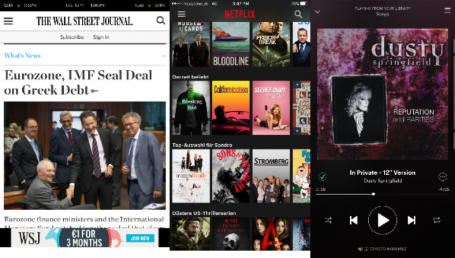
If you’re not on an unlimited 4G data plan, hitting those 500 MB, 1 GB, or 5 GB limits isn’t hard. I did a test with some typical on-the-go tasks to see how much traffic went through the airwaves:
–    60-minute music streaming while driving (high quality, Spotify): 101.2 MB
–    45 Minutes of Netflix at night (HD): 471 MB
–    30 minutes of YouTube during lunch breaks (480p, medium quality): 113 MB
–    15 content heavy websites throughout the day: 27 MB
/var/www/now.avg.com/18.46.0/wp content/uploads/2016/06/avg13 1


All of these seemingly trivial activities amounted to 712 MB. Sure, Netflix isn’t something most people stream every day through their mobile service. But it’s not uncommon to watch a TV show on the train or the bus once in a while. Nor is browsing the web or listening to Spotify.
That’s why hitting the data limit of 1 GB, 2 GB, or 5 GB (depending on your plan) is relatively easy if you’re not on Wi-Fi at work or at home. Once that happens, your provider will likely throttle you back to 1997 web speeds (mostly 64kb/s or a limited EDGE rate).
Here are some things you can do to limit your mobile traffic and understand why you hit that mobile limit.
#1 – Pick the right plan!
As the tech guy among friends and family, one of the most common questions I get is “What plan do I pick? The more expensive Unlimited option at $70? Or the 1 GB for $19 or the 5 GB for $39?”
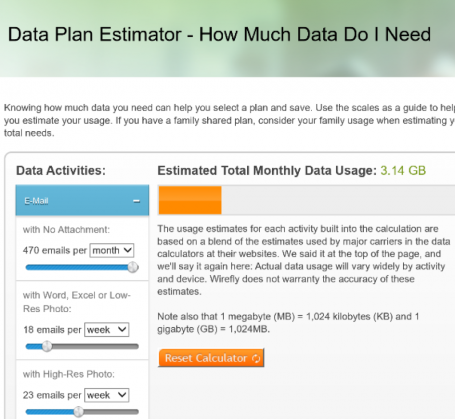
Well, it’s not an easy answer, as it depends on how much you want to do online. My advice is to spend half an hour using a data estimator tool. One example is Wirefly’s Data Plan Estimator: http://www.wirefly.com/content/phone-data-plan-information. There are others out there, but this one does a decent job and is accurate.

/var/www/now.avg.com/18.46.0/wp content/uploads/2016/06/avg18


Pick your plan based on the estimated monthly usage, add another 1-2 GB as a buffer, and you’ll be worry-free.

#2 – Limit your mobile usage and set yourself a warning
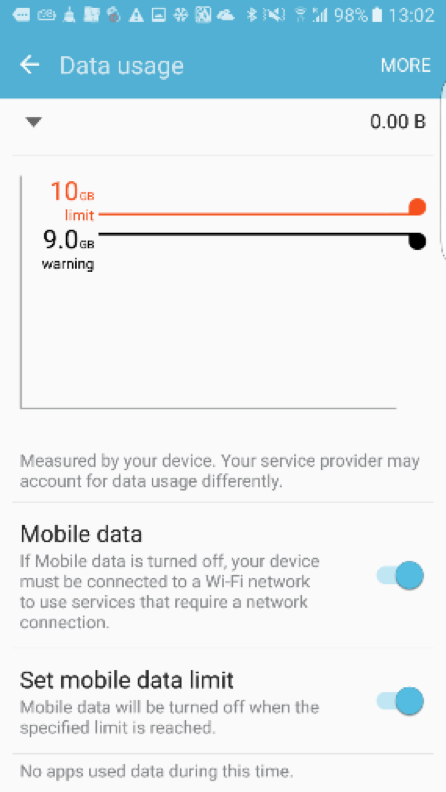
Android devices give you a built-in mechanism that allows you to automatically turn off mobile data when you reach a certain limit. It also gives you a warning once you hit a certain threshold. This is easy to set up. Go into Settings, tap on Data Usage, and move the sliders to your personal limit:

/var/www/now.avg.com/18.46.0/wp content/uploads/2016/06/avg19

Flip the switch under Set mobile data limit.

#3 – Identify & stop the top traffic hogs
If you’re hitting your plan’s limit all too often, it’s high time you check which apps are actually responsible for this unnecessary drain. Some may be obvious and caused by your usage (e.g., if you stream Netflix all night, you will eventually hit the limit); others you may not be aware of.
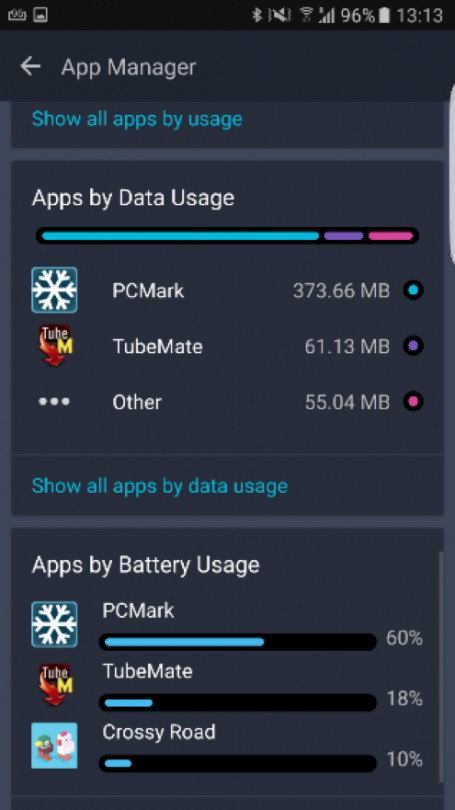
Here’s where our free AVG Cleaner for Android comes in. Download it and let it analyze your apps behavior for a couple of days or a week. The APPS category shows the top Apps by usage; I was very surprised by which apps used up traffic over just two days.


/var/www/now.avg.com/18.46.0/wp content/uploads/2016/06/avg25

Oddly enough, I didn’t play Crossy Roads and I certainly did not download anything from TubeMate. These are the cases where you need to open the app and try to figure out how to stop this secret consumption – or delete the app if you don’t need it anymore!

#4 – Navigate offline
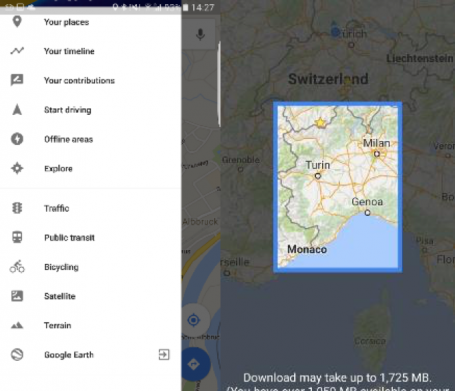
Google Maps is probably my go-to tool to navigate when I’m on the road. Unfortunately, at the end of the day, it’s not surprising to see it consume a couple of hundred megs if you’re using it heavily, as map data can be quite large (see below). Luckily, Google Maps allows you to store map data completely offline, which is not just brilliant for reducing data traffic but also for situations when data navigation is unavailable.
Here’s how easy it works. Launch Google Maps and tap on the little three lines in the top left corner:

/var/www/now.avg.com/18.46.0/wp content/uploads/2016/06/avg27

Tap on Offline Areas, hit the PLUS button and then select the area you’d like to use offline. This includes all POIs, all streets, everything.

#5 – Prevent auto-download of messenger photos & MMS
Using WhatsApp or other instant messaging apps? Well, if you’re like me, you’ll likely get auto-dragged into the oddest group chats and be the victim of countless of animated GIFs, photos, and videos. If you’re on 3G or 4G, turn them off to save some bandwidth.
In fact, we recommend turning off the auto-download feature completely, even on Wi-Fi, as a security measure. If you’re running older versions of Android that haven’t been patched for the Stagefright vulnerability, this auto-downloading feature can put you at risk.
But don’t worry, you won’t miss any messages. Turning these settings off just puts you in charge of deciding what gets downloaded onto your device. Look in the Settings of any messaging app to disable the auto-downloading feature. If your messaging app doesn’t have that control, we suggest getting a new one.

#6 – Use compression in your browser
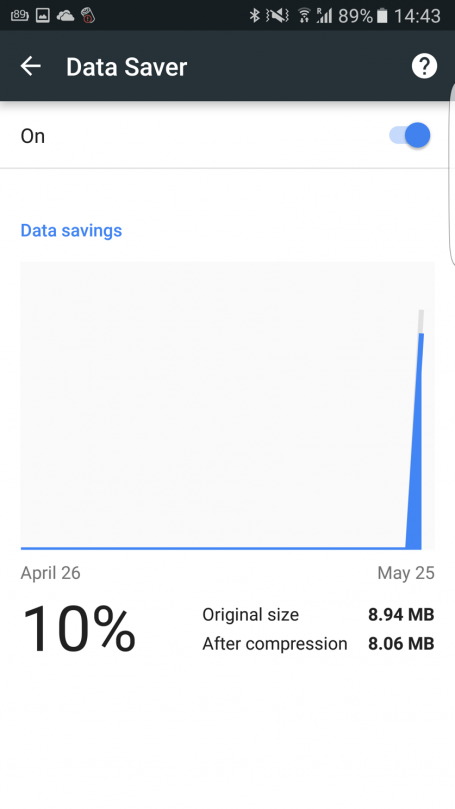
Most mobile browsers, such as Chrome or Opera, now sport compression features. Data will get rerouted through servers (e.g., Google’s), compressed, and then sent to you. You will notice that, for example, photos may look slightly fuzzier as JPGs as they will be compressed just a tad more. To turn it on, open your browser (Chrome in our example), and tap on Settings. Go to Data Saver and switch it on. The graph below shows that a single visit to The Verge that includes browsing a few pages resulted in a 10% data savings. Not bad!

/var/www/now.avg.com/18.46.0/wp content/uploads/2016/06/avg26
There is a dark side to compression you need to be aware of. It also transfers your browsing history to whatever server is doing the compression and also disables any ad blocking.

5 Smartphone Battery Myths Put to The Test

Battery life and proper charging is a science in and of itself, with lots of misinformation out there:  This myth buster helps you treat your smartphone’s battery the right way.

It’s still the number one woe of smartphone users: battery life. Even high-end phones (or laptops for that matter) are still based on technology that hasn’t seen much improvement in decades. That’s why hundreds of articles on “Great Ways To Make Your Battery Live Longer” pepper every corner of the interwebs. But which of the most commonly reported tips are true and which are snake oil?

Let’s find out!

#1 – Completely drain your battery to extend its life

Probably one of the worst battery myths out there applies only if you’re using an 80s or 90s nickel-cadmium battery in your … uhm … 1993 Sony camcorder or Sega GameGear. The ancient rule states that you have to completely drain your battery to 0% before recharging, otherwise the “memory effect” will settle in and reduce your battery life. Well, let’s turn to the truth. Today’s Li-Ion batteries aren’t affected by this rule and don’t “forget” their full capacity just because you plug in your phone at 30%, 50%, or even 97%. If that myth was still true today, both my one-year-old Galaxy S6 and iPhone 6S would probably die in minutes, as I pick them up from their charging cradles about 50 times per day to browse the web, take calls (which can last hours), or watch clips on YouTube.

/var/www/now.avg.com/18.46.0/wp content/uploads/2016/06/avg11

Li-ion batteries do have a fixed set of discharge cycles, usually several thousand, which takes years to hit. Moreover, the cycles work like this: If you discharge your phone to 75% (and charge it back up by 75%) one day and to 25% on the next day, you have completed ONE discharge cycle – not two.

Final verdict: FALSE

#2 – Drain your battery to 0% to calibrate the meter

The myth goes like this: your phone is poor at recognizing the actual charge. So giving it two clear benchmarks of 0% and 100% will ensure your meter is accurate. This is because Li-Ion batteries in your phone and other mobile devices lose a teeny tiny bit of their original charge over time, meaning your operating system isn’t communicating the proper battery charge to you. To make sure it does, you should completely drain your battery and then fully charge it every 2-3 months. The operating system logs this drain and can continue to display the current battery level correctly from 0-100%, even though the actual physical capacity may be reduced to 98%.

/var/www/now.avg.com/18.46.0/wp content/uploads/2016/06/avg12

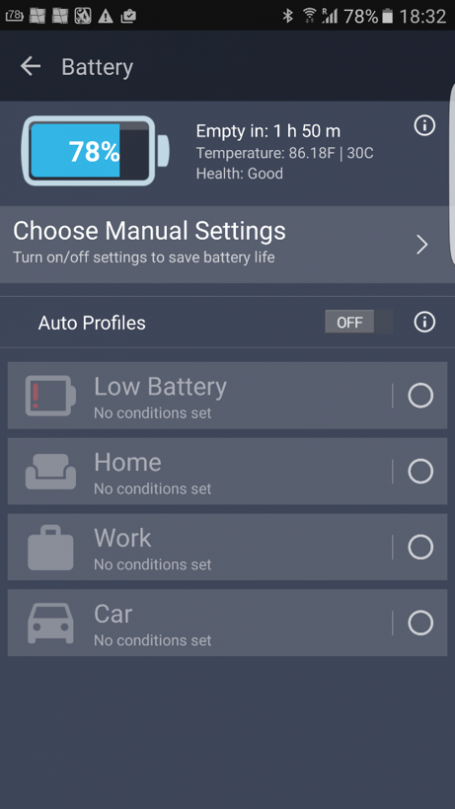
Hint: our free AVG Cleaner for Android also shows the current battery health, as it compares the original charge capacity to the current capacity.

Final verdict: TRUE

#3 – Only use chargers and cables from your phone’s manufacturer…

…or else your phone will melt down!
…or else your phone won’t charge as quickly!
…or else your phone will become sentient and enslave you first and then all humanity next!

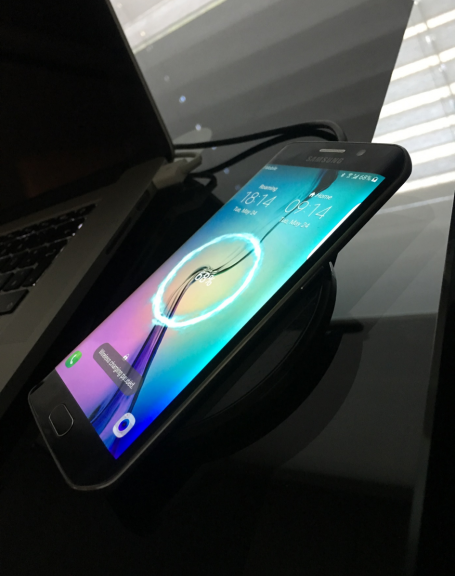
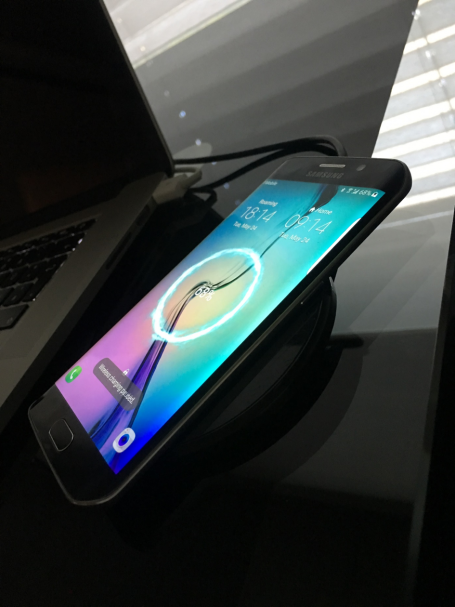
Sigh. I’ve been reading these myths for ages. Some of them were probably started by your handset makers, as they’d rather sell you their (more expensive) cables, chargers, docks, and wireless charging pads. In general, 3rd party chargers are as capable of charging your phone as manufacturer originals. However, don’t be a penny pincher. I can’t count how many $3.99 chargers I’ve bought at airports or random electronic shops in Asia that stopped working after a few weeks. If you want something reliable, go with the original cable that came with your phone or look at Amazon reviews. If a charging cable is made by reputable brand and has hundreds of five-star reviews, it’s probably a safe bet.

One thing to note, though: The new USB-C cables are an odd exception to this rule. There are now multiple implementations between USB-C by OnePlus and the official USB-C specifications. If you use one with the other, you might actually end up damaging your phone’s battery. Have a look at https://plus.google.com/+BensonLeung for reviews and more on the matter.

/var/www/now.avg.com/18.46.0/wp content/uploads/2016/06/avg13
Final verdict: FALSE (unless you’re buying a USB_C cable or a no name one-star review cable from a flea market)

#4 – Unplug your phone at 100%

…or it might overcharge! Or burn up!

A good friend of mine actually unplugged my phone at 100%, claiming it would damage the battery. Even some more reputable tech publications claim this is true. Well, it’s not. Any modern device stops or drastically limits the power flow to your battery once it hits its full capacity and simply powers the device itself. Having said that, I notice that my phone(s) heat up slightly when plugged in, which in turn and over loooong periods of time could arguably have an adverse effect on the hardware. But still, we’re probably talking years until any device fails just because it got a little warmer than usual.

Final verdict: FALSE

#5 – Avoid extreme heat and cold

Speaking of heat, this brings me to another typical battery tip: If you’re using your phone in extreme heat or extreme cold temperatures, it might damage the battery. This one is actually true, as ion flow and chemical stability are affected by severe temperature fluctuations and extremes. Moreover, the speed of the chemical reaction in your Li-ion increases with temperature, creating heat that then further degrades the battery or even damages the phone (luckily, phones have built-in mechanism to prevent this from happening: they shut off).

While excessive cold temperatures usually don’t damage the battery, they can severely reduce your battery life. You might have noticed that your phone dies a lot faster if you’re using it outside in winter time.

Final verdict: True

And here are two bonus myths tested

While not directly tied to the battery itself, many outlets claim that closing apps and turning off features (such as Wi-Fi) prolong battery life. Well, one is true, the other not so much. Closing apps barely has an impact on battery life, as your operating system simply “freezes” apps that aren’t running. Moreover, if you close them, it requires more resources (and thus power) to restart them. However, turning off some hardware features (such as Wi-Fi, Bluetooth, GPS, and 4G) and reducing brightness can noticeably improve battery life.

Final verdict: False (for apps) and True (for hardware feature)

How to Speed Up Boot Time on Your PC or Laptop

No one likes a computer that takes forever to start up. Don’t settle for less when it comes to performance – find out how to improve your boot speed now.

Do you wait ages for your PC or laptop to boot? Then there’s clearly something wrong. We’ll show you the most likely causes and the steps you can take to fix them easily!

Why is your PC slow at startup?
First of all, out of the box, Windows should boot blazingly fast, no matter whether you’re using Windows 7, 8, or 10. It’s what you do with your PC that actually causes it to slow to a crawl over time. The top causes of long boot times include:

  • New drivers. Drivers control devices inside your computer. For example, they’re responsible for making sure that your sound chip plays back your favorite MP3 and that your YouTube clips aren’t just silent movies. If drivers aren’t working properly, they could introduce some serious delays in your PC’s boot time.
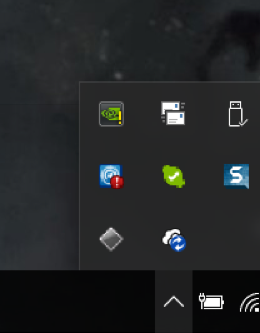
  • Software. The more applications (such as PhotoShop or iTunes) you install, the slower your computer becomes over time. This is caused by 3rd party start-up items or background services that silently launch every time you turn on your computer. Some of these items you can find in your task bar (see below); others are invisible.

/var/www/now.avg.com/18.46.0/wp content/uploads/2016/06/avg2

  • New updates. Many applications check for product updates when you start your PC. Even Microsoft sometimes delivers cumulative updates or even new (Windows 10) builds that can drastically decrease boot time.
  • Malware: Viruses, Trojans, spyware, and other malicious software can make your PC boot up much slower than when you first got it, so make sure you’re running the latest antivirus software.

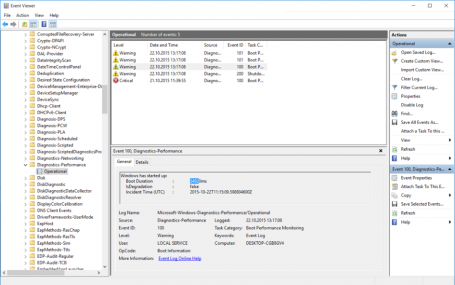
To figure out what’s causing your PC to boot up slowly, use a Windows tool called Event Viewer. It documents all apps that drastically add to your computer’s boot time. You can then turn off the worst offenders using the Windows startup manager or Task Manager.

All these tools are built in. But using them can be a bit complicated, as you’ll need to jump between them to get what you want. It can be far easier to use a more integrated start-up manager, like the one in AVG PC TuneUp , that shows the impact of all automatically running startup apps and allows you to turn off these resource hogs with a simple click. (Yes, this is a shameless product plug; but our engineers put blood and sweat into this – and we want you to know about it and check out the trial version.)

We’ll cover both methods below.
The do-it-yourself approach

For those who want to get their hands dirty with systems admin tools, figuring out how to speed up boot time can be a great way to better know your PC. Basically, you need to:

Identify slow-boot up times
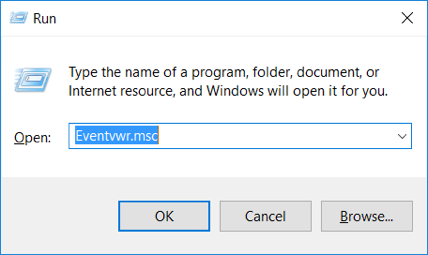
Hold down the WINDOWS key on your keyboard and press R. This will bring up the Run menu:

/var/www/now.avg.com/18.46.0/wp content/uploads/2016/06/avg3

Type in Eventvwr.msc and click OK. Expand the following folders: Applications and Services Logs, Microsoft, Windows, Diagnostics-Performance and Operational.

/var/www/now.avg.com/18.46.0/wp content/uploads/2016/06/avg4

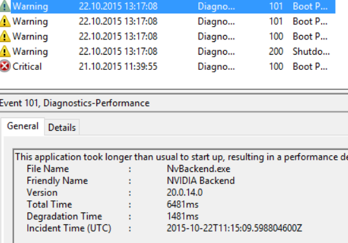
Watch for an event ID called 100. This one shows how long your computer takes to start up. In our example, it is 35 seconds. The 101 IDs then show you which applications slow down your computer. For example:

/var/www/now.avg.com/18.46.0/wp content/uploads/2016/06/avg5

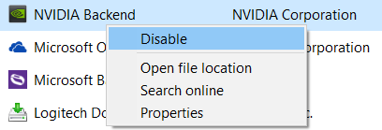
Here we can see that NVIDIA software took 6.5 seconds to load. This is 1.5 seconds longer than on the last boot, so there’s clearly something wrong. NVIDIA drivers just give you access to some advanced graphics options which can be useful for intensive tasks like gaming. In most cases, you won’t need it at startup, so you can safely turn it off by using the built-in startup manager.

To do that, hold down the WINDOWS key and press R again. This time, type in msconfig, hit ENTER, and go to the Startup tab. Now you can uncheck items or, if you’re running Windows 8 or 10, go to Task Manager and right-click on an item to disable it.

/var/www/now.avg.com/18.46.0/wp content/uploads/2016/06/avg7

As you can see here, there may be dozens of entries that you’d have to manually research to determine if they’re important or not.

The automated (and easier) approach

Using Event Viewer and the old-school “msconfig” tool may work, but it’s far from convenient and user friendly. So it takes time. That’s why we built an easier way to turn off slow moving applications when you boot your PC. It is a core part of our AVG PC TuneUp suite (try the trial version and see for yourself).

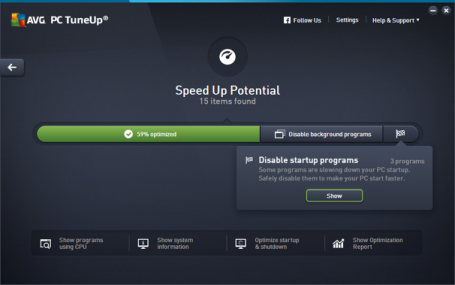
1. Once you’re running AVG PC TuneUp, head over to the Speed Up section and look at the total optimization progress bar.

/var/www/now.avg.com/18.46.0/wp content/uploads/2016/06/avg8

You should see a slice of the bar that says Disable startup programs. Clicking on Show will give you an overview of all startup applications that slow down your computer, including whether they’re actually necessary or optional. Moreover, instead of complicated file names, it shows you full product names, such as Microsoft Office or Skype. It also highlights new applications you may have recently installed.

/var/www/now.avg.com/18.46.0/wp content/uploads/2016/06/avg9

2. Flip off the switches. Easy.

And now some bonus tips

Upgrade to Windows 10

If you’re still running Windows Vista, 7, or 8, we recommend moving to Windows 10. In the new OS has managed to reduce boot times by a few seconds when compared to its predecessors.

/var/www/now.avg.com/18.46.0/wp content/uploads/2016/06/avg10

Install an SSD or move to a laptop with flash storage

If you’re in the market for a new computer, just make sure that it’s got flash-based storage (SSD, solid state drive), and not a traditional mechanical hard disk drive (HDD). Computers with SSD start dramatically faster and retrieve information that is in regular use almost instantly. The difference in boot times between SSDs and traditional hard disks can be night and day; so this is perhaps the biggest thing you can do to reduce your boot time.

These days, price declines mean even some low-end laptops come with an SSD. If you are bold (and tech-savvy), you can also grab an SSD and install it in your PC or laptop yourself. (But that is another post.)

Encryption Apps: Smartphone security is a concern to all

A growing number of apps are popping up promising to encrypt your emails, messages and more. There are several places where encryption can play a role on your smartphone device.

A growing number of apps are popping up promising to encrypt your emails, messages and more. There are several places where encryption can play a role on smartphones – securing voice, messages, chat, emails, files and pictures, basically any file or data in transit.  What are the pros and cons of these new features and apps and how do they work?

Let’s take a look at voice encryption, which I know may sound like something from a spy movie. Voice is complex to encrypt because both of the parties talking to each other on the phone would need to have the same app that offers voice encryption.  Voice encryption apps, like Cellcrypt and Guardlock, require the user to register, add or accept an invite from the other party. This extra step can complicate communication for the average user and their motivation to use it is probably around a “I’ll worry about it later or it’s just not important to me” level.

When it comes to encrypting data, if your phone is secured with a PIN and you have not changed the encryption defaults then your data should be safe. If you’ve been following the developments of the Apple vs FBI case surrounding the data on smartphones, you know that newer smartphones are by default encrypted and that it’s difficult to break. But once the phone is unlocked by the user, they are immediately open and the data is then accessible and potentially at risk from theft if the phone is accessed by a third party, even remotely. Think of it as an encryption layer over your entire house, with the downside being that once you get in through the front door, you can move around relatively easily.

Let’s talk about apps that offer encrypted storage. You drop the files in there and lock it with a pin, much like locking away files in a vault.  The benefit here is that you can make a judgement of what data is sensitive and store it accordingly, in the same way you would with physical documents by placing them in a safe. Examples of apps that do this are Vault-Hide and Vault!.

There are many chat apps that offer encryption in the same way as those encrypting voice encryption– both parties need to have the same app downloaded with a connection to the other person.  This is so that they can send message and files/photos to each other without someone in the middle intercepting them. Some of these also offer the ability to lock the app with a pin, so the beauty of that is even if someone unlocks your phone they are not going to see what you’ve been chatting about in that app.

Beware of apps promising encryption that do not have a pin/password to unlock the app, for the above reason.  If someone can access your phone either physically or remotely while in an unlocked state, then there is potential for them to access the app and see your chat and file transfers. Examples of encrypted chat apps are Whatsapp or Theema; however, Whatsapp does not offer the added protection of a password or pin.

The other place where caution is needed is on WIFI networks at public places such as coffee shops and libraries.  We connect to send and receive data and if we don’t have a VPN installed on the device, then our apps could be sending that private data in plain text to unknown services and would-be thieves.  There are simple and widely available tools that allow for someone to gain access to your data via a public WIFI.  Adding a VPN ensures that when data leaves your device, it’s encrypted and protects all data and app communication, although notes that this protection does not extend to voice. One good VPN to use is Hide My Ass!, part of the AVG family of apps, that obscures your location.

Now, if you want to take the ultimate step towards absolute privacy, you can purchase a Blackphone.  CBS’s 60 Minutes had a good episode that talks about the Blackphone and its ability to do everything I’ve mentioned above.  A “must-have” for anyone wanting to be like a character in a spy movie!

Why It’s Important to Take Your Own Advice

Mark Zuckerberg’s social media accounts on Pinterest and Twitter were hacked by an organization who call themselves OurMine. The hackers cheekily sent Mr. Zuckerberg a message from his account.


Mark Zuckerberg’s social media accounts on Pinterest and Twitter were hacked by an organization calling itself OurMine. The hackers cheekily sent Mr. Zuckerberg a message from his account, saying, “We are just testing your security”.

The hackers reportedly gained access through account details exposed by the LinkedIn data breach in 2012 when over 100 million accounts were compromised.

Two questions immediately spring to mind.  Firstly – why hasn’t he activated stronger login protocol using 2 factor authentication through his mobile phone? And secondly – has Mr. Zuckerberg not changed his password since then?

In 2011, Facebook itself introduced ‘Login Approvals’, so that when you login in from an unknown device, it authenticates you through a text message sent to your mobile phone. The blog post on Facebook’s page that announces the feature states:


“As more individuals and businesses turn to Facebook to share and connect with others, people are looking to take more control over protecting their account from unauthorized access”


You would assume that Mr. Zuckerberg would understand the risks associated with his own social media accounts, having developed a solution for users of his own social media site.

We can all understand that we sometimes use the same password on several sites; we are all guilty of that.  But to not have changed the password on those sites after such a big data breach, such as LinkedIn’s, could be described as naïve – maybe irresponsible.

Let’s not judge too quickly, though, because we have to remember that most celebrities and billionaires don’t Tweet and post content themselves (I do all my own!).  It’s normal to have teams of marketing and public relations people controlling their online presence and identity as part of their overall brand.  These teams likely have access to the same account, maybe using the same login credentials year after year. Securing an account that has shared access requires using Tweetdeck and then every user needs to setup their options authentication. Then each user signs in in with their own twitter account and has access to the shared account, they can manage their own settings and while they can setup 2 factor authentication they also might not and therefore your shared account is as strong as the weakest settings of the shared account users.

There are solutions out there that allow shared access, and Tweetdeck, for example, offers this for Twitter, but it was not released until 2015. The Twitter account of Mr. Zuckerberg has not shown a Tweet since 2012, until it was recently hacked.  An account that is not used to post content is probably not thought to be a risk, which of course is wrong.  And the account may not even be used to consume content.

The moral of the story is that we should:

  • Enable 2 factor authentication, using either the option to validate using a mobile device every time you login or at least to authenticate when a new device is trying to access your account.
  • When there is a data breach that may involve your data, do not sit back and think it will not happen to you, change passwords. If you are using the same password on several accounts, change it on them as well and make them all unique.
  • Delete or suspend inactive accounts that you no longer use; if suspending them, turn on 2 factor authentication so that only you can re-activate them at a later date.

Personally, I use the option to authenticate through my mobile phone.  While this causes some inconvenience when logging in, it does provide me with the confidence that I have the best option to be secure turned on.

Mr. Zuckerberg got lucky this time around as the hackers just wanted the kudos of hacking his account. I can only imagine the chaos this caused his marketing and PR people, running around in panicked circles, vowing to never let this happen ever again.

Big data: the battle between privacy, ethics and innovation

Recently, the University of Amsterdam organized a seminar about big data, privacy and ethics during the World Championship Econometrics. Yet these three, different notions seem to be each other’s enemies: how do you combine privacy and ethics with the massive collection of personal data?

How do you deal with the fact that big data is often used to find new correlations between different datasets and therefore might lead to unexpected use of the data, while privacy laws oblige you to be clear from the start about the purposes for which you want to use certain data? How do you deal with the legal privacy principle of data minimization (do not collect more than you need) while the real value of using big data analytics lies within the fact that you collect a huge amount of data in which you try to find small correlations? Inevitably, not all collected data will turn out to be relevant…

Compatible or not: it is clear that big data is here to stay: in our data driven society, the use of analytics helps us to innovate and to deliver new more tailored products and services. Timothy Prescott, previously involved in the Obama campaign in 2007 and 2012 and a panelist in Amsterdam, provided great insight in how elections can be influenced by using big data analytics. As soon as personal data are involved, the question is whether the price that needs to be paid for innovation isn’t too high.

During the discussion, the audience kept asking for more laws. We do however already have strict data protection laws in Europe. These laws will become even stricter with the upcoming entry into force of the General Data Protection Regulation, which will apply to all companies operating in the EU and is therefore expected to have a spill-over effect in other jurisdictions.

The European Commission recently published a factsheet on big data and the GDPR. The GDPR is seen as an enabler for big data services in Europe: enhancing legal certainty and a high level of data protection will in the view of the Commission create consumer trust and thereby economic growth. What’s missing is the discussion on how to deal with the essentials like data minimization and purpose limitations.

One of the solutions often mentioned is to anonymize the data: when the data are no longer considered to be personal data, the restrictions of the privacy legislation will no longer apply. However, true anonymization is difficult. Therefore, agreement on the level of anonymization that would be acceptable in order to ‘escape’ from the restrictions while taking the fundamental rights of all persons from whom the data are collected into account, should be reached.

Nevertheless, privacy is not the only concern. There is also a risk of discrimination, profiling, exclusion and loss of control, which risks were also addressed in two recent White House reports. It should be kept in mind that algorithmic systems used for big data analytics are not infallible: if you put incorrect information, non-objective information in, you cannot expect correct, objective results to come out. On the other hand, analytics can also be used to detect bias and prevent discrimination.

It will therefore be important to start discussions on how we use it in a way that respects civil rights but does not prevent innovation. This discussion should not be limited to the legal domain; what’s legally allowed might from an ethical perspective or in society not be perceived as socially desirable. The guidance and reports from the European Commission and the White House do offer a great starting point to have more extensive discussions on the risks but certainly also the opportunities involved in big data analytics. The best is therefore yet to come!