
Tag Archives: Security

Are you as smart as your smartphone?

Smart phone

How do I find my apps on this thing?

Not too many years ago we had phones that only made calls. Smartphones are the newest generation of phones that bring a lot of possibilities right to our fingers through the apps specifically designed for them. We all got used to the Windows (or Mac) world, but now we are witnessing a revolution from “standard” programs and some specialized tools to a world where every common thing can be done by our smartphones. Sometimes it seems, that the device is smarter than we are!

But can it protect itself from the increasing number of threats?

You’ll find a lot of articles on the Internet which state that security companies exaggerate the need for mobile security and antivirus protection. You’ll read that Google Play and the new security technologies of Android Lollipop are the only things necessary for security. I could post many examples of such (bad) tips, but I don’t want to waste your time or mine.

Do you use only Google Play as your app source?

A common (and wise) security tip is to stick with Google Play for downloading apps. This is good advice despite the fact that we see here in the Avast blog that Google Play fails to detect some apps as malware. Look for our mobile malware senior virus analyst Filip Chytry’s articles. He continuously discovers holes in Google Play security.

However, what if you want apps that have been banned from Google Play? No, I’m not talking about (just) adult apps. Google banned anti-ad apps, for instance. So where is a safe place to get them? The answer is simple: outside of Google Play. The Amazon Appstore for Android is quickly increasing the possibilities.

Do you think that clean apps can’t become bad ones?

Clean apps can become bad ones, and with the new Google Play permission scheme, you may not even notice. This makes updating your apps (another very common and wise hint) an additional complication.

As the apps we love can turn against us, the best tip of all is that you install a mobile security app that helps you know what it being added to your phone.  Avast Mobile Security updates its virus database very often to detect the latest threats and allows you to install securely all the apps you love.

This makes you smarter than your smartphone! ;-)


Business owners rejoice – you can now get business-grade security for free from Avast

Avast is pleased to offer the World’s First Free Business-Grade Security to small and medium-sized businesses.

Avast for Business protects SMBs for free

In a move that will make a difference to the security of local businesses across the USA and the UK, Avast launches Avast for Business—a free, easy to use, cloud-managed security offering that protects small to medium-sized businesses (SMBs) from viruses and cyber attacks.

This is the first free information security product built specifically for businesses with cross-platform protection, meaning that it protects both PCs and Macs. It solves a problem that many businesses have: No IT staff, lean IT budgets, lack of know-how, or even any security at all.

“Since 2001 we’ve delivered great, free security products for home users,” said Vince Steckler, Chief Executive Officer of Avast. “We believe the time is right to provide great security that is not only free, but also simple for SMBs to implement and manage. A small business may not view their customer database or online orders at the same level as data of an enterprise. Avast for Business addresses the problem of those businesses using consumer products and not being adequately protected; it gives those enterprises a business-class solution they can grow with.”

Avast for Business is easy for SMB owners to install, configure and manage advanced security solutions with or without the help of a full-time IT manager. Users are able to effortlessly monitor, manage and protect devices anywhere, anytime from Avast’s cloud-management console.

“Anybody can use the interface,” said Kyle Barker of Championship Networks, an Avast partner in North Carolina, USA. “If you’ve ever seen a simple installment of Avast, you’ve seen the interface, you know the controls. Anybody that ever used the small office console already knows every feature that’s in this product. It’s a simple transition.”

From the easy-to-navigate console, users have the ability to configure robust reporting and alerting to easily stay on top of what is happening inside of their environment. Avast for Business features include:

  • Free Essential Antivirus protection (File Shield, Web Shield, Mail Shield)
  • HTTP and HTTPS Threat Scanning & Integrated Browser Protection
  • A Web-based management console that is accessible anywhere, anytime.
  • Robust reporting and alerting engine
  • Cross-Platform Support including Windows and Mac OSX.

For advanced security requirements, Avast for Business also offers premium services. There are no limits on the number of protected devices, and businesses can activate and deactivate licenses as needed. This allows them to grow comfortably without the concern of overwhelming costs.

“It’s very easy to choose on a month to month basis the number of licenses you want. Any number of licenses can be mixed from free and premium and you can change this on a month to month basis,” said Barker.

Later in 2015, Avast will introduce programs for managed service providers and the reseller channel, to benefit from the power of free. In the spring, Avast will form its first ever partner advisory council in order to bring partners closer to Avast, to discuss features and functions specific to their needs.

Is logging into your smartphone, websites, or apps with a fingerprint secure?

Fingerprint authentication

Fingerprint authentication is not as safe as you would think

Just because logging in with you finger is convenient doesn’t mean it’s the best method to use.

Some days ago we told you about increasing your security on sites and in services by using two-factor authentication. More and more services are using this two-factor log in method. They require that you use “something you know” like a PIN or a password, “something you have” like a token app in your smartphone, and even “something you are” like your fingerprints, for instance.

Many top smartphones – starting with iPhone 5s and newer Androids – are moving to fingerprint authentication technology. That means you can unlock your phone using your finger. It’s more convenient than typing a PIN or password because you always have your finger with you (we hope!).  And you would think that it is more secure than using a gesture or pattern to unlock it.

Unfortunately, it’s not. Here’s why:

The authentication process requires that a site or a service (or your smartphone) could recognize you for a thing you know: A PIN or a password. This information must be stored in the service server (or hardware) and it must be matched, i.e., the combination of two pieces (generally username and password) must match to allow access to the right person.

Both you and the service must know this secret combination. But that’s the problem; nowadays, a lot of sites and services have been compromised and pairs of username/passwords have been hacked and sold on the black market.

But what about using your fingerprint? It’s the same scenario.  The information about your finger and the technology to match your fingerprint is stored in servers. If they are hacked, your exact, and only, information would be in their hands.

It gets worse.

You can change your credentials to log into a site or service, but you can’t just change your finger! Well, most of us have 9 more chances after the first one is compromised, but still –  there are more than just 10 services you want to use. You can change your passwords indefinitely, you can use a stronger password, you can use a password generation service –  you’ve got the idea… But you don’t have that many choices with your fingerprint.

It gets even worse.

Everything you touch reveals you. You’re publishing your own secret.

Can you imagine banks or stores letting you use your fingerprint to gain access to your account without even a card? Coincidentally, just hours ago a news report was published saying the Royal Bank of Scotland and MasterCard recently made announcements regarding fingerprint authentication services. They announced that customers can log into the banks’ mobile banking app using their fingerprint. It’s interesting that this article says 16- to 24- years olds are driving this decision because

they want to avoid security slowing down the process of making a payment, with 64% of those surveyed saying they found existing security irritating.

This decision by major banks does not give us confidence in the security of the younger generation and their bank accounts. We venture to wonder about the police with their databases full of prints. What could be done with millions of fingerprints stored by the government?

By the end of last year, young researchers from the Chaos Computer Club showed that your fingerprints could be obtained by photos of your hands and from anything you touched. See the full presentation in this YouTube video. If you have the curiosity to see all the video, you’ll see that using your iris could also be simulated with high quality printed photos. At 30:40 starts the iPhone fingerprint hacking. They took 2 days to develop the method and presented it in a few minutes. Amazing and scary.

Here’s another video with a quick summary of the research.

How to make yourself and your phone more secure

This blog is a source of great information. Earlier this month, we shared 14 easy things you can do right now to make your devices more secure. Please read 14 easy tips to protect your smartphones and tablets – Part I and Part II.

As always, make sure your Android device is protected with Avast Mobile Security. Install Avast Mobile Security and Antivirus from the Google Play store, https://play.google.com/store/apps/details?id=com.Avast.android.mobilesecurity

14 easy tips to protect your smartphones and tablets – Part II

More easy things you can do to secure your smartphone and tablet.

On our blog last week, we shared the first 7 easy security measures to protect your Android devices and the data stored there. But we haven’t finished them. Let’s go a little further.

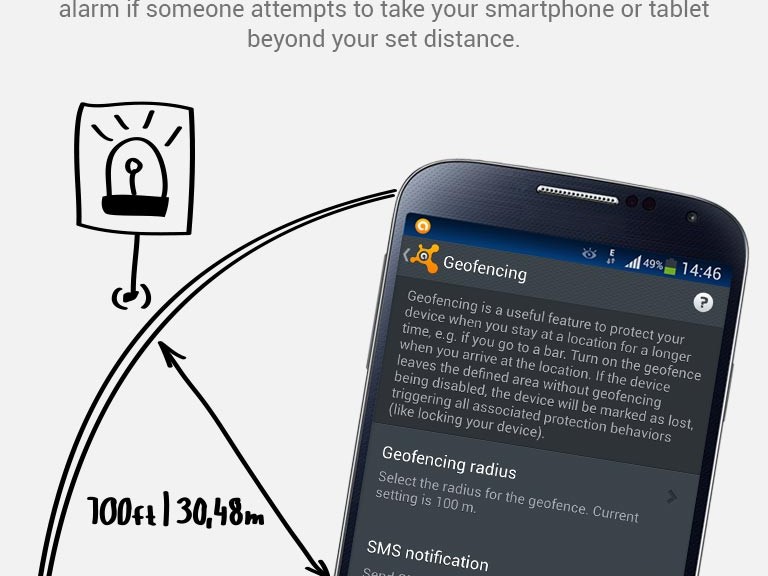
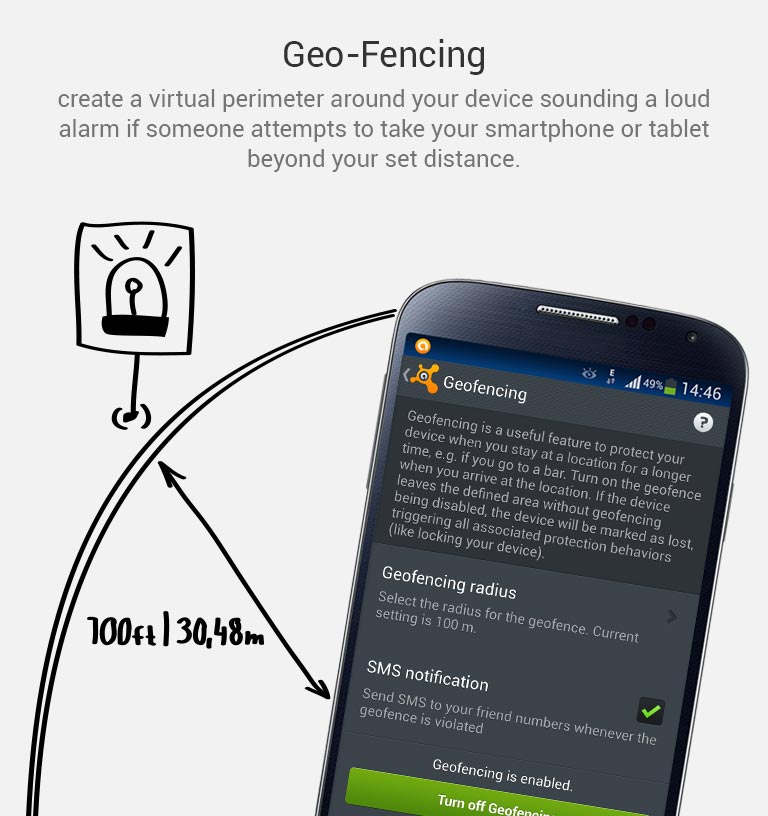
8. Keep an eye in your phone or, if you can, set Geofencing protection

Don’t put your phone down and go somewhere else. And if you’re having fun in a bar and drinking a beer with friends, have a lucid thought before starting: Turn the Avast Geofencing module on. It’s easy. Open Avast Premium Mobile Security > Anti-Theft > Advanced Settings > Geofencing.

avast-Mobile-Premium_geo-fencing

Set Avast Geofencing on your phone to protect it from theft while you are occupied.


9. Be aware of what permissions apps require

Why should a flashlight app need access to your contacts? Why would a calculator need access to your photos and videos? Shady apps will try to upload your address book and your location to advertising servers or could send premium SMS that will cost you money. You need to pay attention before installing or, at least, uninstall problematic apps. It’s not easy to find a way (if any) to manage permissions in a non-rooted Android phone.

We have written about this before as apps could abuse the permissions requests not only while installing but also on updating. Read more to learn and be cautious: Google Play Store changes opens door to cybercrooks.

10. Keep your device up-to-date

Google can release security updates using their services running in your devices. Developers can do the same via an app update. Allow updates to prevent vulnerabilities, the same as you do in your computer. But pay attention to any changes. See tip #9.

11. Encryption

You can encrypt your account, settings, apps and their data, media and other files. Android allows this in its Security settings. Without your lockscreen PIN, password or gesture, nobody will be able to decrypt your data. So, don’t forget your PIN! Nevertheless, this won’t encrypt the data sent or received by your phone. Read the next tip for that.

12. In open/public Wi-Fi, use a VPN to protect your communication

Cybercrooks can have access to all your data in a public, open or free Wi-Fi hotspot at the airport or in a cafe. Avast gives you the ability to protect all inbound and outbound data of your devices with a secure, encrypted and easy-to-use VPN called Avast SecureLine. Learn more about it here.

13. Set the extra features of Lollipop (Android 5)

If you’re with Android Lollipop (v5), you can set a user profile to allow multiple users of the same device. You can create a restricted user profile that will keep your apps from being messed with by your kids or your spouse.

You can also pin the screen and allow other users to only see that particular screen and nothing more. It will prevent your friends and coworkers from accidentally (or on purpose) looking into your device.

14. Backup. Backup. Backup.

Well, our last tip is common digital sense. If everything fails, have a Plan B, and C and D… With Avast Mobile Backup you can protect all your data: contacts, call logs, messages, all your media files (photos, musics and videos) and your apps (with their data if you’re rooted) in safe servers. If your device gets broken, lost or stolen, everything will be there, encrypted and safe, for you to restore to your new device.

Have you followed all our tips? Are you feeling safe? Do you have an extra protection or privacy tip? Please, leave a comment below.

Anthem ‘Medical’ Hack – What should you do?

Anthem Blue Cross Blue Shield, a medical insurance provider in the US, was subject to serious data breach that included personal information of its members past and present.

The data stolen includes names, birthdays, medical IDs/social security numbers, street address, email addresses and employment information including income data.

The type of data that has been reported to have been stolen means that this breach is potentially much more serious than most of the large data breaches we saw last year. These hacks were primarily of credit card and transaction data.

Generally, when credit card account details are taken, victims can limit the damage by stopping their card and changing their password. Credit card companies will also cover most of the liability.

The difference with this theft though is that stolen data is a lot more difficult to track than a simple financial transaction. Social security and insurance information can be used for anything from a false insurance claim to collecting prescription drugs.

If you think that this data breach may affect you then you should carefully check your next health insurance bill. Be sure to check that all the claims are indeed yours and dispute things that seem strange.

It’s important to catch the misuse of your insurance quickly before medical debt notices are issued because of unpaid bills. That could lead to credit rating issues or in the worst case, you could be refused insurance due to a condition that you don’t actually suffer from.

As a precaution here some other actions you should take, not forgetting the above one of checking medical statements:

  1. Ensure your online accounts are not using the same email password combination that you may have had stored with Anthem; change any that are the same as your Anthem details.
  2. Keep a close watch on your credit reports. This will help you identify if someone is using your identity to take a line of credit in your name. Most credit scoring agencies allow you to run a report for free at least once.
  3. Spammers may send emails that look like they are coming from Anthem. Make sure to carefully scrutinize these emails – don’t click on links that look suspicious – and if in doubt contact Anthem to ensure it’s an official communication.
  4. Moving forward, avoid using the same email address or identity across multiple online accounts. For example, have a primarily email address used for recovery of forgotten passwords and account information. Have a secondary email address for offline and online retail transactions. Have a third for financial accounts and sensitive information.

Follow me on twitter @tonyatavg

Life-cycle of a Security Vulnerability

Security vulnerabilities, like most things, go through a life cycle from discovery to installation of a fix on an affected system. Red Hat devotes many hours a day to combing through code, researching vulnerabilities, working with the community, and testing fixes–often before customers even know a problem exists.

Discovery

When a vulnerability is discovered, Red Hat engineers go to work verifying the vulnerability and rating it to determine it’s overall impact to a system. This is a most important step as mis-identifying the risk could lead to a partial fix and leave systems vulnerable to a variation of the original problem. This also allows prioritization of fixes so that those issues with the greatest risk to customers are handled first and issues of low or minimal risk are not passed on to customers who also need to invest time in validating new packages for their environment.

Research

Many times a vulnerability is discovered outside of Red Hat’s domain. This means that the vulnerability must be researched and reproduced in-house to fully understand the risk involved. Sometimes reproducing a vulnerability leads to discovering other vulnerabilities which need fixes or re-engineering.

Notification

When a vulnerability has been discovered, Red Hat works with upstream developers to develop and ship a patch that fixes the problem. A CVE assignment will be made that records the vulnerability and links the problem with the fix among all applicable implementations. Sometimes the vulnerability is embedded in other software and that host software would acquire the CVE. This CVE is also used by other vendors or projects that ship the same package with the same code—CVEs assigned to software Red Hat ships are not necessarily Red Hat specific.

Patch development

One of the most difficult parts of the process is the development of the fix. This fix must remedy the vulnerability completely while not introducing any other problems along the way. Red Hat reviews all patches to verify it fixes the underlying vulnerability while also checking for regressions. Sometimes Red Hat must come up with our own patches to fix a vulnerability. When this happens, we fix not only our shipped software, but also provide this fix back upstream for possible inclusion into the master software repository. In other cases, the upstream patch is not applicable because the version of the software we ship is older, and in these cases Red Hat has to backport the patch to the version we do ship. This allows us to minimize any changes exclusively to those required to fix the flaw without introducing and possible regressions or API/ABI changes that could have an impact on our customers.

Quality assurance

As important as patch development, Red Hat’s QE teams validate the vulnerability fix and also check for regressions. This step can take a significant amount of time and effort depending on the package, but any potential delays introduced due to the quality assurance effort is worth it as it significantly reduces any possible risk that the security fix may be incomplete or introduces other regressions or incompatibilities. Red Hat takes the delivery of security fixes seriously and we want to ensure that we get it right the first time as the overhead of re-delivering a fix, not to mention the additional effort by customers to re-validate a secondary fix, can be costly.

Documentation

To make understanding flaws easier, Red Hat spends time to document what the flaw is and what it can do. This documentation is used to describe flaws in the errata that is released and in our public CVE pages. Having descriptions of issues that are easier to understand than developer comments in patches is important to customers who want to know what the flaw is and what it can do. This allows customers to properly assess the impact of the issue to their own environment. A single flaw may have much different exposure and impact to different customers and different environments, and properly-described issues allow customers to make appropriate decisions on how, when, and if the fix will be deployed in their own environment.

Patch shipment

Once a fix has made it through the engineering and verification processes, it is time to send it to the customers. At the same time the fixes are made available in the repositories, a Red Hat Security Advisory (RHSA) is published and customers are notified using the rhsa-announce list. The RHSA will provide information on the vulnerability and will point to errata that more thoroughly explain the fix.

Customers will begin to see updates available on their system almost immediately.

Follow-on support

Sometimes questions arise when security vulnerabilities are made public. Red Hat customers have access to our technical support team that help support all Red Hat products. Not only can they answer questions, but they can also help customers apply fixes.

Conclusion

Handling security issues properly is a complex process that involves a number of people and steps. Ensuring these steps are dealt with correctly and all issues are properly prioritized is one of the things Red Hat provides with each subscription. The level of expertise required to properly handle security issues can be quite high. Red Hat has a team of talented individuals who worry about these things so you don’t have to.

Passwords aren’t enough for small business security

From Target to Sony Pictures, security breaches at businesses of all sizes were in the headlines throughout 2014. We are only in February but the data breach stories show no sign of abating.

Whether it’s a specific hacking attack on a British shoe retailer or hacktivism at companies with millions of online members, the loss or compromise of passwords is frequently a common factor.

Ever since they emerged in the late ‘90s, passwords have been our primary security measure. Fast forward to today and we often find that employees are still routinely using the same style of basic password  – except now these passwords are required to protect smartphones and tablets  carrying sensitive company-related data, as well as social media and cloud-based applications used regularly in the workplace.

It’s clear that conventional password use is no longer fit for 21st century purpose and businesses must adopt additional measures to ensure their passwords are up to the task.

Extra levels of authentication are needed to verify the identity of employees using their passwords, and businesses should start to enforce these as standard within their organization especially if they have in place bring your own device (BYOD) policies.

AVG has created this short eBook to help you develop a BYOD policy that fits your business:

 
In my view, many of the user identity breaches reported in the news could have been prevented with better password practices and stronger, multi-factor authentication methods.
 

Five top tips for more effective password management in 2015:


  1. Make sure security measures include formal staff training on password best practice. Passwords need to be strong, long and as secure as possible – complicate them by using “passphrases” rather than individual words – e.g. rather than “spotthedog” use “5p0tth360g”
  2. There is no harm in turning on “two-step authentication”. Most services are offering this now and is a simple code based system that send you a numeric password by SMS/Text to secure you login credentials
  3. Create a single profile for all corporate log-ins, with segmented privileges for individual employees within the same profile. This way, when someone leaves the company, they can be removed automatically.
  4. Some mobile phones now provide both identity and access management capabilities. Encourage employees to adopt these and incorporate them as part of your BYOD policy.
  5. To aid productivity, make it easier for employees to work anywhere, anytime with mobile technology by moving to a single sign-on environment where every employee has one-click to access to a secure area in the cloud containing all of their work accounts and applications.


This constant flow of data breach stories in the media has done much to raise awareness of the issues around passwords. Education is positive, of course, but action must be taken to foil the hackers.

If your business is supported by a mobile workforce equipped with either work or personal devices which provide ready access to company-sensitive systems and information, ask yourself that important question: what password practices do I need to implement to keep those devices and that data secure?

Don’t take it for granted that your people have the knowledge to handle this themselves. Instead make sure you equip them to help protect your company.

14 easy tips to protect your smartphones and tablets – Part I

A few precautions can make a huge difference in the safety of your phone and the important things you saved on it.

Protect your smartphone

Follow our tips to secure your phone and the data on it.

We talk a lot about protection and privacy here in our blog. It’s a bit obvious as our “life” is in our devices nowadays: Photos of our last trip or our loved ones, videos of our children playing and growing up, contacts both professional and personal. All our precious and irreplaceable data is stored in these little machines. Take a minute of your time and follow us in this easy tour to protect them and save a lot of time and headaches.

1. Set your lockscreen

You wouldn’t leave your home door unlocked, would you? Same goes for your phone with all your private data. Set a password or PIN to prevent direct and easy access to your phone. Gestures and face recognition are less secure, but are better than nothing.

2. Hide your passwords from nosy people

You will argue that people around you can look over your shoulder and see what PIN or password you’re typing or gesture you make. Generally, we’re not worried about trustworthy people around us, but what about strangers in a public place like a bus or train? Open your phone settings and hide your passwords by unchecking the option: Settings > Security > Make passwords visible.

3. Protect your apps with a PIN

Not all apps are equal when it comes to security and privacy. Probably the weather app or calculator won’t keep your personal info. However, your messages and banking apps will thank you if you help them to keep their data private. You can imagine what might happen if your kids to open a specific app while they’re playing in your devices. Use Avast Mobile Security to set a PIN to block access to your apps. As an extra security measure, it will be good that your lockscreen and Avast PINs are different ones.

4. Disable installation of apps from unknown sources

If you do not use other app stores besides Google Play, then uncheck the option “Unknown sources” in your phone’s Security Settings page.  Even the Google Play Store sometimes allows malware to get by. It’s well known that most Android malware are fake apps disguised as legitimate apps, so double check the publisher. Be cautious of downloading from fake sites disguised as official ones – check the URL. Avoid completely pirated and cracked sources.

5. Set Avast Mobile Security to scan any app before installing

If you really need to use legal third party stores, like Amazon or F-Droid, please be careful: Keep Avast Mobile Security always on. You know that Avast scans any installed and running app. But do you know that you can set it to scan any app that is about to be installed? After you’ve installed Avast, when you’re about to install a new app, the phone will ask you if you want Avast or the default installer to handle the installation by default. Use Avast, it will scan and then release the app to the default installation process.

6. Disable USB Debugging

This tip is for advanced users. If you have enabled Developer options into your device (and you will know exactly if you did as you’re an advanced user!), please, turn USB debugging off. You will protect your device from outside abuse (via adb connections) if you do so. You don’t need it to be on all the time.

7. Install and set Avast Anti-Theft

This is an old tip, but it’s so important that it should be on all smartphone safety tips lists. Just note that installing is not enough. You need to properly configure Avast Anti-Theft (don’t worry, there is an easy wizard for it) step-by-step. It’s good to check if your location services are properly set also, otherwise, it will be difficult to track it. In other words, go to Settings > Location Access and set High accuracy mode.

We’ll talk about the other 7 tips in next days, so come back to the Avast blog.